



Running a WooCommerce store often means working with multiple tools beyond WordPress. You might need to connect your store with a mobile app, a CRM, a shipping service, or an inventory system. Managing these connections manually can be time-consuming and prone to errors.
That’s why learning how to set up API integration for a WooCommerce store becomes important as your business grows.
The WooCommerce API lets your store share data with other systems in a secure and reliable way. It helps automate everyday tasks, keep data in sync, and create workflows that match how your store actually operates.
In this guide, you’ll learn what the WooCommerce API is, how it works, and how to use it in real store scenarios.
What Is the WooCommerce API?
The WooCommerce API is a REST-based interface that lets external applications communicate with your WooCommerce store. It provides access to key store data such as products, orders, customers, coupons, and shipping details.
Instead of directly accessing the database, the API uses structured requests and responses. This makes data exchange safer and more reliable. Each request goes through authentication and permission checks, so only approved systems can access or modify store data.
The API is designed for developers, but store owners also benefit from it. Many plugins, mobile apps, and third-party services rely on the WooCommerce API behind the scenes to work properly.
Advantages & Use Cases of WooCommerce API
Using the WooCommerce API gives your store more flexibility and helps reduce manual work. It also opens the door to custom integrations that are not possible with plugins alone.
Key advantages of using WooCommerce API:
Common use cases of the WooCommerce API include:
- Connecting a WooCommerce store with a mobile shopping app
- Sending order data to a CRM or ERP system
- Syncing inventory with warehouse or fulfillment services
- Automating order status updates and notifications
- Building custom admin dashboards and reports
- Integrating external payment, shipping, or tax services
For growing stores, the WooCommerce API becomes an essential part of scaling operations.
How to Set Up WooCommerce API Integration?
The WooCommerce API works using simple web requests and responses. It sends and receives data in JSON format, which is easy for most systems to read and process.
Each type of store data has its own endpoint.
For example, there are separate endpoints for products, orders, customers, and coupons. Different request methods are used for different actions. GET is used to fetch data, POST to create new data, PUT to update existing data, and DELETE to remove data.
To use the API, you first need to generate API keys from the WooCommerce dashboard. These keys control what an external application can do. Some keys only allow viewing data, while others allow both viewing and editing.
After authentication, external systems can safely connect to your store and exchange data. This ensures your store stays secure while allowing smooth integrations.
Setting Up WooCommerce API Integration
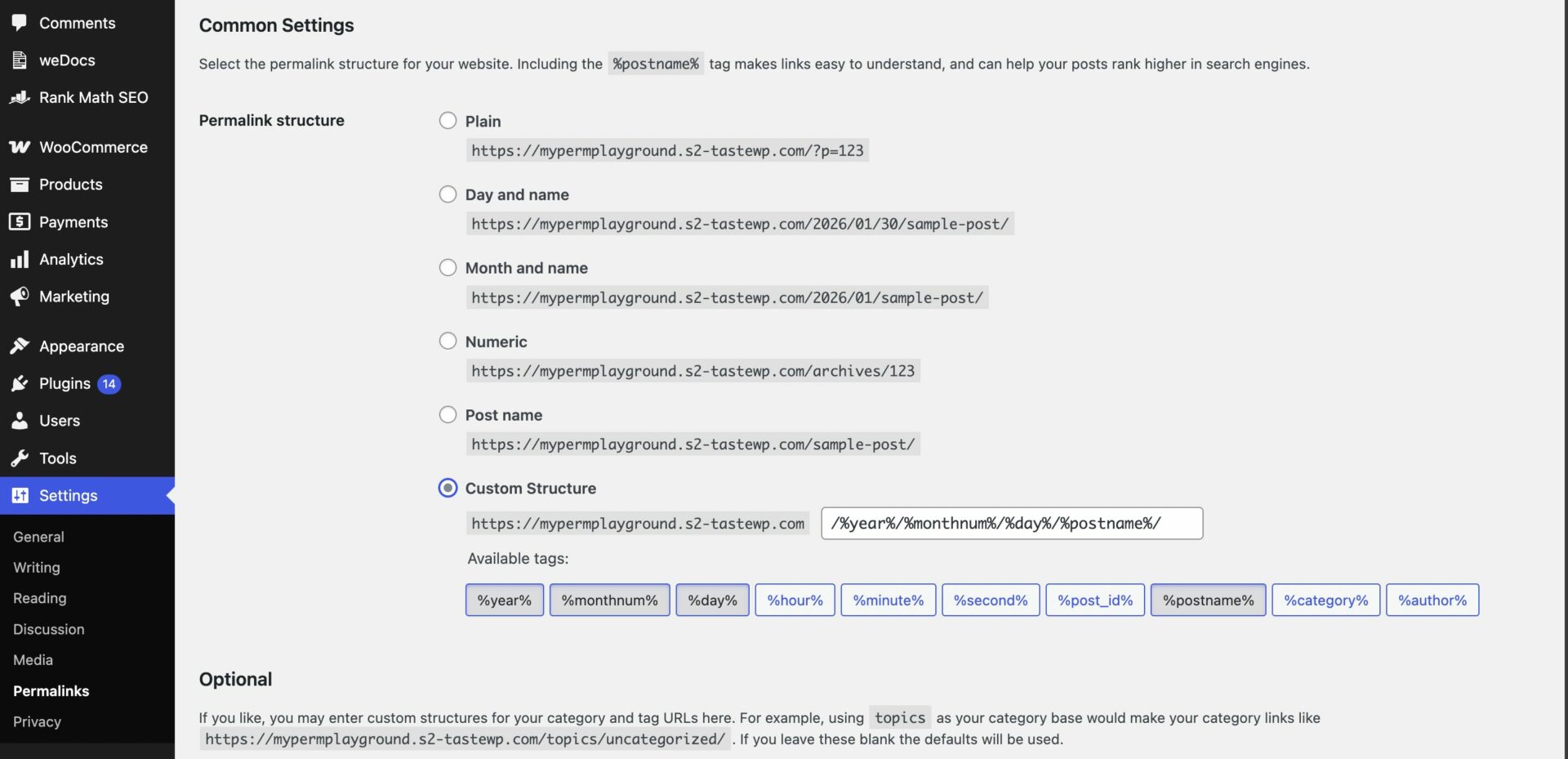
For the API to work properly, WordPress permalinks must be enabled. Go to Settings → Permalinks and choose any human-readable option. Day and name works well, but anything other than Plain is fine.
The WooCommerce REST API works on a key system to control access. These keys are linked to a user on your site.
To create or manage keys for a specific WordPress user, go to WooCommerce → Settings → Advanced → REST API from your WordPress dashboard.
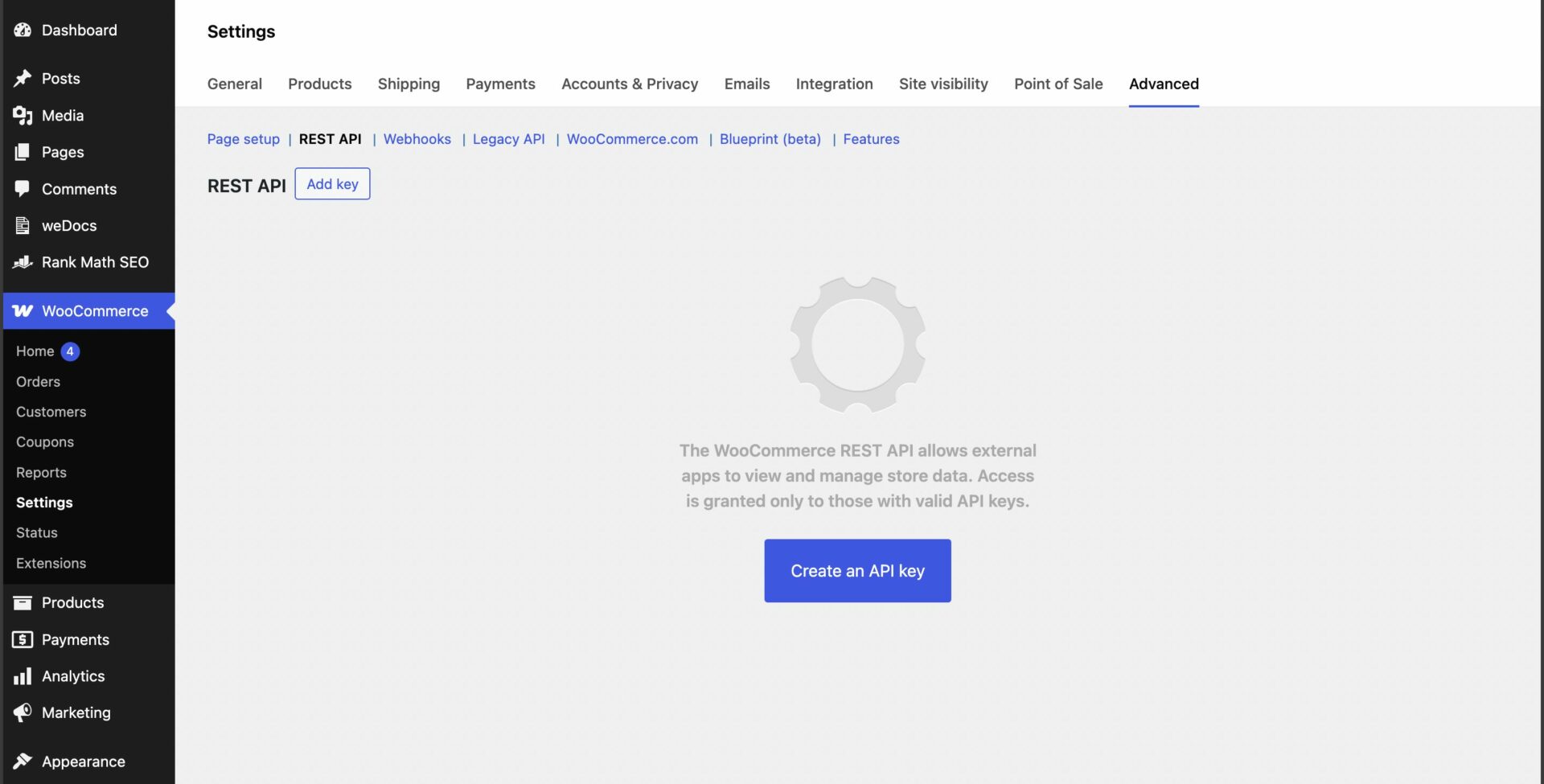
Click Create an API key or Add Key to open the Key Details screen.
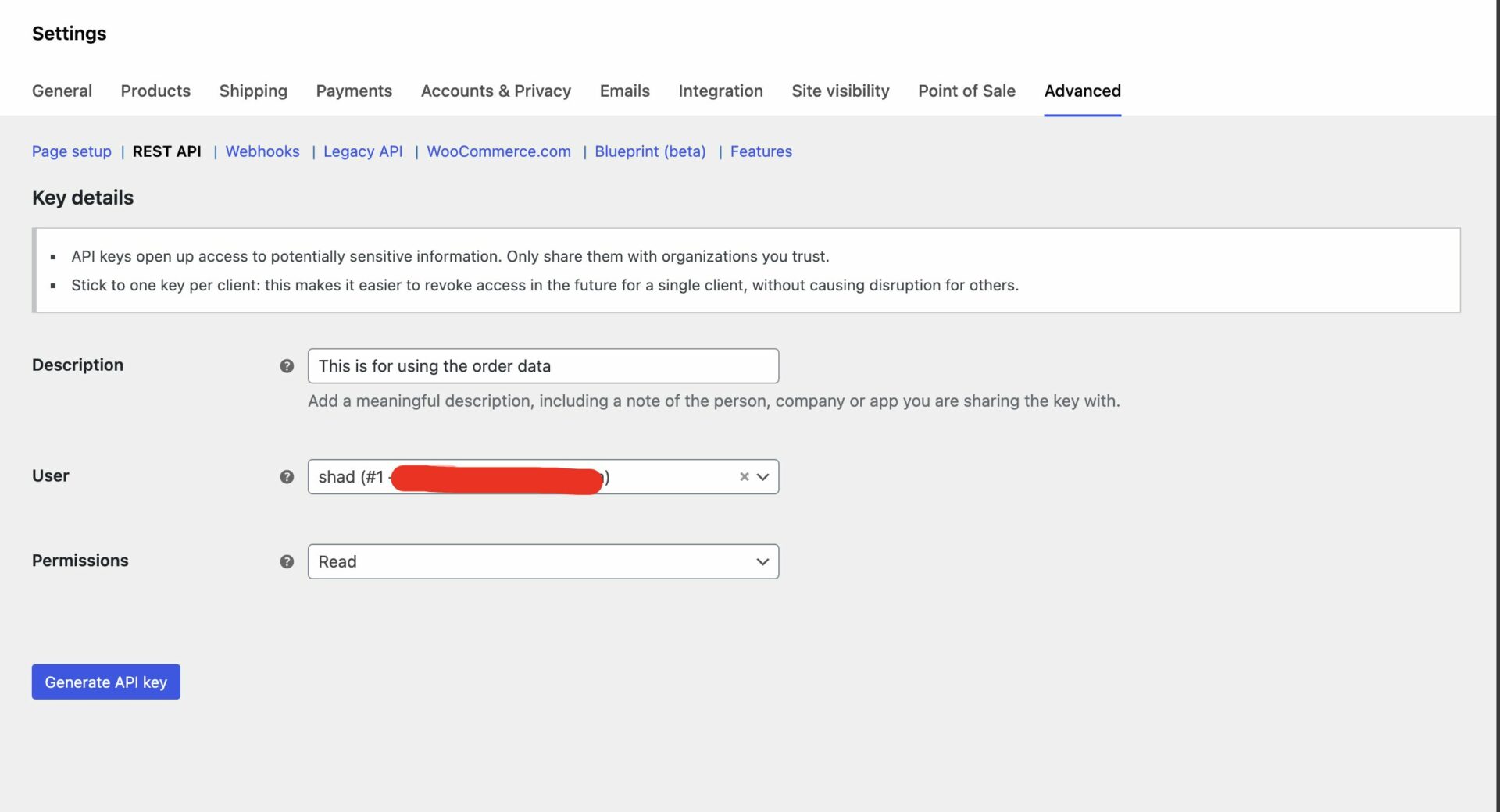
Add a short description for the key, then choose the user you want to generate the key for from the dropdown. Next, select the access level you need.
You can choose Read, Write, or Read/Write access. Once everything is set, click Generate API Key, and WooCommerce will create the API keys for that user.
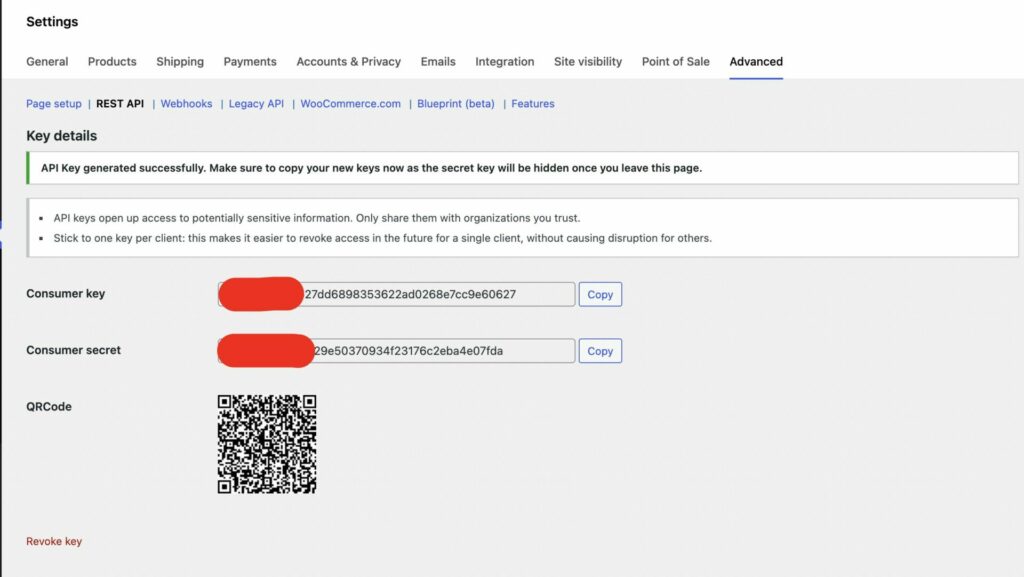
Now that keys have been generated, you should see Consumer Key and Consumer Secret keys, a QR Code, and a “Revoke Key” link in red text.
The Consumer Key and Consumer Secret may be entered in the application you’ll be connecting to using the WooCommerce REST API. The app may also request your site’s URL.
The legacy REST API is deprecated and has been removed from WooCommerce. We’ve now integrated WooCommerce directly with the WordPress REST API. If you do still need to use the Legacy REST API for an integration your site needs, you need to install the WooCommerce Legacy REST API plugin.
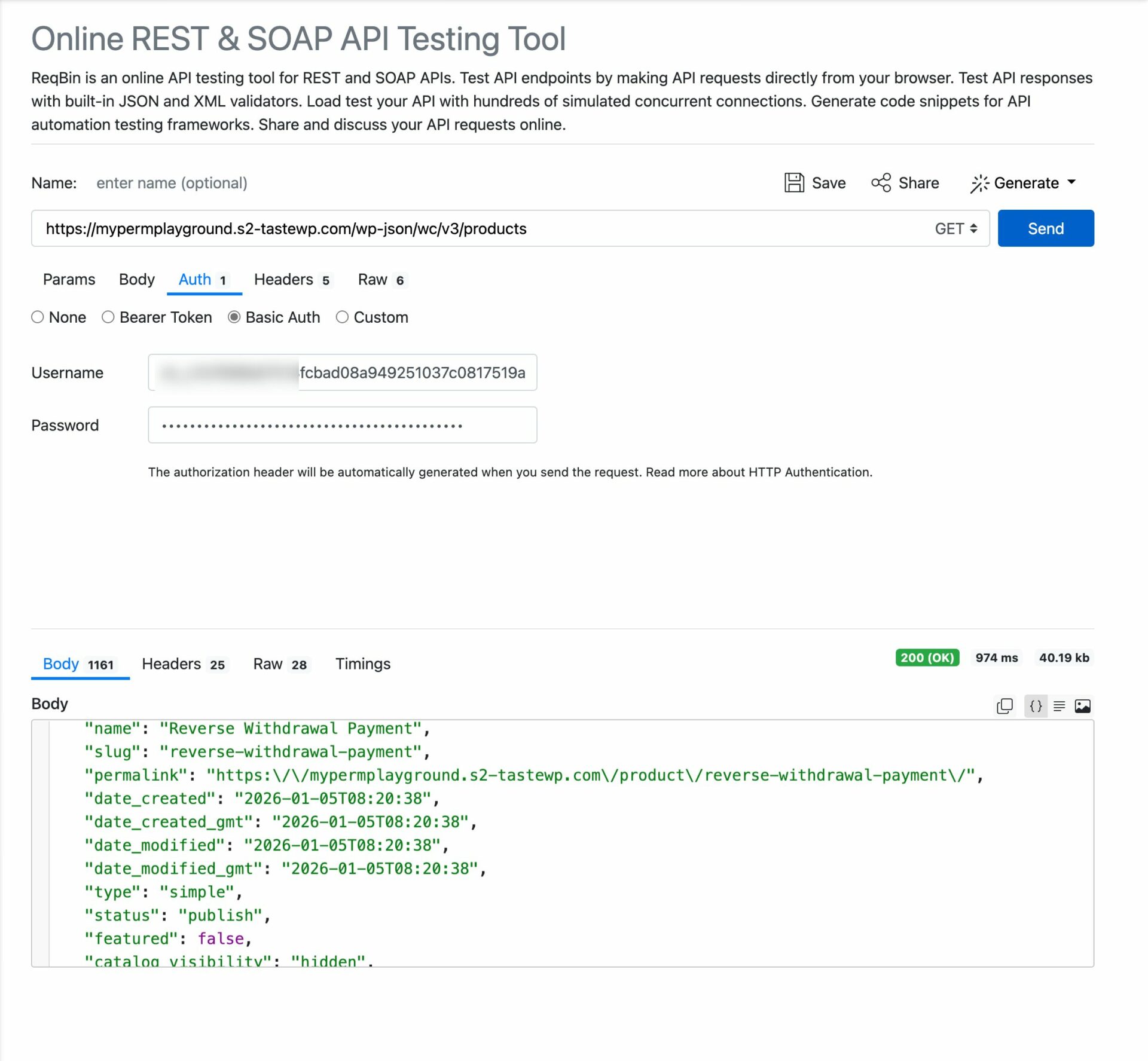
Here is an example where I am using the WooCommerce API to fetch the product data from my WooCommerce store-
How Dokan Multivendor Marketplace Works with WooCommerce API
The WooCommerce API plays a key role in how Dokan Multivendor Marketplace operates behind the scenes. Since Dokan is built on top of WooCommerce, it uses the API to securely interact with store data such as products, orders, customers, and vendor-specific information.
Through the WooCommerce API, Dokan can sync vendor products, manage order data, update order statuses, and support external integrations without directly accessing the database.
Read: How to Create a Marketplace with Dokan
This approach keeps the marketplace stable, secure, and scalable. It also enables features like vendor dashboards, mobile app support, reporting tools, and integrations with third-party services.
That said, the WooCommerce API should be used wisely. Proper permission levels, secure key management, and well-planned integrations are essential to avoid data conflicts or performance issues.
When used correctly, the API allows Dokan-powered marketplaces to automate workflows, extend functionality, and grow without compromising security or reliability.

Use the WooCommerce API very wisely
The WooCommerce API is a powerful tool, but it should always be used with care. While it makes integrations and automation easier, giving unnecessary access or using incorrect permissions can create security and performance issues.
Always generate API keys with the minimum level of access needed and keep those keys secure.
Plan your integrations before implementing them. Avoid overloading your store with frequent or unnecessary API requests, especially on high-traffic sites. Test everything in a staging environment before using it on a live store.
When used thoughtfully, the WooCommerce API can help you automate workflows, connect external tools, and scale your store smoothly. A careful and controlled approach ensures your data stays safe while your integrations continue to work reliably.
Subscribe to
Dokan blog
We send weekly newsletters, no spam for sure!



Leave a Reply