

Suppose you plan to sell 1,000 products on your newly built Dokan marketplace. You have thought about how to manage the inventory, delivery, and shipping process. Now you need to sit down and write descriptions for those 1,000 products, and also add their images so that customers can understand what they are buying.
Sounds like a hassle, right?
Not anymore. Dokan, the best multi-vendor marketplace plugin, has introduced their own AI integration that will help you generate not only relevant and attractive product descriptions but also great product images.
Sounds cool, right?
Let’s cut the chit-chat and get to know how they work, shall we?
Dokan AI Assistant Lets You Generate Product Descriptions
With the new Dokan plugin 4.0 version, you can now use AI to generate attractive product names, short and long descriptions. Then you can insert them directly into the product creation page.
You can do this while adding a new product or editing a product. And you can do this in the free version of Dokan.
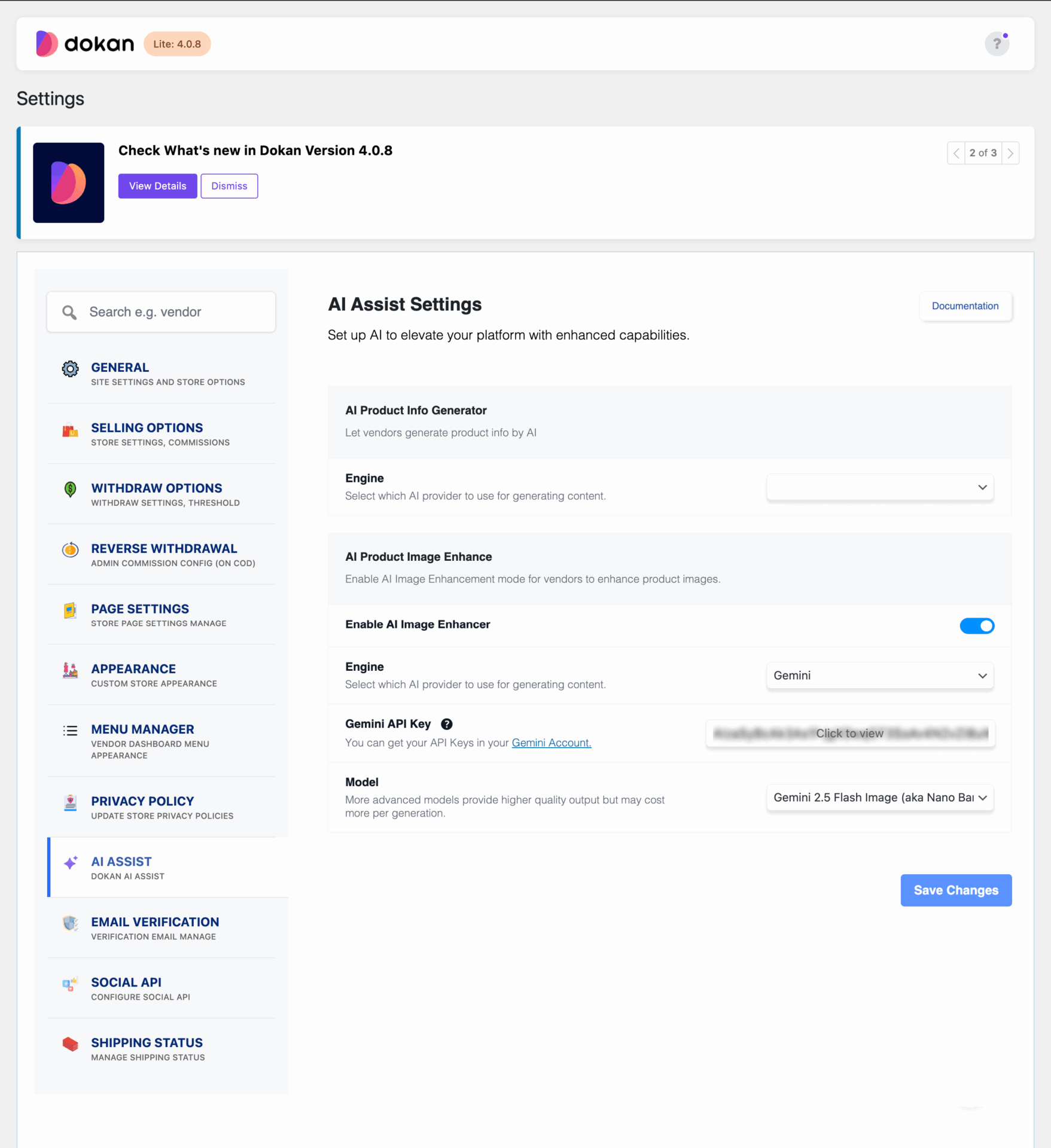
Go to the Dokan–> Settings–> AI Assist, there you will find the options to connect your marketplace with AI.
You can use OpenAI or Gemini Engine. Collect your OpenAI API key for OpenAI or Gemini. Save the changes.
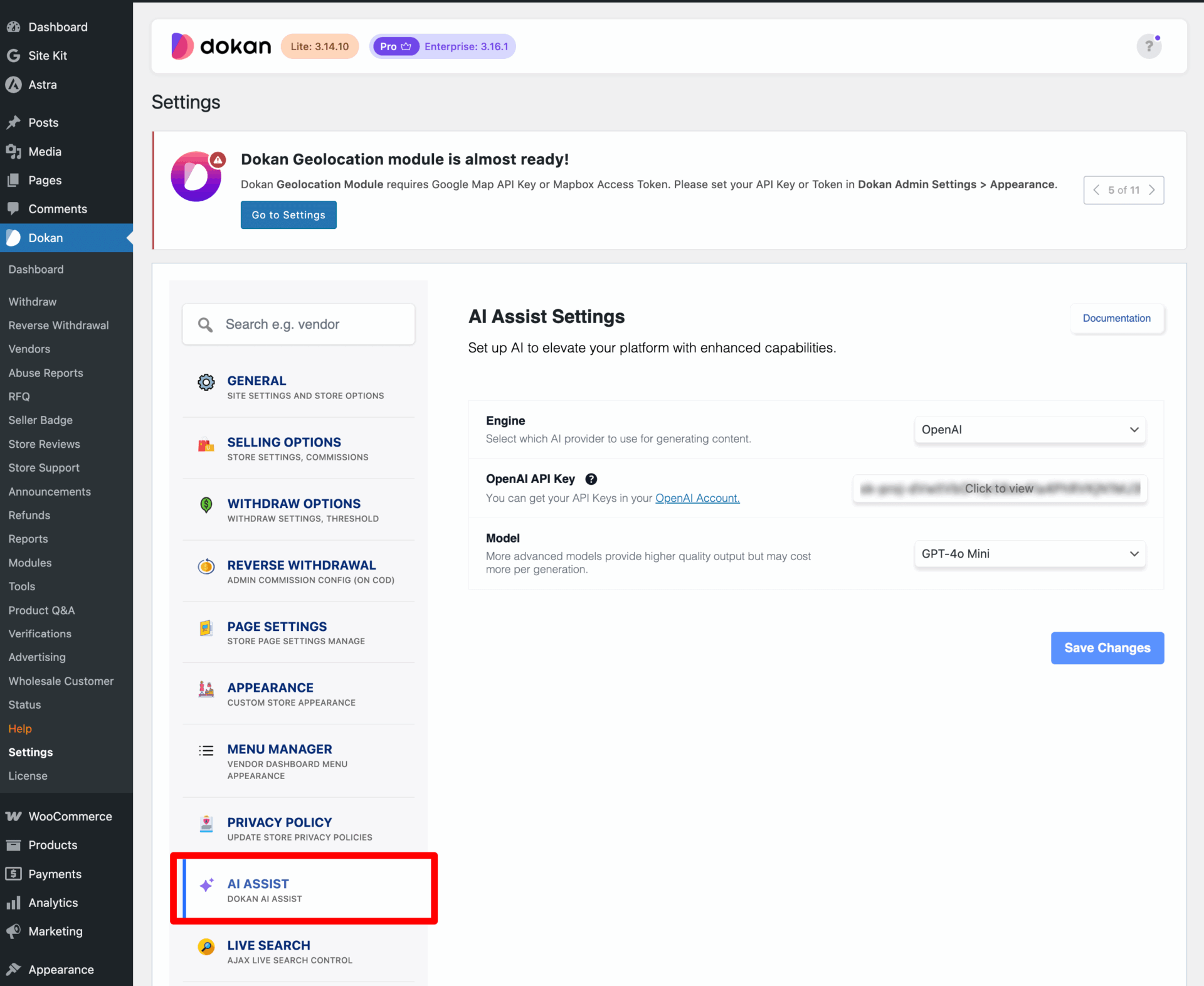
As an admin, you will bear the cost of the API key.
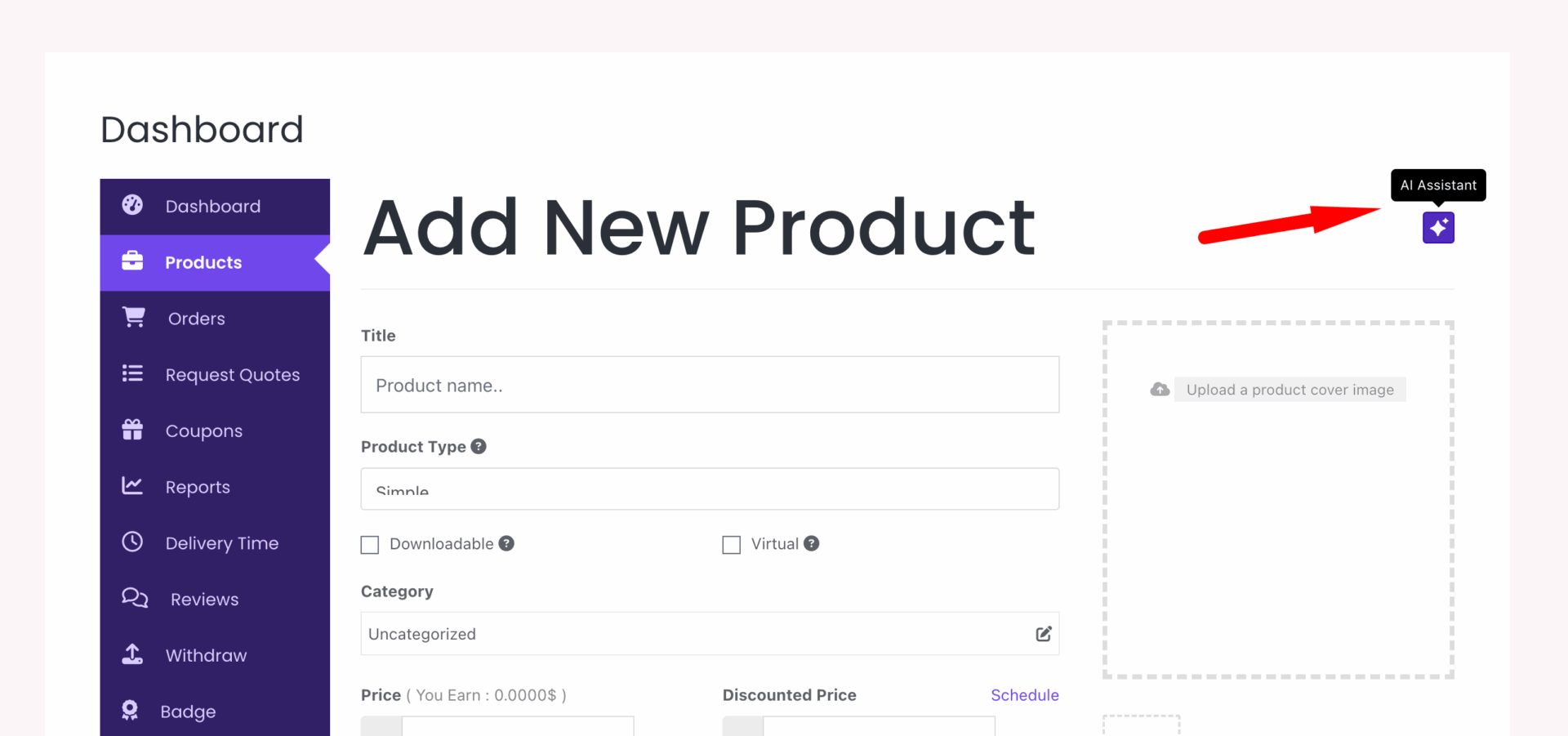
Now go to the vendor dashboard and create a new product. You will see the AI logo in the top right corner.
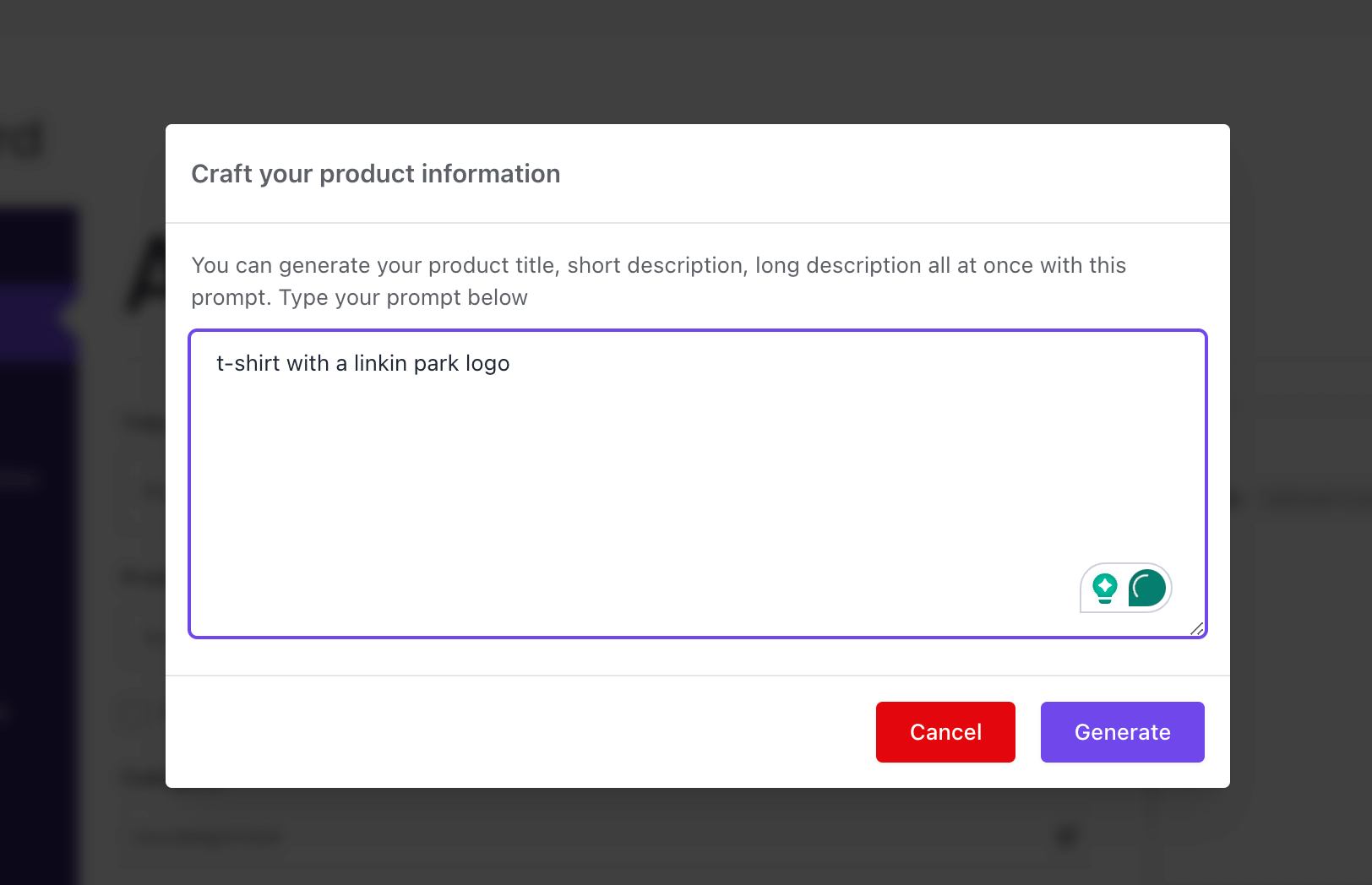
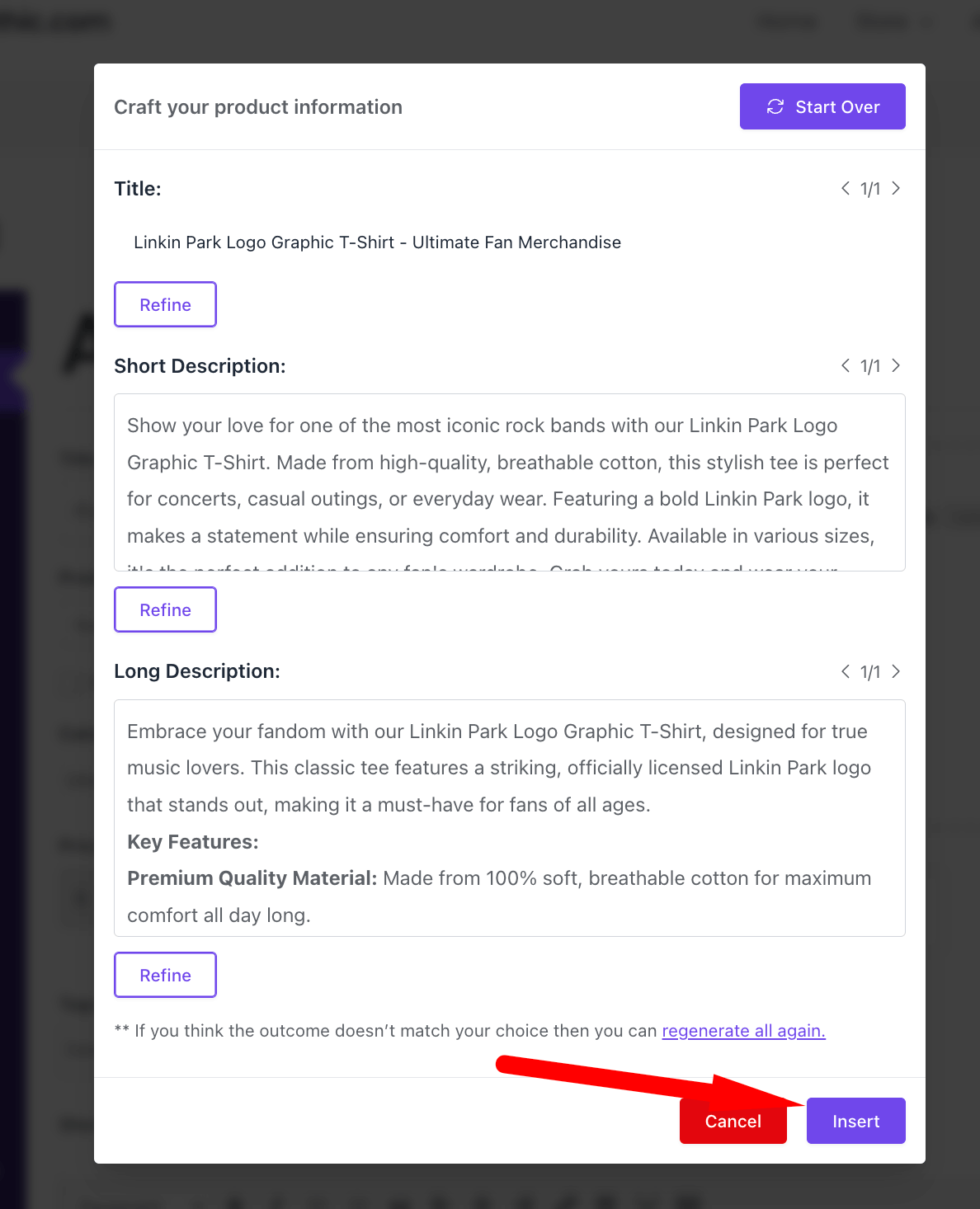
You will get a pop-up window, where you need to write the product name and click on the Generate button-
After a few minutes, your query will be generated.
If you are happy with the output, click on the Insert button to add them to your product-
You will see that the output has been inserted in the product editing page-
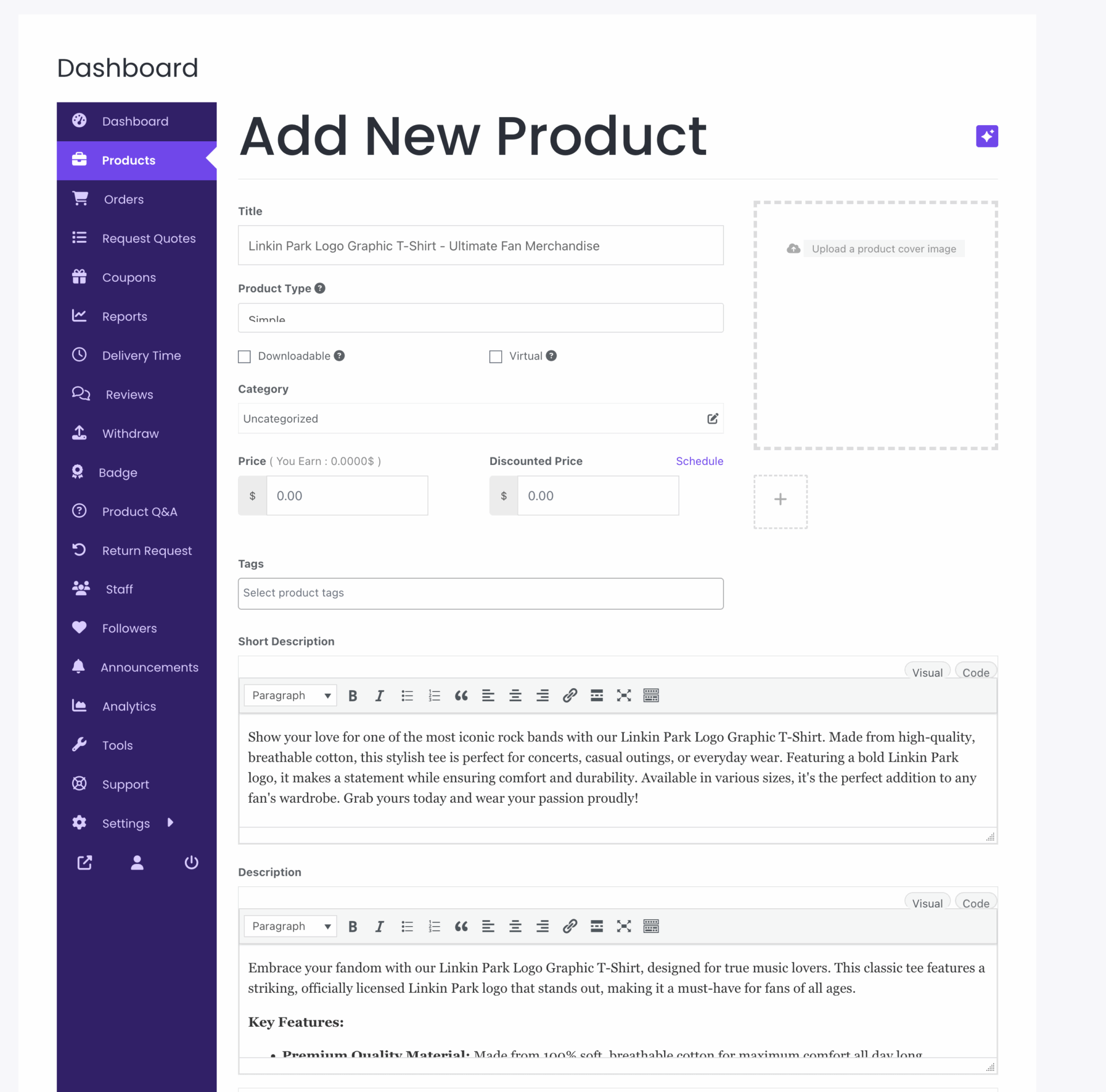
This is how you can use the AI Assist feature of the Dokan plugin to create attractive descriptions for your products.
AI Image Enhancer: Give Your Product a Whole New Dimension
Dokan Image Enhancer is an AI-powered feature that automatically improves product images on your marketplace. It enhances clarity, optimizes colors, and ensures your product photos look professional and eye-catching, helping sellers attract more buyers and boost engagement.
We are going to show you how to use this feature to enhance your product images further.
To configure this, log in to your WordPress dashboard and go to Dokan–> Settings–> AI Assist-
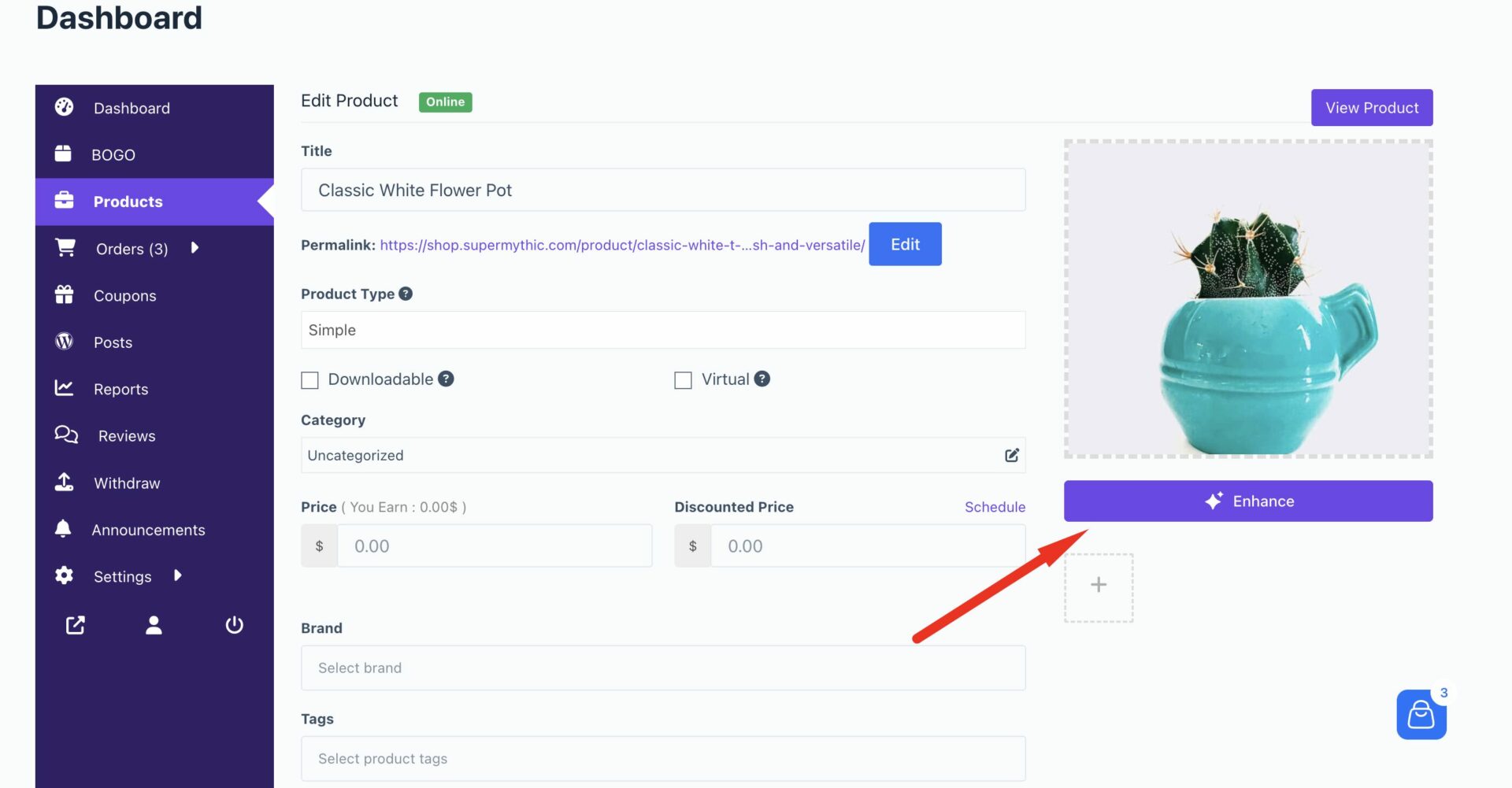
In the product edit form, vendors will find the Enhance button under the product image option-
It will enable a pop-up where vendors need to write the prompt on how they want to enhance the image and click on the Generate button-
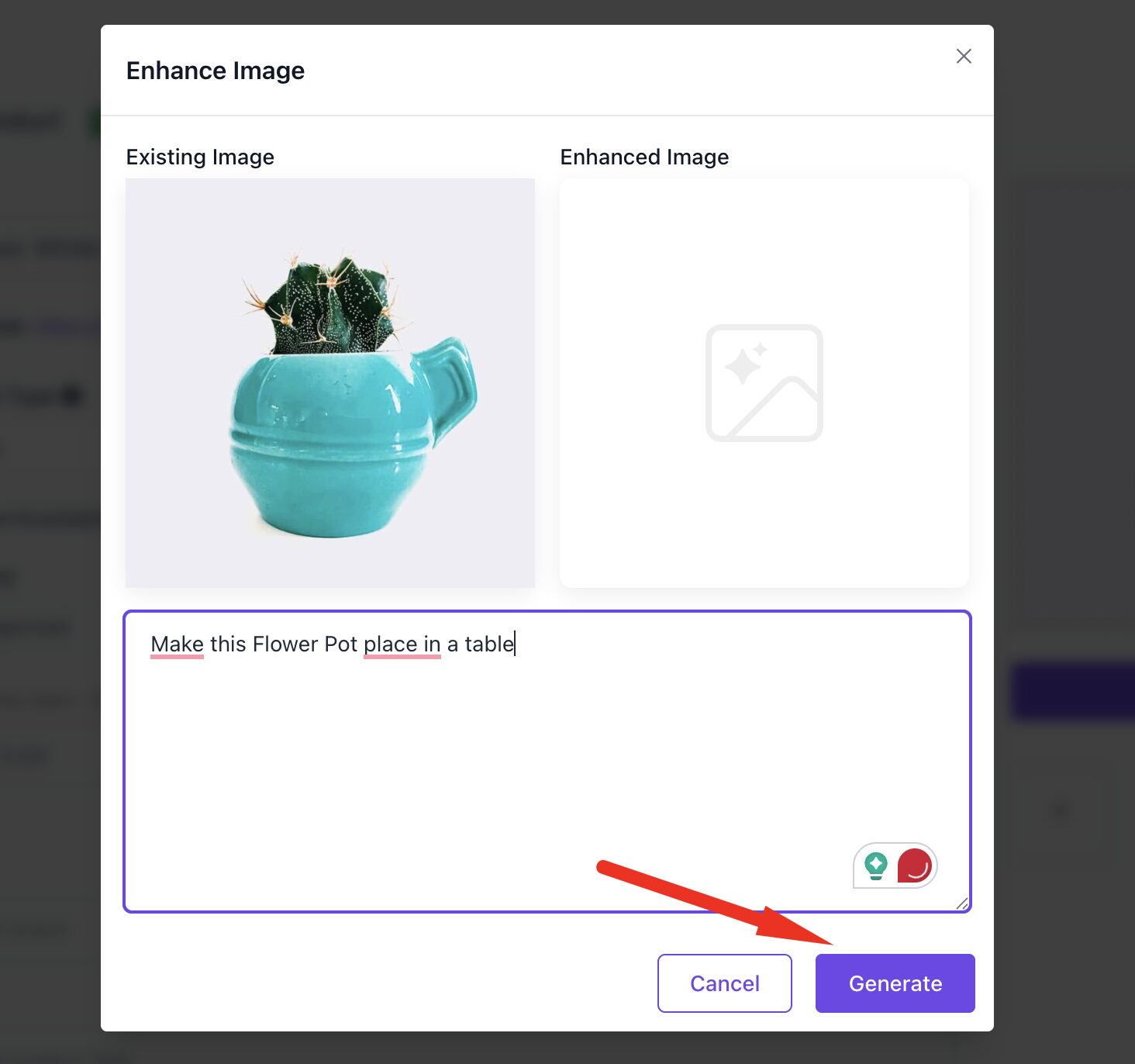
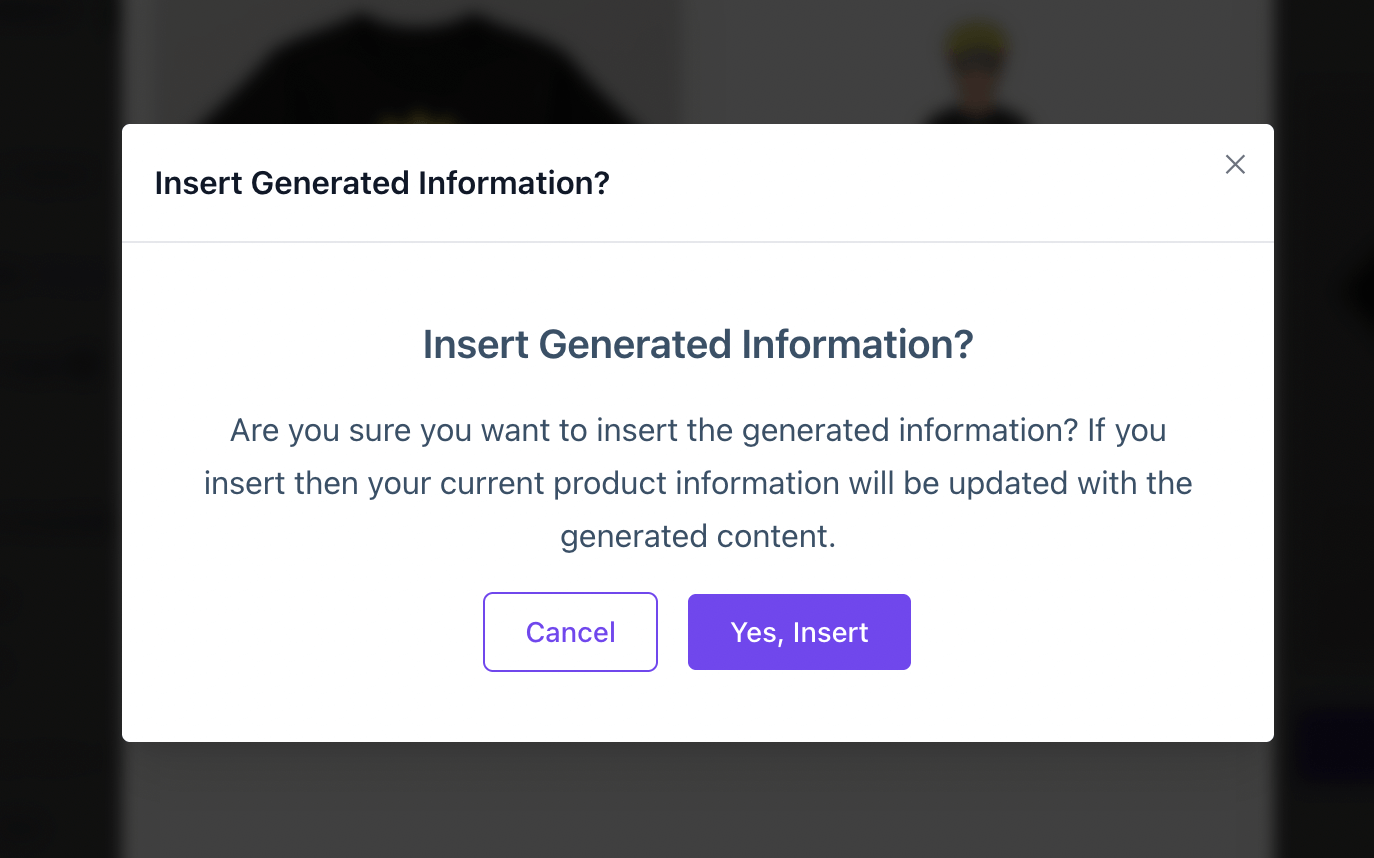
After clicking the Insert button, they will get a pop-up to make sure to insert the image in the product form.
Vendors can see the image in the product form-
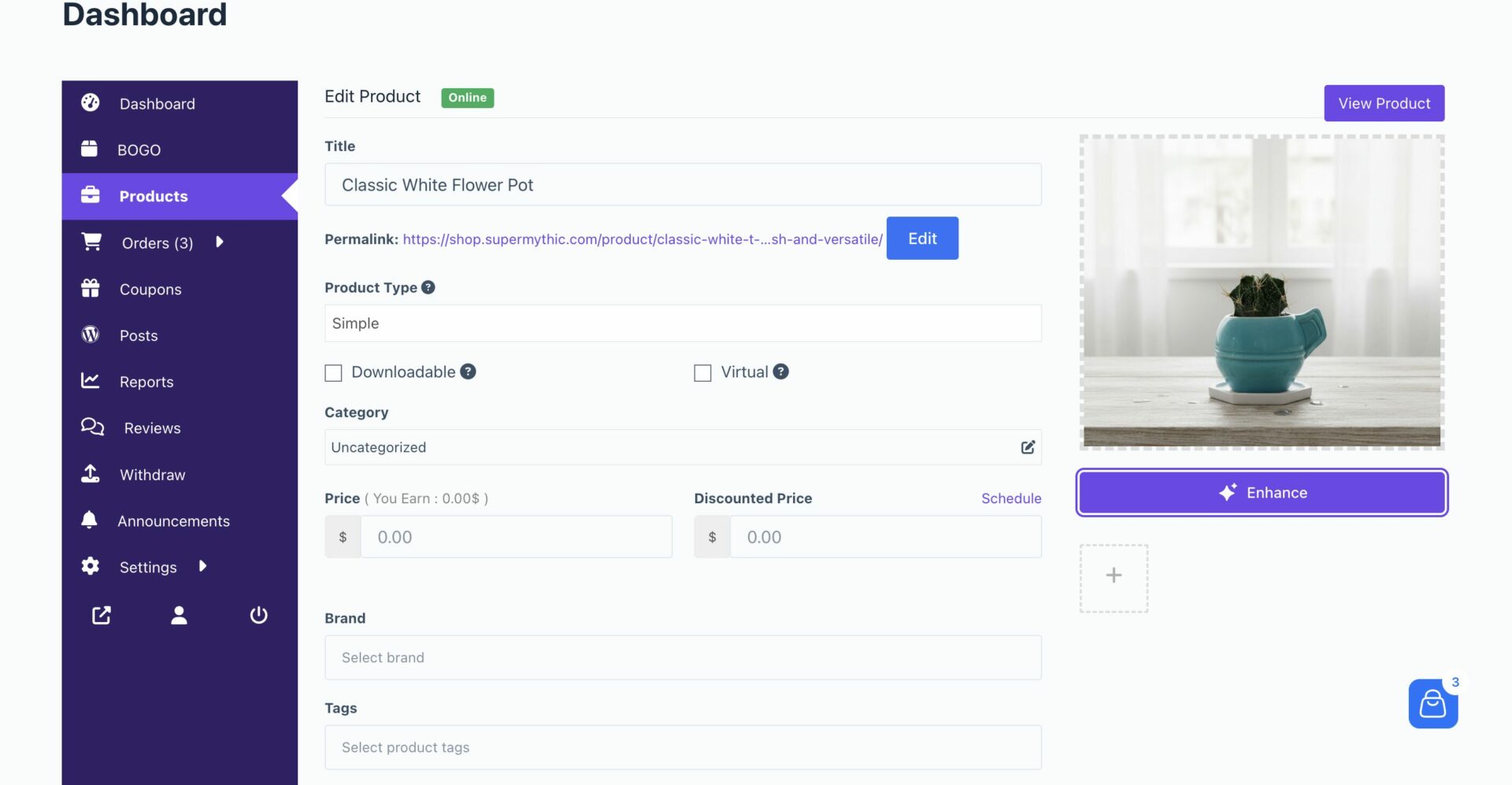
This is what the customer will see in the shop or single product page
This is how you can use the Dokan Image Enhancer to create great images for your products.
Dokan Made Product Management a Whole Lot Easier
Previously, owners had to spend hours and hours writing product descriptions and enhancing the images, which they could have used to focus on their business.
Now, they can do it within minutes. After generating the descriptions, they may just need to tweak here and there.
Also, they can use their imaginations to give their product images a new dimension. A watch on a model’s hand, a laptop used by an engineer, a model wearing a t-shirt, etc. The possibilities are endless.
So, let your imaginations run wild and create the best version of your product with Dokan AI.
Subscribe to
Dokan blog
We send weekly newsletters, no spam for sure!





Leave a Reply