
To add products, you need to go to the wePOS dashboard
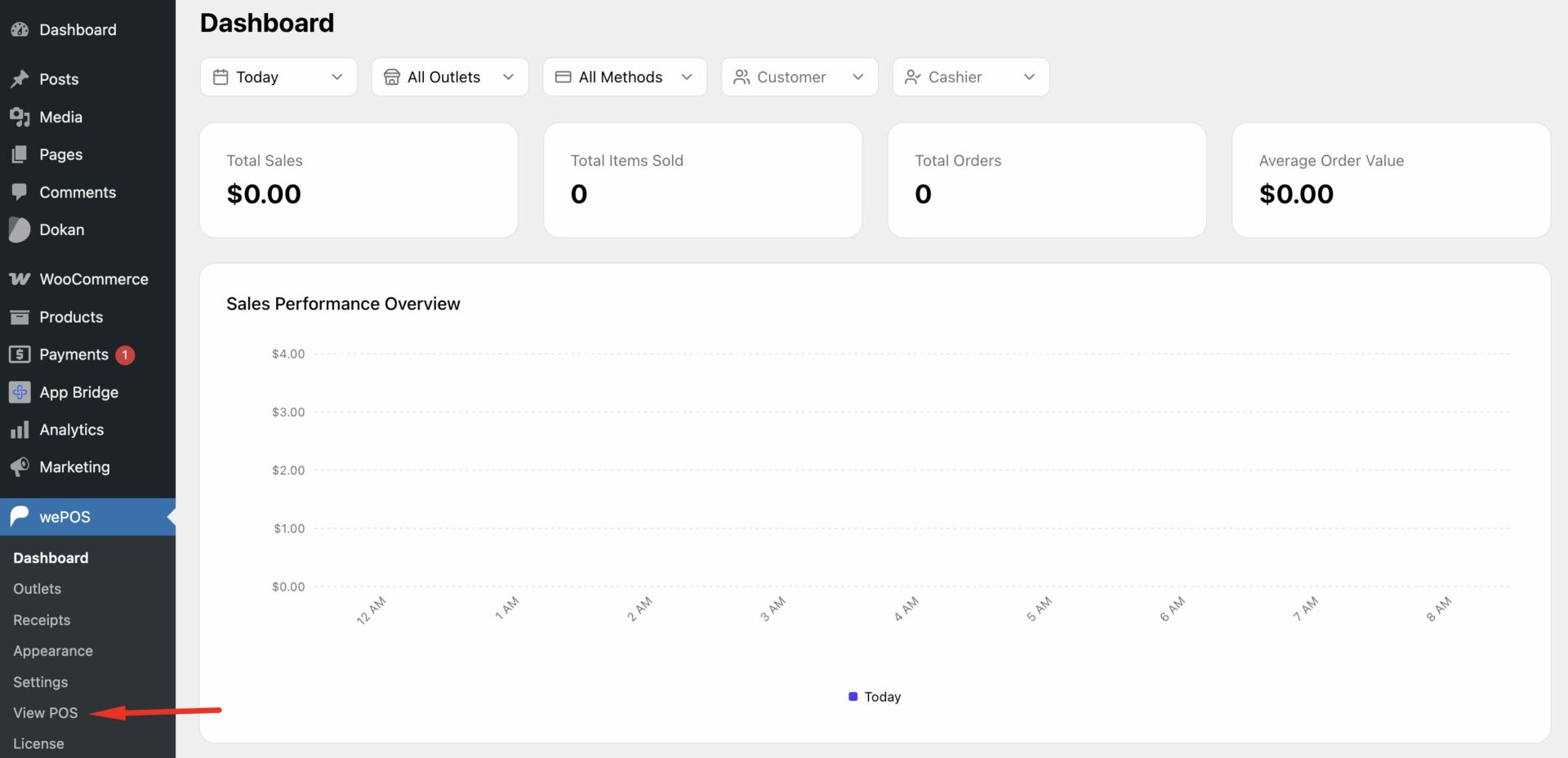
Now, a
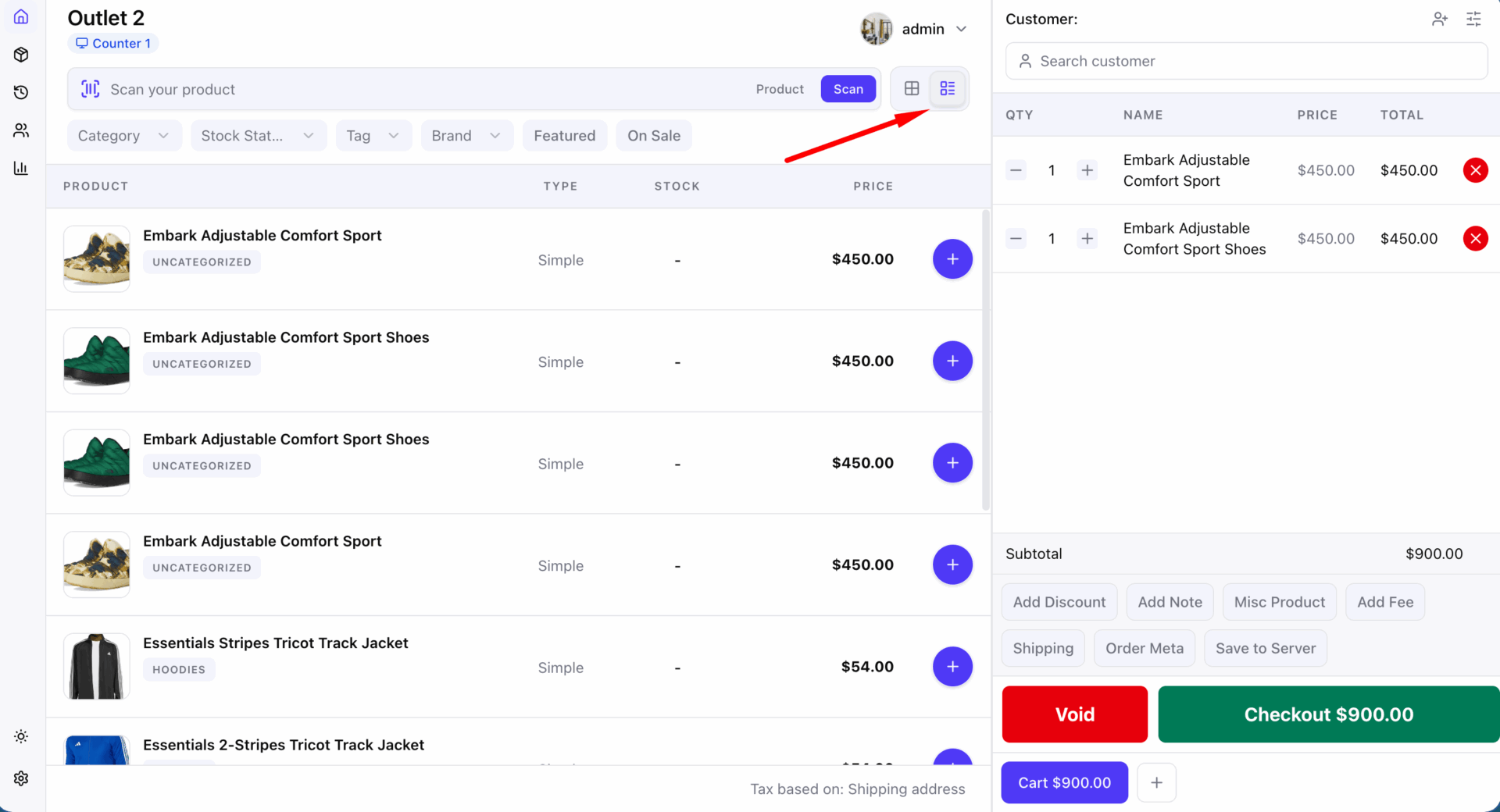
To see grid view, select Grid icon beside the list view.
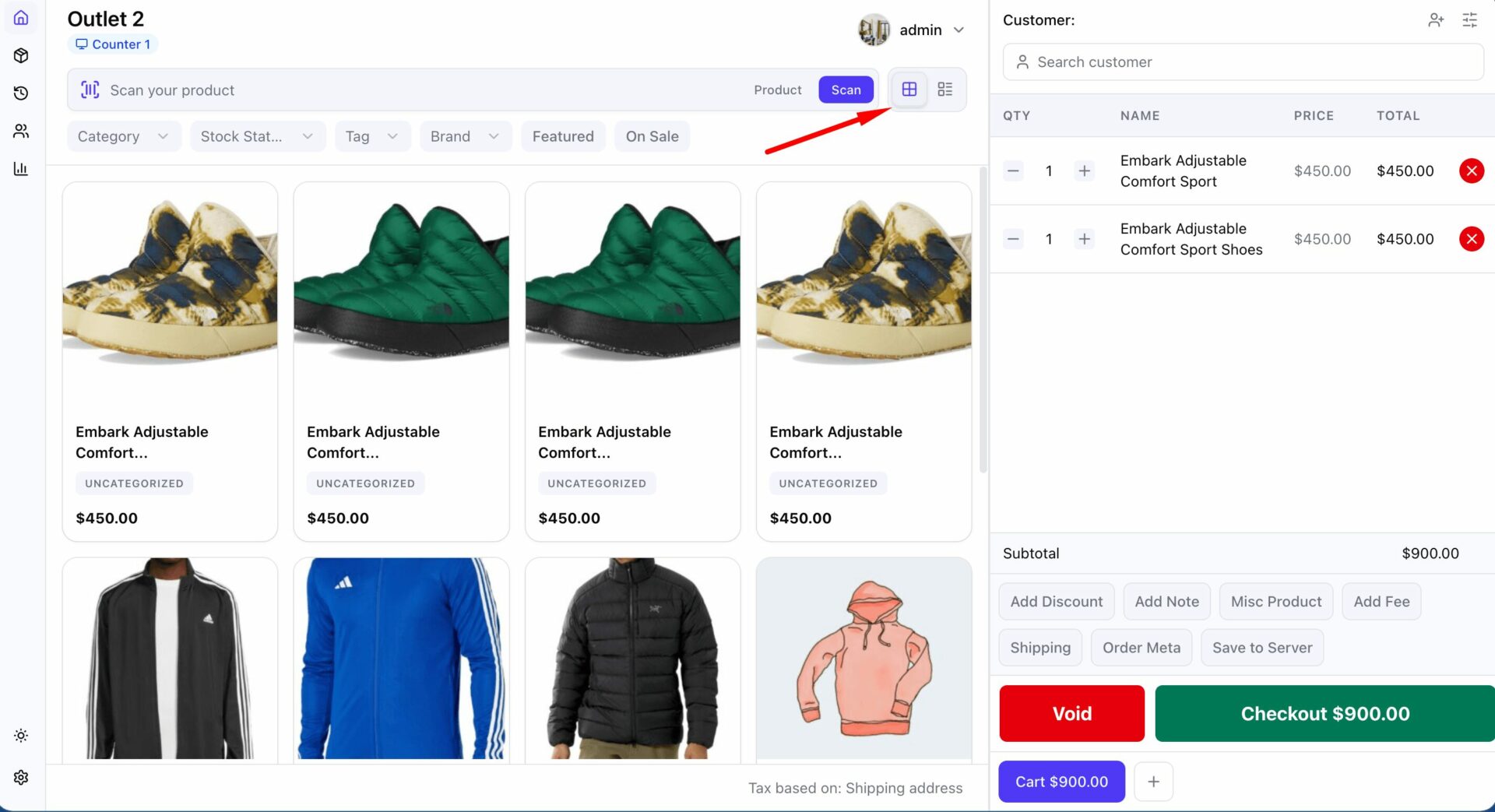
Use two ways to add products in wePOS. Follow the steps-
Automatically Add Products
To add products automatically, click ‘Scan’. It will add the product to the cart.
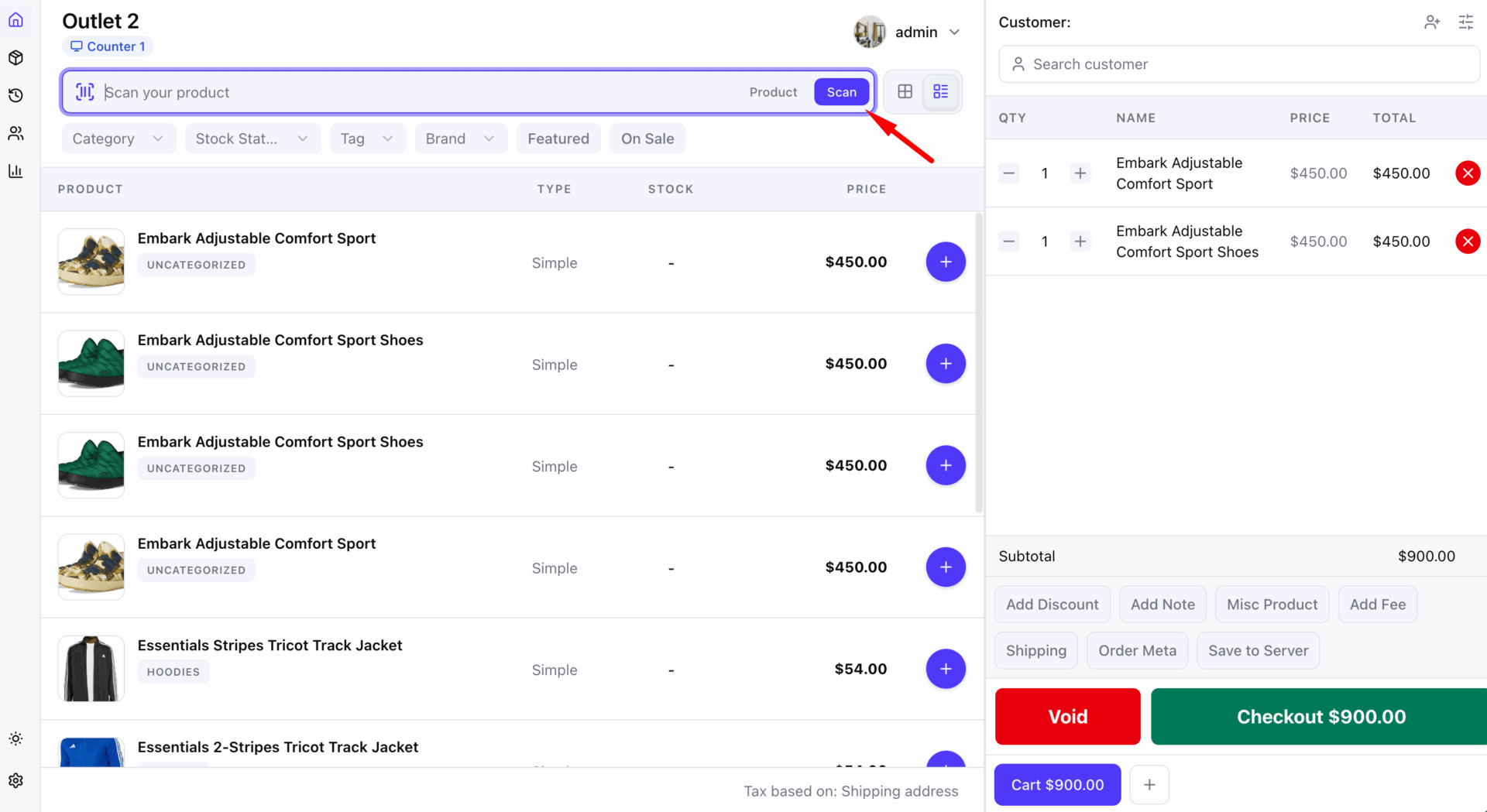
Use the barcode scanner to add products automatically in the cart. Barcode scanner will read products ID or SKU to add products in the carts.
To identify the right products with the barcode scanner, you should input the
If you don’t know how to create a barcode, please check this.
Manually Add Products
Click ‘Product’ to add a
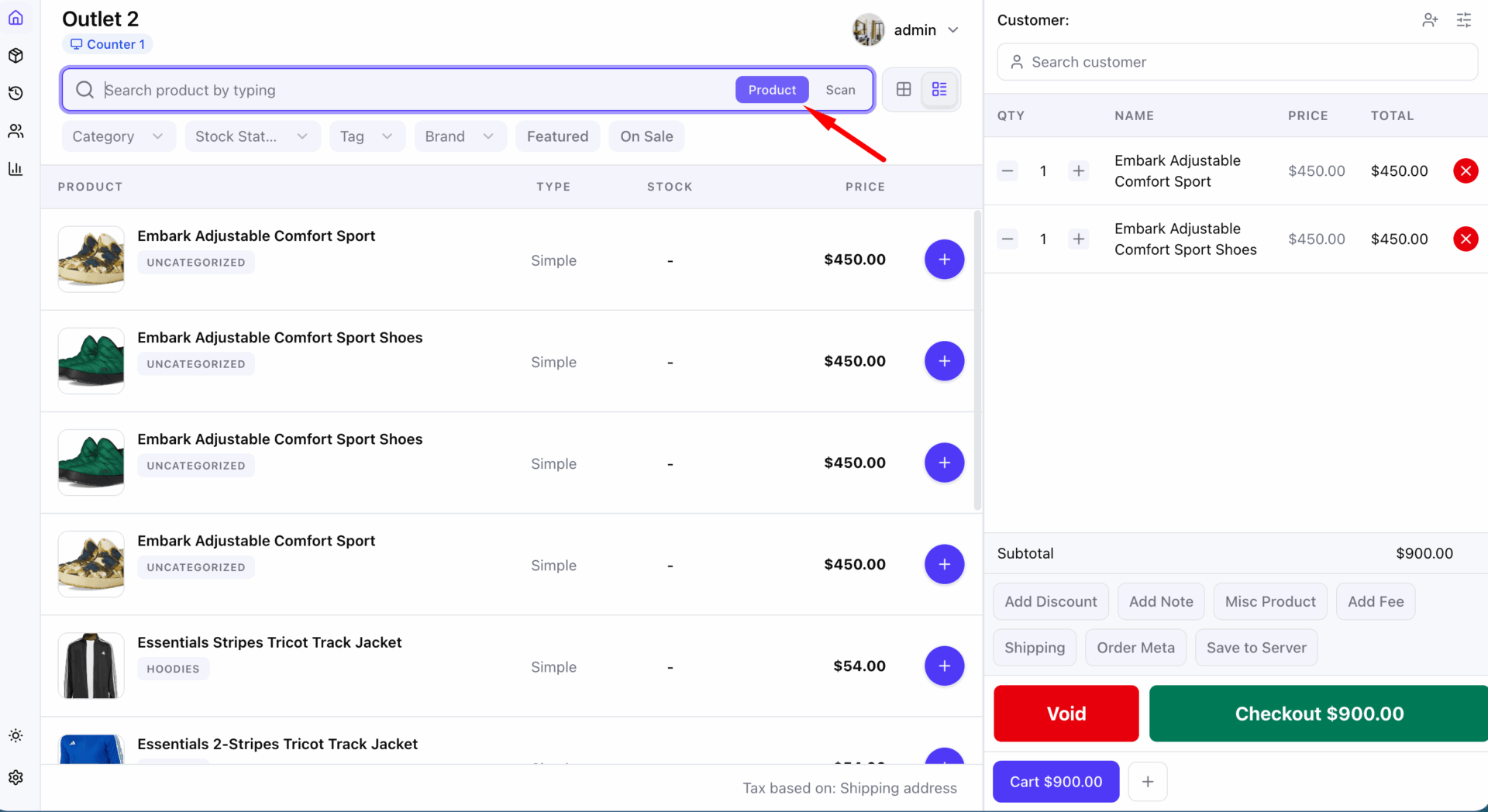
Start Typing your product name, ID or SKU in the search box. It will show your products right away.
Click on the products. It will add to the cart.
Here are the steps in short-
Click ‘Product’ → Enter Product Name/ID/SKU in the Search Box →Click the Products for adding to the cart
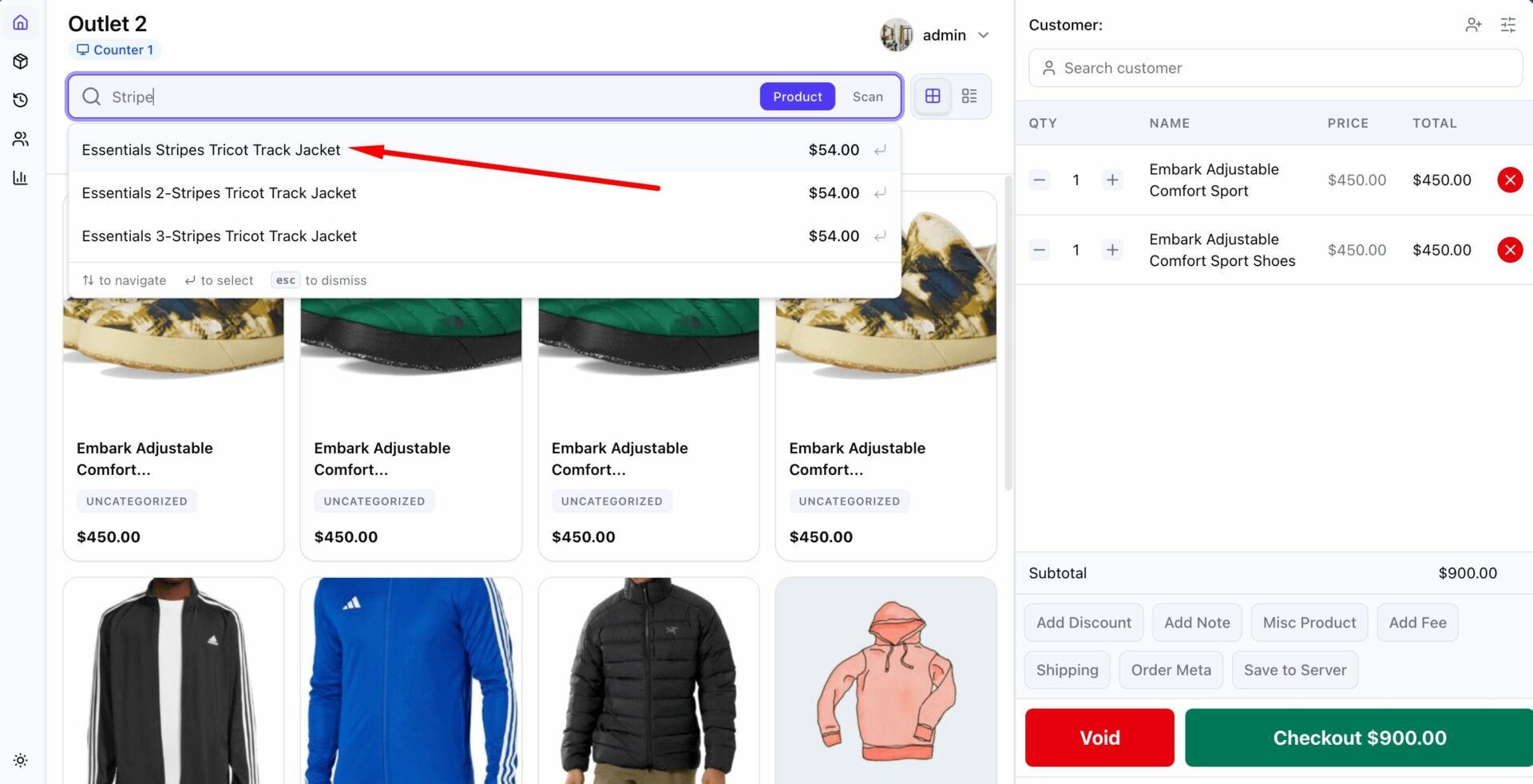
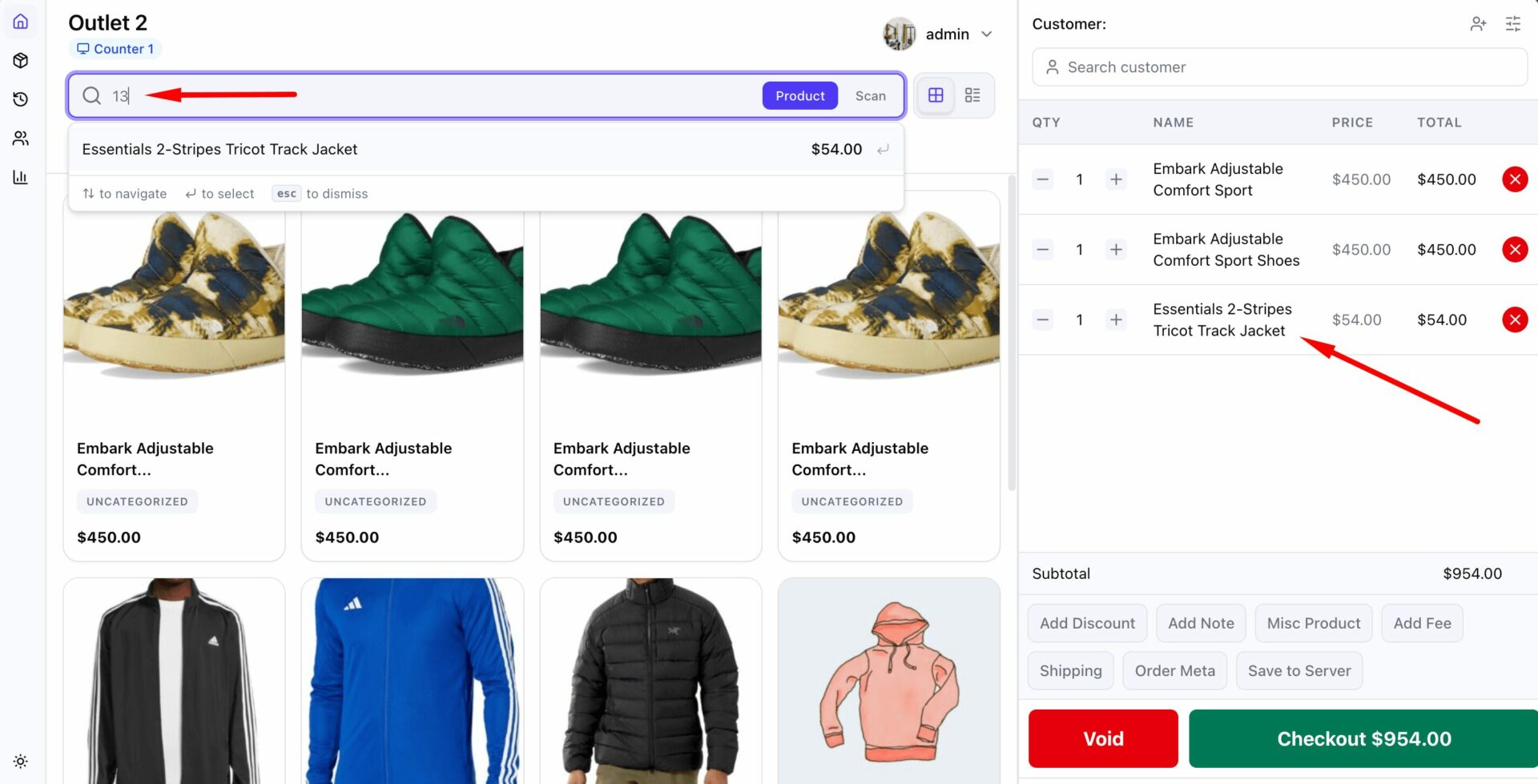
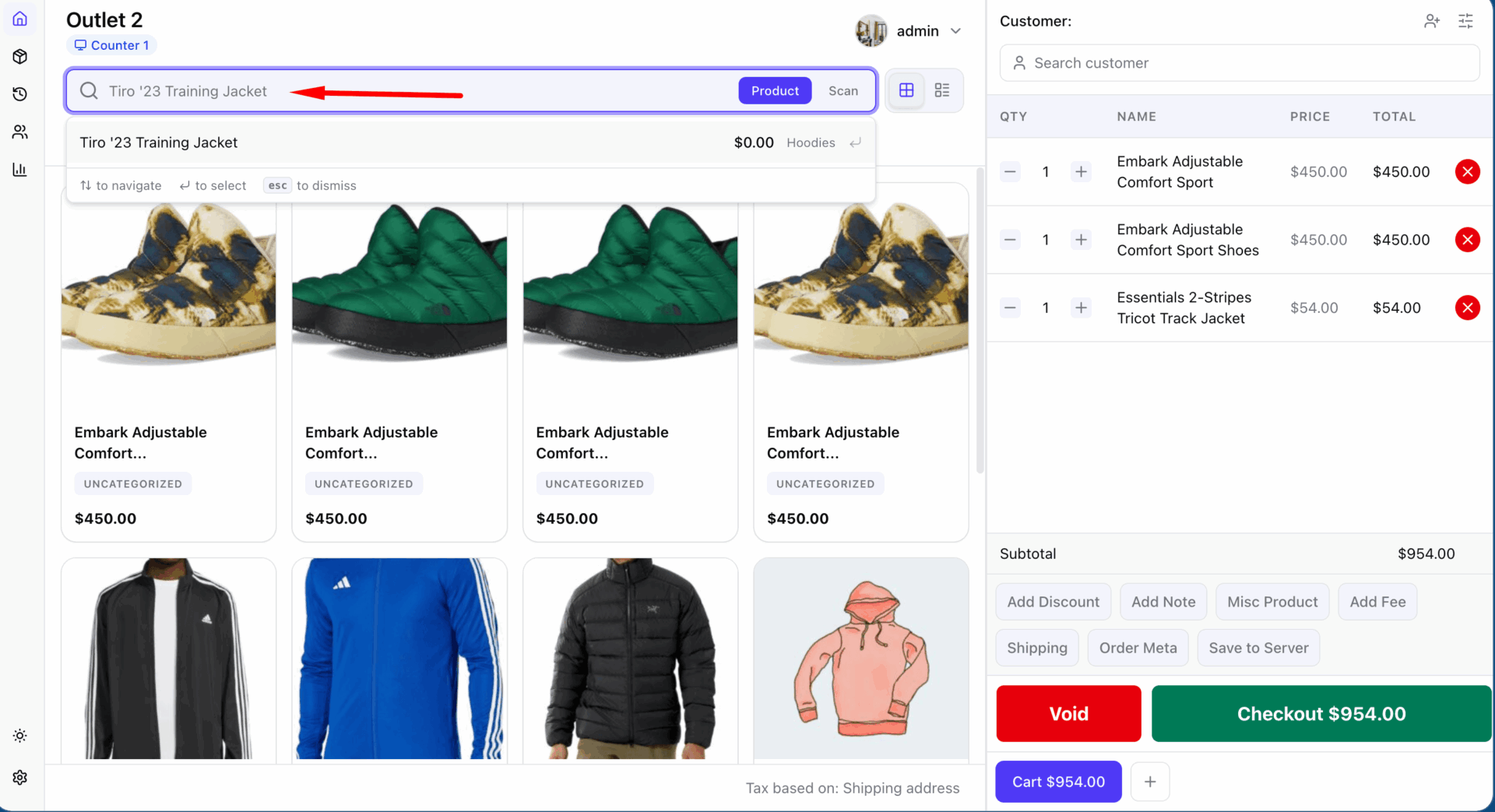
You can add a
Using Product Variation
The store owner can select the products by its colors or sizes from the
Follow the steps to choose by size or colors-
Step- 1: Select your product and click on it.
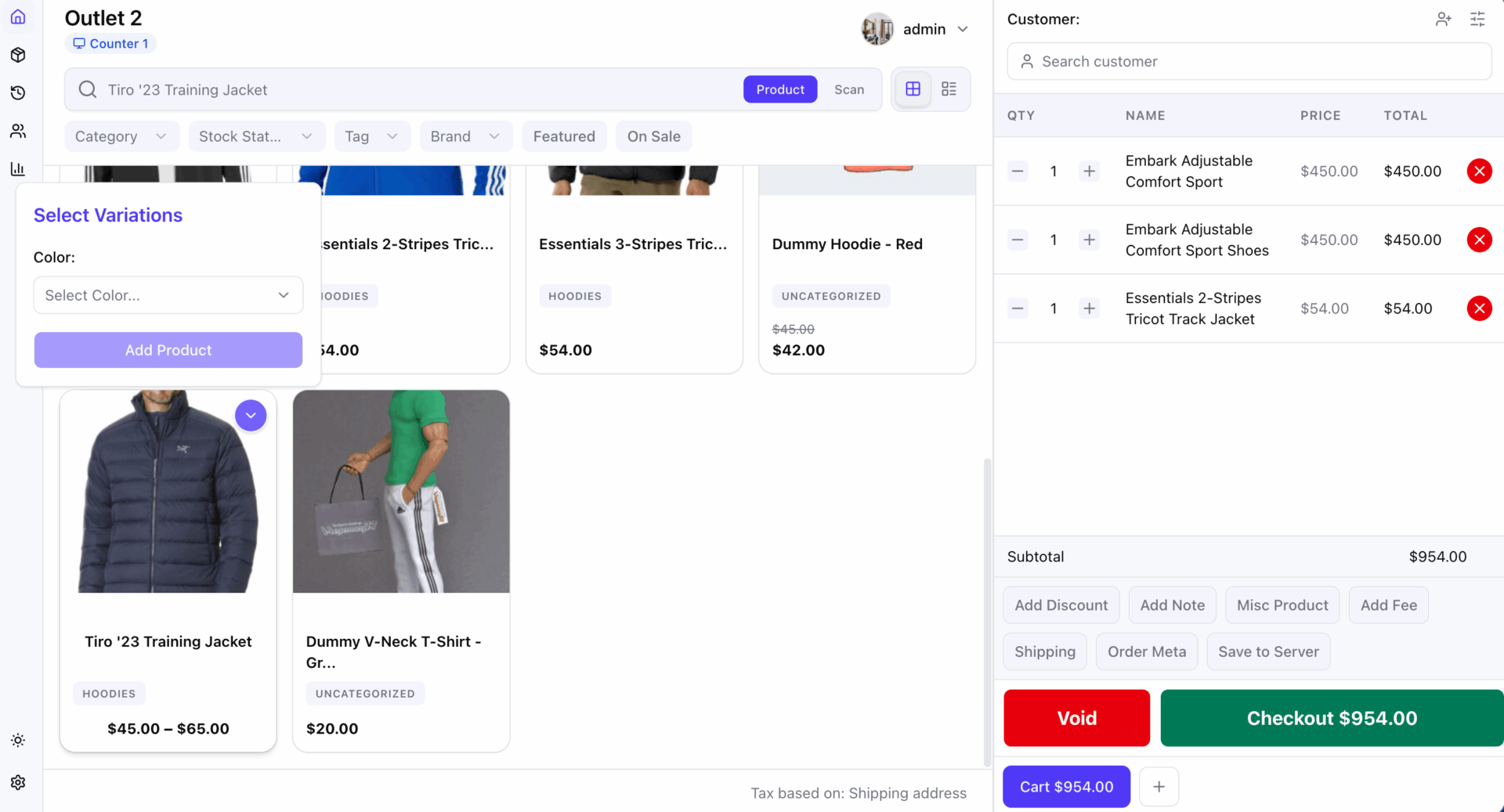
Step-2: Choose the color, size or logo of the products from the ‘Select Variations’ box.
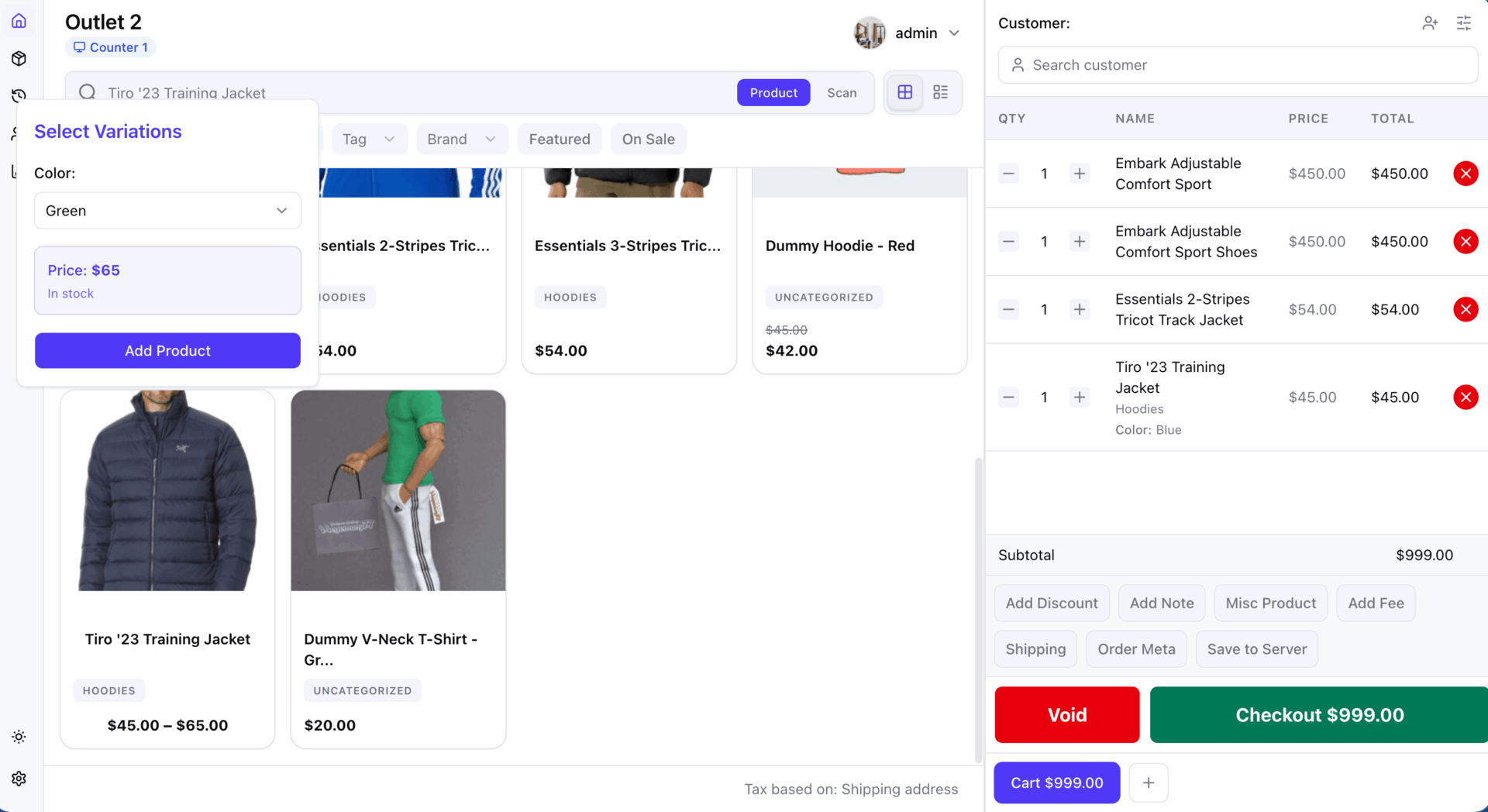
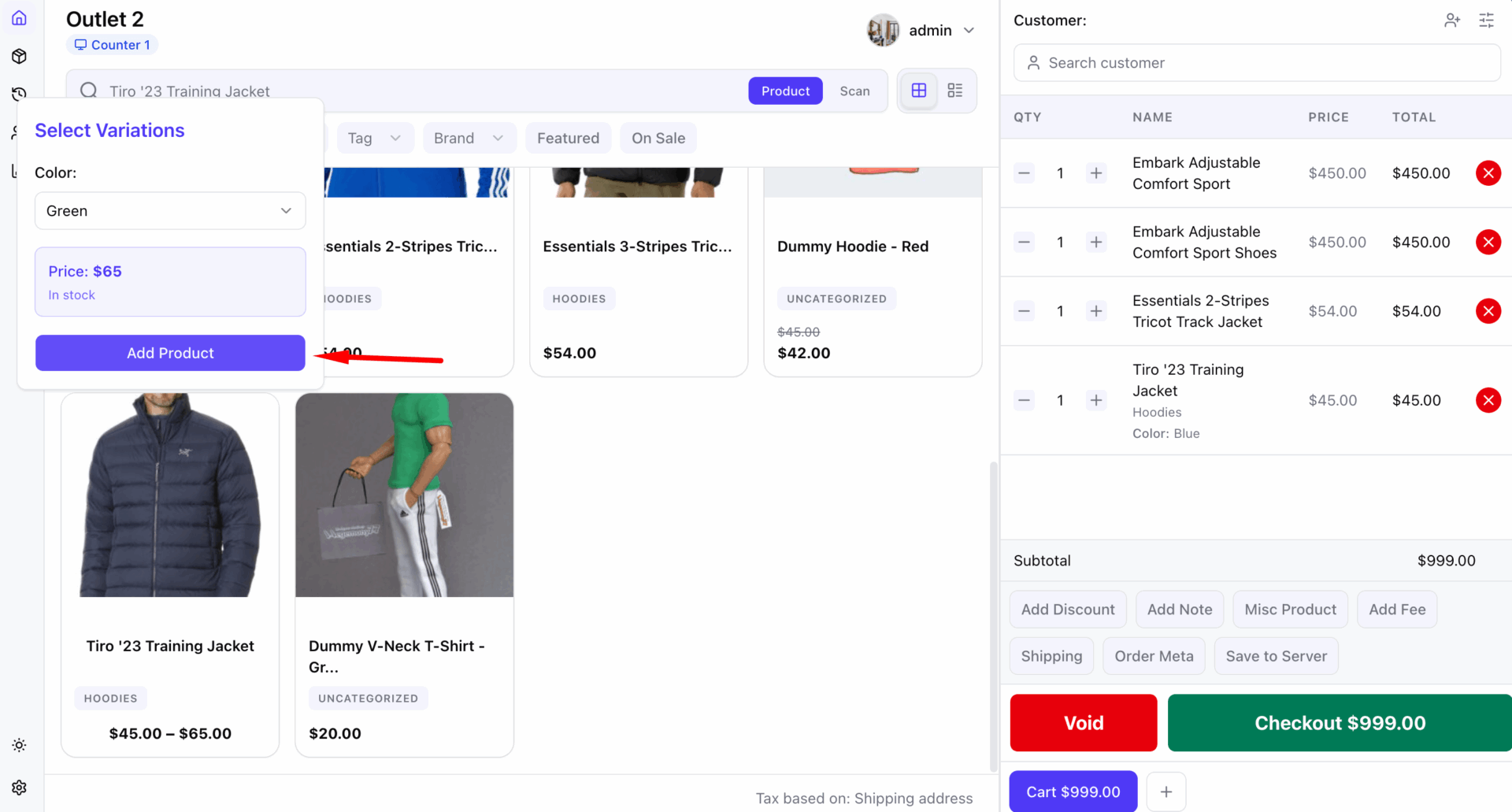
Step-3: Click ‘Add Product’ to add to the cart.
Select Quantity
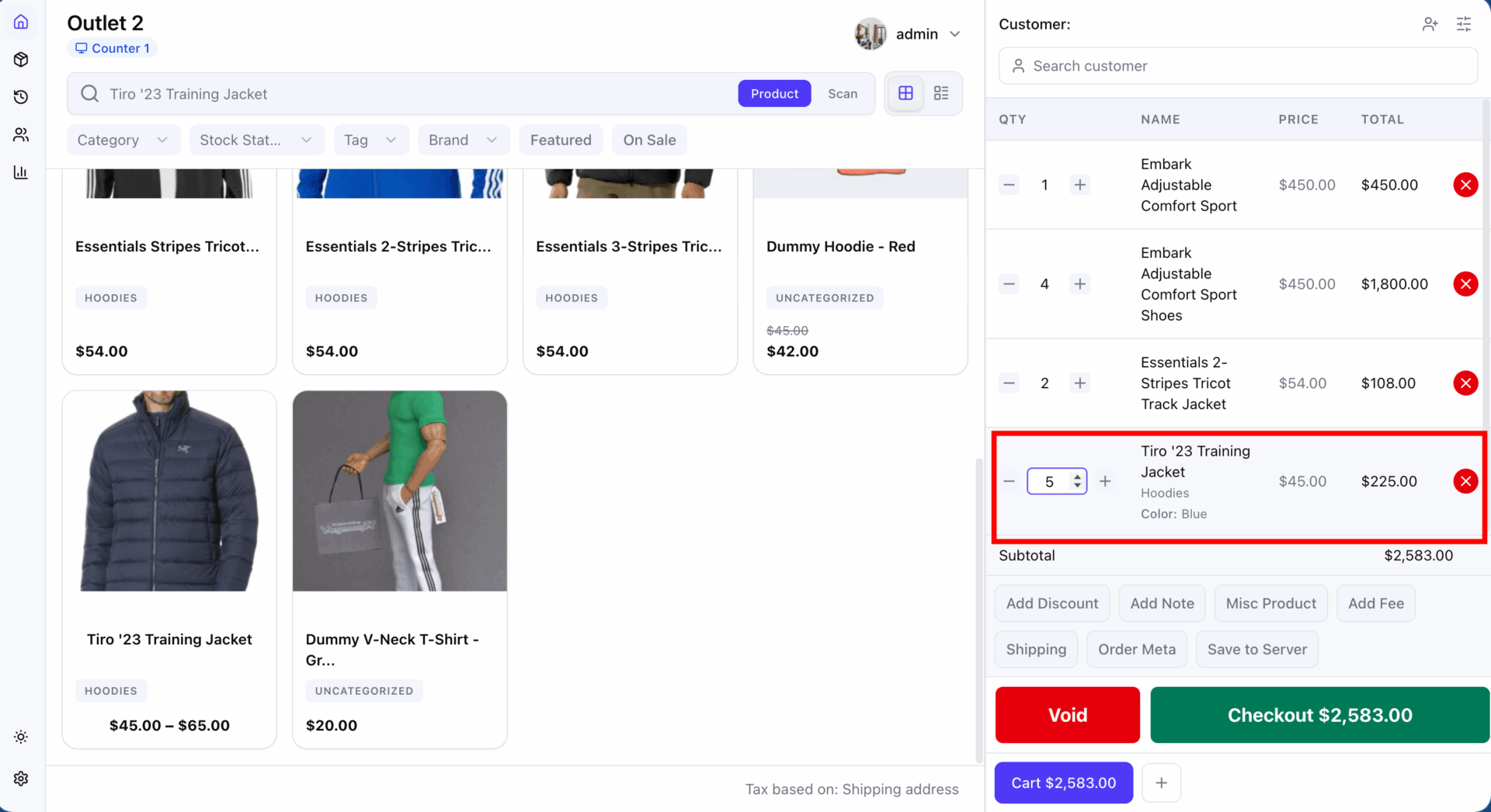
You can add multiple products with multiple quantities to the cart. Just click on the selected items as required quantities.
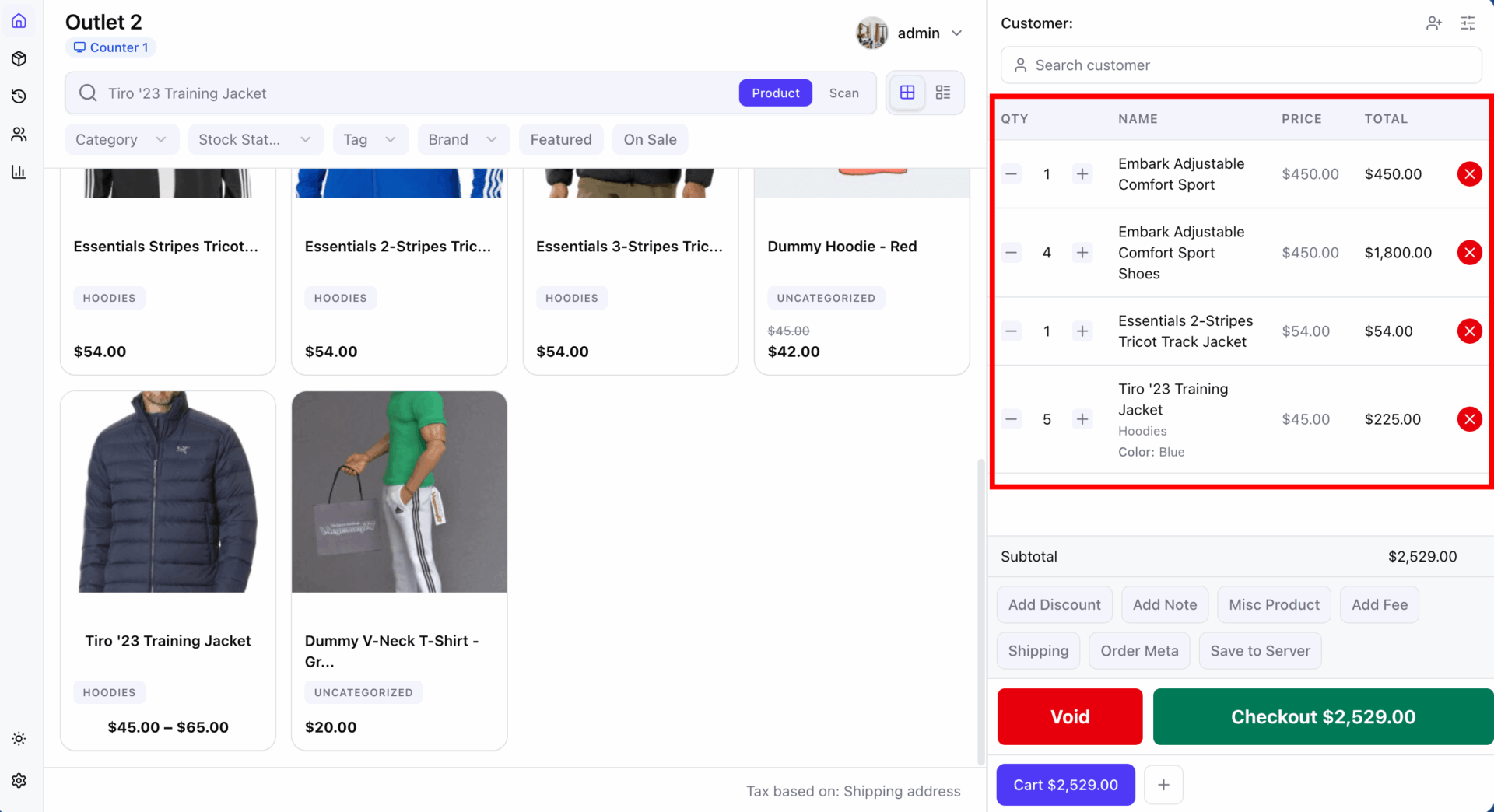
If you need to add or remove quantities, you can do it easily from the
Click on the products or click on the
Note: You will find stock support for the pos product, however, out-of-stock products will be shown but can not be added to the cart.