

Email marketing should be one of your biggest strengths if you run a WooCommerce store. You can communicate directly with your customers via email, sending order updates, promotions, announcements, etc.
However, are your WooCommerce emails dull and generic? Can they delight customers and drive more sales by providing eye-catching, on-brand experiences?
If it is the latter, you are wasting your time and money. It’s more than just looking good when you customize your WooCommerce emails. It would help if you used it to strengthen your brand, increase customer trust, and increase revenue.
“A study by the American Marketing Association shows that The odds of opening an email with a personalized subject line are 26% higher. A customized email is 5.7 times more likely to result in a transaction than a generic email.“
Here, I’ll show you step-by-step how to customize emails in WooCommerce for better sales:
- Encourage repeat business from customers
- Drive seamless brand awareness and product sales
- Recover lost sales and abandoned carts
- Finally, optimize your eCommerce marketing strategy
Are you ready to take your WooCommerce emails to the next level? Let’s get started!
Why You Need to Customize Your Emails
Customizing your WooCommerce emails is more than a “nice-to-have” task. Changing your default emails can completely change the way your online store operates.
The following are some great reasons to customize your WooCommerce email templates:
I. Improve Brand Consistency & Recognition
Imagine receiving an order confirmation email from your favorite brand that looks completely different from its website. Isn’t that odd?
The more you personalize your transactional emails to reflect your brand’s colors, logos, fonts, and voice, the stronger your brand identity will be. A consistent experience makes building trust and recognition with customers easier.
II. Improve the Quality of Customer Service

WooCommerce’s default emails are pretty basic. Adding custom content and resources will allow you to include more useful things, like:
- Information on shipping and returns
- Resources for common questions
- Videos and guides for optimizing their purchase
- Product recommendations and upsell offers
It all helps your brand to provide customers with a better post-purchase experience.
III. Abandoned Cart Recovery & Repeat Sales
You may be surprised to learn that cart abandonment rates for online stores hover around 70%. This is a huge revenue loss. The good news is that you can recover many of those potentially lost sales with strategic, customized emails.
For example, the right messaging and discounts in an abandoned cart email can help bring customers back and boost conversions. Well-timed emails with customized product recommendations also increase the chances of repeat purchases.
Statistics show that personalized emails increase transaction rates by 6x! Given this impact, it’s no surprise that eCommerce brands choose to customize WooCommerce emails.
Types of Default WooCommerce Email Templates
To get started, let’s briefly go over the types of transactional emails WooCommerce sends by default:
- Order Confirmation: A message sent to the customer after they have placed an order
- Order Processing: Informs customers when their orders are ready for shipping
- Order Completed: It indicates an order has been shipped when marked as complete
- Order On-Hold: Holding orders until payment is received
- Order Refunded: Informs customers that their refunds have been processed
- Order Cancelled: After an order is canceled, this email is sent
- New Account: The first email sent after creating an account by a customer
- Reset Password: When a customer requests a password reset,
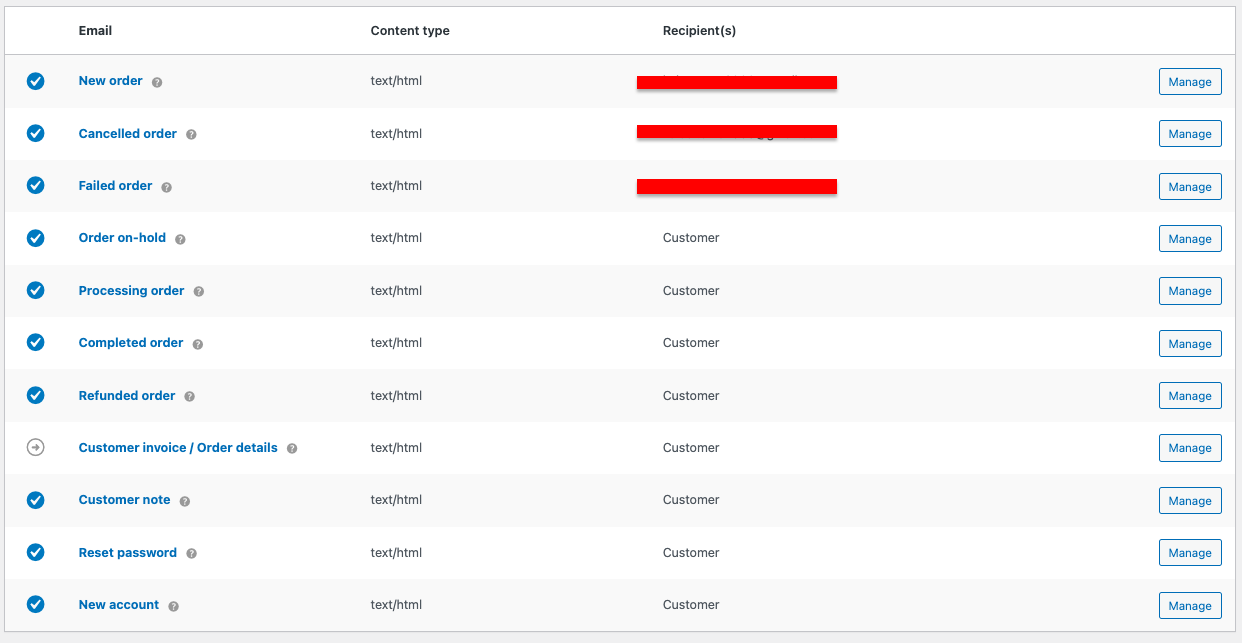
It also sends admin notifications on new orders, failed orders, low-stock alerts, etc.
Many stores use WooCommerce’s default email templates as they are. However, these basic templates lack any customization or branding elements. They are just plain text with basic order information.
Take a look at this example of a default order confirmation email:
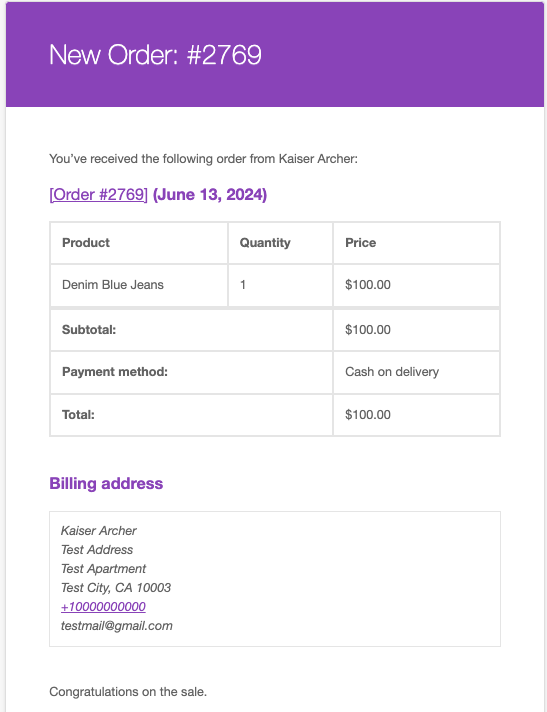
Isn’t that boring? It has no images, brand color scheme, company logo, or nice header. Due to its boring design, customers don’t feel loyal to this brand.
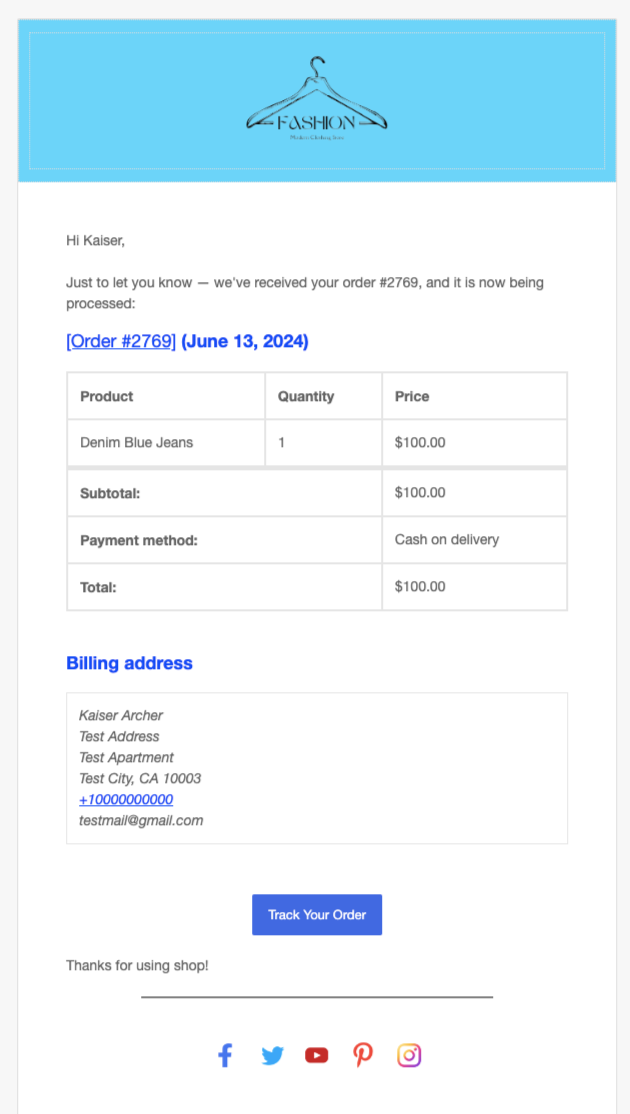
Here’s an example of a customized, eye-catching, branded email:
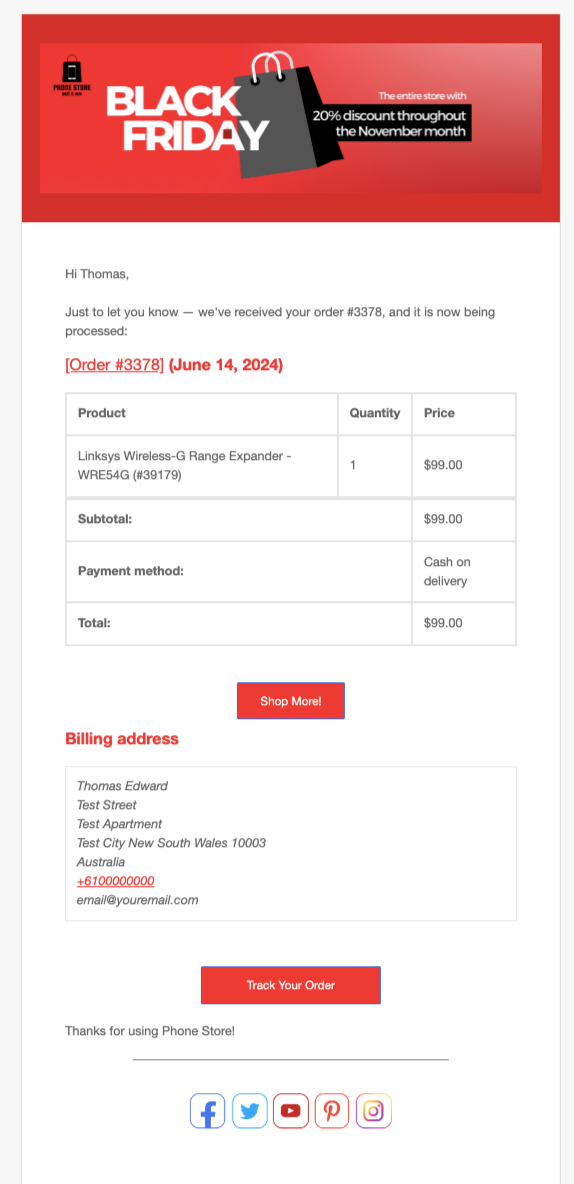
Can you tell the difference? It takes a bit of customization to make that same generic email your brand extension.
Overall, it feels more professional and trustworthy thanks to its consistent look, clear calls-to-action, and consistent calls-to-action.
It’s just a simple example! Fully customizing WooCommerce email templates gives you so much more flexibility. You can customize your brand’s colors, fonts, layouts, and embedded product suggestions to create truly engaging emails.
Also Read – Different Types of Business Plans Every Entrepreneur Should Know
How to Customize Email in WooCommerce – Step-by-Step Tutorial
Now that you know why email customization is important and what WooCommerce can do with it, let’s take a look at how it is actually implemented.
There are a few basic options for customizing the default email templates provided by the WooCommerce plugin itself:
Step 1: Open WooCommerce’s Email Settings
Visit WooCommerce > Settings > Emails on your WordPress admin dashboard
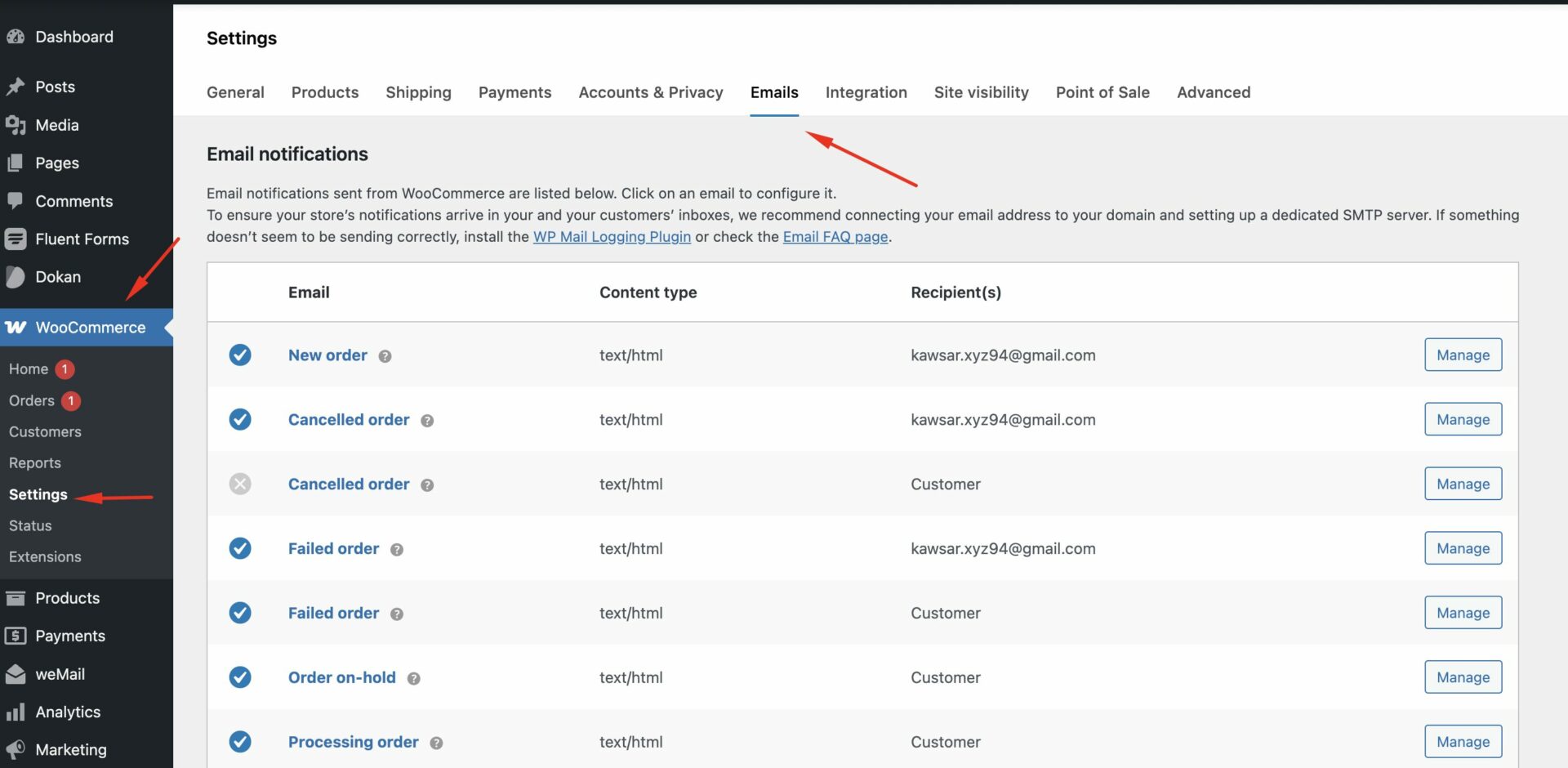
You’ll find an overview of all the different email notifications WooCommerce sends. Click on each one to edit its settings and content.
Step 2: Configure Global “Send From” Information
Scroll down to access the “Email sender options.” Here, you can update the email address and sender name for all outgoing emails from your store.
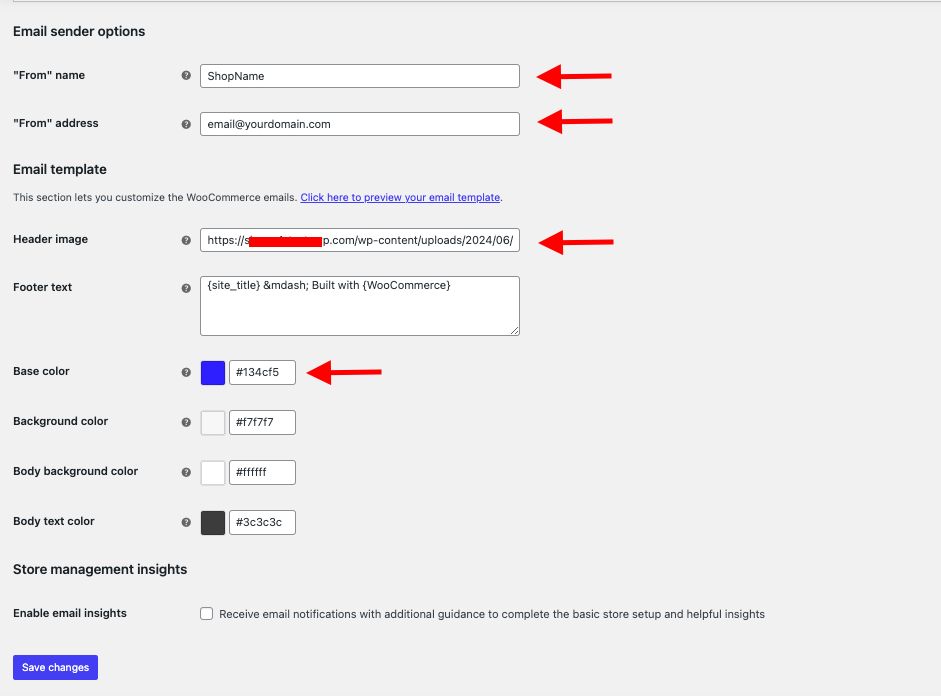
Using an [email protected] format builds credibility compared to generic gmail.com and hotmail.com addresses.
Step 3: Change the Global Email Style
A header image, link/background colors, and default footer text can be edited in the “Email template” section.
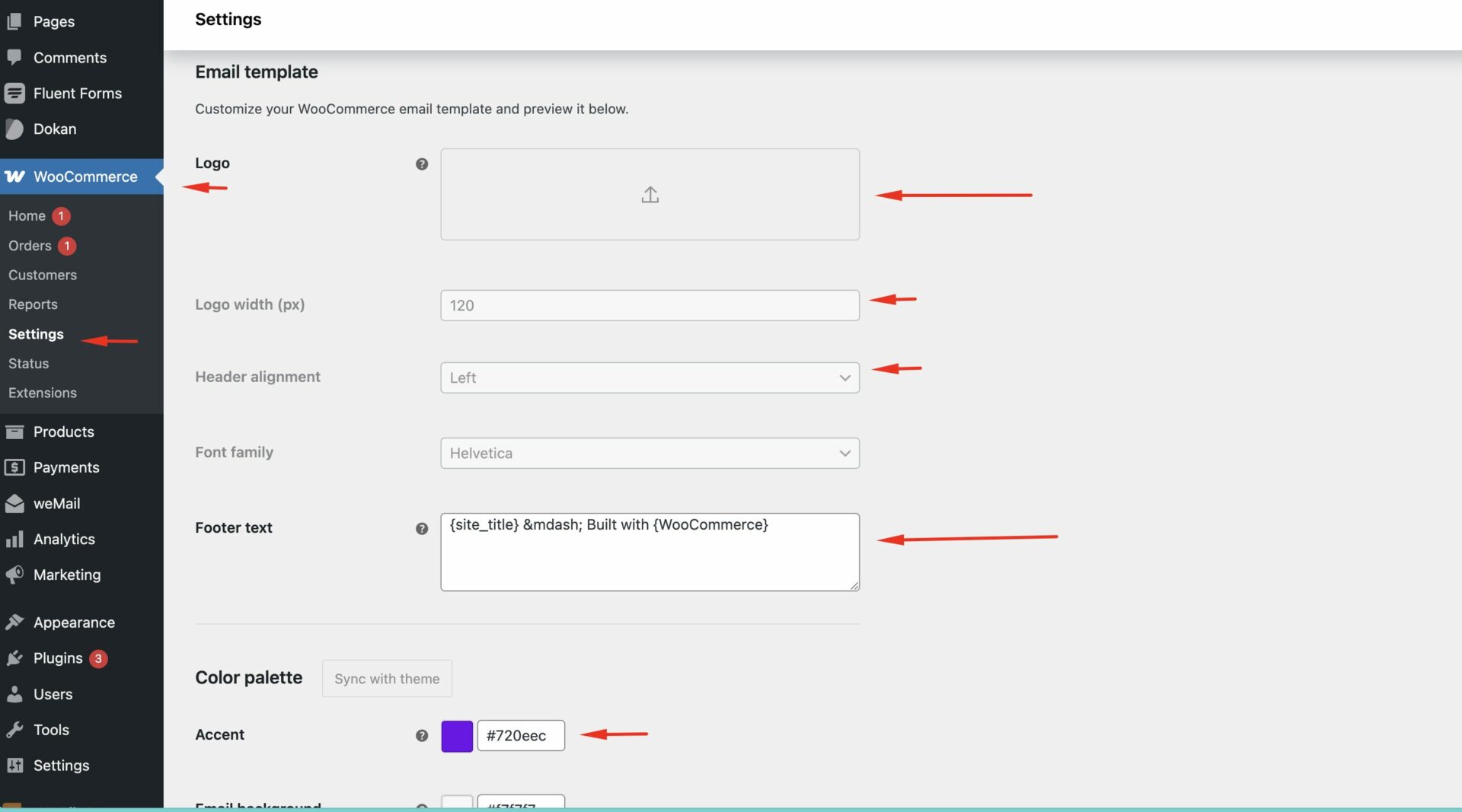
We will apply this basic style to all your email templates to ensure consistency in your branding.
Step 4: Add Content to Individual Emails
You can modify specific email types, such as “Order Processing”:
- Email subject line
- Heading
- Main email content
- Email type (HTML, plain text, or multipart)
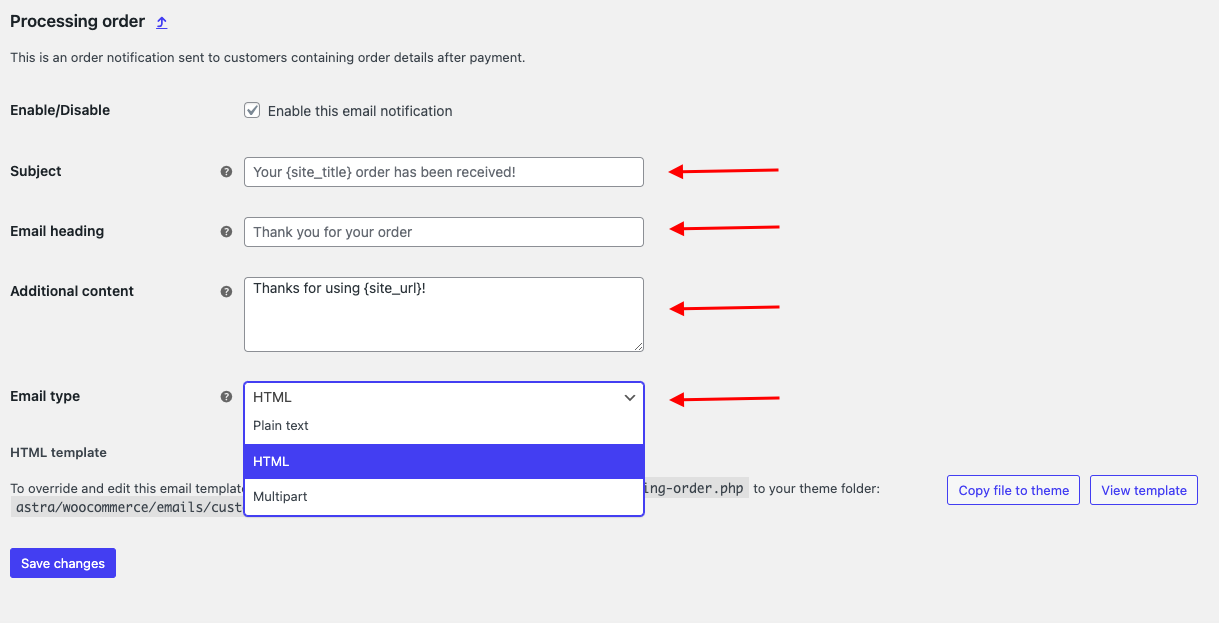
You can edit text formatting, such as headings, lists, bolds, etc., using the settings editor. If you use custom HTML here, avoid invalid code, which might affect your email template.
Use WooCommerce template tags like [order_date] or [order_number] to dynamically insert customer data into emails.
Even though these default options are limited, you can customize them to begin branding your emails and improving content. For more advanced stores, the ability to customize emails will likely require the use of third-party tools.
Keep Your Brand Consistent With These Tips
- Consistently use the brand’s colors, logos, and font styles throughout the emails.
- Ensure your brand identity is reflected in your voice, tone, and terminology.
- The footer should include policies, support, social media links, etc.
- Configure template rules so emails look the same regardless of how they are created (website, admin, etc.)
- Ensure desktop and mobile emails look correct.
Optimizing WooCommerce’s built-in capabilities can greatly improve your default emails. But if you want advanced flexibility and customization options, you’ll need to consider some third-party tools and plugins.
Related – 25 Tips to Increase eCommerce Conversions
Advanced Customization with Plugins
Though WooCommerce’s built-in email options are somewhat limited, WordPress’ vast plugin ecosystem allows for nearly endless customization. It is possible to completely transform basic transactional emails into highly customized, branded communications by using specialized plugins.
Check out these WooCommerce email customization plugins:
1. Email Customizer for WooCommerce
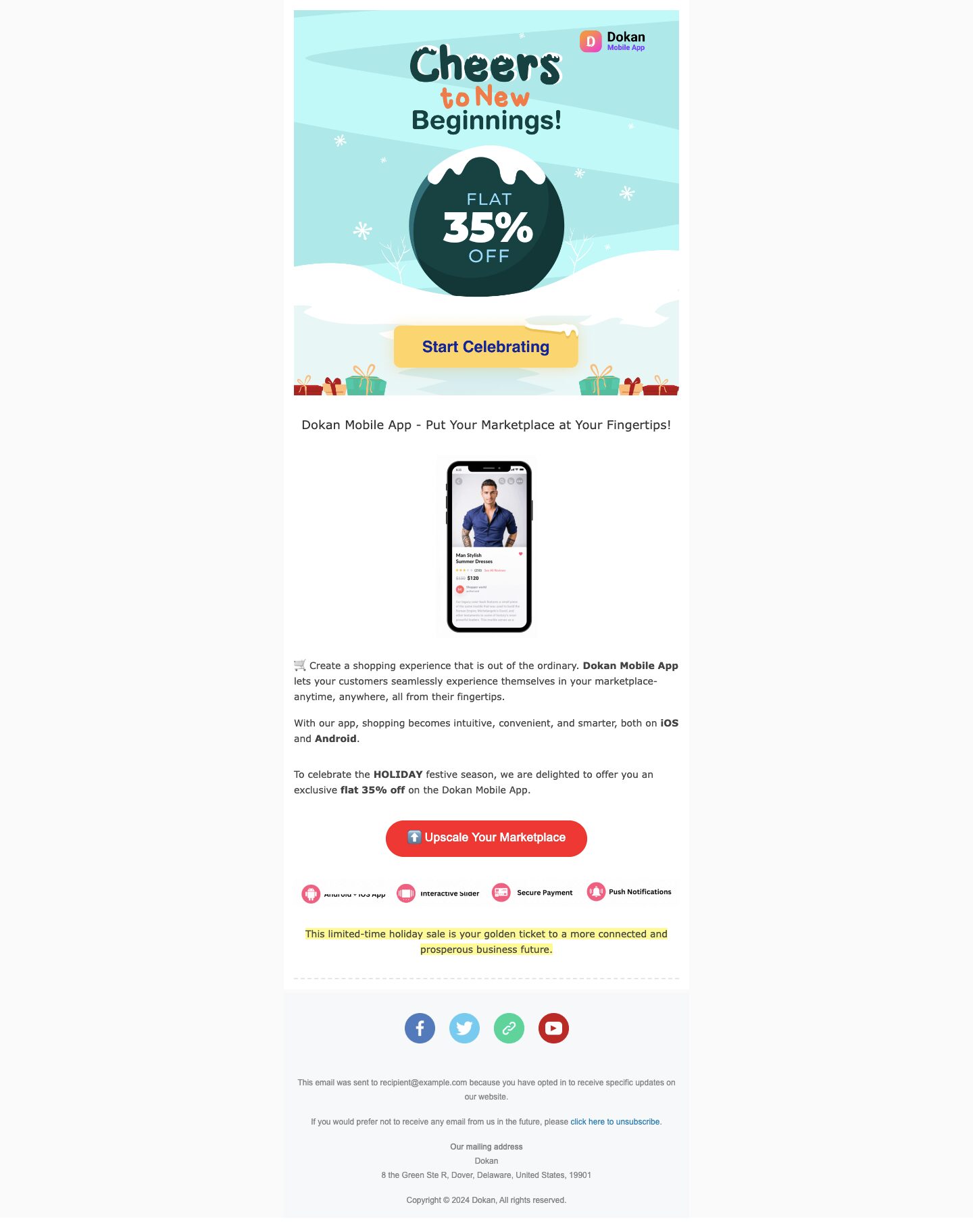
WooCommerce’s freemium email builder provides a drag-and-drop tool for designing custom emails. The basic templates can be spiced up with banners, product images, coupon sections, and more.
You can tweak ready-made template blocks and insert dynamic sections such as order details or suggested product blocks.
A free version has limited customization power, but a premium version with unlimited templates, template import and export, and click tracking unlocks the full customization power.
2. weMail Plugin
When it comes to WooCommerce email customization, weMail stands out as the best option. It offers a variety of features that simplify the process of creating, managing, and optimizing email campaigns through the WordPress dashboard.
Features:
- Drag-and-Drop Builder: Create customized email templates with ease using the drag-and-drop feature.
- Subscriber Management: Create a personalized list with powerful segmentation and import features.
- Automation: Develop sophisticated automated email sequences based on user behavior, such as purchases or new subscribers.
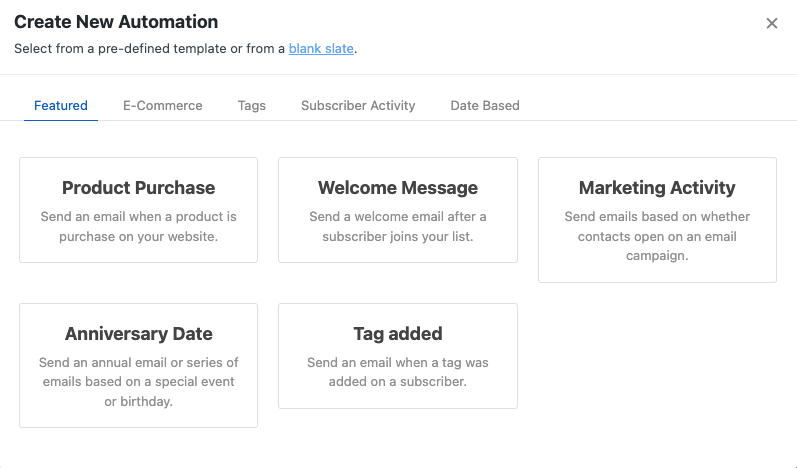
- Integration with WooCommerce: Automatically send product recommendations, abandoned cart reminders, and transactional emails for WooCommerce customers.
- Analytics and Reporting: Measure the success of your emails with detailed analytics and reports, including A/B testing options.
Example Workflow:
- Download and install the weMail plugin.
- Create a new email template using the drag-and-drop builder.
- Design your email by adding product grids, banners, and text blocks.
- Customize your brand’s colors, fonts, background art, and add dynamic content like [order_link] or [first_name].
- Set up automated workflows to trigger these emails based on customer actions, such as order received or cart abandoned.
- Analyze the performance through detailed reports and A/B testing, then refine your email designs for optimal results.
You can customize WooCommerce emails to the highest level with weMail, making it the best choice for businesses
3. Mailpoet Plugin
MailPoet is also a freemium email service integrated closely with WooCommerce. Mailpoet allows you to modify WooCommerce templates using its drag-and-drop email builder.
Changing logos and colors, inserting images/buttons, and tweaking the layout are pretty easy. With paid Mailpoet plans, you can build email signup forms, automate workflows and segment your clients based on their behaviors.
Aside from plugins, email marketing tools like Mailchimp and ActiveCampaign offer WooCommerce integrations so that you can fully build and customize your emails using their visual editors.
Plugins and apps like these require an additional investment, but they unlock much more customization possibilities than WooCommerce’s default options. The most effective emails include custom layouts, dynamic sections, click-tracking, and real-time metrics.
It’s a bit more complicated than basic tweaks, but these plugins unlock pro-level customization for WooCommerce emails.
Testing and Optimizing Customized Emails
After you customize them, it’s important to ensure your WooCommerce email templates are optimized for maximum impact and effectiveness. Don’t just hit send and hope for the best!
Before deploying templates, you should thoroughly test them to catch any issues early and tune them for better performance. These tips will help you test and optimize your customized WooCommerce emails:
(i) Verify Rendering and Display Issues
Browsers and email clients render HTML emails differently. Depending on which inbox app you use, your wonderful template could appear distorted or broken.
You can test your templates with tools such as Email on Acid across multiple email clients, including desktop, web, and mobile. Before sending the code, this will help you identify rendering issues.
(ii) Reliability of Tests
Sending an email doesn’t guarantee it will make its way into inboxes. Conduct deliverability tests with a service like GlockApps or mail-tester.com to determine:
- Analysis of spam
- Checking the authenticity of emails
- Monitoring of blocklists
- Health of DNS/domains
As a result, you are alerted to potential problems that may prevent emails from reaching customers so that you can resolve them proactively.
(iii) Using A/B Testing

It’s not enough to assume your awesome new template designs will work. Performance data tells the truth!
FunnelKit Automation and Mailchimp allow you to create multiple versions of templates and subject lines and A/B test them. You can also check metrics like open rates, clicks, conversions, and revenue to see which designs are most effective.
Analyze the results continuously, evaluate the data, and optimize the winners as needed.
(iv) Optimize for Mobile Devices
A majority of emails are now opened on mobile devices. That means you have to ensure that those carefully crafted templates also display perfectly on small screens.
Use mobile-responsive templates and test the rendering across all major mobile and tablet clients. Also, make sure all tappable elements, including CTAs and images, display and function correctly.
If you provide a customized desktop template, it might look great, but it might not work properly on mobile, negating all your work. Make sure your mobile experience is optimized first.
Customized emails that incorporate optimal testing and optimization ensure subscribers are delighted while delivering the results your business needs.
Also Check – How to Generate Leads for eCommerce Marketplaces
Bonus: Check Out Key Email Marketing Metrics
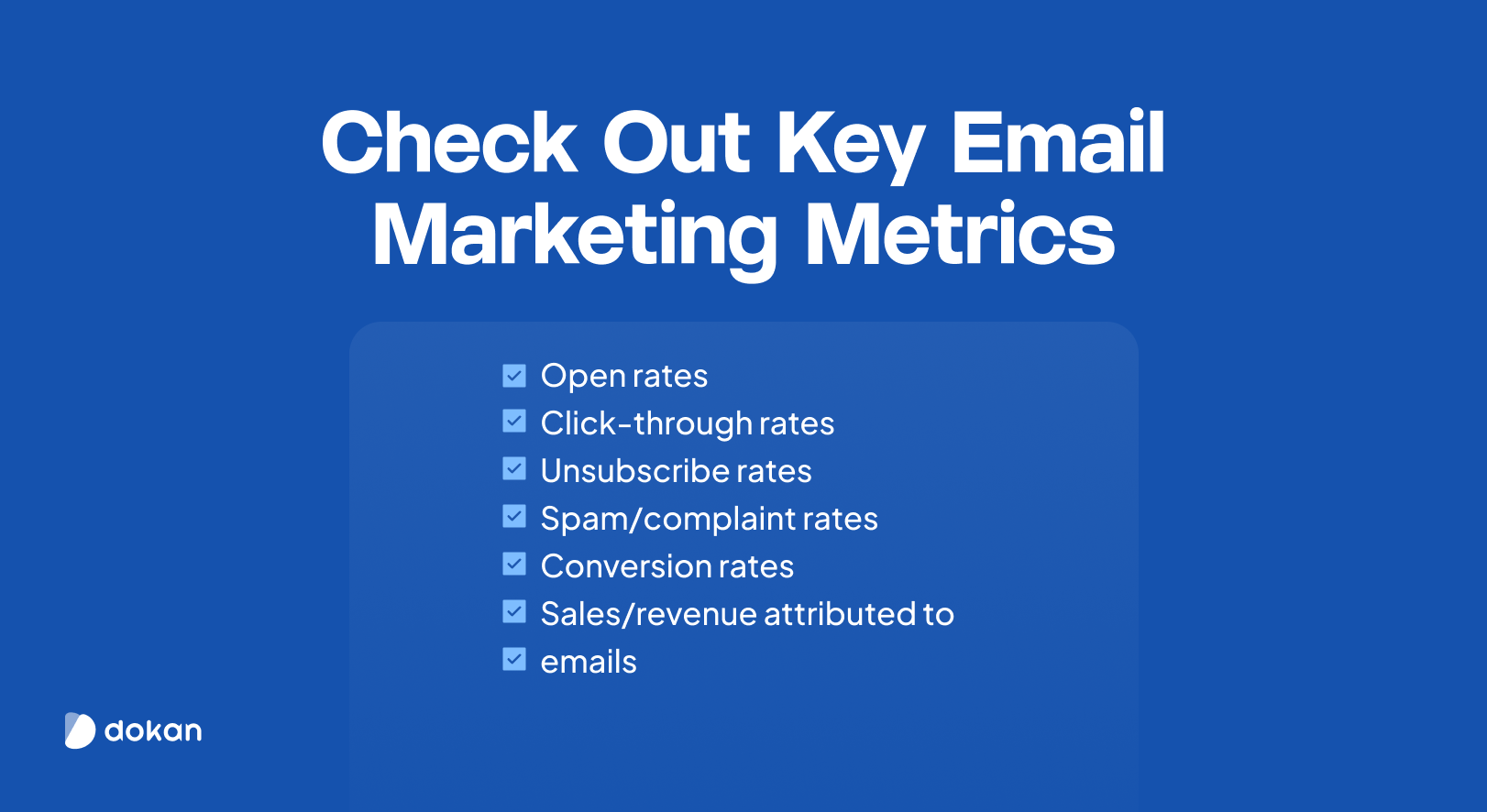
Keep a close eye on standard email marketing KPIs, such as:
- Open rates: The percentage of recipients who open your email. Indicates subject line effectiveness and sender reputation.
- Click-through rates: The percentage of recipients who click on links within your email. Shows how engaging your content and CTAs are.
- Unsubscribe rates: The percentage of people who opt out after receiving your email. High rates signal content relevance issues or email fatigue.
- Spam/complaint rates: How many recipients mark your email as spam. Critical for deliverability and sender reputation.
- Conversion rates: The percentage of recipients who complete a desired action (purchase, sign-up, download). The ultimate measure of email effectiveness.
- Sales/revenue attributed to emails: The actual monetary value generated from your email campaigns. Shows ROI and business impact.
Many services, such as GlockApps and EmailAnalytics, can provide a unified dashboard view of these metrics across all your WooCommerce emails.
Identify opportunities by studying the data. Perhaps abandoned cart emails have high open rates but poor conversion rates, indicating that the copy/offer needs to be adjusted. It’s also possible that post-purchase emails have high unsubscribe rates, suggesting the content isn’t working.
You can continuously refine and optimize templates based on email data. Your customization efforts will be more effective if you have better metrics.
Final Thoughts
In conclusion, customizing WooCommerce emails is vital to operating a successful online store. By moving beyond standard default templates and using advanced customization tools, businesses can create emails representing their brand, captivate customers, and boost sales.
Through thoughtful planning, design, testing, and optimization, eCommerce stores can leverage personalized email marketing to cultivate stronger relationships with their audience and achieve their objectives.
Having said that, if you have any further confusion, feel free to reach out to us using the comment box below. We are just one comment away. Take care!


Leave a Reply