



If you run a WooCommerce store, you may have heard about ‘PHP version’ from your hosting provider. But what exactly does it mean? Why should you care about it? And how to check this and set a suitable version for your store?
PHP is the programming language that powers both WordPress and WooCommerce. Think of it like the engine of a car. A newer engine runs faster and uses less fuel. If your PHP version is too old, your WooCommerce store will run slowly.
It may also have security holes. Plugins may stop working, too. All of this can hurt your sales and your Google search ranking badly. This article will cover this topic in depth. You’ll learn why WooCommerce PHP version matters a lot for your store.
You’ll also learn how to check the WooCommerce PHP version and how to set a new one. So, be with us till the end.
What Happens If Your PHP Version Is Too Old
Running a WooCommerce store on old PHP causes real, serious problems. Here is what you might experience if your PHP version is outdated and you have not yet updated it to a newer, safer version for your store.
- Your store loads slowly, and customers leave your site before they buy anything
- You see error messages or white blank screens on your important pages
- Some plugins and themes stop working or start behaving in very strange ways
- WooCommerce itself may refuse to update to newer, better versions of itself
- Your store becomes an easy target for hackers, malware, and data theft attacks
- Your Google ranking drops because of slow speed and visible errors on pages
Why Using the Latest PHP Version is Safer for WooCommerce
Now, take a quick look at why the PHP version matters a lot for WooCommerce stores. Hope this will help grow your knowledge base remarkably. Read them below:
a. Website Speed and Performance
PHP 8.x versions are much faster than PHP 7.x versions. Tests show that PHP 8.0 alone can be up to three times faster than older versions like PHP 5.6. Pages load quicker, and your server can handle more visitors very easily.
A faster website directly helps your conversion rate. Studies show that if a page takes more than three seconds to load, over half of visitors leave. Updating your PHP is one of the easiest ways to improve the speed of your WooCommerce store.
b. Security Protection
Old PHP versions have well-known security weaknesses. These weaknesses are publicly listed online. This means hackers already know exactly how to attack any website that is running outdated PHP on its server today.
When PHP releases a new version, it patches all known security holes. If you stay on old PHP, you never receive those patches. Your store, customer data, and payment information can all be put at serious risk. Check the best security plugins for WooCommerce.
🚨 Security Risk: WooCommerce stores handle customer names, emails, and payment details every day. Running old PHP puts all of this sensitive data at serious risk. Do not wait — update your PHP version as soon as possible.
c. Plugin and Theme Compatibility
Plugin developers write their code for the latest PHP versions. If you use old PHP, plugins may not work. You might see broken features, missing buttons, or complete plugin failures showing on your site pages. The same is true for themes. Read on how check and fix plugin conflicts.
Premium WooCommerce themes are tested on newer PHP versions. Using PHP 7.3 or below means your theme may not display correctly, which directly hurts your store’s appearance and sales. So, always check plugin compatibility before updating PHP.
d. SEO Impact
Google uses page speed as a ranking factor when deciding where to place your site. A slow website caused by old PHP can lower your position in search results and reduce the traffic coming to your WooCommerce store.
Also, if your site shows errors because of old PHP, Google may mark it as unreliable. This can cause your pages to drop out of search results completely, which destroys your organic traffic and your store’s revenue fast. Read the best SEO guides.
PHP Version Overview Table
Numerous PHP versions have been released and are being used by countless users. But which one is comparatively safer to use? Take a look at this below.
| PHP Version | Status | Recommendation |
|---|---|---|
| PHP 7.3 or below | ❌ Outdated | Do NOT use. Unsafe and old. |
| PHP 7.4 | ⚠️ Old | No longer supported. Avoid it. |
| PHP 8.0 | ✅ Okay | Works, but not ideal anymore. |
| PHP 8.1 | ✅ Good | Stable and widely supported. |
| PHP 8.2 | ⭐ Better | Great performance and security. |
| PHP 8.3 | 🚀 Best | Current recommended choice. |
How to Check Your PHP Version
There are four easy ways to check your PHP version right now. You do not need to be a developer to do this. Just pick the method that feels easiest for you and follow the simple steps listed below carefully.
Method 1: From Your WordPress Dashboard
This is the easiest way to check your PHP version. No technical skills are needed at all here. Just log in to your WordPress site and follow these quick steps to see your PHP version in just a few seconds.
Log in to your WordPress admin dashboard. On the admin bar, click on Tools. Select Site Health from the submenu that appears. Click the Info tab at the very top of the page
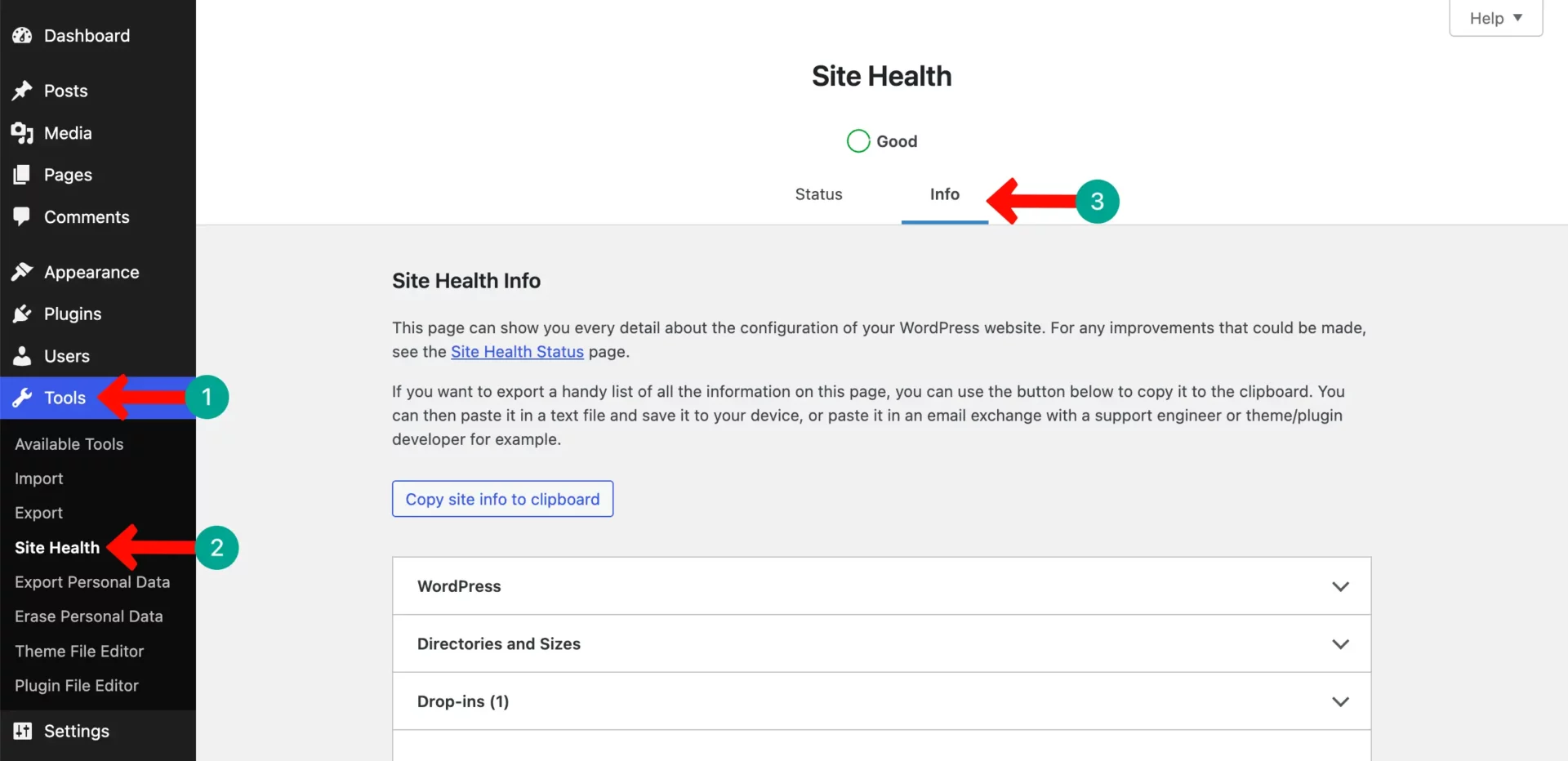
Scroll down and click to expand the Server section. Look for the ‘PHP version‘ row – your current version is shown there.
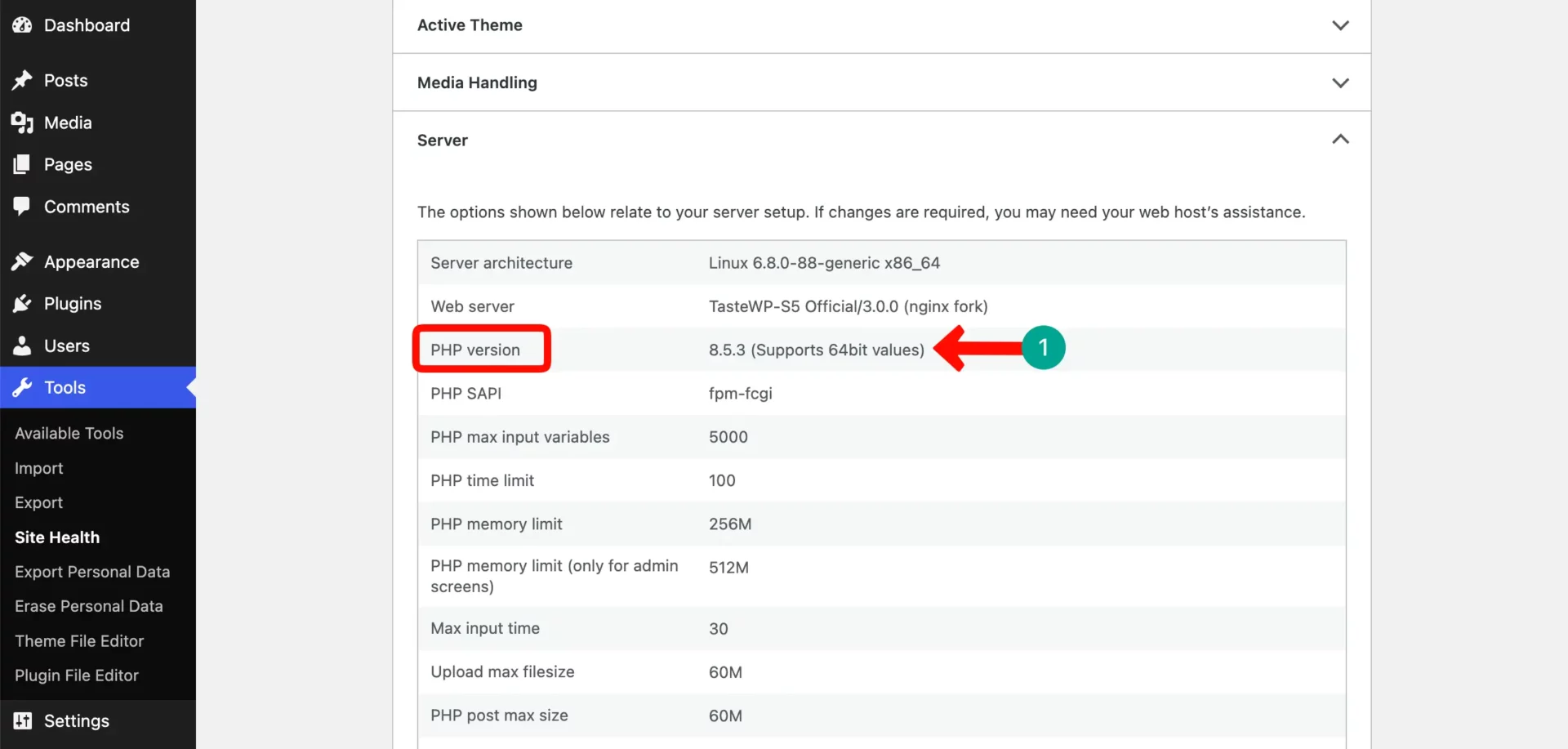
💡Tip: WordPress also shows a warning if your PHP is outdated. Look for red or orange notices under the Status tab inside the Site Health section of your WordPress admin dashboard.
Method 2: From Your Hosting Control Panel
Most hosting companies provide a control panel like cPanel. You can check and even change your PHP version directly from there. The cPanel interface may be different depending on your hosting platform. For example, we’ll use the Hostinger platform.
Log in to your hosting account and open your hPanel dashboard (in Hostinger, cPanel is named as hPanel). Go to your domain’s page. Expand the Advanced section.
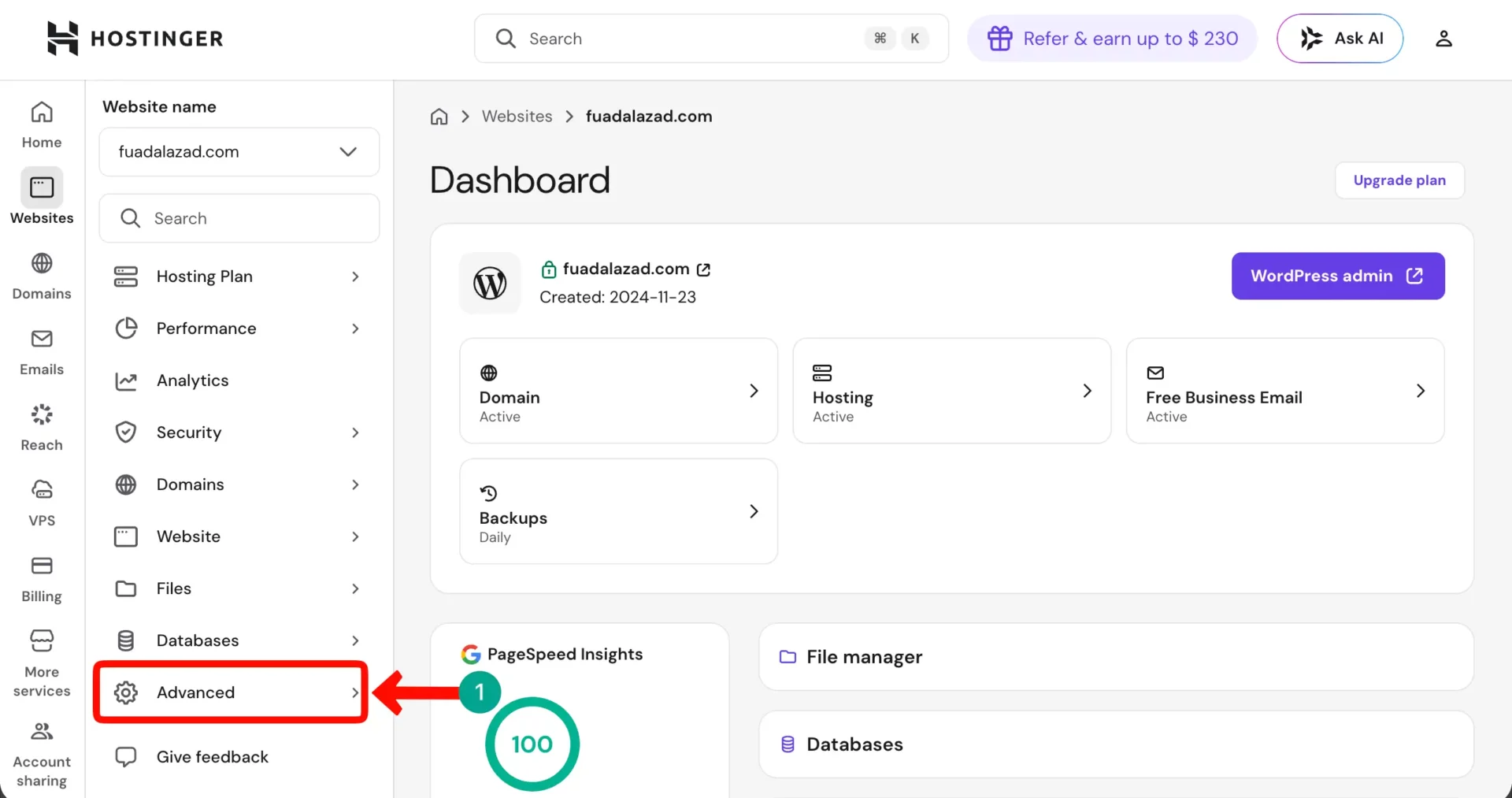
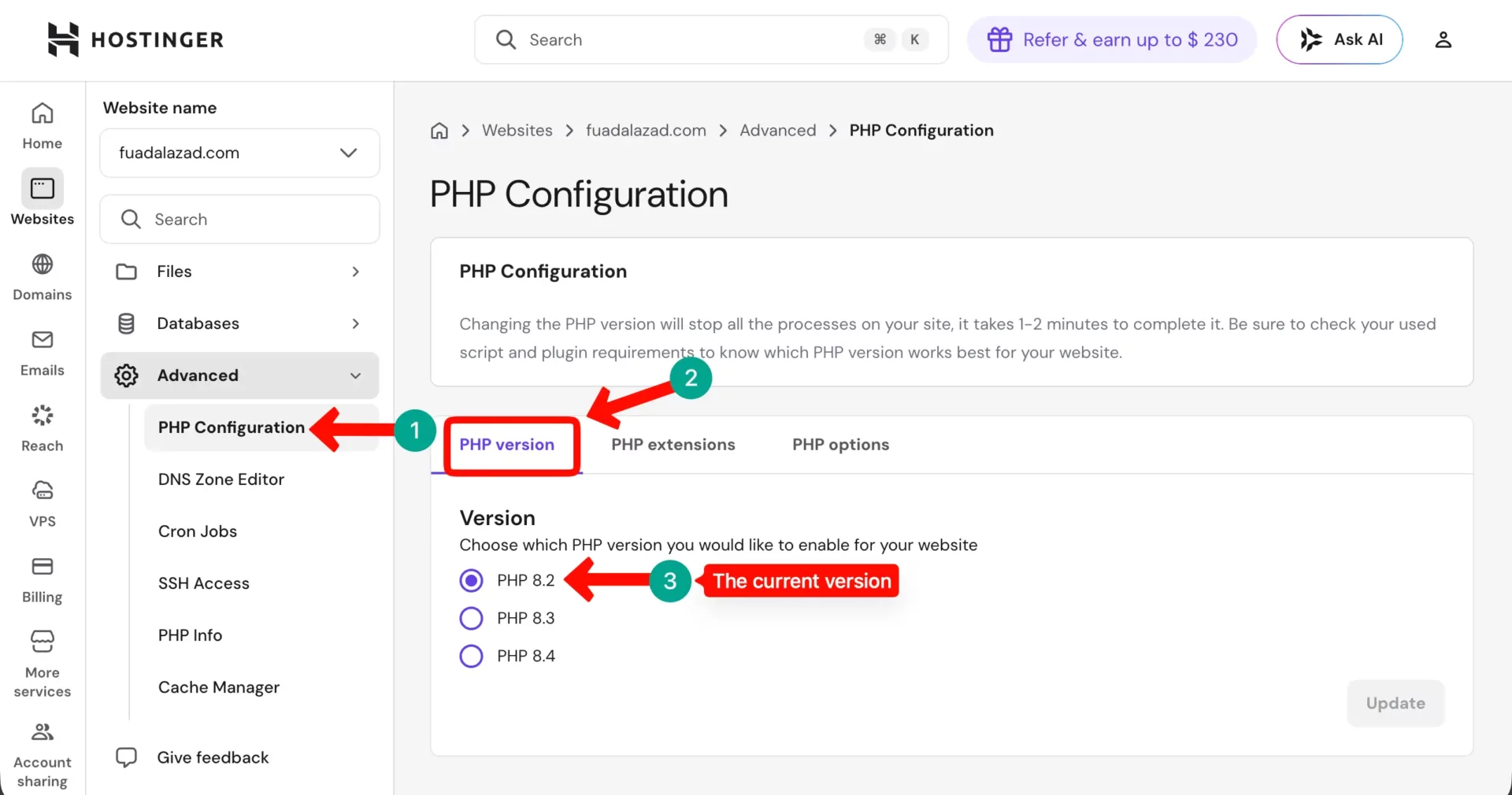
Once the Advanced section is expanded, find and go to the PHP Configuration option. You can see your current PHP version under the PHP version tab.
If you face any difficulty, you can reach the support team of your hosting provider to get this information.
Method 3: Using a Plugin
You can use a free WordPress plugin like Query Monitor or WP Health to check your PHP version. These plugins show full server details directly inside your WordPress dashboard easily.
Go to Plugins > Add New. Then, install and activate the Query Monitor plugin.
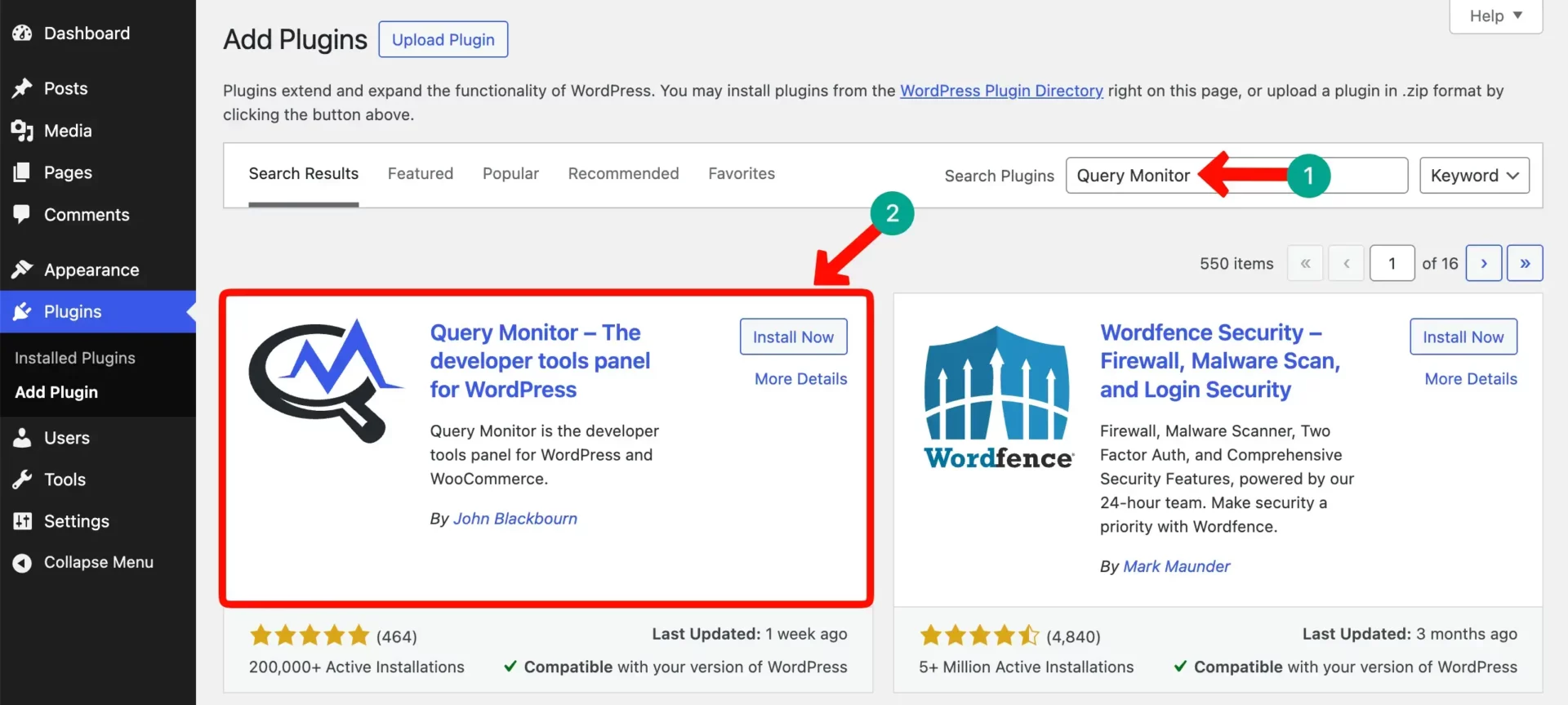
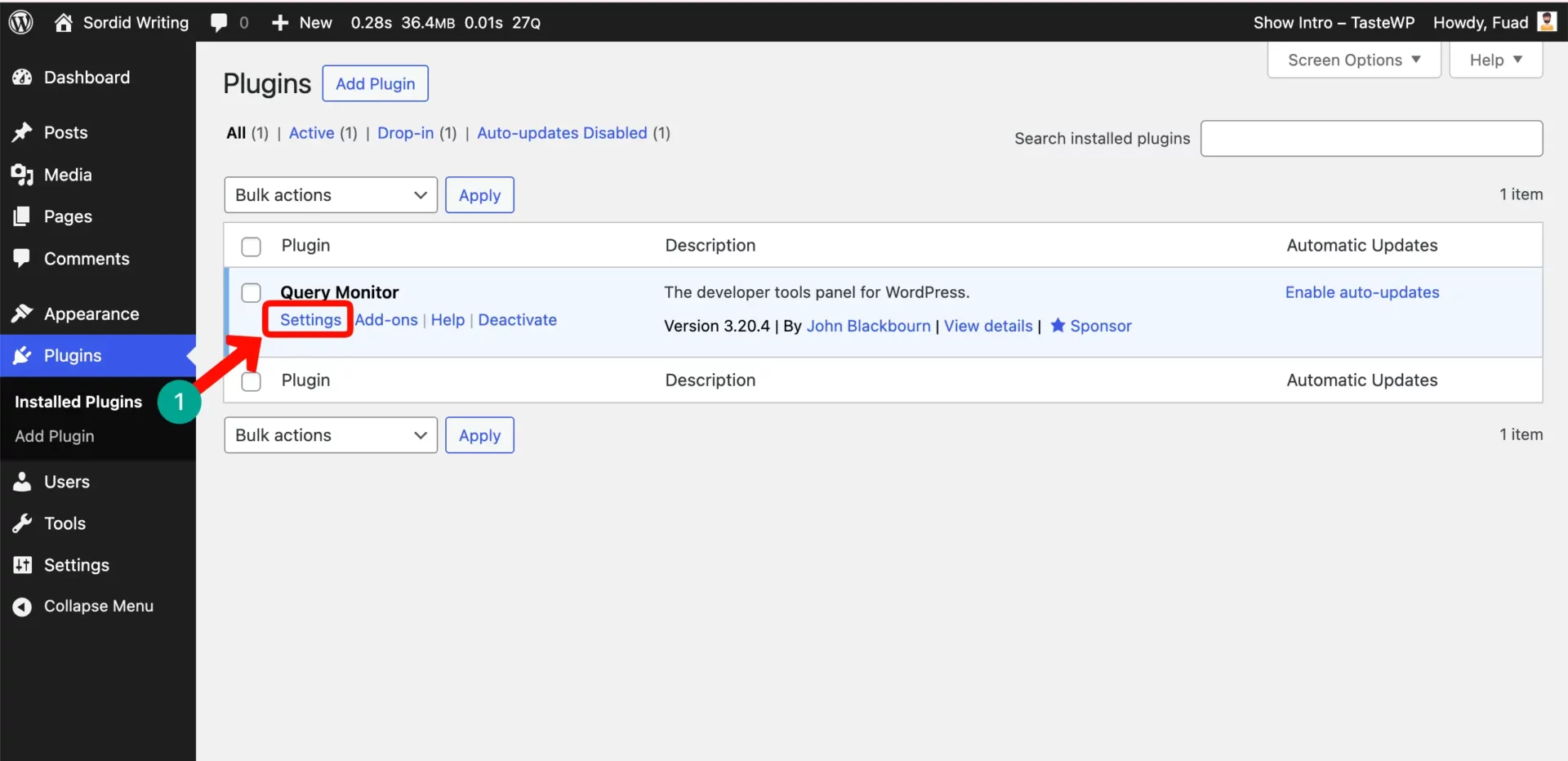
Click the Settings option under the Query Monitor plugin.
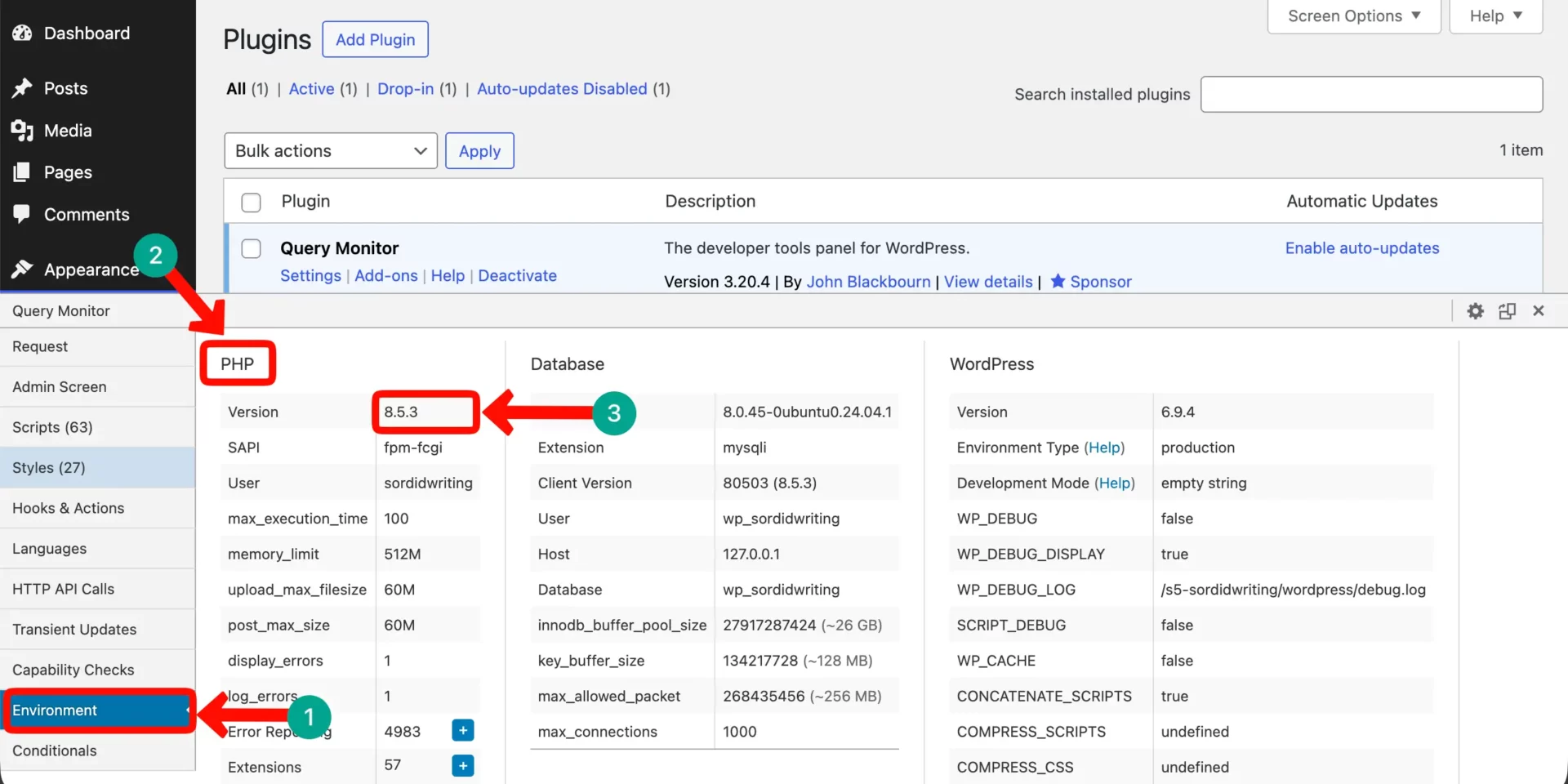
Find and expand the Environment tab on the left sidebar. Under the PHP column, you will see the current PHP version of this WordPress website.
How to Update WordPress PHP Version Safely
Updating PHP the wrong way can break your website. But updating it the right way is simple and safe. Just follow these steps carefully, and your store will stay healthy throughout the entire update process.
🚨 Precaution: Before you start updating the PHP version, make sure you keep a backup of your site and update all plugins & themes. Otherwise, you may lose all your site’s data in case it crashes.
Using Your Hosting Control Panel
Most hosting providers make PHP updates very simple. Here is the general process for updating your PHP version through cPanel, which is the most commonly used hosting control panel available today.
We already showed you how to see the current PHP version of your website from the hosting cPanel. For example, we used Hostinger’s hPanel. Come to the page again.
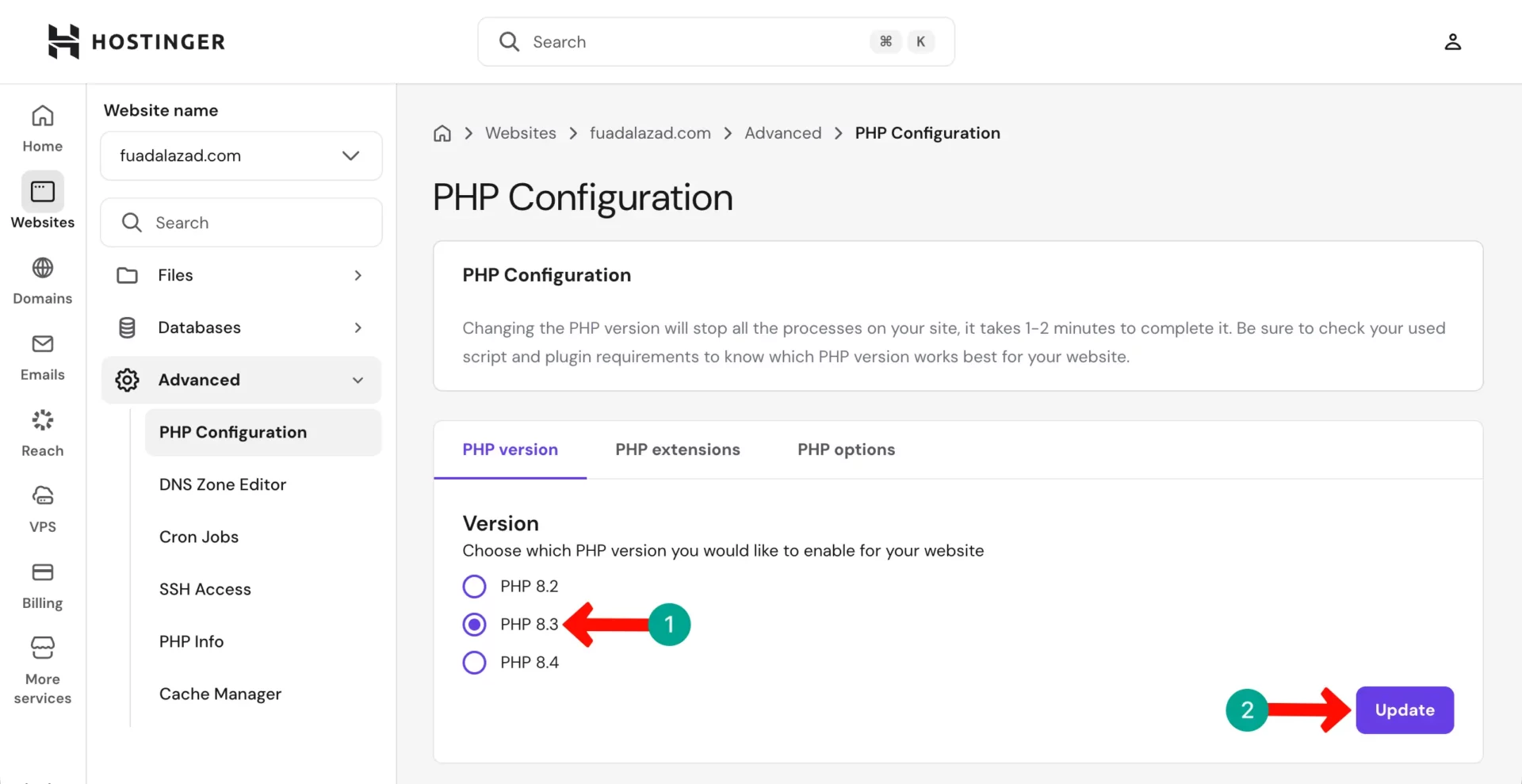
Select the PHP version you like, such as we have selected PHP 8.3 in the screenshot below. Then, hit the Update button. The PHP version will be changed.
📌 Recommendation: Always choose PHP 8.3 if your hosting provider supports it. If not available, choose PHP 8.2. Avoid jumping from a very old version directly to 8.3 if you have many older plugins running on your current store.
Common Problems After Updating PHP and Their Fixes
There are several problems you may face when updating the PHP version of your WooCommerce website. To stay on the safe side, you must know them well. Take a look at them below.
Problem 1: White Screen of Death
The White Screen of Death is a completely blank white page with nothing on it at all. This usually happens when a plugin or theme is not compatible with the new PHP version you just selected from your hosting control panel.
Fix for White Screen of Death:
- Go back to your cPanel right away and switch back to your previous PHP version
- Rename your plugins folder via FTP to deactivate all plugins at once instantly
- Switch to a default WordPress theme like Twenty Twenty-Four to rule out theme problems
- Update PHP again, and then reactivate your plugins one by one to find the bad plugin
- Replace any incompatible plugin with a compatible alternative that is regularly updated
Learn how to solve your PHP memory limit errors.
Problem 2: Plugin Conflict
After updating PHP, a plugin may show errors or stop working correctly. This happens when the plugin was written for an older PHP version and has not yet been updated by its developer to support newer PHP releases.
Fix for Plugin Conflicts:
- Deactivate the broken plugin and check if your site works properly without it now
- Check the plugin page on WordPress.org to see if a new version is available that supports your new PHP version
- Contact the plugin author directly and report the PHP compatibility issue you found
- Search for an alternative plugin that does the same job and is fully compatible now
Problem 3: Theme Issues
Your theme may look broken or display incorrectly after a PHP update. You might see layout problems, missing elements, or strange characters appearing. This is usually caused by outdated PHP functions inside your theme files.
Fix for Theme Issues:
- Switch to a default WordPress theme first to confirm the issue is with your theme
- Check if your theme has a newer version available in the WordPress themes directory
- Update your theme to the latest version and see if the problem gets resolved now
- Contact your theme developer with a detailed report if no update is available yet
- Consider switching to a modern, actively updated WooCommerce-ready theme instead
How to Update the PHP Version of Dokan Multivendor Marketplace
Dokan is a popular multivendor plugin for WordPress. It helps you turn a single online store into a full marketplace like Amazon or eBay. With Dokan, many vendors can create their own stores, add products, and manage orders from one website.
It is built on top of WooCommerce, which means it uses WooCommerce as its core system to handle products, payments, and orders. Now, here is the simple truth. You do not need to update PHP separately for Dokan.
Since Dokan is fully based on WooCommerce, it uses the same PHP version as your WooCommerce store. When you update the PHP version from your hosting control panel, it updates the entire WordPress site.
This includes WooCommerce, Dokan, your theme, and all other plugins. So, if you already followed the steps to update your WooCommerce PHP version, then your Dokan marketplace is already running on that updated PHP version as well.
Frequently Asked Questions on WooCommerce PHP Version
Here are the most common questions that WooCommerce store owners ask about PHP versions. Each answer is kept short and simple, so you get exactly what you need without any extra confusion added.
What PHP version is best for WooCommerce in 2025?
PHP 8.3 is the best version for WooCommerce in 2025. It is the fastest, most secure, and fully supported by the WooCommerce team. PHP 8.2 is the second-best option if PHP 8.3 causes any compatibility issues on your store.
Can WooCommerce run on old PHP versions?
WooCommerce officially requires PHP 7.4 as the absolute minimum. But using old PHP means your store will be slower, less secure, and may face plugin compatibility problems. Old PHP is not recommended for any live WooCommerce store running today.
Will updating PHP break my WooCommerce website?
It might break things if some plugins or themes are outdated and incompatible. That is why you must backup your site and check plugin compatibility before updating. If you follow the checklist in this guide, the risk is very low and manageable.
How often should I update my PHP version?
Review your PHP version every 6 to 12 months. When a new stable version is released and widely supported by WooCommerce, plan your update within a month or two. Do not wait more than one year because old versions lose security support quickly.
Is PHP 8 good for WooCommerce stores?
Yes, PHP 8 is excellent for WooCommerce. All PHP 8 versions (8.0, 8.1, 8.2, and 8.3) are significantly faster and more secure than PHP 7. PHP 8.3 is the top recommended version right now. PHP 8.1 and 8.2 are also very strong choices.
How do I know if my hosting supports the latest PHP?
Log in to your hosting control panel and look for a PHP selector or PHP Manager option. If it lists PHP 8.2 or PHP 8.3 as available options, your host supports the latest versions. If not, contact your hosting support team and ask them to add it.
Conclusion
Your WooCommerce store’s success depends heavily on the technology running behind it. PHP is the very foundation. Using the right version keeps your store fast, secure, and fully compatible with all plugins and themes you use.
The best PHP version for WooCommerce in 2026 is PHP 8.3. If you have not checked your PHP version yet, do it today using one of the four easy methods we explained in this guide. It only takes a few minutes to check.
Always back up before any update, use a staging site if possible, test thoroughly after every update, and monitor your store for a few days. These small habits protect your store and keep everything running smoothly.
If you found this guide helpful, consider sharing it with other WooCommerce store owners in your network. You can also join the WooCommerce community forums to get more expert tips and connect with experienced store owners worldwide.
Subscribe to
Dokan blog
We send weekly newsletters, no spam for sure!




Leave a Reply