



You built your store on WooCommerce. It works. Then you open a physical shop, or start doing markets, or a customer standing in front of you wants to buy something right now, and you realize your online store has no way to take that sale.
So you improvise. A separate till. A notebook. A card reader that has nothing to do with your website. And within a few weeks you are running two businesses that do not talk to each other, with two stock counts that never agree.
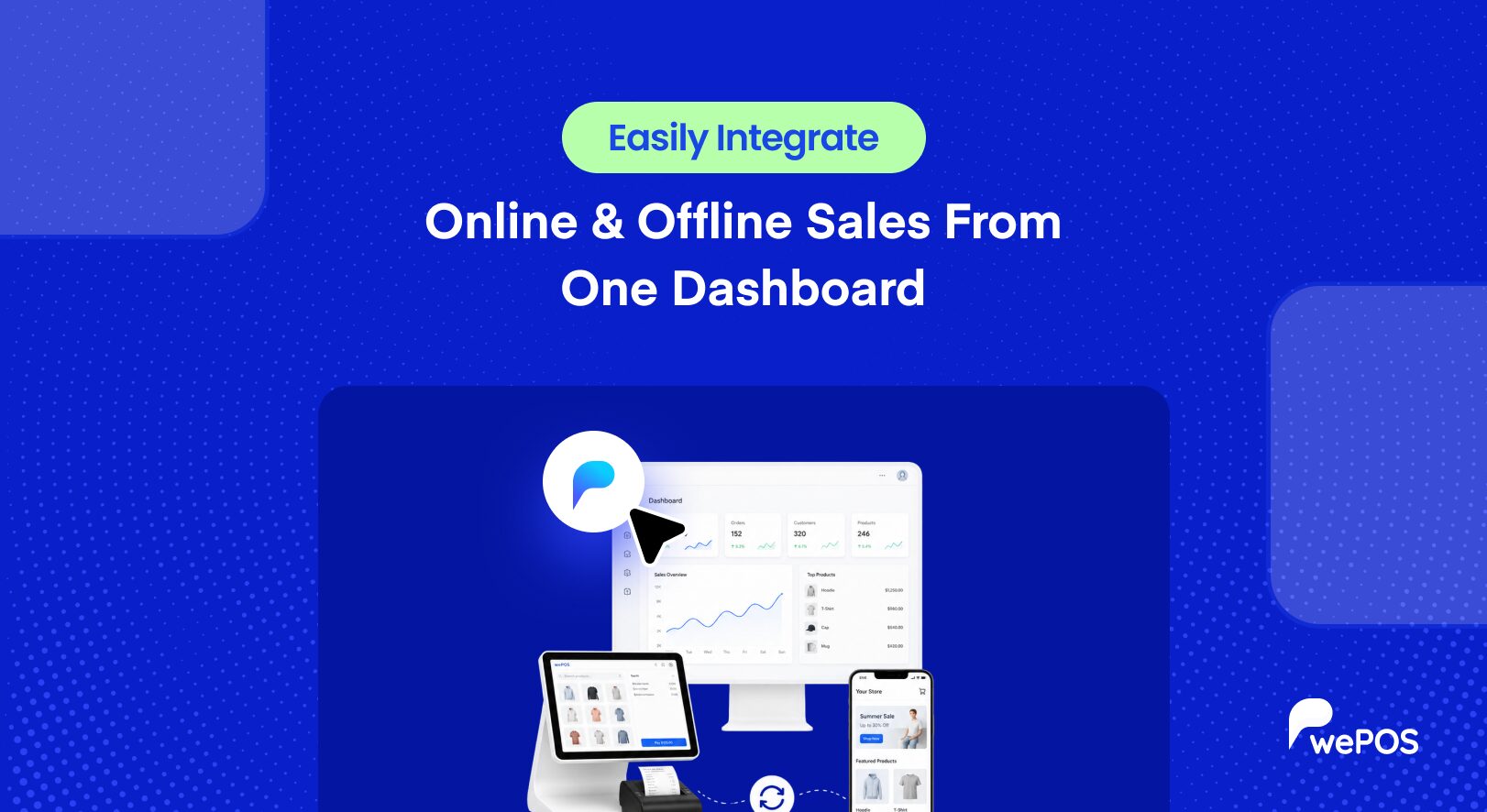
A WooCommerce POS system fixes that. It turns your existing store into a retail checkout counter, so in-person sales and online sales share the same products, stock, orders, and customers.
This guide covers what a WooCommerce POS system actually is, how it works, what features matter, what it costs, and the questions worth asking before you pick one.
The short answer. A WooCommerce POS system is software that lets you sell in person using your existing WooCommerce store data. It adds a checkout screen where staff scan or search products, take payment, and print a receipt. Every sale creates a WooCommerce order and updates your inventory in real time, so your online store and physical counter stay in sync automatically.
Understand What a WooCommerce POS System Is
POS stands for point of sale, which is simply the moment and place a customer pays you. A POS system is the software that handles that moment.
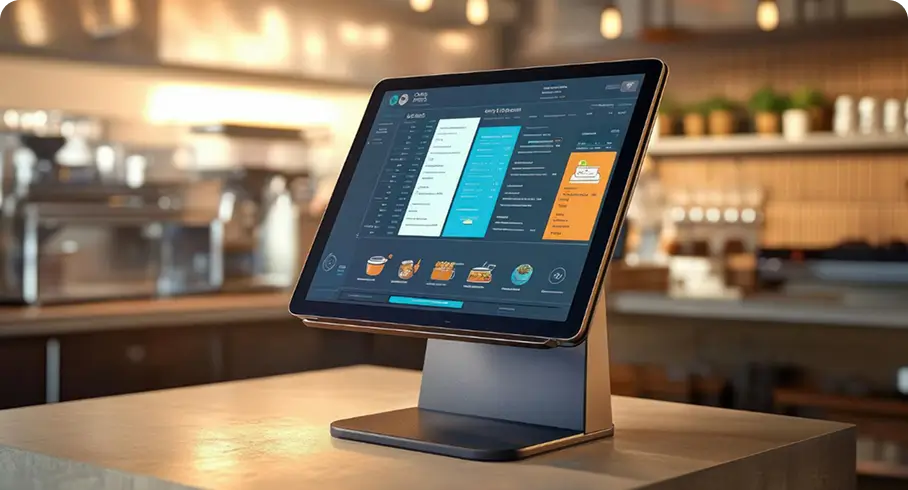
A WooCommerce POS system does this using your store as the source of truth. It pulls your products, prices, tax rules, and stock levels from WooCommerce, and it pushes every completed sale back as a normal WooCommerce order.
How It Works in Practice
The flow is short. A customer brings items to your counter. Your cashier opens the POS screen and scans a barcode or searches for the product. The item lands in a cart with the correct price and tax already applied, because those come from your store settings. The cashier takes payment, prints or emails a receipt, and the sale is done.
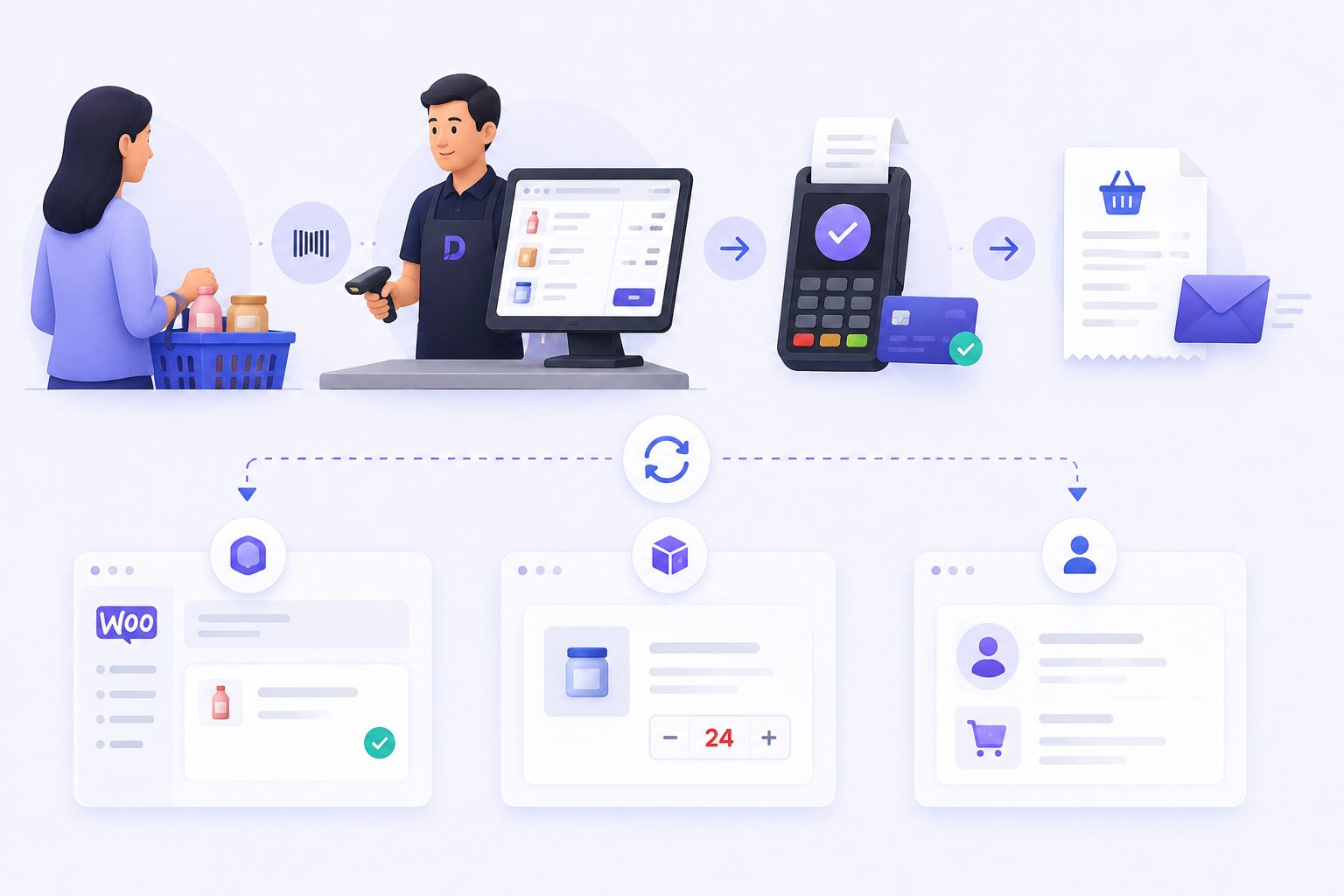
Behind that, three things happen automatically. A WooCommerce order is created. Your stock count drops. Your customer record updates if you captured one.
That is the entire value proposition. You are not maintaining a second system. You are extending the one you already have.
Does WooCommerce Have a Built-In POS System?
No. WooCommerce does not include a point of sale out of the box. It is built for online checkout, where the customer is on a website adding items to their own cart.
In-person selling needs something different. A fast screen designed for a cashier, barcode scanning, a cash drawer, receipt printing, and the ability to serve someone standing in front of you in seconds rather than minutes.
To get that, you add a POS plugin or connect a third-party POS system. Both approaches are covered further down, because the choice between them matters more than most guides admit.
How POS Checkout Differs From Website Checkout
It helps to see why you cannot just use your normal checkout page at the counter.
Website checkout is built for a customer who is browsing, comparing, entering their own shipping address, and paying with their own card at their own pace. It is designed to be careful.
POS checkout is built for speed with a queue forming. No shipping address. No account creation. Scan, total, pay, receipt, next customer. Different job, different interface.
Know Why Store Owners Add a POS System
The reasons go well beyond convenience at the till.
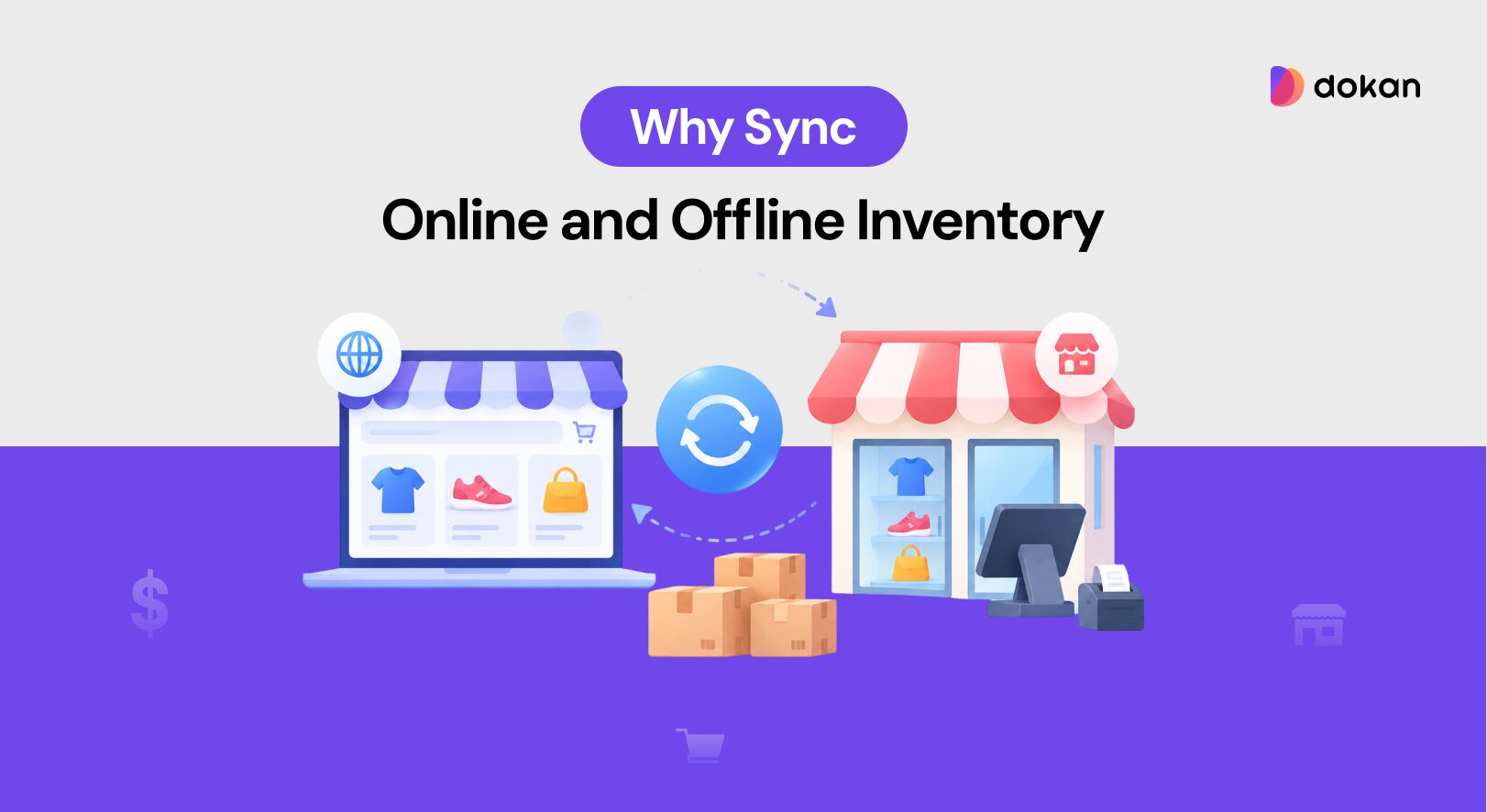
- You stop overselling. When both channels draw from one stock pool, you cannot sell online something you just sold in the shop. This is the single most common reason store owners look for a POS.
- You stop doing everything twice. No re-entering the day’s sales into your website, no reconciling two sets of numbers that never match.
- Your reports finally tell the truth. One system means your revenue, best sellers, and stock levels reflect the whole business rather than half of it.
- You build one customer view. A shopper who buys in store and online becomes one record rather than two strangers. Retailers with a single customer view see 15 to 25% higher customer lifetime value.
- You capture more revenue. Customers who shop both online and in store spend three to four times more than single-channel shoppers.
- Your fulfillment gets cheaper. Real-time stock visibility across channels can cut fulfillment costs by 20 to 30%.
There is also a simpler argument. Mobile commerce now accounts for roughly 59% of global ecommerce sales, and customers move between phone, desktop, and physical shops without thinking about it. Your systems should do the same.
Learn the Features That Actually Matter
POS feature lists get long. These are the ones that change your day-to-day.
Real-Time Inventory Sync
This is the foundation. When you sell one unit at the counter, your website should show one less immediately, not at close of business.
Be specific when you evaluate this. Some systems sync on a schedule, which means you can still oversell all day. Ask whether stock updates happen at the moment of sale or in a batch later. The difference is the whole reason you are buying a POS.
Barcode Scanning and Fast Product Search
Typing product names at a busy counter does not scale. You want barcode scanning, plus fast search by name, SKU, or product ID for items without a barcode.
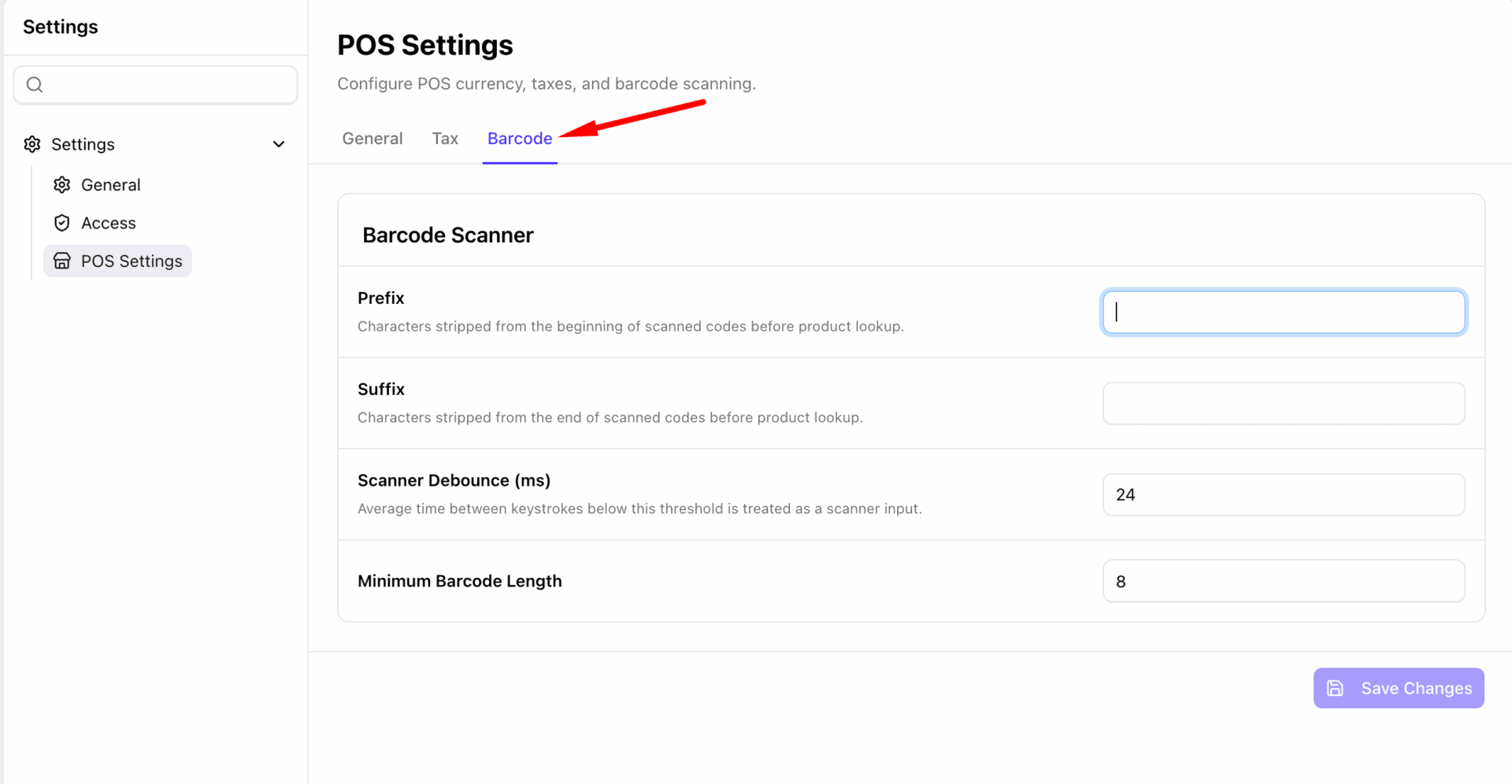
Speed here is not a luxury. A slow product lookup adds seconds to every transaction, which becomes minutes across a queue and hours across a week.
Multiple Carts at Once
Retail is not orderly. A customer goes back for another size while the next person is ready to pay. Being able to hold several live carts at the same time and switch between them keeps the line moving instead of forcing you to void and restart.
Outlet and Counter Management
If you have more than one location or more than one till, you need to manage them separately, assign different cashiers to each, and see performance per outlet. Systems without this force you to treat a two-shop business as one blurry entity.
Cashier Roles and Access Control
Your staff should be able to ring up sales without being able to see your revenue reports, edit prices, or reach your WordPress admin. Proper cashier accounts with limited permissions protect you from both mistakes and misuse.
This is one of the clearest dividing lines between a serious POS and a basic one. It also tends to sit behind a paywall, so check which tier includes it.
Receipts and Hardware Support
You want receipt printing that works with standard thermal printers, plus support for barcode scanners and cash drawers. Ask specifically which hardware is supported before you buy anything, because “works with most printers” is not the same as “works with the printer sitting on your counter.”
Tax and Discount Handling
Your POS should apply the same tax rules as your online store rather than making you maintain a second set. It should also handle discounts and fees at the counter, since haggling and manager overrides are a normal part of retail.
Fractional and Weight-Based Quantities
If you sell by weight or length, a grocer, a deli, a fabric shop, this matters enormously and is often missing. Many POS systems only handle whole units, which makes selling 1.5 kg of something awkward or impossible.
It is worth naming this early in your evaluation, because it is a genuine feature gap in several well-known systems, including some of the large hosted ones.
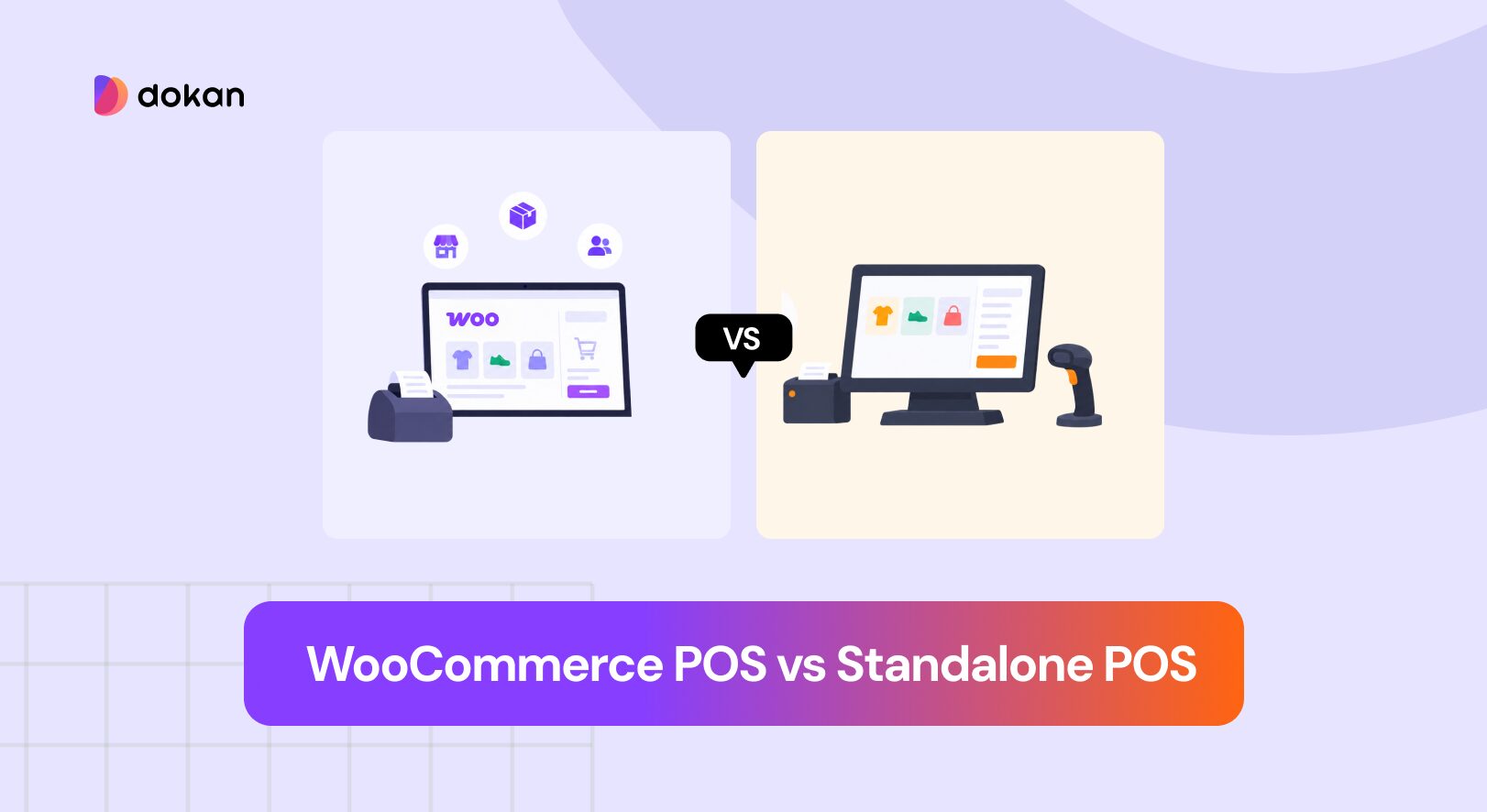
Compare Your Two Main Options
Broadly, there are two routes. They suit different businesses and the difference is worth understanding before you shop.
A WooCommerce POS Plugin
This runs inside your WordPress site. Your store stays the source of truth, your data stays on your server, and there is usually no per-location monthly platform fee.
This suits you if you already run WooCommerce, want to own your data and your setup, and prefer a one-time or annual cost over an ongoing subscription. It also tends to be the cheaper path for small and mid-sized retailers.
wePOS is an example of this approach. It is a point of sale plugin built for WooCommerce with a free version on WordPress.org, and it turns your existing store into a retail counter rather than adding a separate system to reconcile.
A Third-Party POS With WooCommerce Integration
Here you use an external POS platform and connect it to WooCommerce through an integration. Lightspeed and similar hosted systems work this way, typically from around $39 per month upward.
This suits larger or more complex retail operations that need deep retail-specific features and are happy to run WooCommerce as one sales channel among several. The trade-offs are ongoing subscription costs, another vendor relationship, and the fact that your product data now lives in two places with a sync layer between them.
Which One Fits You
A rough rule. If WooCommerce is your main business and the shop is an extension of it, a plugin usually makes more sense. If you are primarily a retail operation with a website attached, a dedicated retail platform may earn its subscription.
Cost is worth doing properly here. A hosted POS at $89 per month per location is over a thousand dollars a year for one shop, which is a very different commitment from a plugin licence.
Know What Hardware You Need
You need less than most people expect, especially with a browser-based POS.
- A device. A desktop, laptop, or tablet. Browser-based POS systems are flexible here, which is worth knowing since some hosted apps require a specific tablet and will not run on a laptop at all.
- A barcode scanner. Inexpensive USB scanners work by acting like a keyboard, so most POS software supports them without special drivers.
- A receipt printer. A standard thermal printer. Confirm compatibility before purchase.
- A cash drawer. Usually opens via the receipt printer, so buy them together.
- A card reader. This depends on your payment provider and country more than on your POS software.
- A reliable internet connection. Which leads to the question everyone eventually asks.
Ask the Questions Buyers Actually Regret Not Asking
Across Reddit, community forums, and review sites, the same complaints come up about WooCommerce POS systems. Inventory problems, unreliable offline performance, hidden costs, and inconsistent support. Here is how to check for each before you commit.
What Happens When the Internet Goes Down?
This is the single biggest objection people raise about running a WooCommerce POS, and it deserves a straight answer from any vendor you consider.
Because your products and orders live on a web server, a browser-based register normally needs a connection. Some systems offer genuine offline modes that keep selling and sync afterward. Others cache a product list but cannot actually complete a sale, which is not offline capability, it is just failing slowly.
Ask directly. Can it complete a sale with no connection, and what happens to those orders when the connection returns? If offline selling is critical for you, make it a hard requirement rather than a nice-to-have, and test it before you rely on it.
What is the Real Total Cost?
Hidden costs are a recurring complaint. Check whether the price is per site or per location, whether it renews annually, whether key features like access control or reports sit in a higher tier, and whether there are transaction fees on top.
Compare the three-year cost, not the sticker price. A subscription that looks cheap monthly can quietly outrun a plugin licence several times over.
How Accurate is the Inventory Sync Really?
Ask about timing and about conflicts. What happens when the same last item sells online and in store within the same minute? A vendor who has thought about this will have an answer. One who has not will change the subject.
It is also worth knowing that in-store pickup and similar features only work well once your stock accuracy is above roughly 95%, so do not enable them on day one.
What Hardware is Genuinely Supported?
Get specifics rather than assurances. Model names for printers and scanners, and confirmation that your payment terminal works in your country. This is the most common source of post-purchase disappointment.
What is Support Actually Like?
Look at recent reviews rather than the marketing page, and check whether recent complaints have been answered. On WordPress.org you can see how many support threads a plugin resolved in the last two months, which tells you more than any testimonial.
Choose the Right WooCommerce POS System
Here is a practical way to narrow the field.
- Start from your actual retail workflow. Write down how a sale happens in your shop today, including the awkward parts. Then check each system against that, not against a feature list.
- Try a demo before you buy. Ring up a sale, apply a discount, process a return, print a receipt. Ten minutes in a demo tells you more than an hour of reading.
- Test with a free version where one exists. A free tier lets you validate the basics against your real catalog before spending anything.
- Check who is doing the selling. If your staff need training beyond a few minutes, the interface is working against you.
- Confirm it fits your setup. Your WooCommerce version, your theme, your payment gateway, and any other plugins you depend on.
- Plan for where you are going. A second outlet, more staff, or a marketplace of vendors all change what you need. Choosing something that grows costs less than migrating later.
Worth knowing. If you run a multivendor marketplace on Dokan, this changes your requirements significantly. You need each vendor to run their own point of sale, seeing only their own products, customers, and orders. Very few WooCommerce POS systems handle that, so it is worth checking specifically rather than assuming.
Set Up Your WooCommerce POS System
The general shape of getting started, whichever system you choose.
- Clean up your catalog first. Accurate stock counts, correct prices, and barcodes or SKUs on the products you sell in person. A POS built on messy data produces messy results.
- Install and connect. For a plugin, install and activate it in WordPress. For a third-party system, connect the integration and let the initial sync complete.
- Configure your outlets and counters. Set up each location and till, so reporting is meaningful from day one.
- Create cashier accounts. Give staff their own logins with appropriate permissions rather than sharing an admin account.
- Set up receipts and hardware. Connect your printer and scanner, and do a test print before your first real customer.
- Run test sales. Process a normal sale, a discounted sale, and a refund. Then check that each one appears correctly in WooCommerce with the right stock change.
- Train your staff. Short and practical. Most cashiers learn a good POS screen in under ten minutes.
Bring Your Online and In-Person Sales Together
A WooCommerce POS system is not really about the till. It is about refusing to run two versions of the same business.
Once your counter and your website share one catalog, one stock count, one order list, and one customer database, a lot of daily friction simply disappears. You stop overselling. You stop entering things twice. You start making decisions from the full picture instead of half of it.
Take your time on the choice, though. Try demos, ask the awkward questions about offline mode and total cost, and check that the system fits how your shop actually runs. The right POS becomes invisible within a week. The wrong one becomes a daily annoyance you paid for.
If your store runs on WooCommerce and you want to start without a subscription, wePOS has a free version you can test against your real catalog, and it supports Dokan if you are running a multivendor marketplace. Try the live demo and ring up a few sales before you decide anything.
Subscribe to
Dokan blog
We send weekly newsletters, no spam for sure!



Leave a Reply