

Thinking about creating your own online marketplace? The good news—you don’t need a big budget or a team of developers to get started.
With Astra and Dokan, you can build a fast, customizable, and fully functional multi-vendor marketplace on WordPress. Multiple sellers can list their products, manage sales, and grow their business—all on your platform.
In this guide, we’ll walk you through the process step by step. From installing Astra and Dokan to customizing your store, managing vendors, and handling payments, you’ll get everything you need to launch and scale your own online marketplace.
Let’s dive in and explore how to create your marketplace with Astra and Dokan.
Let’s start-
A Little Bit About Astra
Astra Theme, launched in 2017, is a lightweight and highly customizable WordPress theme developed by Brainstorm Force. It is designed to help users build fast, flexible, and visually appealing websites without compromising on performance.
Key Features:
- Performance-Optimized: Astra is known for its speed, with a default installation size under 50KB, ensuring quick loading times and improved SEO performance.
- Highly Customizable: Offers extensive customization options through the WordPress Customizer, allowing users to adjust layouts, colors, typography, and more without any coding knowledge.
- Seamless Integration with Page Builders: Fully compatible with popular page builders like Elementor, Beaver Builder, and the native WordPress block editor, enabling users to design pages with ease.
- WooCommerce Support: Provides deep integration with WooCommerce, offering features like distraction-free checkout, infinite scroll, and customizable product layouts for online stores.
- Pre-Built Starter Templates: Includes a library of pre-designed templates that can be imported and customized, helping users launch websites quickly.
As of 2026, Astra Theme powers over 2.1 million live websites globally, with approximately 1,200 new sites adopting the theme daily. The theme has received over 4,000 five-star reviews on WordPress.org, reflecting its popularity and user satisfaction.
In the fiscal year ending March 31, 2024, Brainstorm Force reported a revenue of approximately €10.7K, primarily generated from the premium Astra Pro add-on and related products.
Despite the competitive WordPress theme market, Astra has maintained its position as a top choice due to its performance, flexibility, and user-friendly features, continuing to attract a diverse user base worldwide.
How to Build a Marketplace with Astra+Dokan
You can easily build a marketplace with all the features and functions just like AliExpress using the Dokan multivendor plugin. We will tell you how. But before, lets talk a little bit about Dokan plugin.
As we said earlier, Dokan multivendor marketplace plugin is a popular WordPress plugin for creating marketplaces.
The plugin currently has more than 40000+ active installations on WordPress.org. With its 40+ modules and numerous features, Dokan currently holds the“number 1” position amongst the multivendor marketplace plugins.
WooCommerce powers the plugin, so it supports all the WooCommerce features and WooCommerce themes. You need to do very little in terms of customization.
Now, let’s see the steps of how to build a marketplace like AliExpress using the Dokan multivendor marketplace plugin.
Step 1: Activate Dokan to Create Your Multivendor Marketplace
After configuring WooCommerce, you need to install Dokan to create a multivendor marketplace for your products.
Installing Dokan multivendor is as simple as installing any other WordPress plugin.
You can install the plugin from the WordPress dashboard by,
- Navigating to Admin Dashboard -> Plugin-> Add New-> Click the search
- Type Dokan -> Install -> Activate.
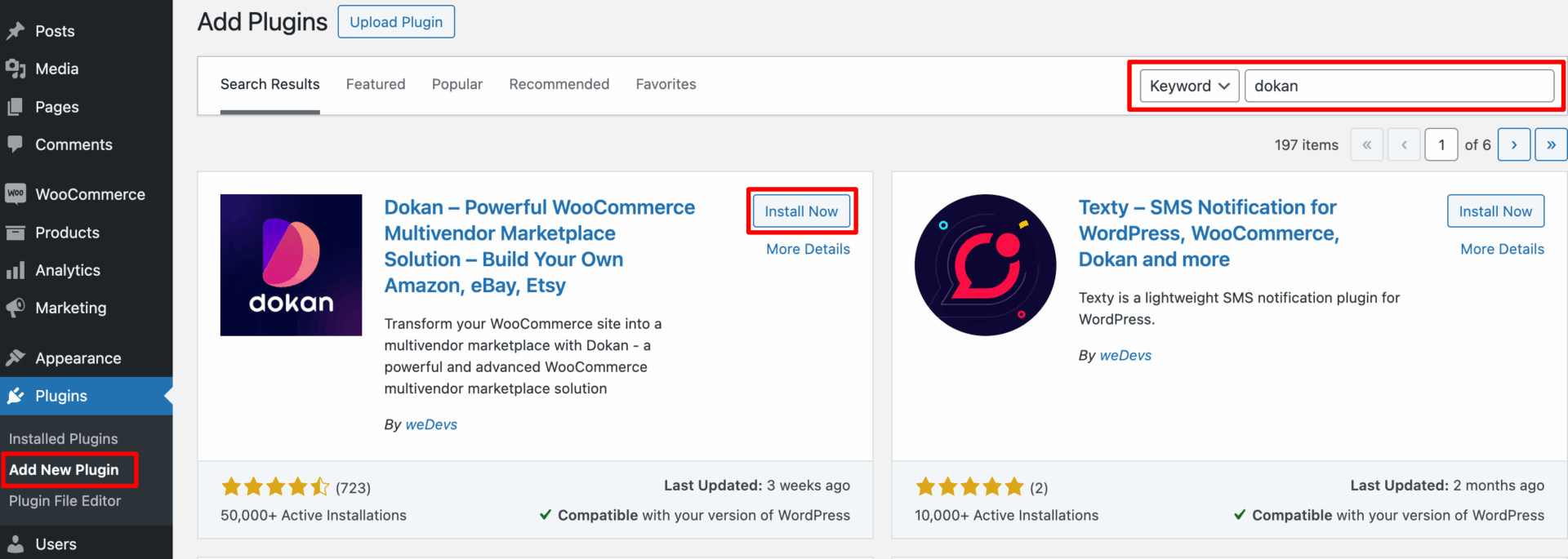
Dokan multivendor will also provide a setup wizard that will help you easily set up your marketplace. Configuring Dokan is very easy by using its own Wizard.
If you are still confused, go through the video tutorial on Dokan installation.
Step 2: Install the Astra Theme
After installing the Dokan multivendor plugin, the next step is choosing a theme that works smoothly with it. Since Dokan is built on top of WooCommerce, any WooCommerce-compatible theme will work — and Astra is one of the best options you can pick.
Astra is fast, lightweight, and fully compatible with both WooCommerce and Dokan, which makes it ideal for creating a modern multivendor marketplace.
To install Astra, go to WP-Admin → Appearance → Themes → Add New, then search for “Astra” and install it. Once activated, you’ll have a clean, optimized layout ready for building your marketplace.
Make sure Astra is active before continuing to the customization steps.
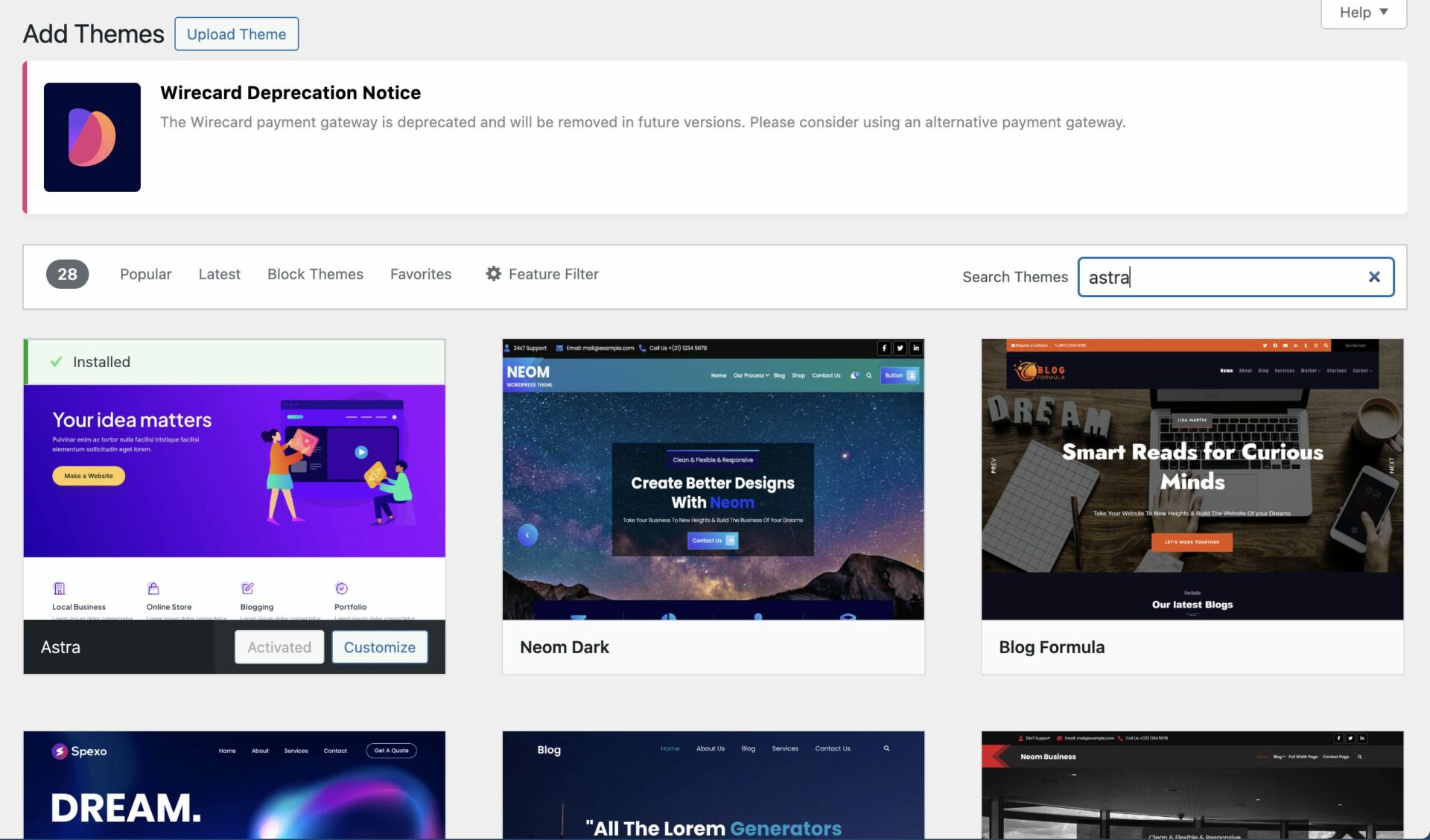
You will get this dashboard-
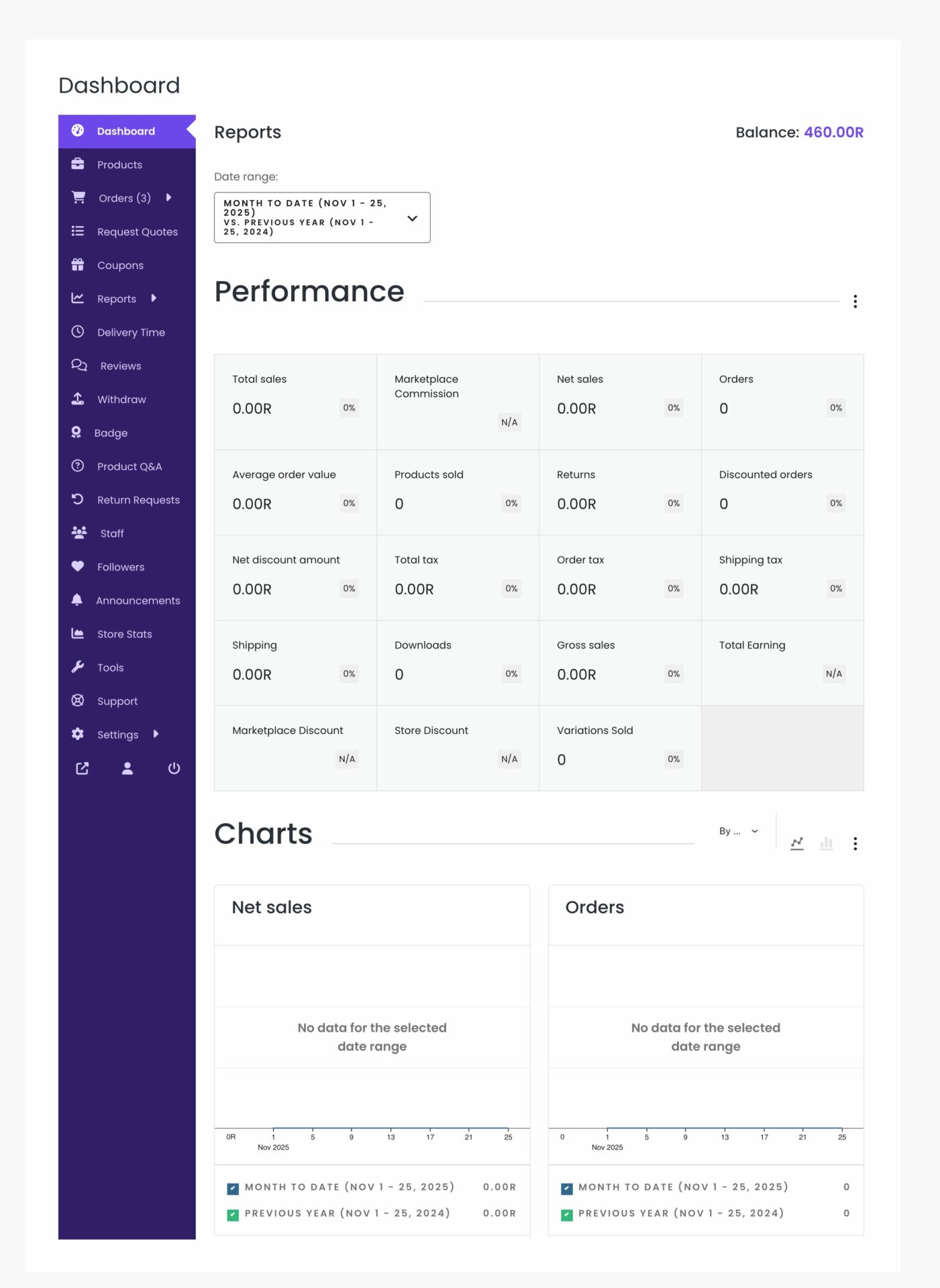
If you want, you can customize the Single store page-
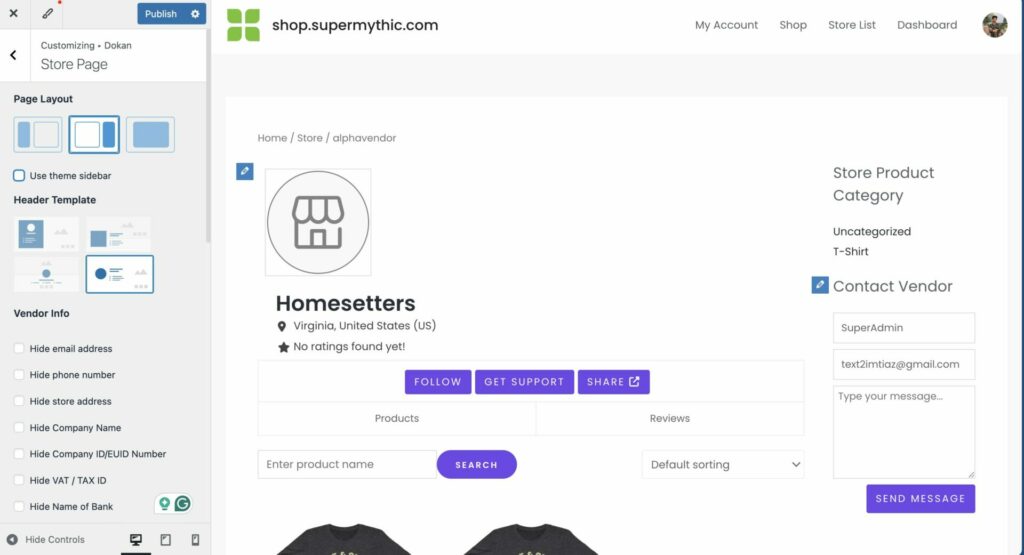
You need to use the Astra Pro version to use their builder and make more customization changes.
Step 3: Configure Dokan General Settings
After installing and activating the Dokan multivendor plugin, you now need to configure all the basic settings. You will find all the settings options at WP-Admin–> Dokan–> Settings.
From here you can:
- Set up your store terms and conditions
- Create store category (so that vendors can add different categories for their stores )
- Enable payment gateways (more on this in the next part)
- Configure withdrawal methods (more on this in the next part)
- Allow vendors to upload new products
- Create new tags
- Set new product status
- Configure selling options
- Set privacy policy
You can select the pages for the vendor dashboard, order page, store listing, and terms and conditions page from the Page Settings option.
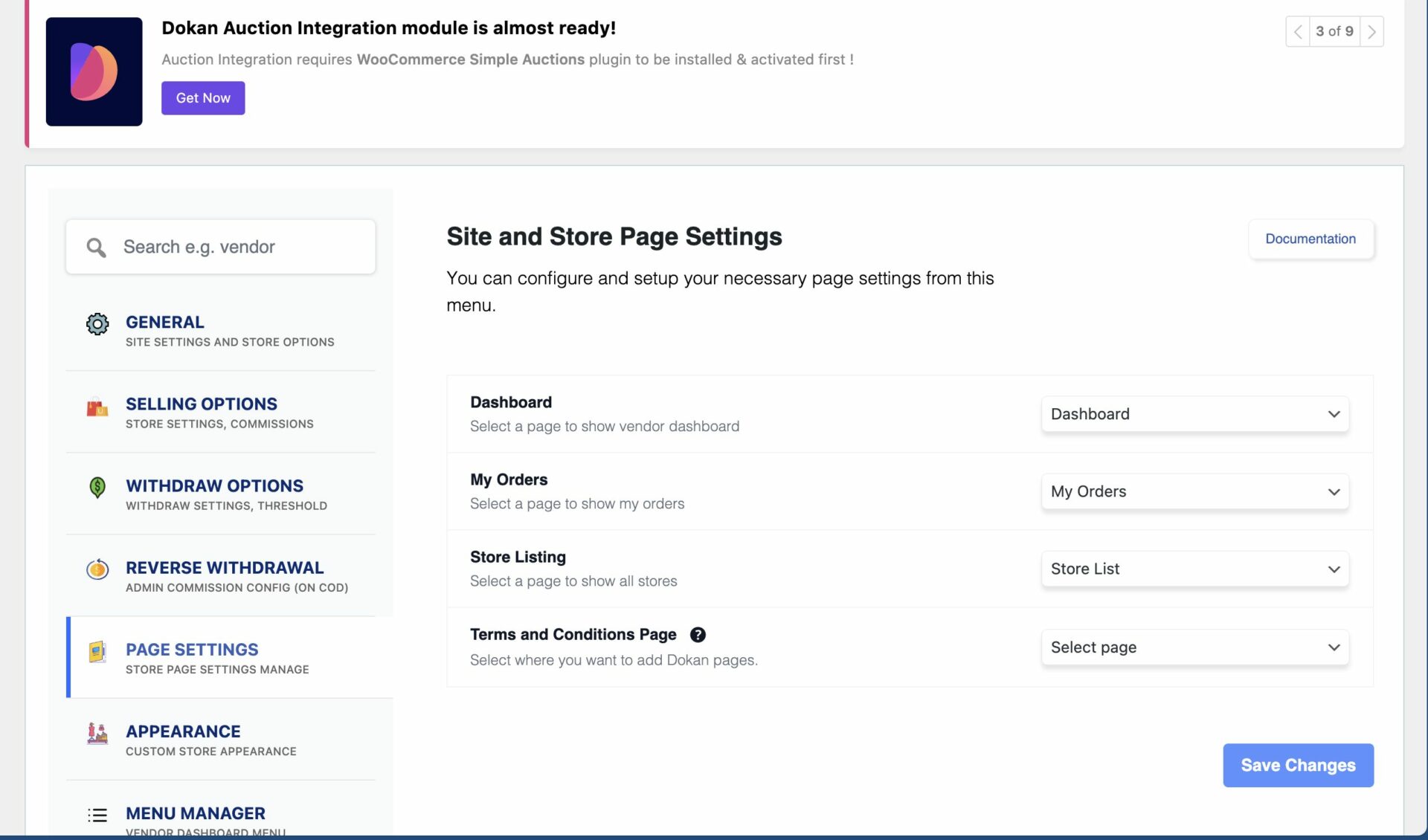
Don’t forget to click the Save Changes button after configuring all the settings. Otherwise, you will lose all your settings.
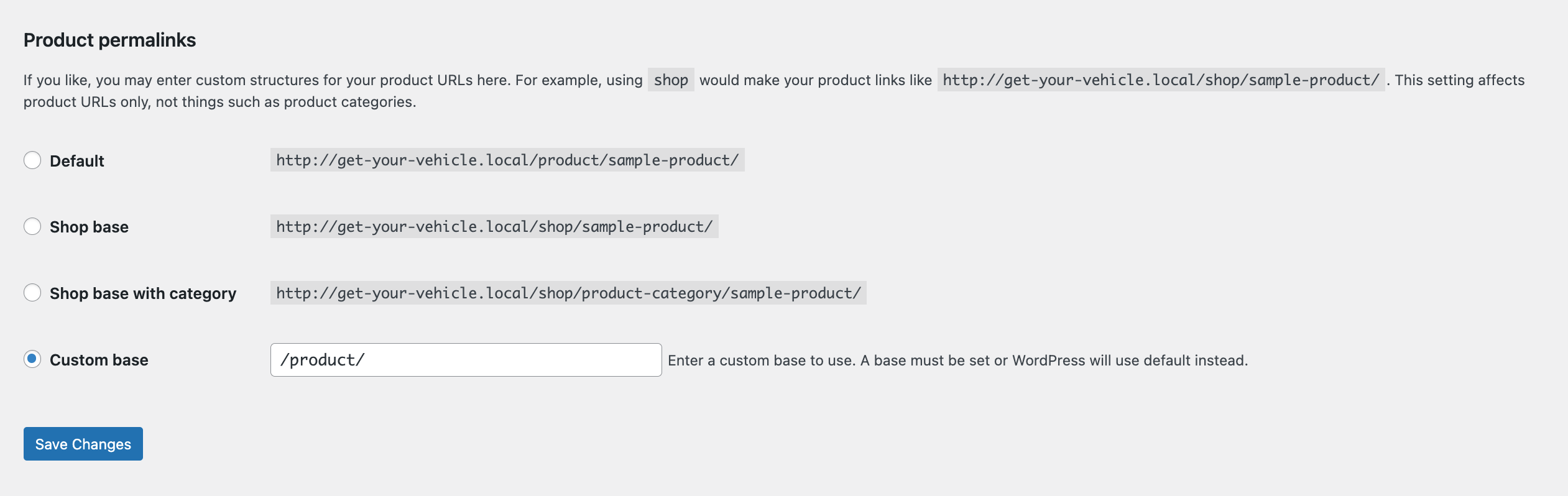
Also, you need to configure your permalink settings as well. Otherwise, you may get a 404 error on certain pages. Go to WP Admin -> Settings -> Permalinks -> Permalink Settings ->Product Permalinks. Select the check box “Custom Base” for product permalinks and write “/product” on the box.
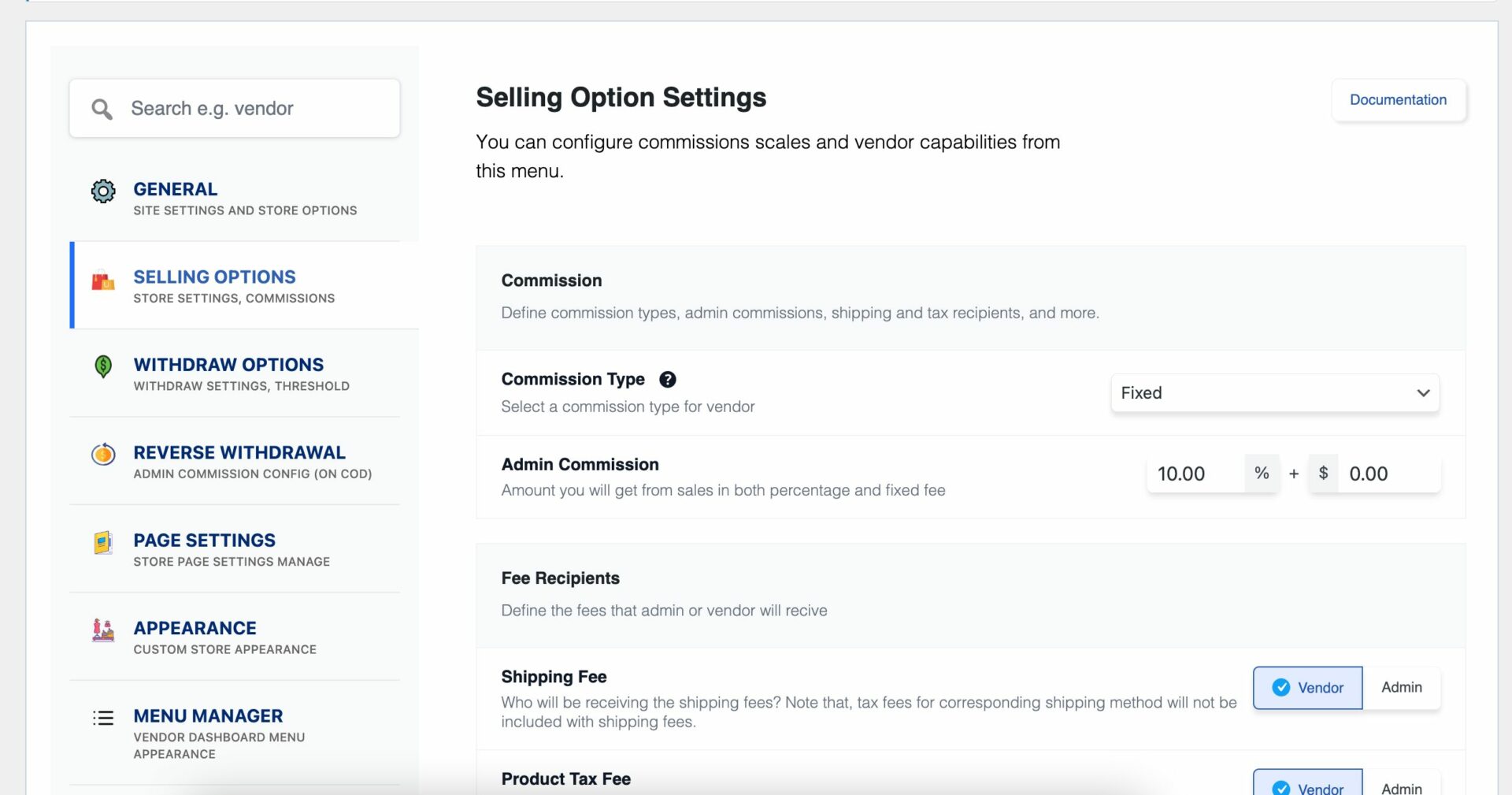
You have to set your commission rate as well. Go to WP Admin Dashboard -> Dokan -> Settings -> Selling Options -> Admin Commission.
You’ll find different options to insert the percentage or fixed amount. Dokan supports various types of vendor commissions.
Enable Payment Gateways
The Dokan multivendor plugin supports all WooCommerce-compatible payment gateways. So, you will get a wide range of choices to make the transaction process easier on your marketplace.
With the Dokan free version, you can use non-adaptive payment gateways like check payments, bank account transfers, cash on delivery, etc. You can install the WooPayments plugin to get support for credit cards, debit cards, and other payment methods.
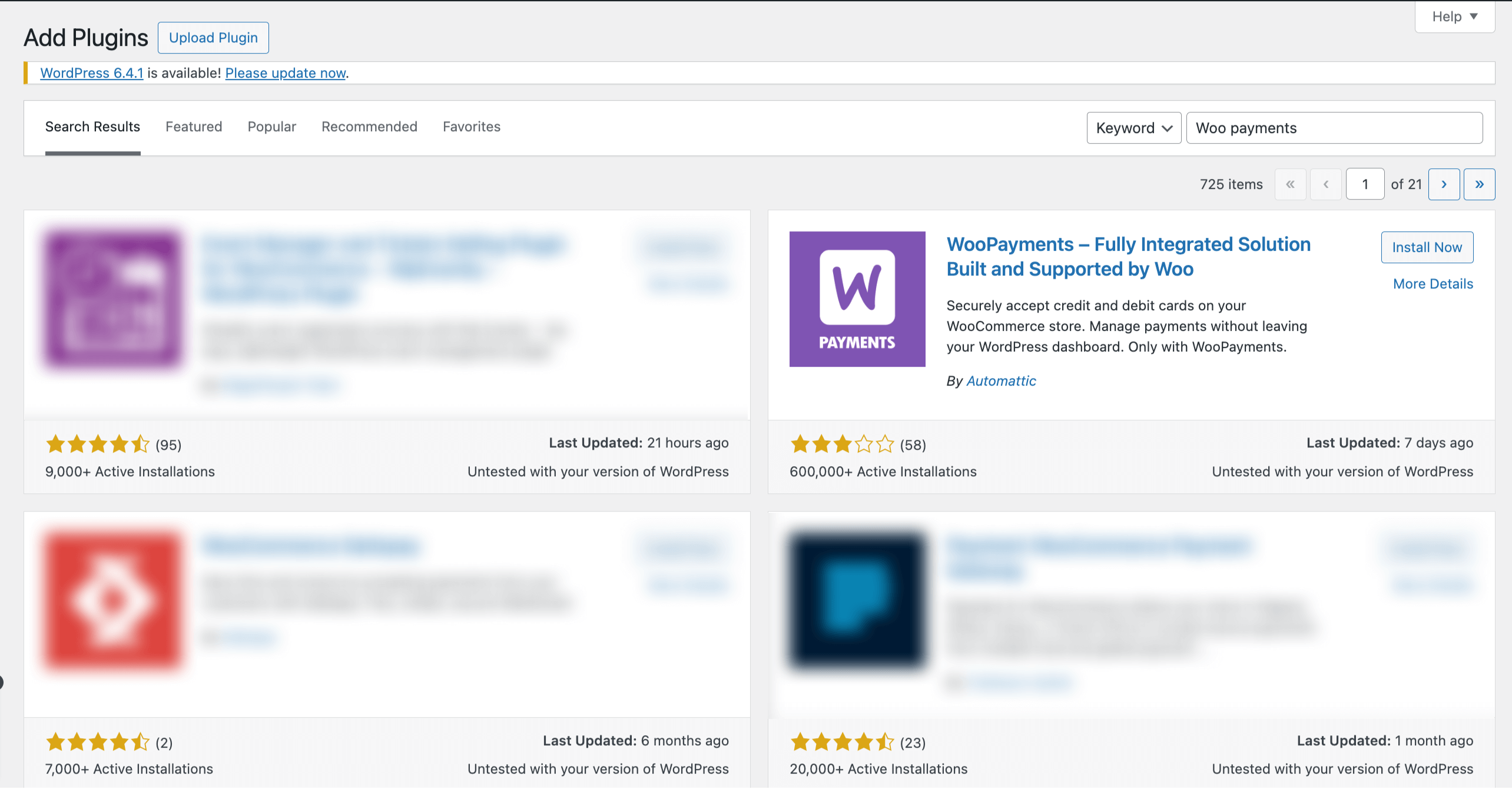
However, if you want your marketplace to support adaptive payment solutions like Stripe Connect and MOIP you need to install the Dokan Pro version.
Enable Withdraw Methods for Vendors
Another vital part of running an online marketplace is to ensure a smooth withdrawal system. The Dokan multivendor plugin helps you take care of this section as well.
Go to WP Admin -> Dokan -> Settings -> Withdraw Options. Here you’ll find options to customize the withdrawal method and set the minimum balance a vendor needs to make a withdrawal limit.
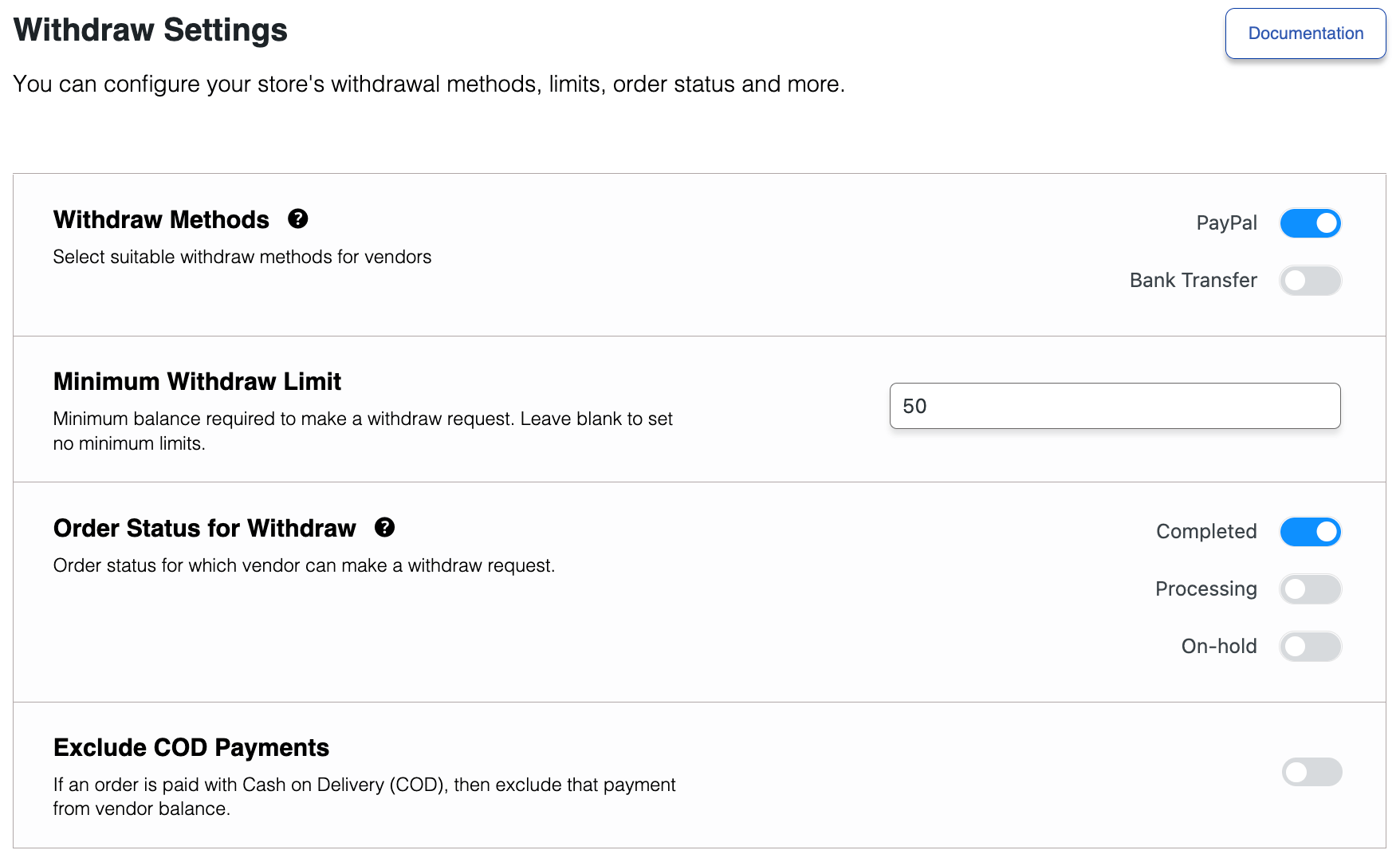
You will get more withdrawal options with the Dokan Pro version.
Step 4: Upload Products and Set Up Admin Shop
This is an optional step. If you want to earn some extra money, you can create your store on your marketplace. All you need to do is enable yourself to sell.
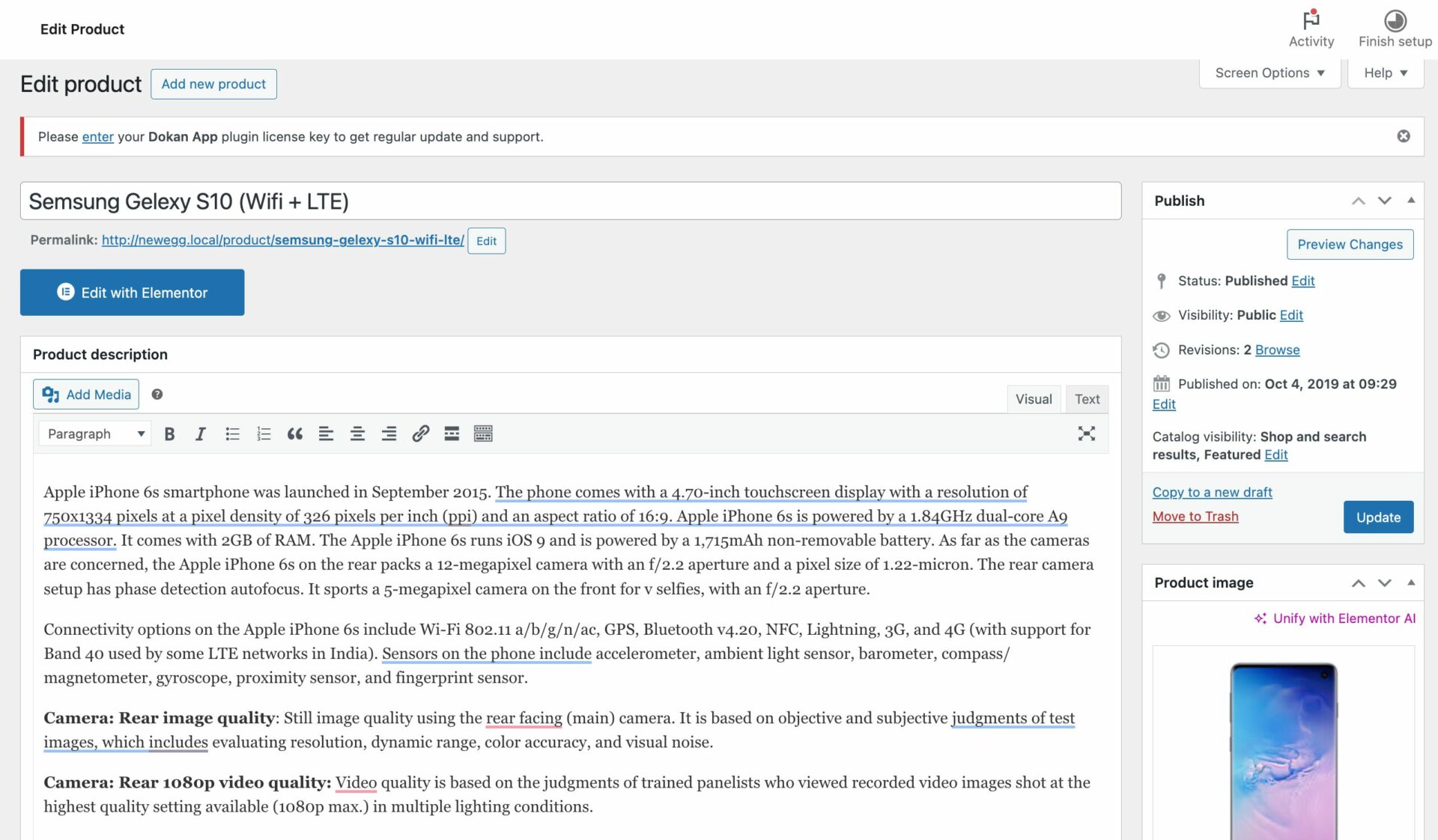
Go to Dokan-> Vendors. There you need to enable selling by toggling the button. You can upload your products by navigating to WordPress Backend -> Products -> Add New.
And to upload products from the front end navigate to, WordPress Dashboard -> Vendor Dashboard -> Products-> Add New. Your registered vendors will upload products this way.
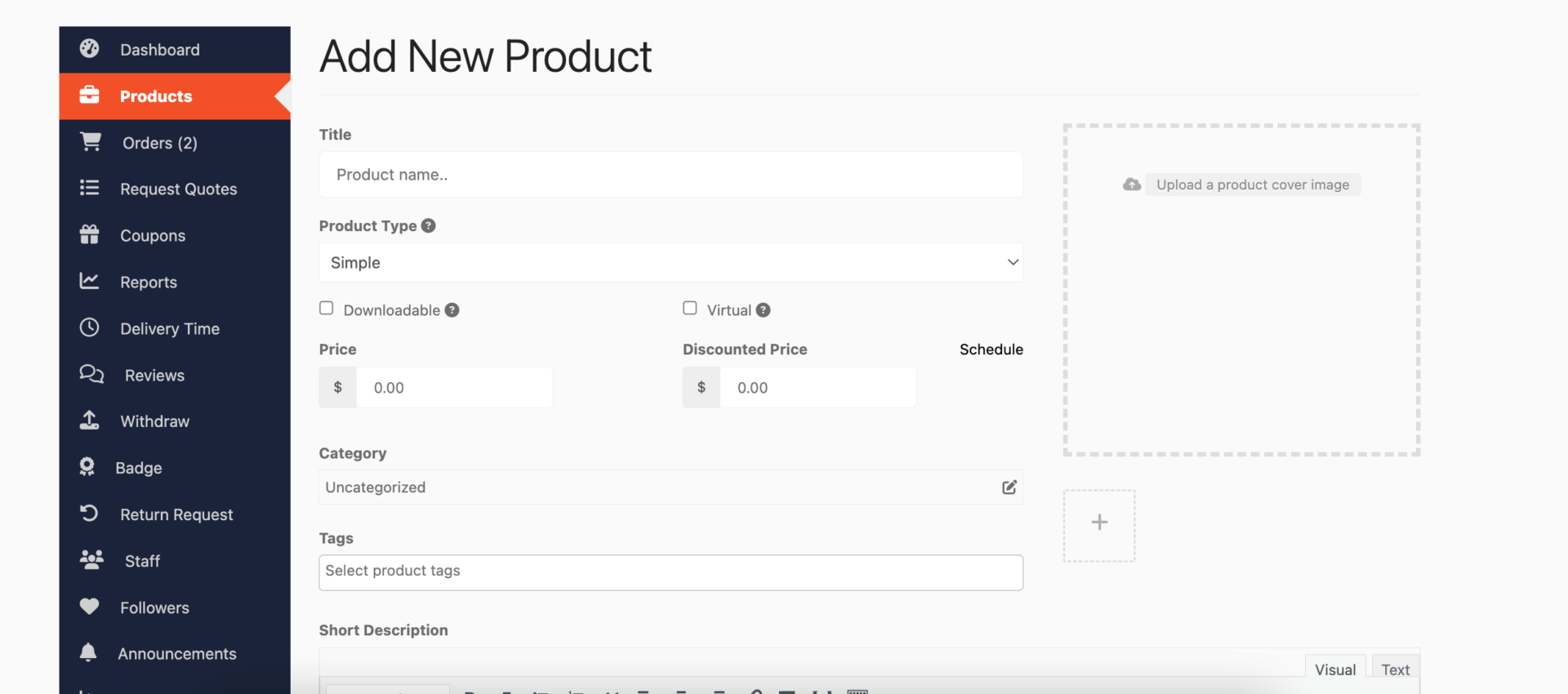
Vendors can add functionalities like shipping, taxes, and product attributes from the product creation form.

Step 5: Allow Vendors to Sign up to Your Marketplace
Now that you have added all the functionalities to your marketplace, you can invite vendors to sign up for your marketplace.
Dokan multivendor has a default registration form that will help vendors to sign up to your marketplace.
Or you can create customized registration forms with the necessary fields, especially for your marketplace.
For vendors to start selling, you need to enable selling status from Dokan-> Vendors.
Also, if you want the vendors to upload their products, then you need to change the product status from Dokan->Settings-> Selling options. You need to enable the New Vendors Product Upload
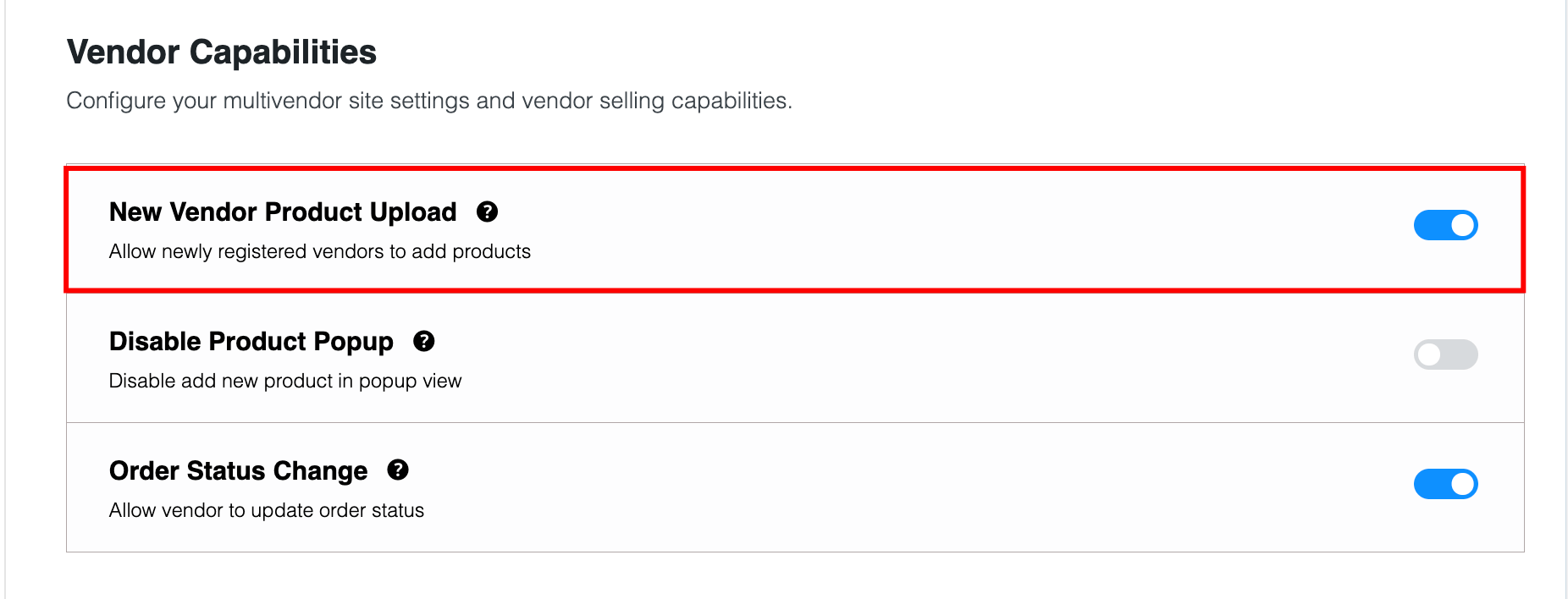
Vendors can upload their products from the front end as we’ve shown above for the admin shop.
You Are Ready to Sell!
Step 6: Launch Your Marketplace
A strategic launch ensures a strong start. Steps include:
- Beta Launch: Test with a small group of vendors and buyers to iron out issues.
- Launch Campaigns: Use platforms like Google Ads and Facebook to promote the launch.
- Content Marketing: Publish blog posts, videos, and case studies to highlight vendor success stories.
Organize a virtual event showcasing top products on your platform. Invite industry influencers and buyers to participate, creating buzz.
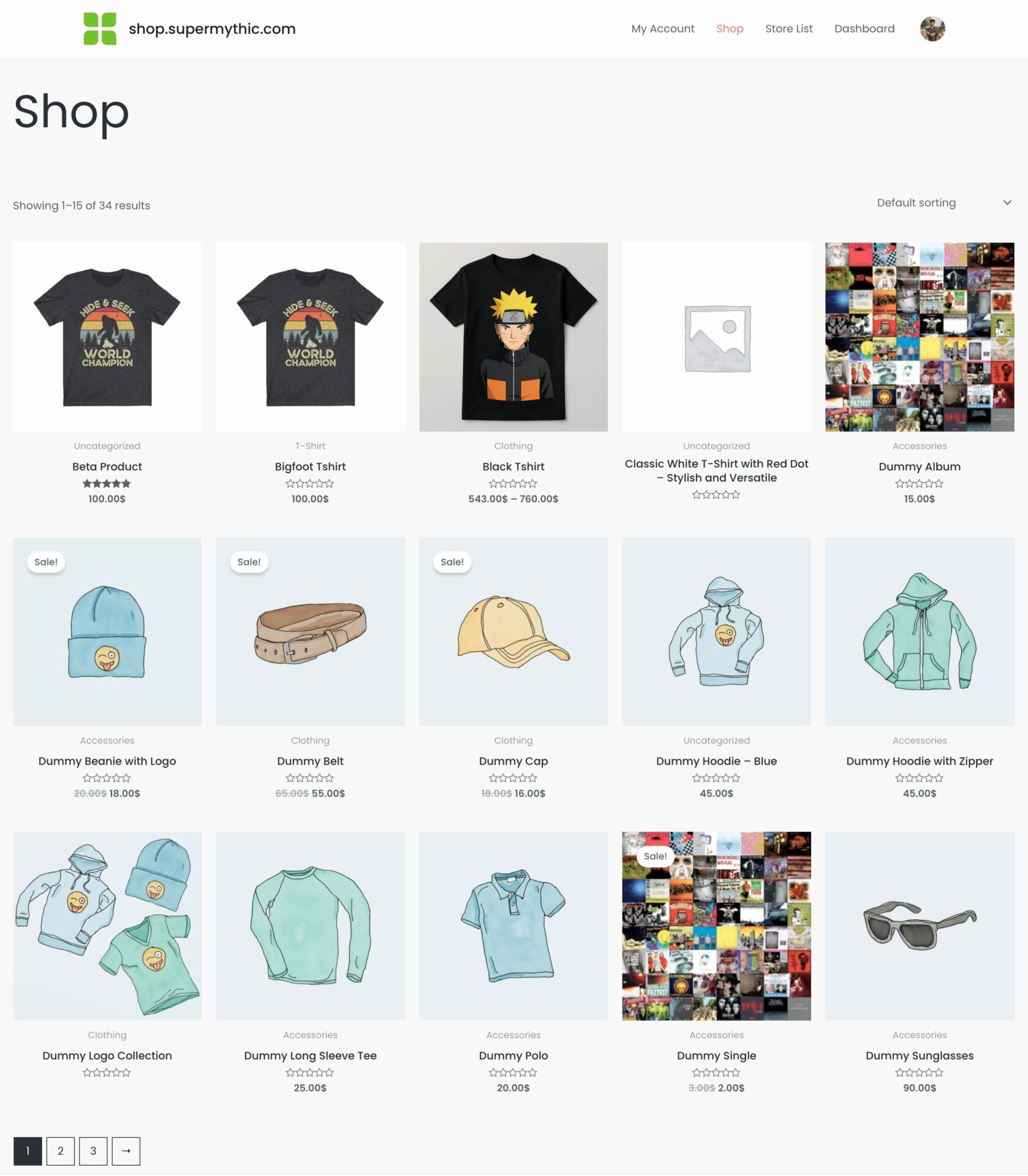
Bonus: Add Advanced Features to Your Marketplace
You have given the basic shape of your marketplace and if you want you can start selling. But to truly provide the marketplace experience to your customers and vendors, you need some advanced features.
Also, as you are trying to create a marketplace like AliExpress, you need the features to compete with them as well.
Here is the list of advanced features to improve your marketplace experience-
1. Product Variations
This module allows vendors to create multiple variations of a single product, such as different sizes, colors, or materials.
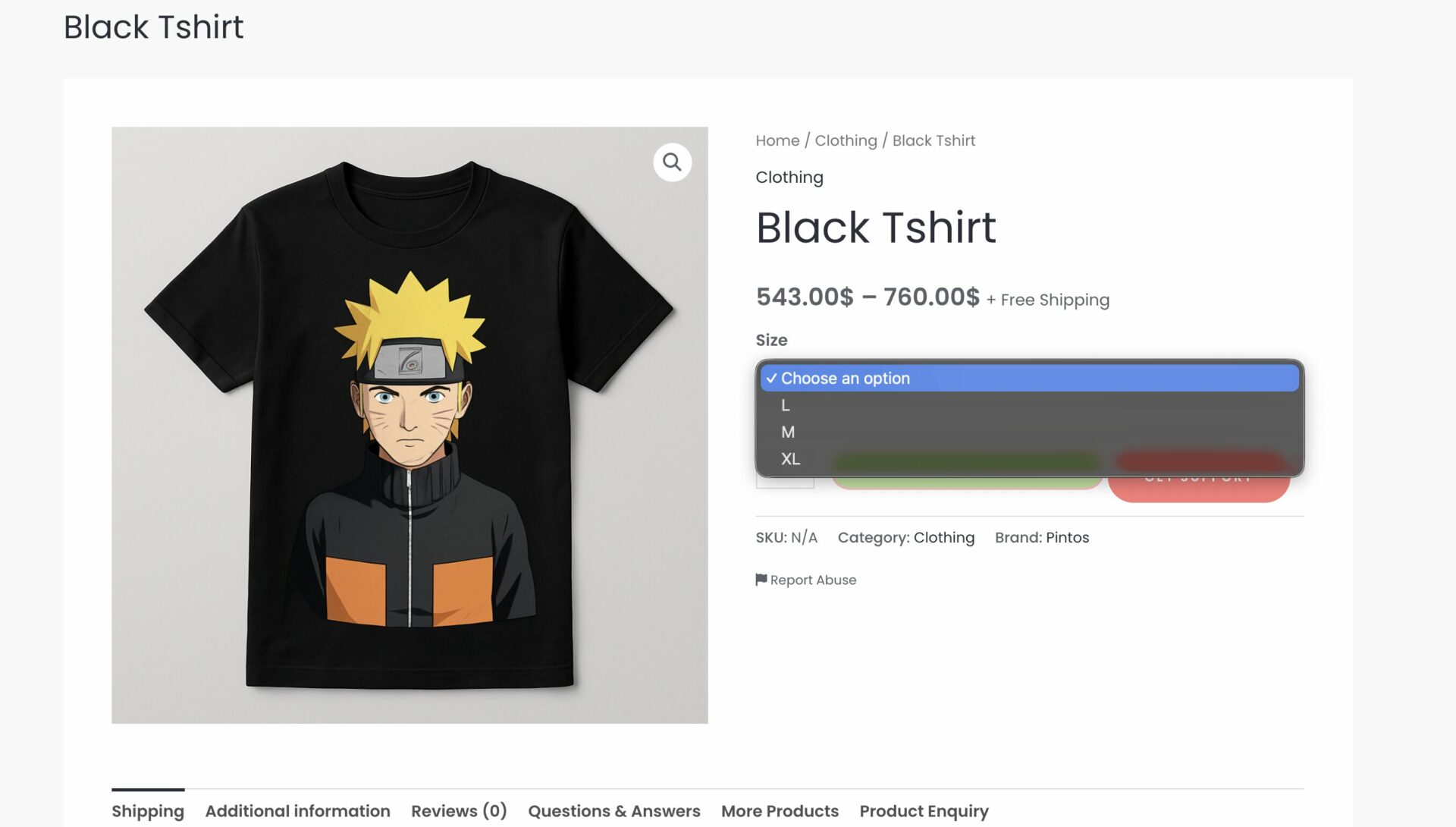
Customers can select the exact combination they need, enhancing their shopping experience.
Key Features:
- Enable vendors to create unlimited variations for a product.
- Set individual prices, stock levels, and images for each variation.
- Simplify navigation with drop-down menus for variations.
2. Product Add-ons
The Product Add-on module lets vendors offer customizable options for products, such as engraving, gift wrapping, or additional accessories. It provides a way to upsell and personalize products.
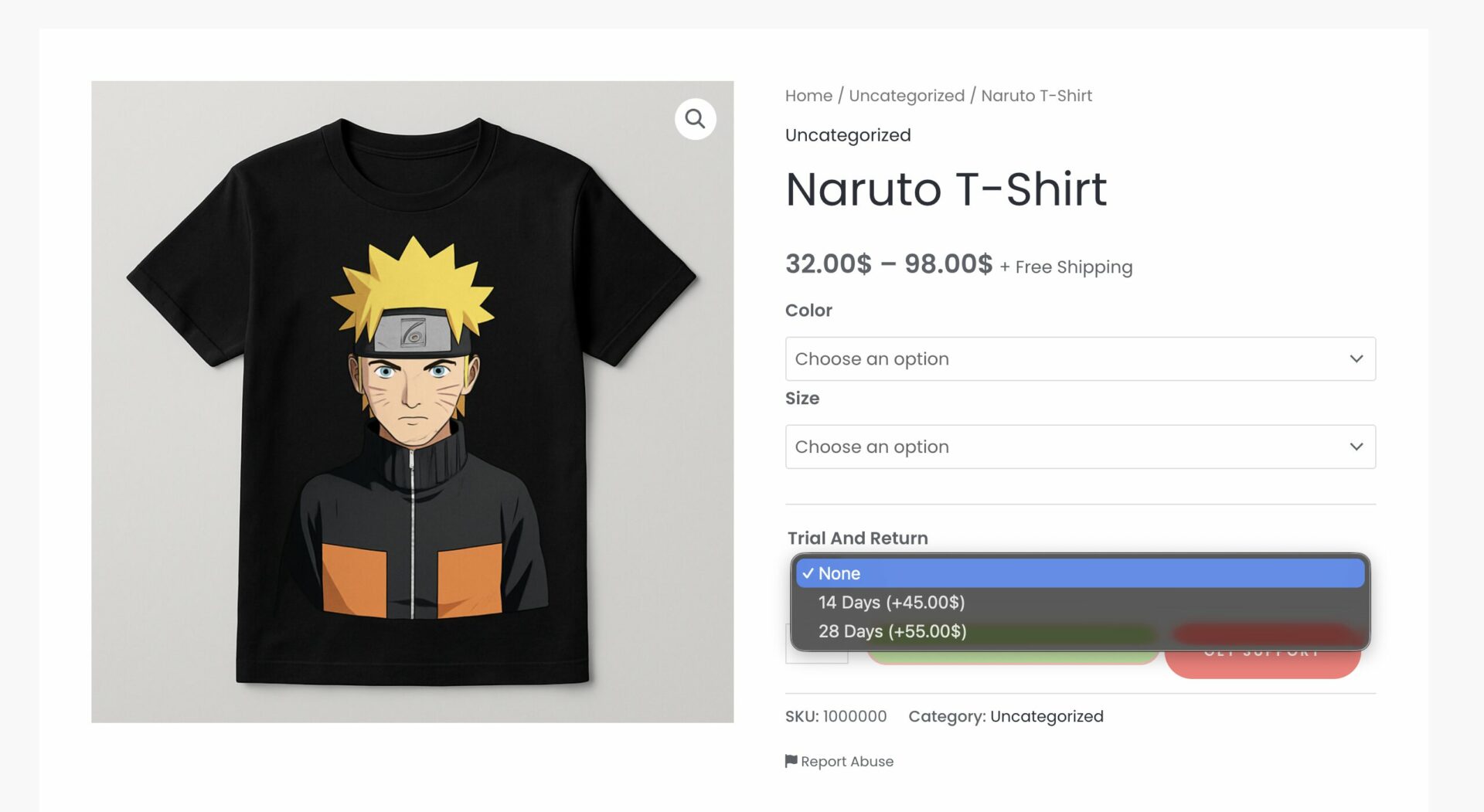
Key Features:
- Add text fields, checkboxes, or dropdown menus for customization.
- Charge extra for add-ons and manage pricing seamlessly.
- Enhance customer satisfaction by meeting unique requirements.
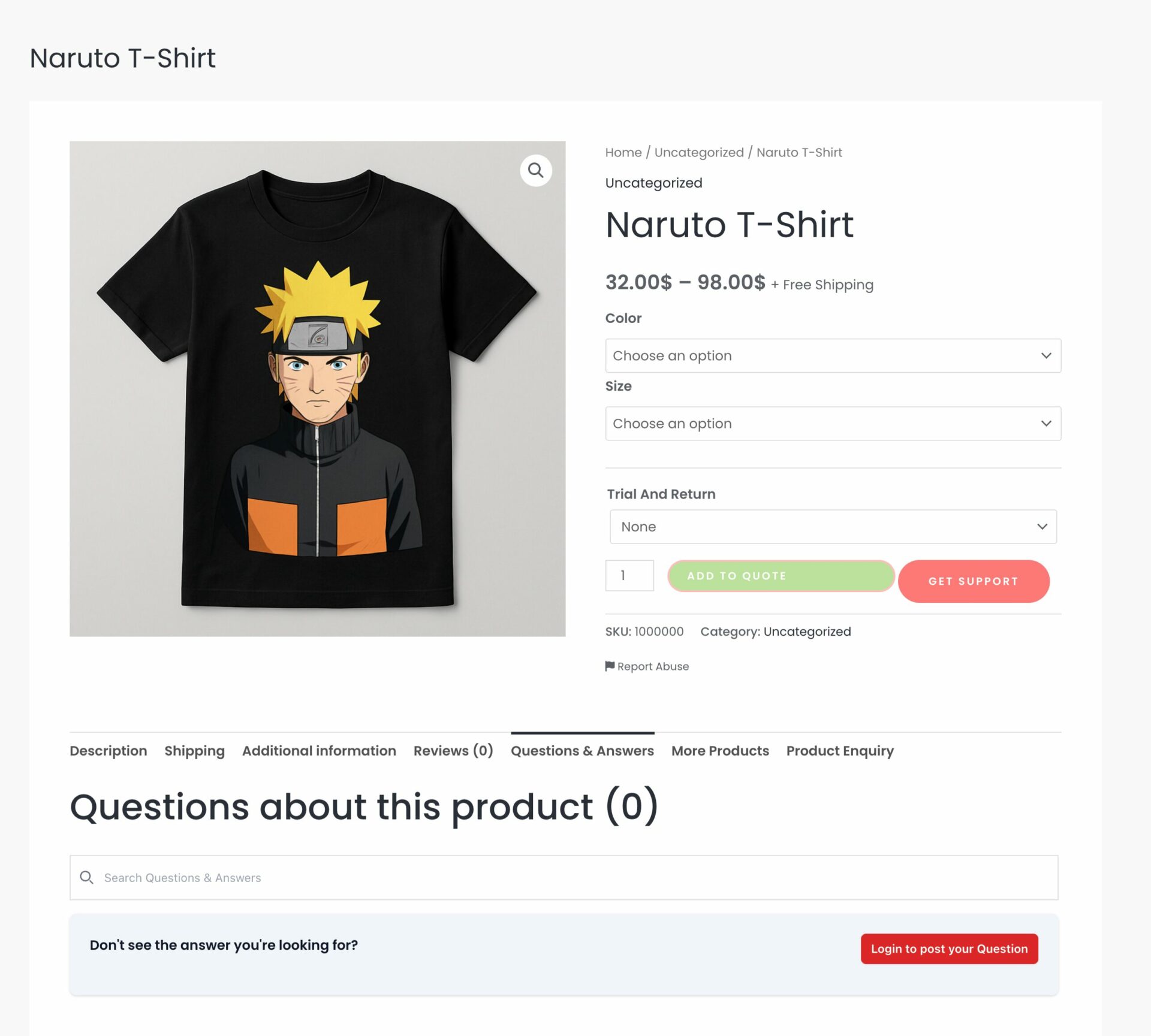
3. Product Q&A
This module allows customers to ask questions about products and receive answers from vendors or other buyers. This helps customers make their decisions quickly and increase conversion rate.
Key Features:
- Real-time question and answer functionality.
- Notifications for vendors when new questions are posted.
- Display helpful answers publicly to assist other potential buyers.
4. Vendor Reviews
The Vendor Reviews module enables customers to share their experiences, rate vendors, and provide feedback.
This helps build trust and encourages vendors to maintain quality.
Key Features:
- Collect star ratings and detailed reviews for vendors.
- Highlight top-rated vendors to improve marketplace credibility.
- Allow vendors to respond to reviews, creating an interactive feedback loop.
5. Shipping
Dokan’s shipping feature provides vendors with the flexibility to set shipping rates based on zones, weight, or flat rates, ensuring a transparent and efficient process. Also, the Dokan plugin has a shipment tracking feature that will help customers track their orders.
Key Features:
- Zone-based and weight-based shipping options.
- Integration with popular carriers for real-time shipping rates.
- Vendor-specific shipping rules and policies.
6. Vendor Dashboard
The Vendor Dashboard is a platform where vendors can manage their store operations, from product listings to order tracking, ensuring a smooth workflow.
Key Features:
- Access to sales reports and analytics.
- Easy product management, including bulk uploads.
- User-friendly interface with customizable options.
7. Live Chat
The Dokan Live Chat module enables real-time communication between vendors and customers, ensuring quick query resolution and enhancing customer satisfaction.’
Key Features:
- Instant messaging system for vendors and customers.
- Notifications for new messages to prevent delays.
- Seamless integration with other communication tools.
8. RMA (Return Merchandise Authorization)
The RMA module simplifies the return, exchange, and refund process for customers, ensuring a hassle-free post-purchase experience.
Key Features:
- Automated return and refund requests.
- Customizable return policies for each vendor.
- Detailed tracking of returned products and refund statuses.
9. Vendor Analytics
The Vendor Analytics module provides vendors with detailed insights into their store performance, helping them identify trends and optimize their sales strategies.
Key Features:
- Real-time sales reports and performance metrics.
- Insights into customer behavior and top-performing products.
- Downloadable analytics reports for offline review.
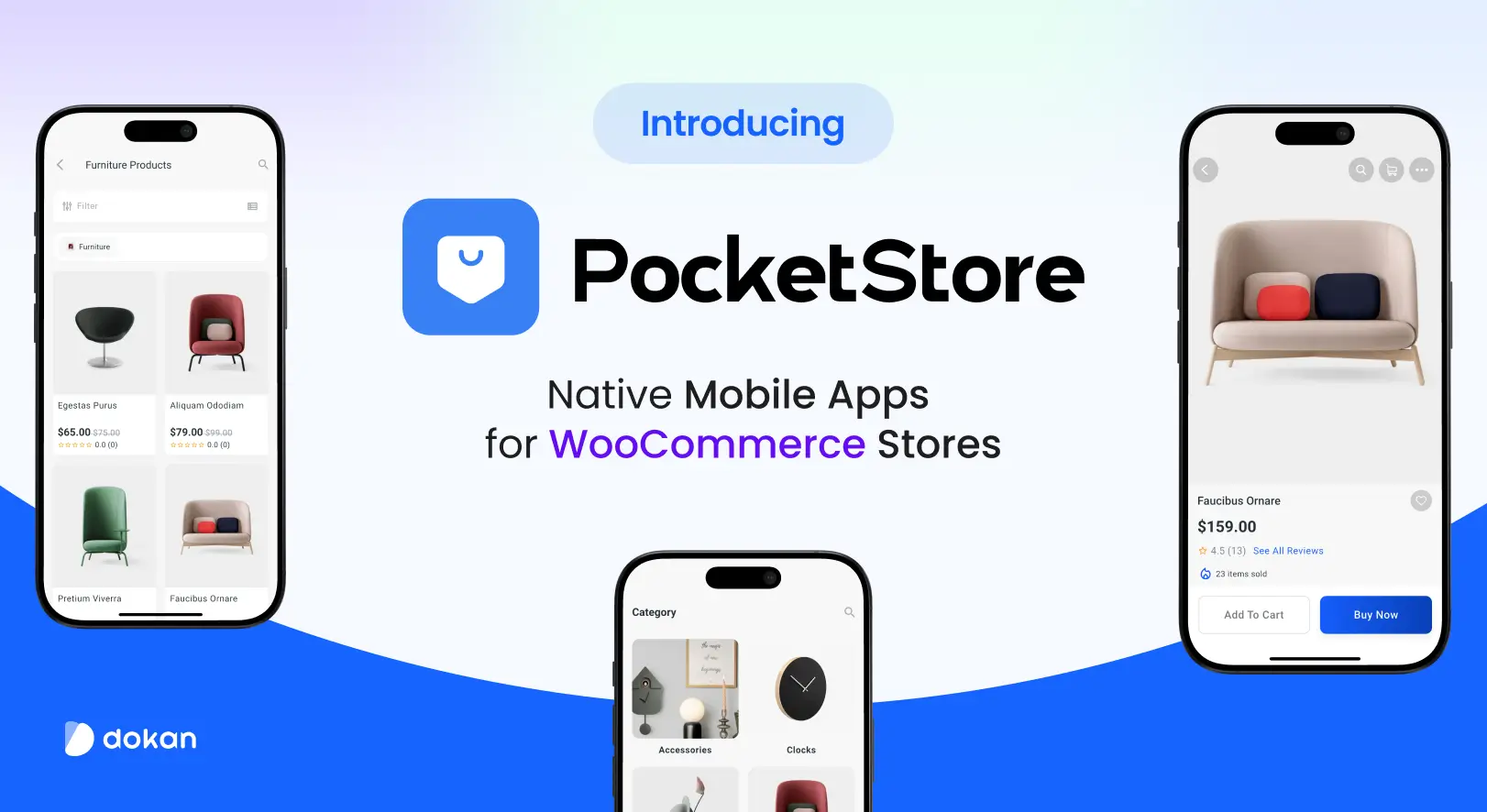
10. Dokan Mobile App
The Dokan Mobile App offers a native mobile experience for both vendors and customers, enabling smooth management and shopping on the go.
Key Features:
- Vendors can manage their stores, orders, and earnings from the app.
- Customers can browse and purchase products effortlessly.
- Push notifications for real-time updates and offers.
Launch Your Dream Marketplace with Astra!
Creating a marketplace with Astra might feel overwhelming at first, but once you have the right setup, it’s surprisingly achievable. Astra gives you a fast, flexible foundation, and when you pair it with a marketplace solution like Dokan, you get everything you need to launch a fully functional multi-vendor platform.
You don’t need advanced technical skills or a huge budget to get started. What matters most is a clear plan, reliable tools, and a focus on giving both vendors and customers a smooth experience. With that combination, you can build a marketplace that grows steadily and stands out.
Every successful marketplace began as a simple idea. If platforms like AliExpress and countless others grew from scratch, yours can too. Install Astra, set up your marketplace features, and take the first steps toward building something meaningful.
And if you run into any issues during setup, just drop your question in the comments. We’re always here to help.
Subscribe to
Dokan blog
We send weekly newsletters, no spam for sure!



Leave a Reply