

Digital art is no longer a niche. From illustrations and concept art to AI-generated visuals and downloadable designs, creators are looking for better ways to sell their work online. That’s where multivendor marketplaces come in.
How to Create a Digital Art Marketplace is a question many creators, entrepreneurs, and agencies are asking right now. Instead of running a single store, a marketplace lets multiple artists sell their digital artwork under one platform, manage their own products, and earn independently.
With Dokan, you can build a fully functional digital art marketplace on WordPress without custom development. It gives you vendor dashboards, commission control, downloadable product support, and all the tools you need to scale.
In this guide, we’ll walk through how to create a digital art marketplace with Dokan, step by step, so you can turn creative work into a sustainable online business.
Is it a Good Time to Start a Digital Art Marketplace?
Yes, based on future market forecasts, it’s a very promising time to start a digital art marketplace.
Industry research projects that the global digital art market will nearly double in value over the next decade, growing from around $7 billion in 2025 toward $30 billion by 2035, with a strong annual growth rate driven by technology adoption and digital ownership trends.
This growth is reinforced by forecasts showing that the online art market overall, which includes digital art and online platforms is set to expand further through 2030, with rising demand from buyers who prefer digital access and convenience.
What this means for you:
- The buyer base for digital and online art is growing steadily.
- Technology (AI tools, blockchain, immersive experiences) continues to expand possibilities for creators and collectors.
- Marketplaces that connect artists and buyers are becoming more central in the creative economy.
Examples of successful digital art marketplaces today:
- OpenSea: a leading NFT/digital art marketplace with global traffic and a huge variety of digital assets.
- Rarible: community-oriented marketplace where creators mint and sell art directly.
- SuperRare: focused on high-quality digital art and curated experiences.
These platforms have shown that dedicated digital art marketplaces can thrive and as the overall market grows toward 2030 and beyond, there’s room for new entrants with clearer value propositions and better creator experiences.
Steps to Build a Digital Art Marketplace
You can easily build a marketplace with all the features and functions just like AliExpress using the Dokan multivendor plugin. We will tell you how. But before, lets talk a little bit about Dokan plugin.
As we said earlier, Dokan multivendor marketplace plugin is a popular WordPress plugin for creating marketplaces.
The plugin currently has more than 40000+ active installations on WordPress.org. With its 40+ modules and numerous features, Dokan currently holds the“number 1” position amongst the multivendor marketplace plugins.
WooCommerce powers the plugin, so it supports all the WooCommerce features and WooCommerce themes. You need to do very little in terms of customization.
Now, let’s see the steps of how to build a digital art marketplace using the Dokan multivendor marketplace plugin.
Step 1: Activate Dokan to Create Your Multivendor Marketplace
After configuring WooCommerce, you need to install Dokan to create a multivendor marketplace for your products.
Installing Dokan multivendor is as simple as installing any other WordPress plugin.
You can install the plugin from the WordPress dashboard by,
- Navigating to Admin Dashboard -> Plugin-> Add New-> Click the search
- Type Dokan -> Install -> Activate.
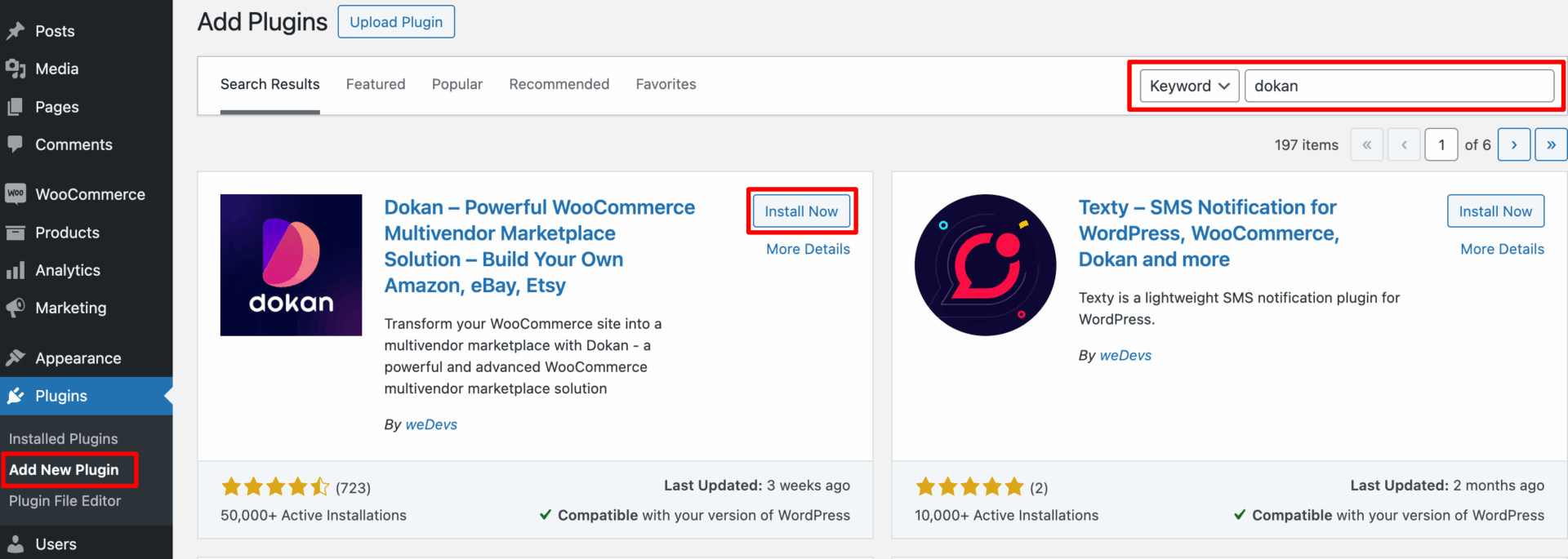
Dokan multivendor will also provide a setup wizard that will help you easily set up your marketplace. Configuring Dokan is very easy by using its own Wizard.
If you are still confused, go through the video tutorial on Dokan installation.
Step 2: Install a Dokan Compatible Theme
After installing the Dokan multivendor plugin, you need to install a Dokan-compatible theme. Any theme that is compatible with WooCommerce is also compatible with Dokan multivendor.
You can find the themes in WP-Admin-> Appearance-> Themes. But make sure the theme is Dokan compatible.
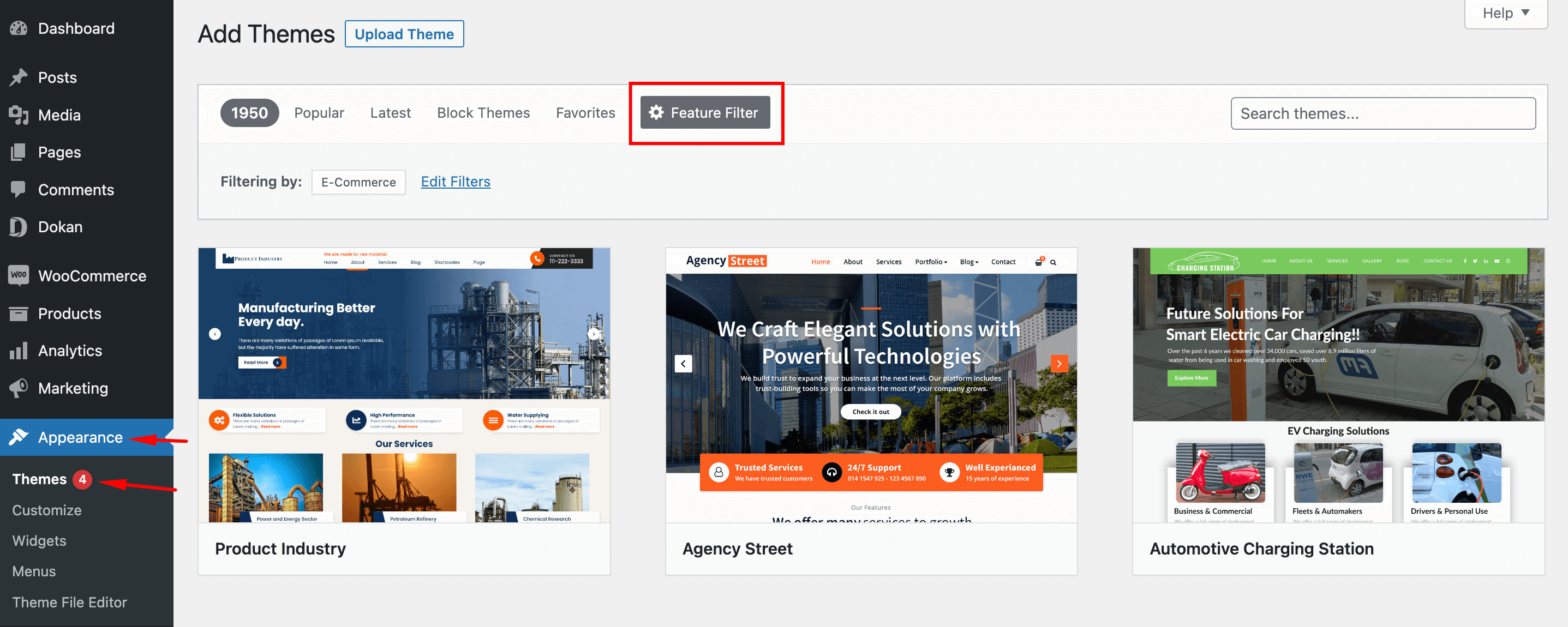
If you choose any other theme, then you will need to customize the theme to make it compatible with your marketplace.
Step 3: Configure Dokan General Settings
After installing and activating the Dokan multivendor plugin, you now need to configure all the basic settings. You will find all the settings options at WP-Admin–> Dokan–> Settings.
From here you can:
- Set up your store terms and conditions
- Create store category (so that vendors can add different categories for their stores )
- Enable payment gateways (more on this in the next part)
- Configure withdrawal methods (more on this in the next part)
- Allow vendors to upload new products
- Create new tags
- Set new product status
- Configure selling options
- Set privacy policy
You can select the pages for the vendor dashboard, order page, store listing, and terms and conditions page from the Page Settings option.
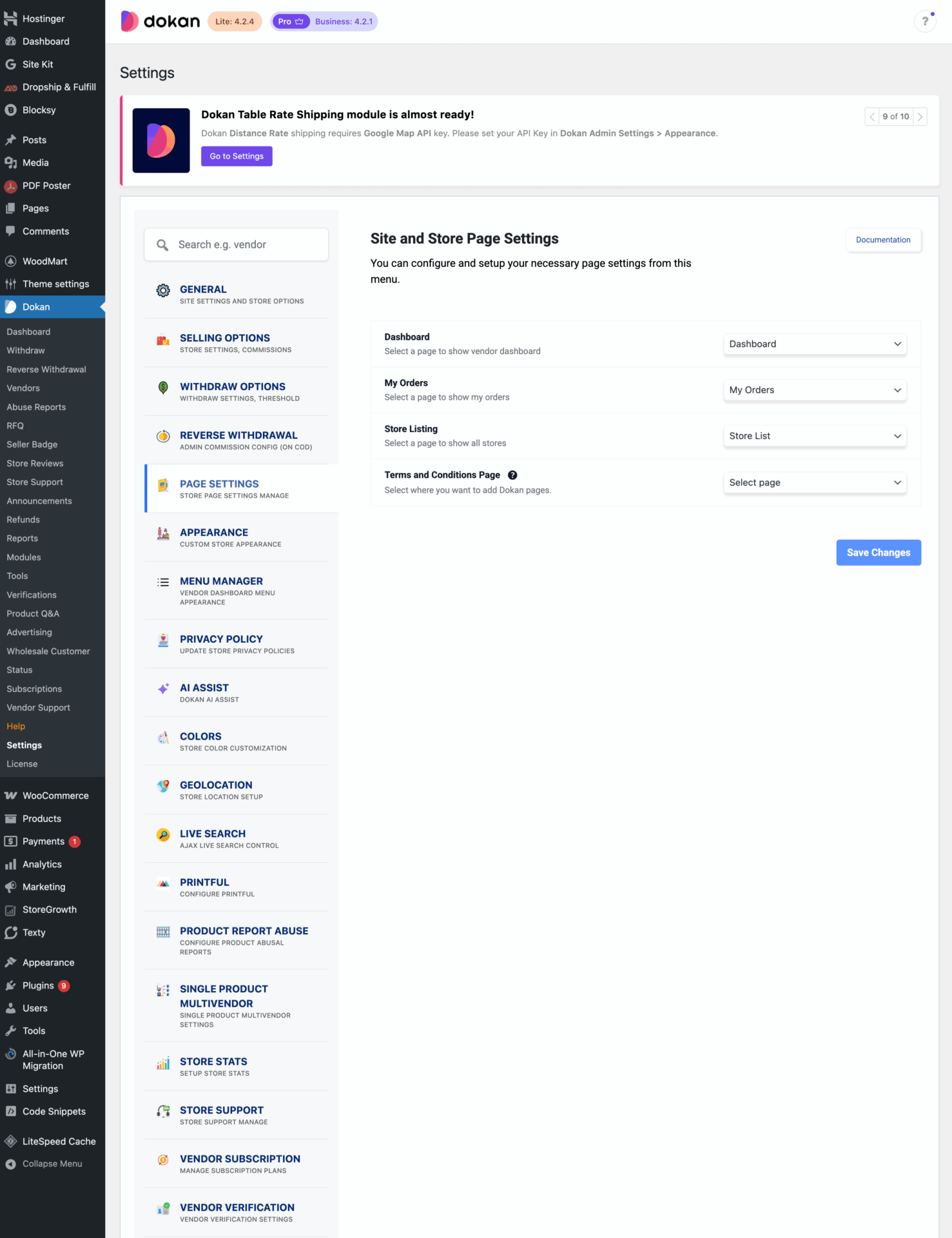
Don’t forget to click the Save Changes button after configuring all the settings. Otherwise, you will lose all your settings.
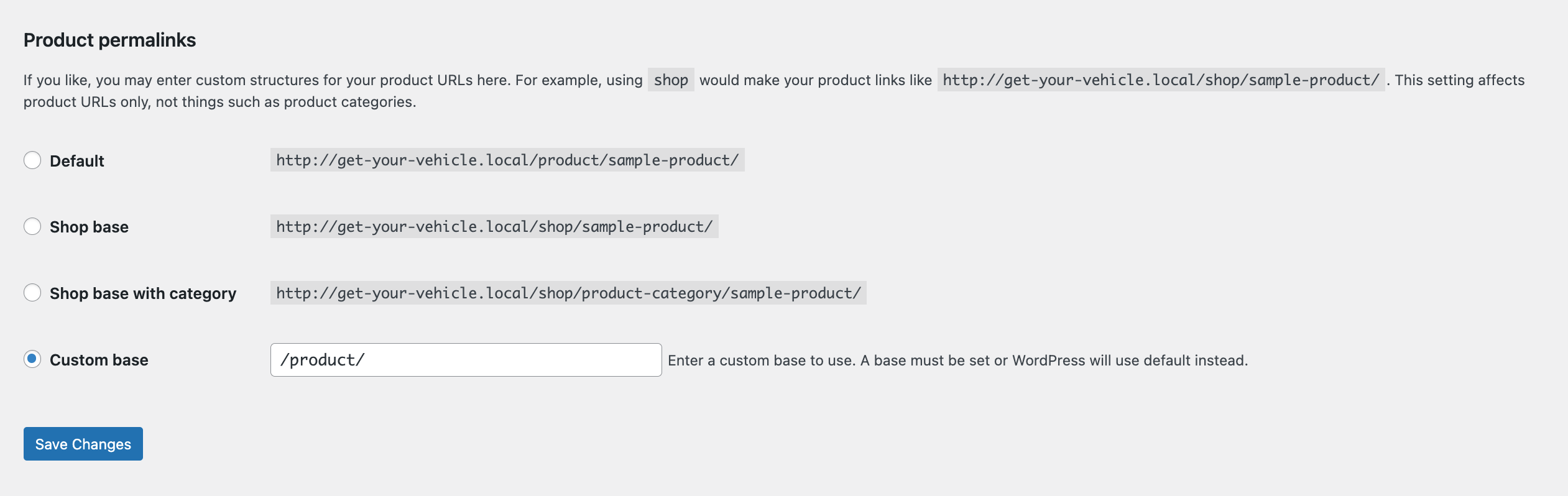
Also, you need to configure your permalink settings as well. Otherwise, you may get a 404 error on certain pages. Go to WP Admin -> Settings -> Permalinks -> Permalink Settings ->Product Permalinks. Select the check box “Custom Base” for product permalinks and write “/product” on the box.
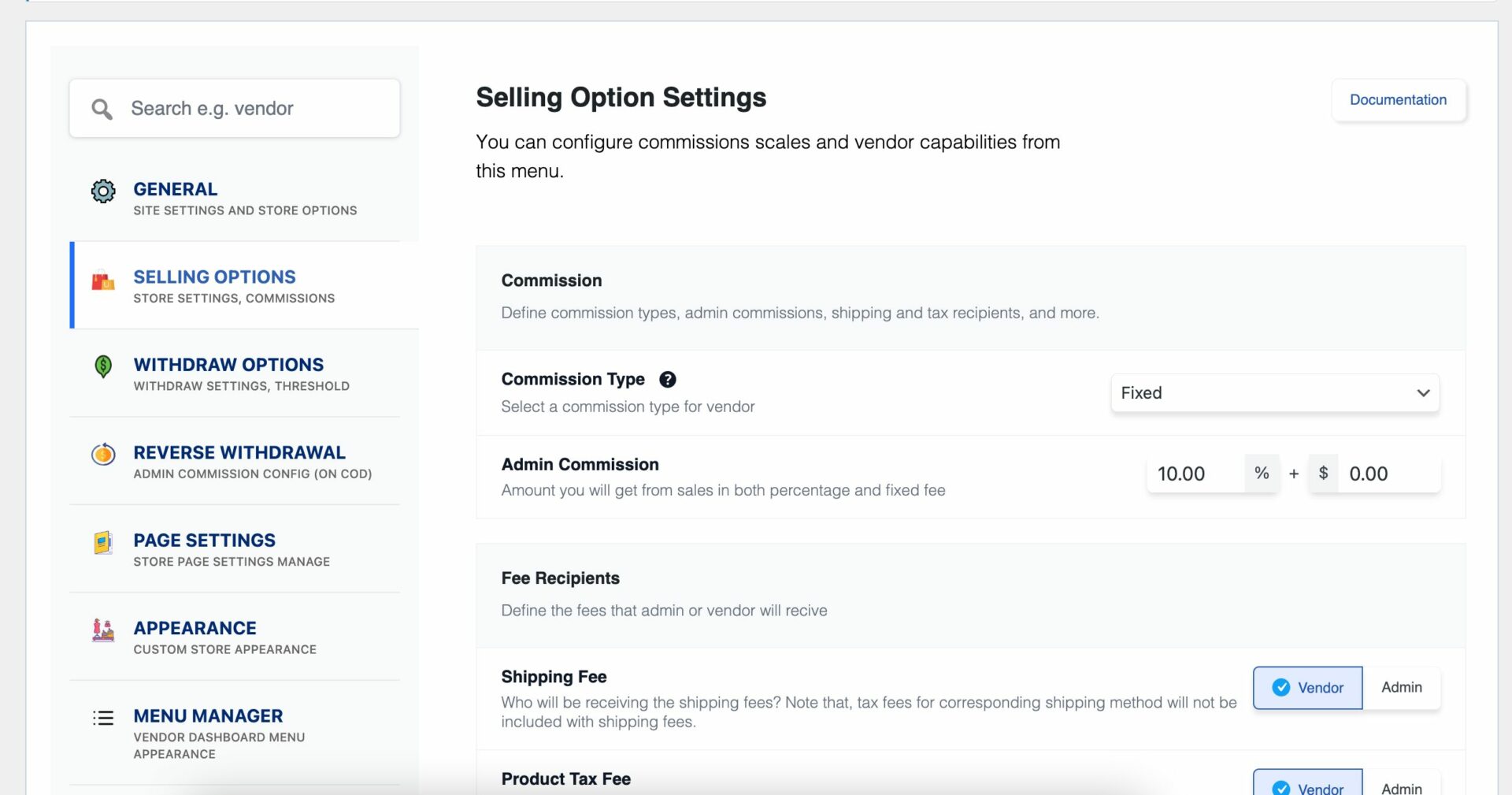
You have to set your commission rate as well. Go to WP Admin Dashboard -> Dokan -> Settings -> Selling Options -> Admin Commission.
You’ll find different options to insert the percentage or fixed amount. Dokan supports various types of vendor commissions.
Enable Payment Gateways
The Dokan multivendor plugin supports all WooCommerce-compatible payment gateways. So, you will get a wide range of choices to make the transaction process easier on your marketplace.
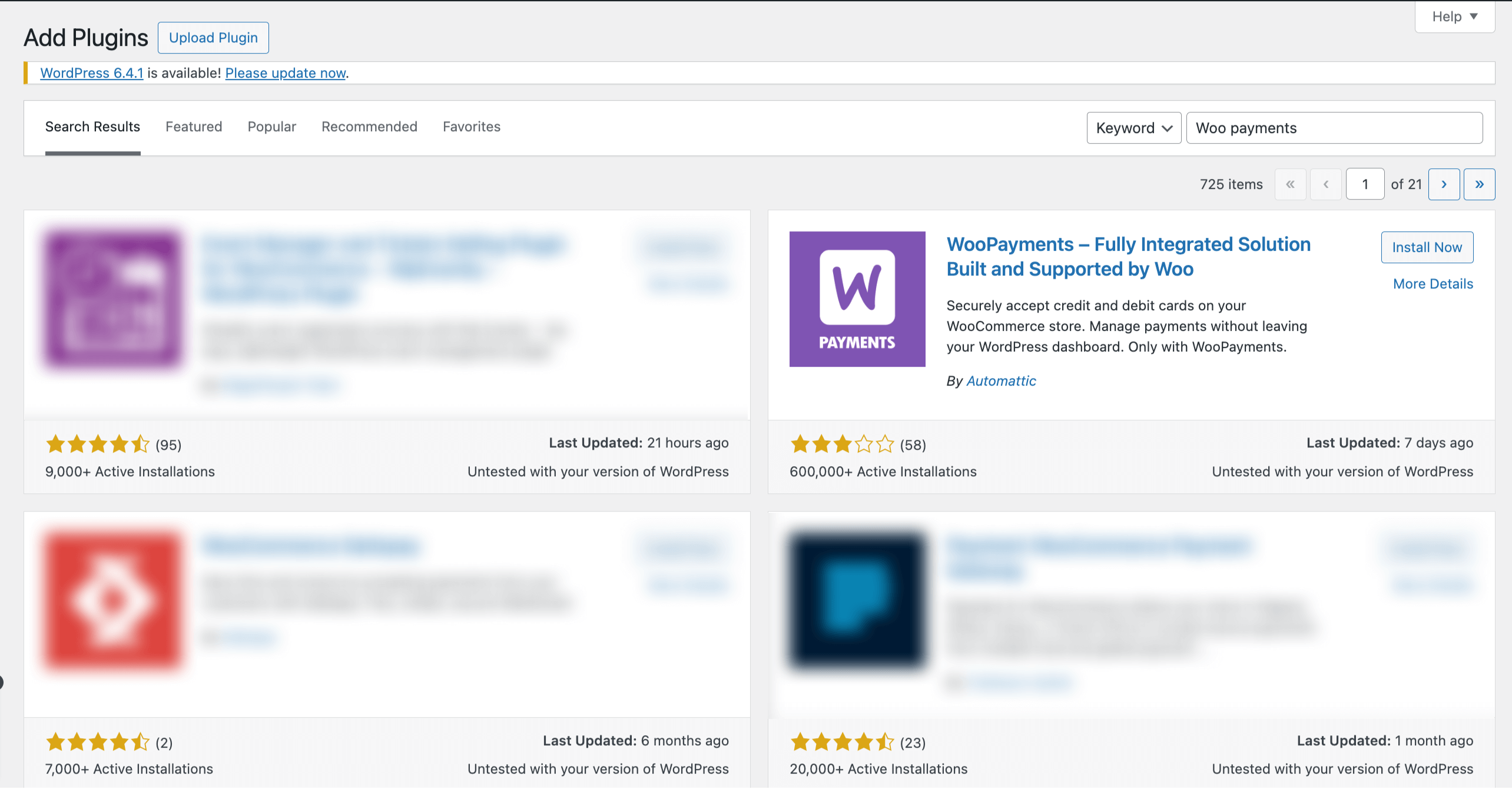
With the Dokan free version, you can use non-adaptive payment gateways like check payments, bank account transfers, cash on delivery, etc. You can install the WooPayments plugin to get support for credit cards, debit cards, and other payment methods.
However, if you want your marketplace to support adaptive payment solutions like Stripe Connect, you need to install the Dokan Pro version.
Enable Withdraw Methods for Vendors
Another vital part of running an online marketplace is to ensure a smooth withdrawal system. The Dokan multivendor plugin helps you take care of this section as well.
Go to WP Admin -> Dokan -> Settings -> Withdraw Options. Here you’ll find options to customize the withdrawal method and set the minimum balance a vendor needs to make a withdrawal limit.
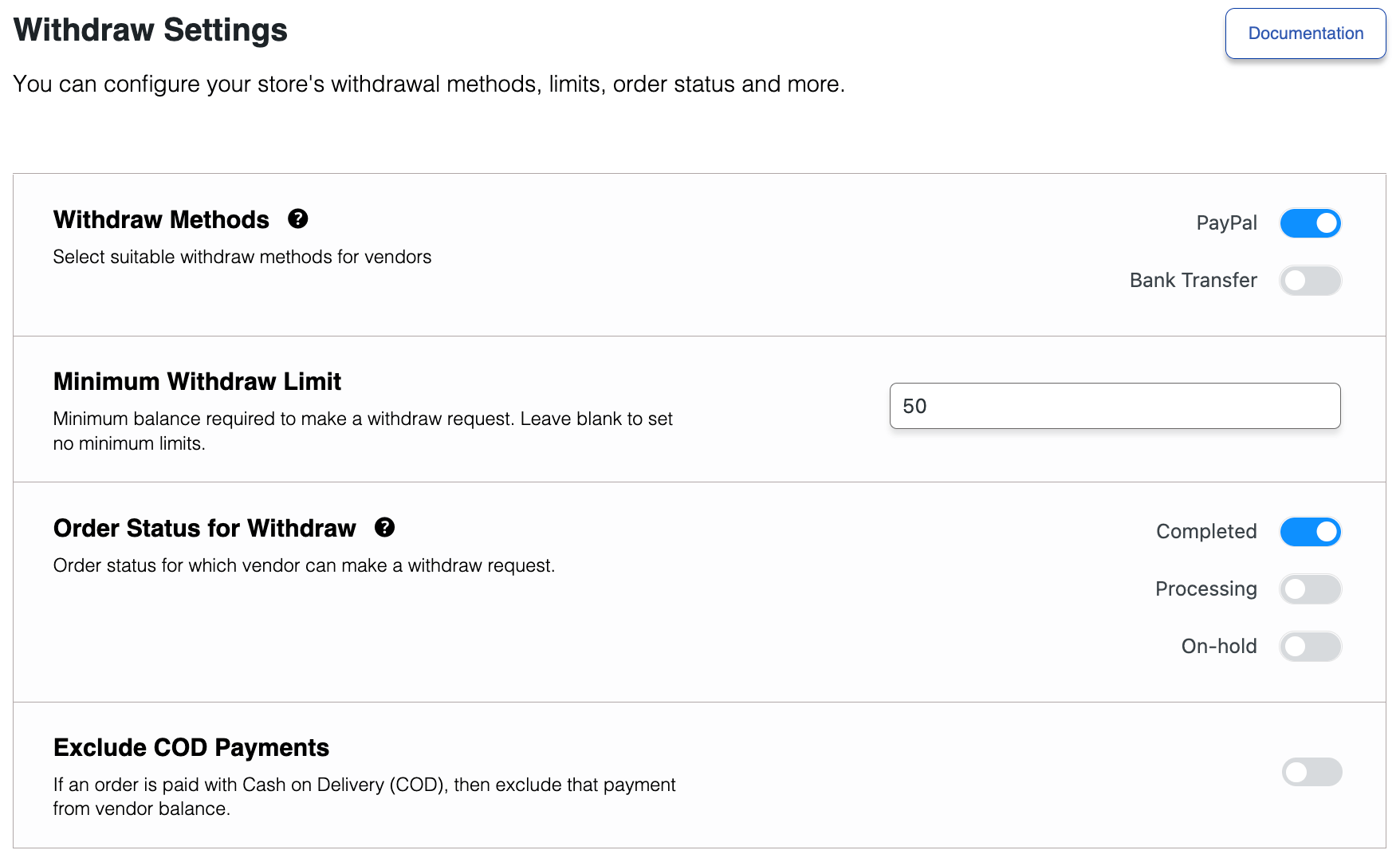
You will get more withdrawal options with the Dokan Pro version.
Step 4: Upload Products and Setup Admin Shop If You Want
This is an optional step. If you want to earn some extra money, you can create your store on your marketplace. All you need to do is enable yourself to sell.
Go to Dokan-> Vendors. There you need to enable selling by toggling the button. You can upload your products by navigating to WordPress Backend -> Products -> Add New.
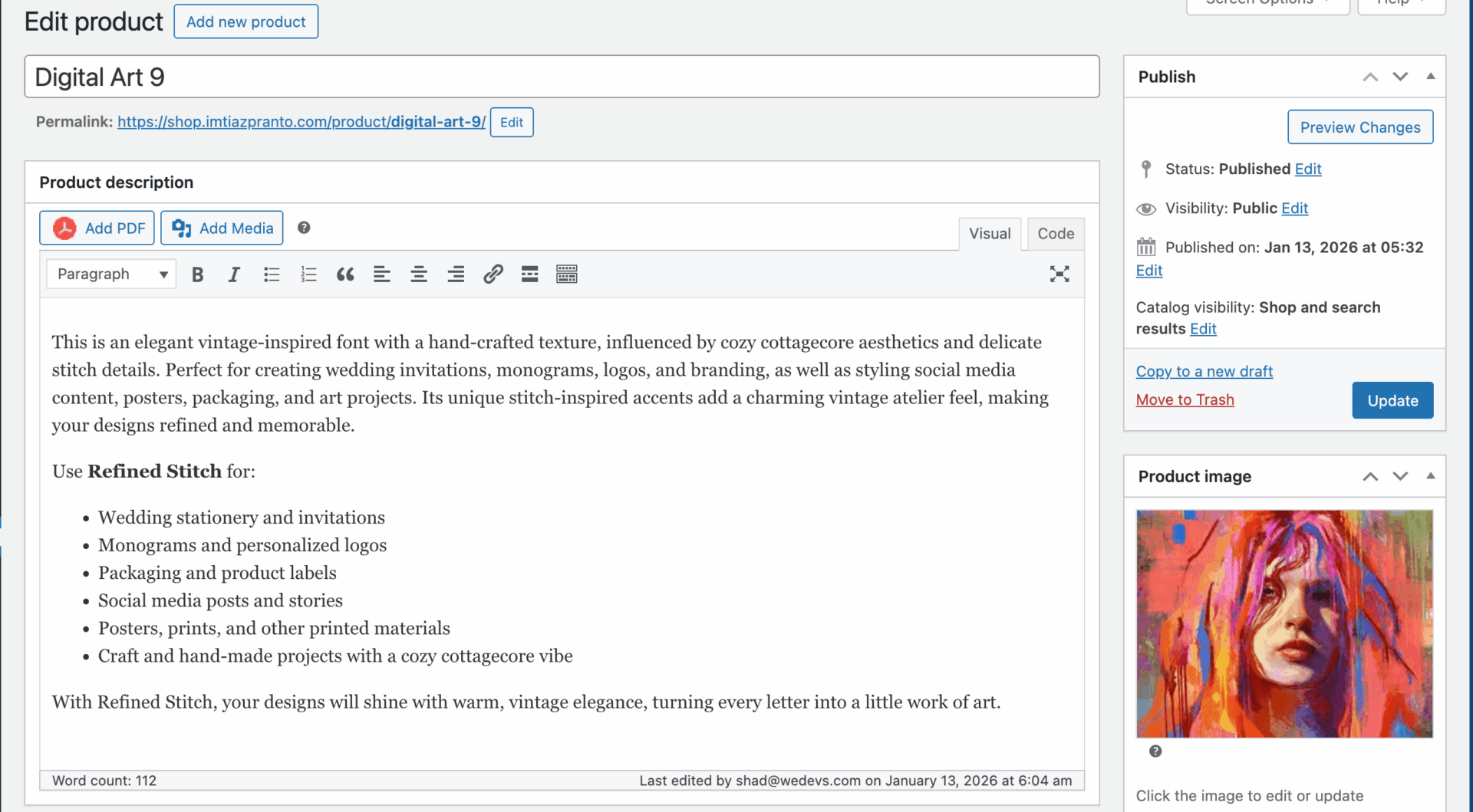
And to upload products from the front end navigate to, WordPress Dashboard -> Vendor Dashboard -> Products-> Add New. Your registered vendors will upload products this way.
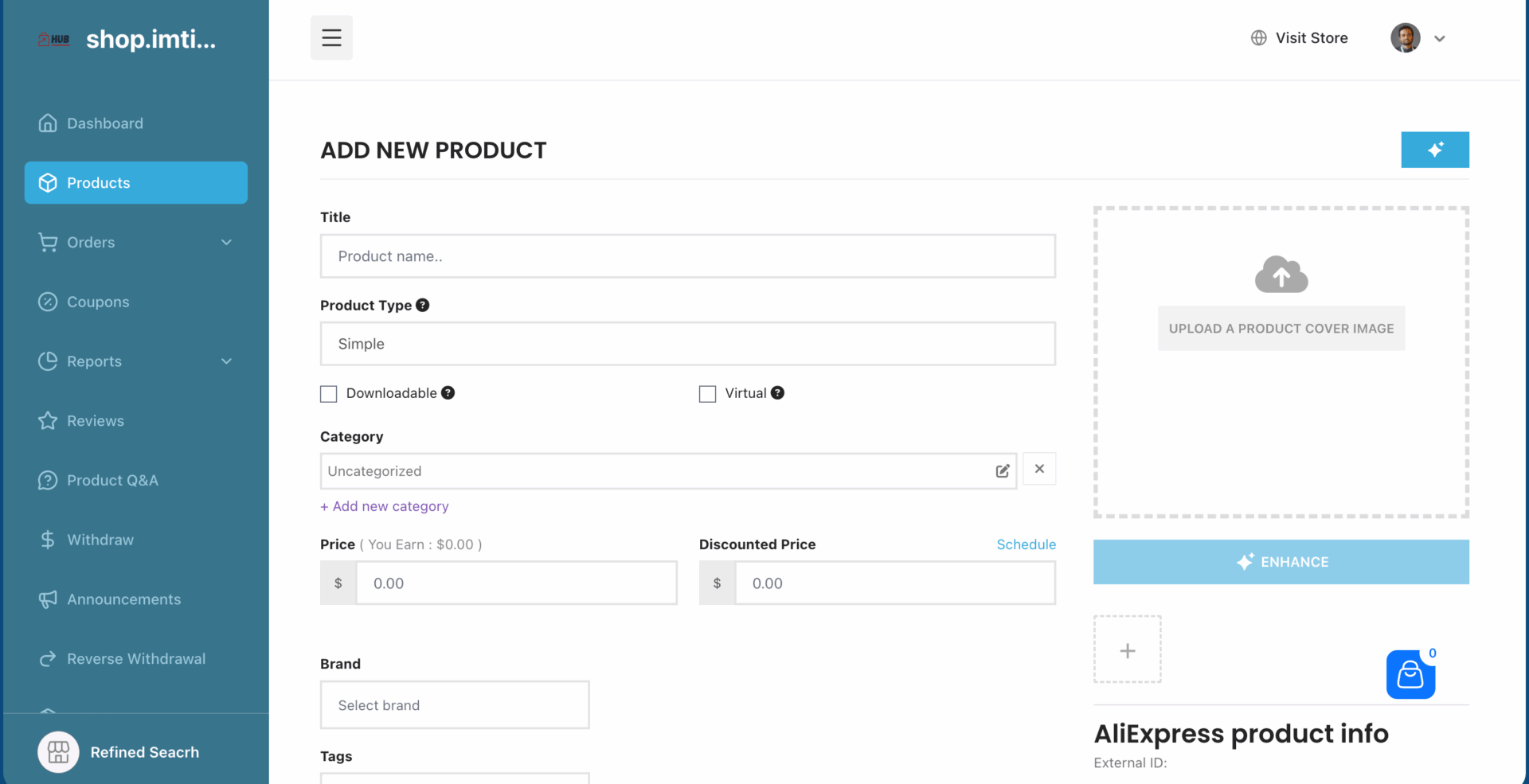
Vendors can add functionalities like shipping, taxes, and product attributes from the product creation form.

Step 5: Allow Vendors to Sign up to Your Marketplace
Now that you have added all the functionalities to your marketplace, you can invite vendors to sign up for your marketplace.
Dokan Multivendor has a default registration form that will help vendors to sign up to your marketplace.
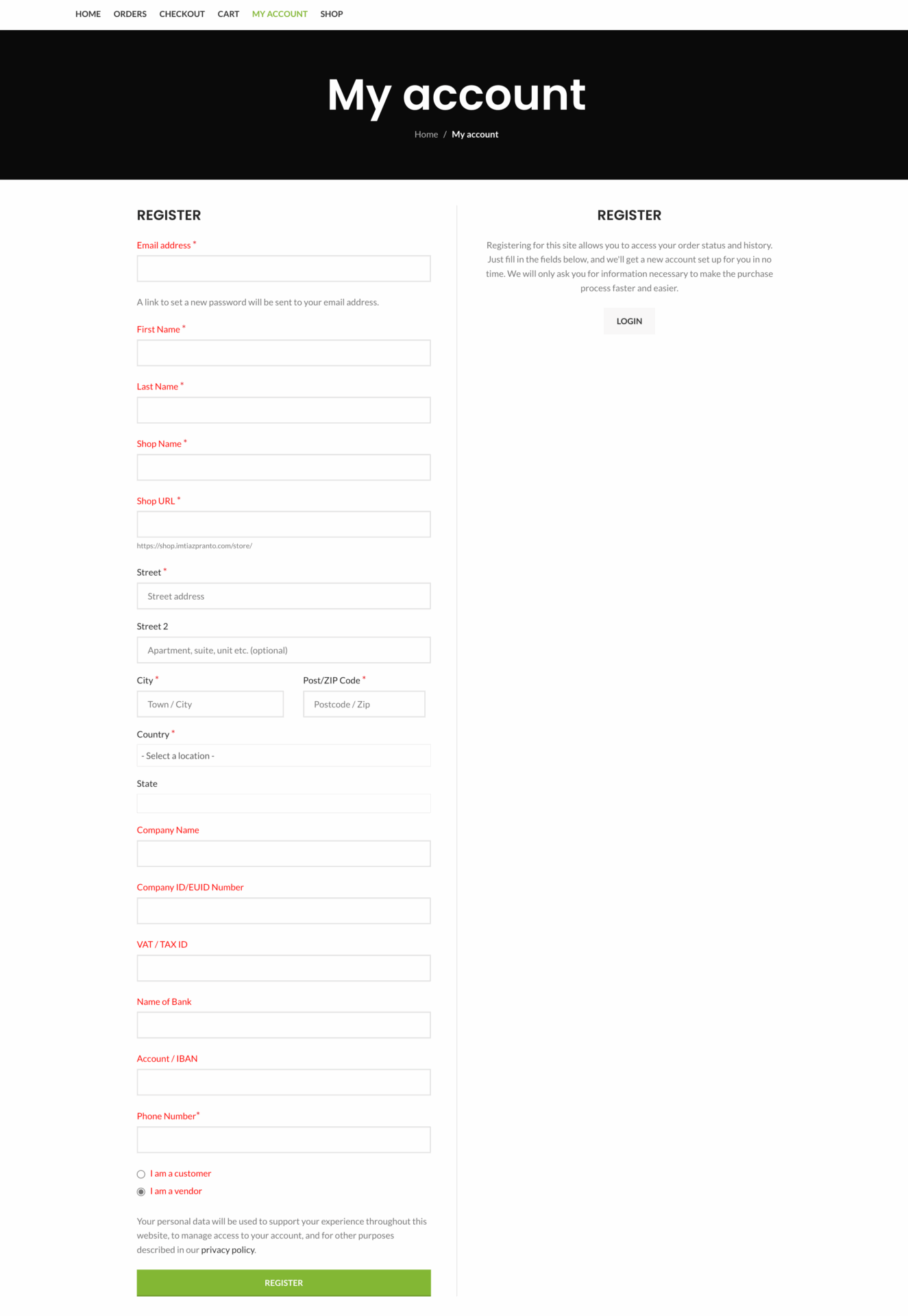
Or you can create customized registration forms with the necessary fields, especially for your marketplace.
For vendors to start selling, you need to enable selling status from Dokan-> Vendors.
Also, if you want the vendors to upload their products, then you need to change the product status from Dokan->Settings-> Selling options. You need to enable the New Vendors Product Upload
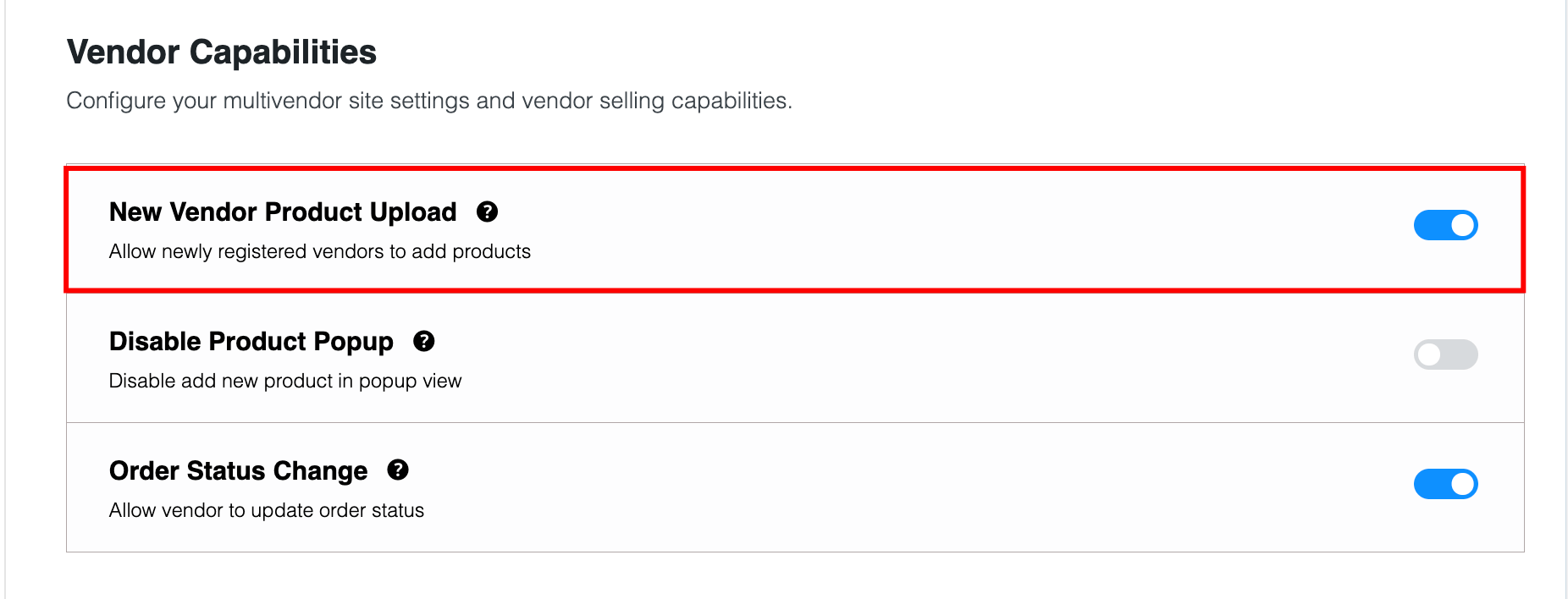
Vendors can upload their products from the front end as we’ve shown above for the admin shop.
You Are Ready to Sell!
Step 6: Launch Your Marketplace
A strategic launch ensures a strong start. Steps include:
- Beta Launch: Test with a small group of vendors and buyers to iron out issues.
- Launch Campaigns: Use platforms like Google Ads and Facebook to promote the launch.
- Content Marketing: Publish blog posts, videos, and case studies to highlight vendor success stories.
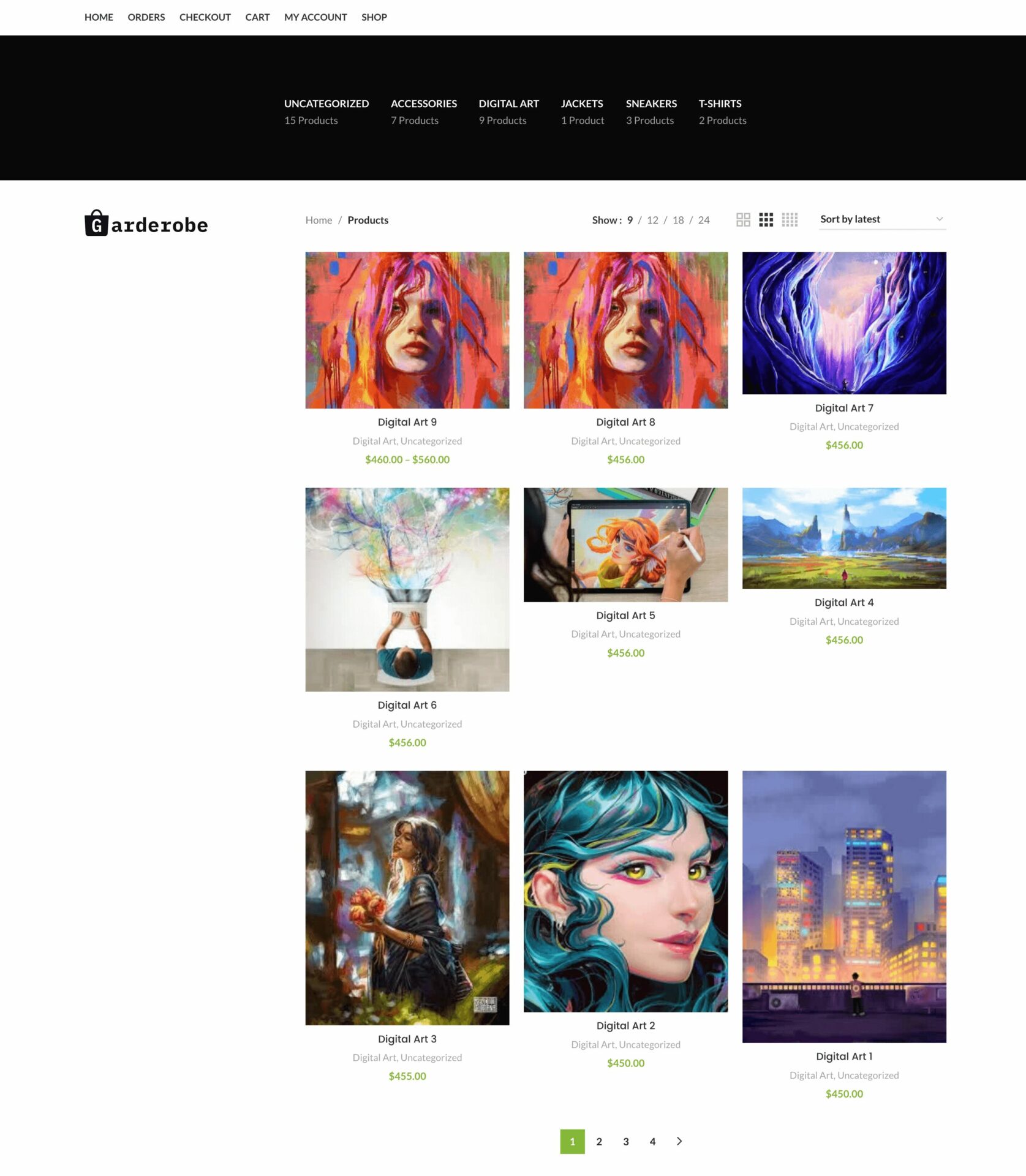
Bonus: Add Advanced Features to Your Marketplace
You have given the basic shape of your marketplace and if you want you can start selling. But to truly provide the marketplace experience to your customers and vendors, you need some advanced features.
Also, as you are trying to create a digital marketplace, you need the features to compete with them as well.
Here is the list of advanced features to improve your marketplace experience-
1. Product Variations
This module allows vendors to create multiple variations of a single product, such as different sizes, colors, or materials.
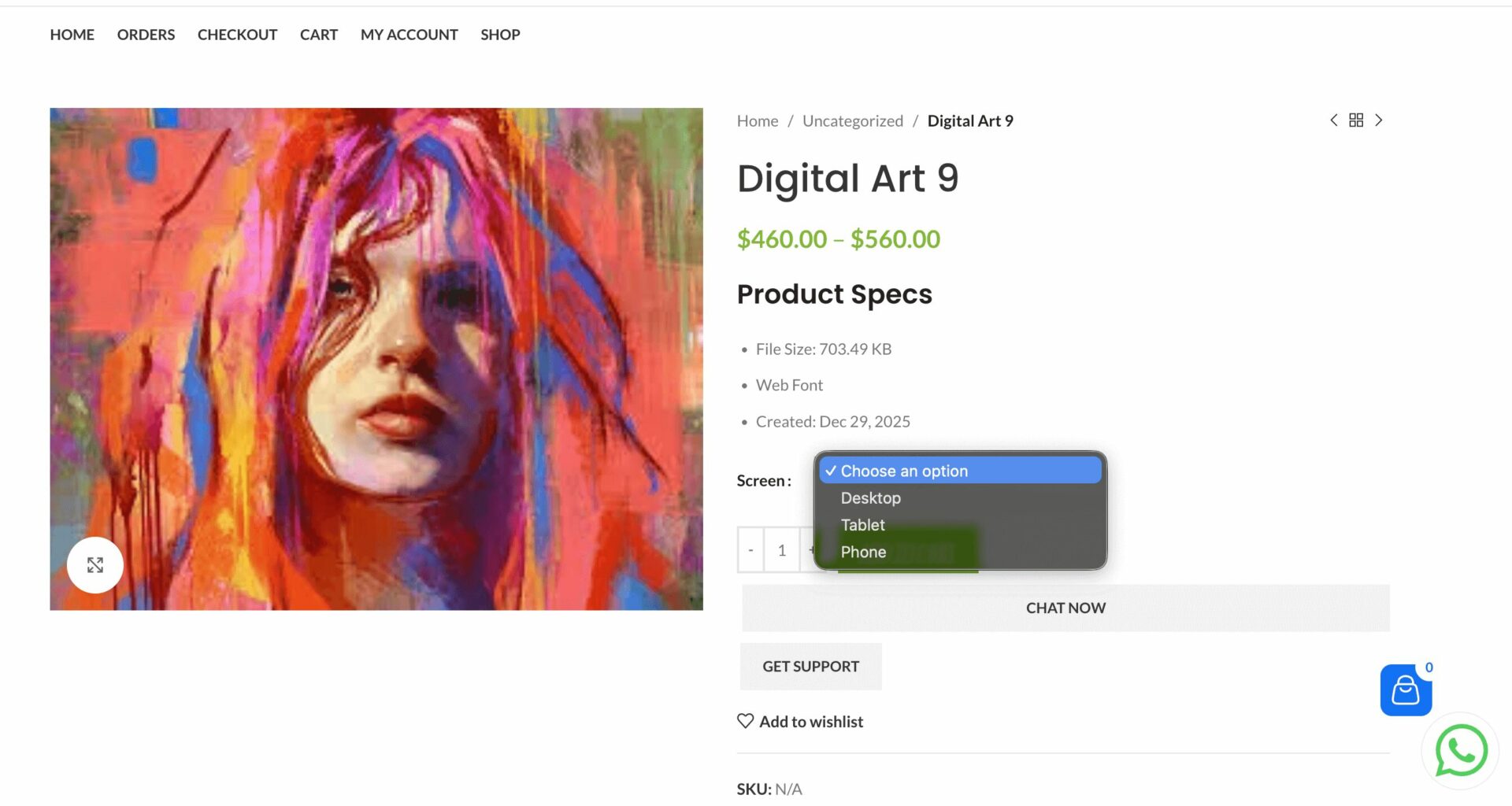
Customers can select the exact combination they need, enhancing their shopping experience.
Key Features:
- Enable vendors to create unlimited variations for a product.
- Set individual prices, stock levels, and images for each variation.
- Simplify navigation with drop-down menus for variations.
Key Features:
- Add text fields, checkboxes, or dropdown menus for customization.
- Charge extra for add-ons and manage pricing seamlessly.
- Enhance customer satisfaction by meeting unique requirements.
2. Product Q&A
This module allows customers to ask questions about products and receive answers from vendors or other buyers. This helps customers make their decisions quickly and increase conversion rate.
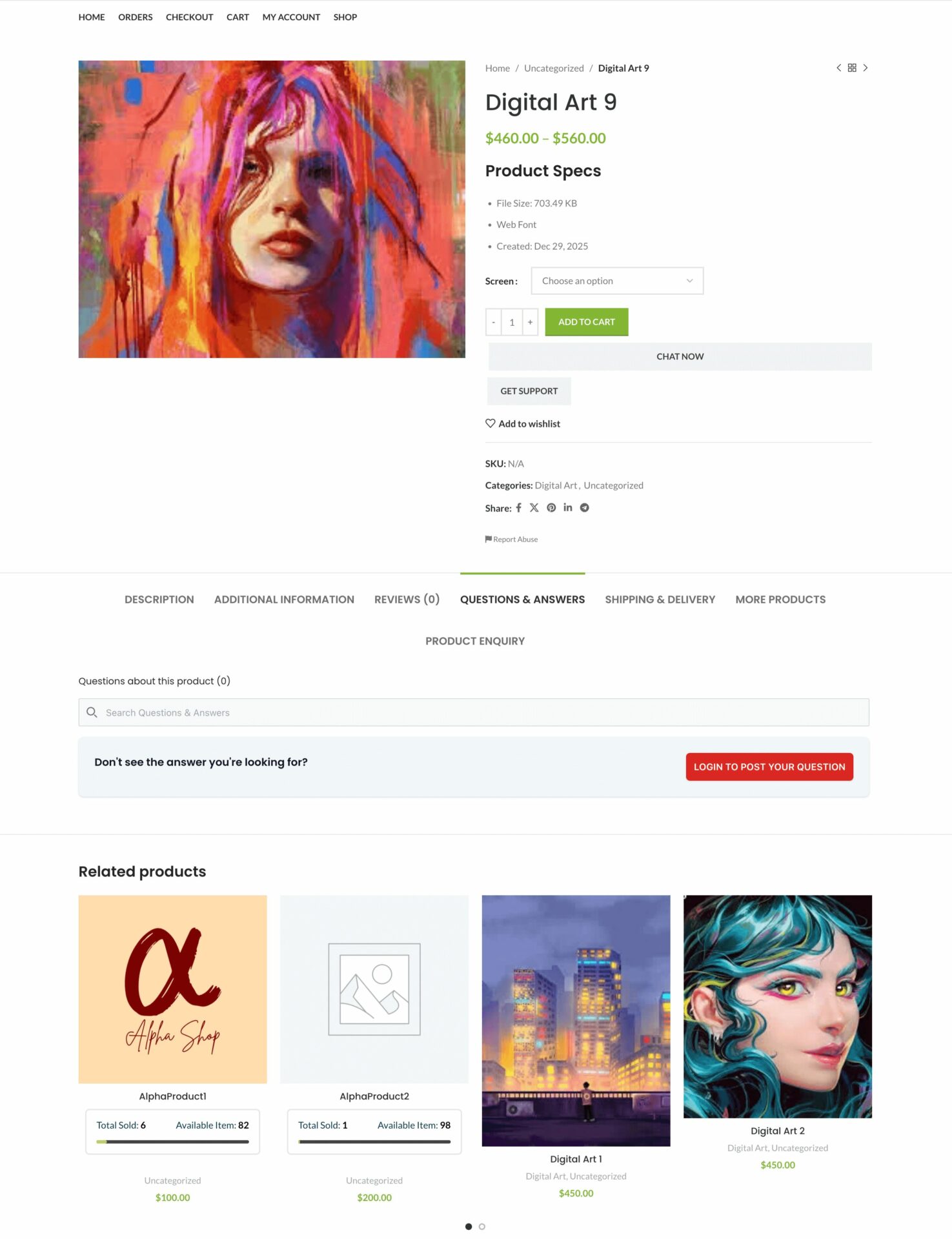
Key Features:
- Real-time question and answer functionality.
- Notifications for vendors when new questions are posted.
- Display helpful answers publicly to assist other potential buyers.
3. Vendor Reviews
The Vendor Reviews module enables customers to share their experiences, rate vendors, and provide feedback.
This helps build trust and encourages vendors to maintain quality.
Key Features:
- Collect star ratings and detailed reviews for vendors.
- Highlight top-rated vendors to improve marketplace credibility.
- Allow vendors to respond to reviews, creating an interactive feedback loop.
4. Vendor Dashboard
The Vendor Dashboard is a platform where vendors can manage their store operations, from product listings to order tracking, ensuring a smooth workflow.
Key Features:
- Access to sales reports and analytics.
- Easy product management, including bulk uploads.
- User-friendly interface with customizable options.
5. Live Chat
The Dokan Live Chat module enables real-time communication between vendors and customers, ensuring quick query resolution and enhancing customer satisfaction.’
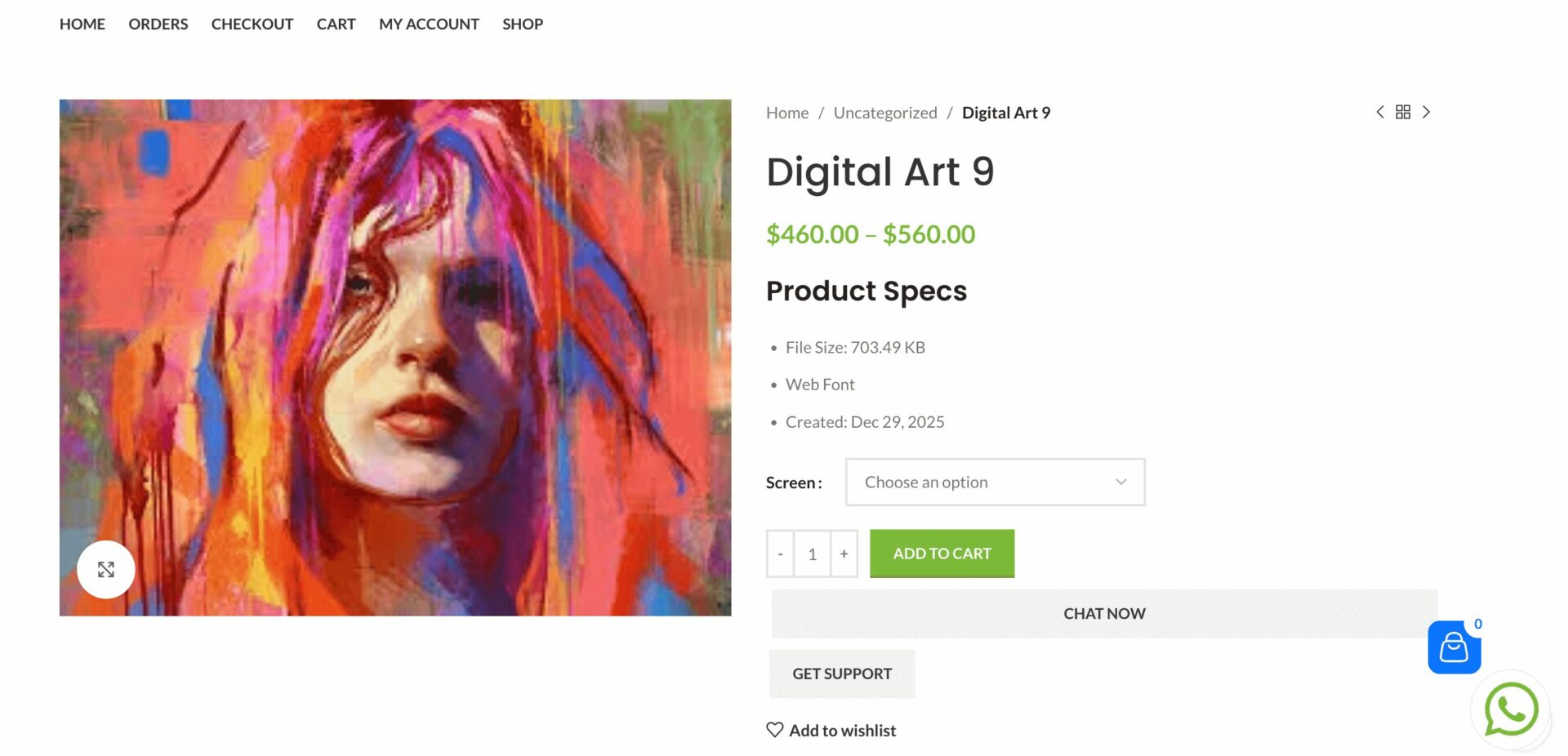
Key Features:
- Instant messaging system for vendors and customers.
- Notifications for new messages to prevent delays.
- Seamless integration with other communication tools.
6. Vendor Analytics
The Vendor Analytics module provides vendors with detailed insights into their store performance, helping them identify trends and optimize their sales strategies.
Key Features:
- Real-time sales reports and performance metrics.
- Insights into customer behavior and top-performing products.
- Downloadable analytics reports for offline review.
7. Dokan Mobile App
The Dokan Mobile App offers a native mobile experience for both vendors and customers, enabling smooth management and shopping on the go.
Key Features:
- Vendors can manage their stores, orders, and earnings from the app.
- Customers can browse and purchase products effortlessly.
- Push notifications for real-time updates and offers.
8. Ajax Live Search
Ajax Live Search module improves the search functionality by provides instant results. It improves product discovery and reduces search times.
Key Features:
- Real-time search suggestions.
- Filter results by categories, tags, or attributes.
- Seamless integration with the marketplace’s product database.
9. Vendor Vacation Module
With this module, vendors can temporarily pause their stores without affecting their marketplace presence. It ensures transparency by informing customers about vendor unavailability.
Key Features:
- Vendors can set vacation dates and disable orders during their absence.
- A vacation notice is displayed on the vendor’s store page.
- Automatic reactivation of the store when the vacation ends.
10. Single Product Multivendor Module
This module enables multiple vendors to sell the same product, creating a competitive marketplace. It enhances product availability and gives customers multiple buying options.
Key Features:
- Vendors can list the same product with their own pricing and stock.
- Customers can compare prices and choose their preferred vendor.
- Marketplace owners can earn commissions from multiple vendors for the same product.
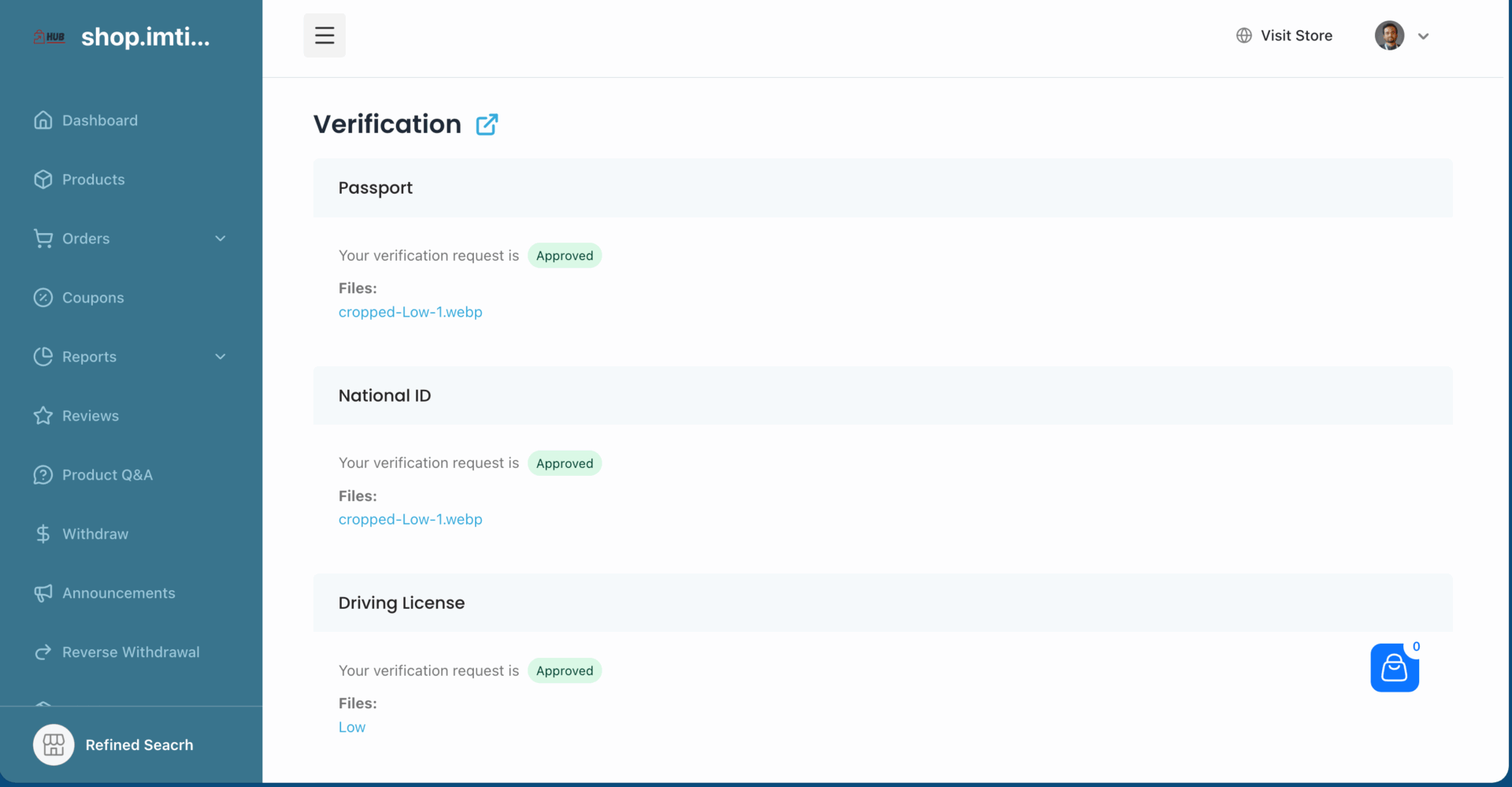
11. Vendor Verification Module
This module enhances trust in your marketplace by allowing vendors to verify their identity. It ensures customers shop from credible and verified sellers.
Key Features:
- Vendors can verify using documents, social media, or phone verification.
- Verified badges appear on vendor profiles for increased credibility.
- Marketplace owners can review and approve verifications manually.
12. Seller Badge Module
This module rewards vendors with badges based on their performance, helping customers identify top-rated sellers. It encourages quality service and boosts marketplace engagement.
Key Features:
- Assign badges based on criteria like sales, reviews, or response time.
- Badges are displayed on vendor store pages and product listings.
- Motivates sellers to improve performance and maintain quality service.

Subscribe to
Dokan blog
Start Your Digital Art Marketplace Today!
Creating a digital art marketplace is no longer a complex or resource-heavy task. With the growing demand for digital art and creator-focused platforms, now is a practical time to turn this idea into a real business.
Dokan gives you the flexibility to build a multi-vendor marketplace where artists can sell, manage, and grow independently, while you stay in control of commissions, quality, and scaling.
By choosing the right niche, setting clear rules for vendors, and focusing on a smooth buying experience, you can build a digital art marketplace that attracts both creators and buyers.
With Dokan handling the core marketplace functionality, you can focus on growing your platform and shaping it into a sustainable ecosystem for digital artists.
Subscribe to
Dokan blog
We send weekly newsletters, no spam for sure!


Leave a Reply