
You will find the POS-related settings in wePos –> Settings –> POS Settings.
These settings is separated into 3 parts-
- General
- Tax
- Barcode
General Settings
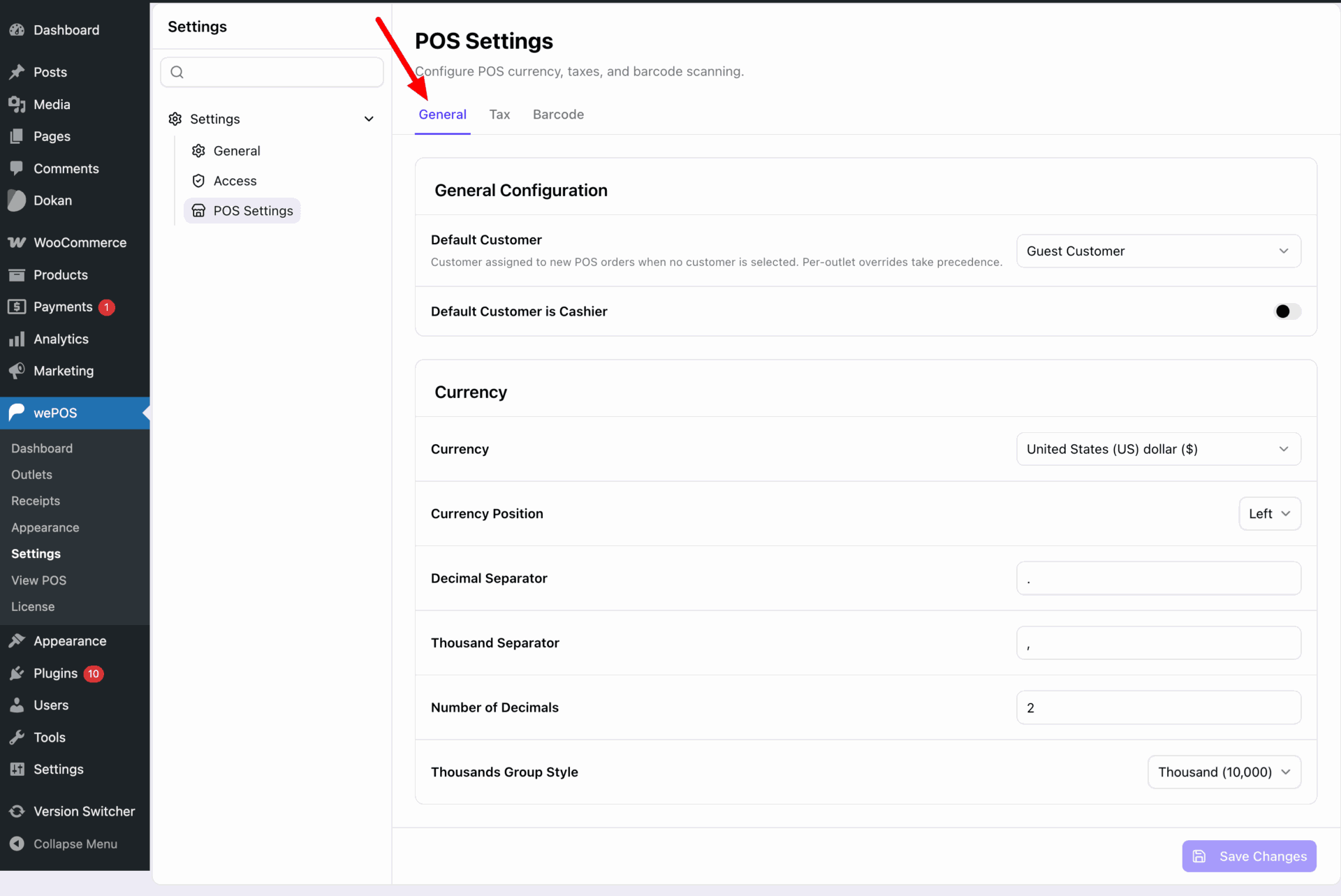
- Default Customer: Sets a fallback customer for POS orders. If no customer is selected during checkout, this customer is assigned automatically.
- Default Customer is Cashier: Assigns the logged-in cashier as the customer for the order. Useful for quick checkout without selecting a customer.
- Currency: Defines the currency used in the POS system. All transactions and totals follow this setting.
- Currency Position: Controls where the currency symbol appears. For example, before or after the amount.
- Decimal Separator: Sets the symbol used to separate decimal values. Example: a dot in 10.50.
- Thousand Separator: Defines how large numbers are grouped. Example: a comma in 10,000.
- Number of Decimals: Specifies how many digits appear after the decimal point.
- Thousands Group Style: Controls how digits are grouped in large numbers. Example: 10,000 format.
Tax
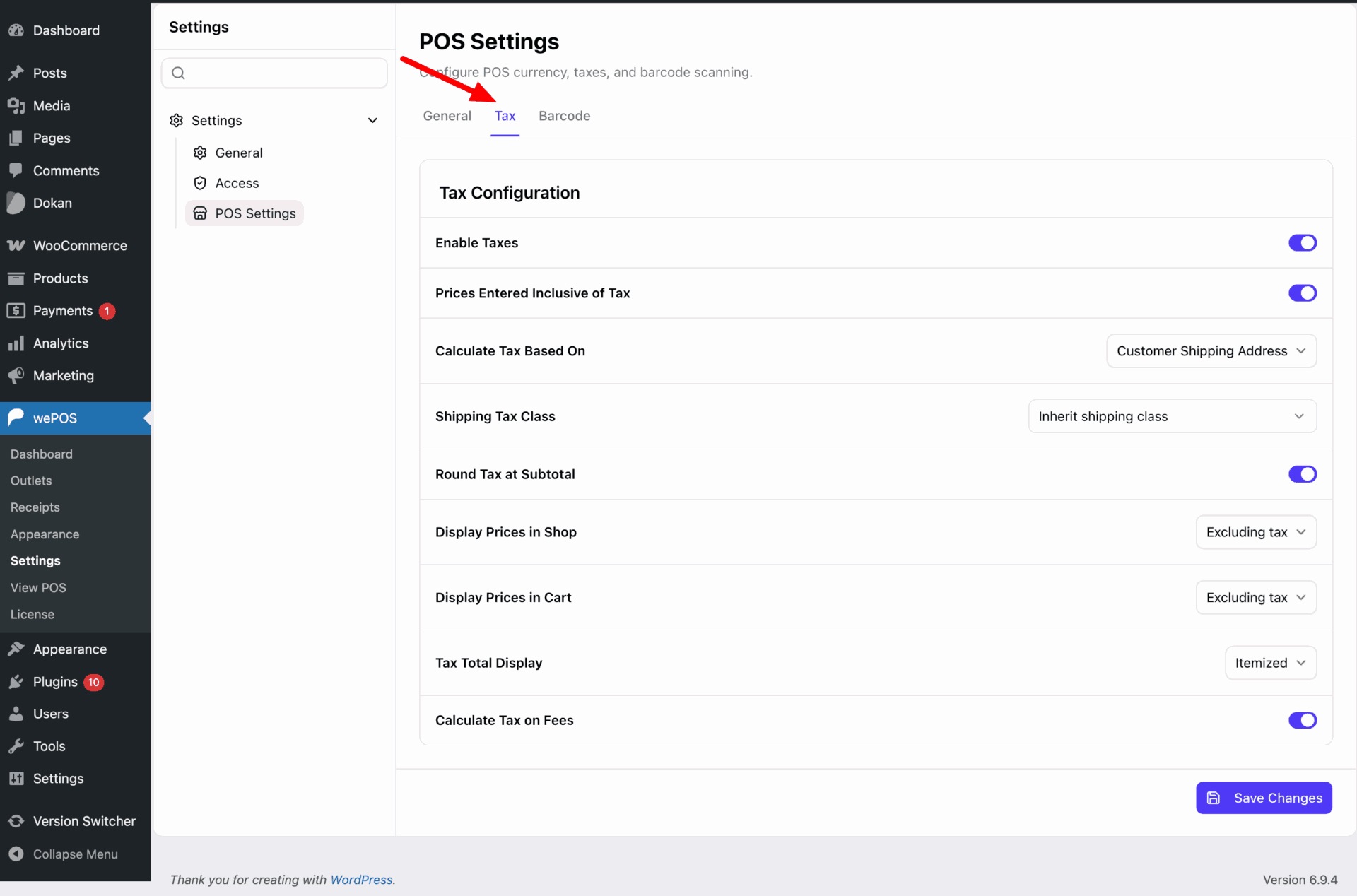
- Enable Taxes: Turns tax calculation on or off in the POS. Disable it if you do not need to apply taxes to orders.
- Prices Entered Inclusive of Tax: Defines if product prices already include tax. If enabled, tax is calculated within the given price instead of being added on top.
- Calculate Tax Based On: Determines which address is used for tax calculation. For example, the customer’s shipping or billing address.
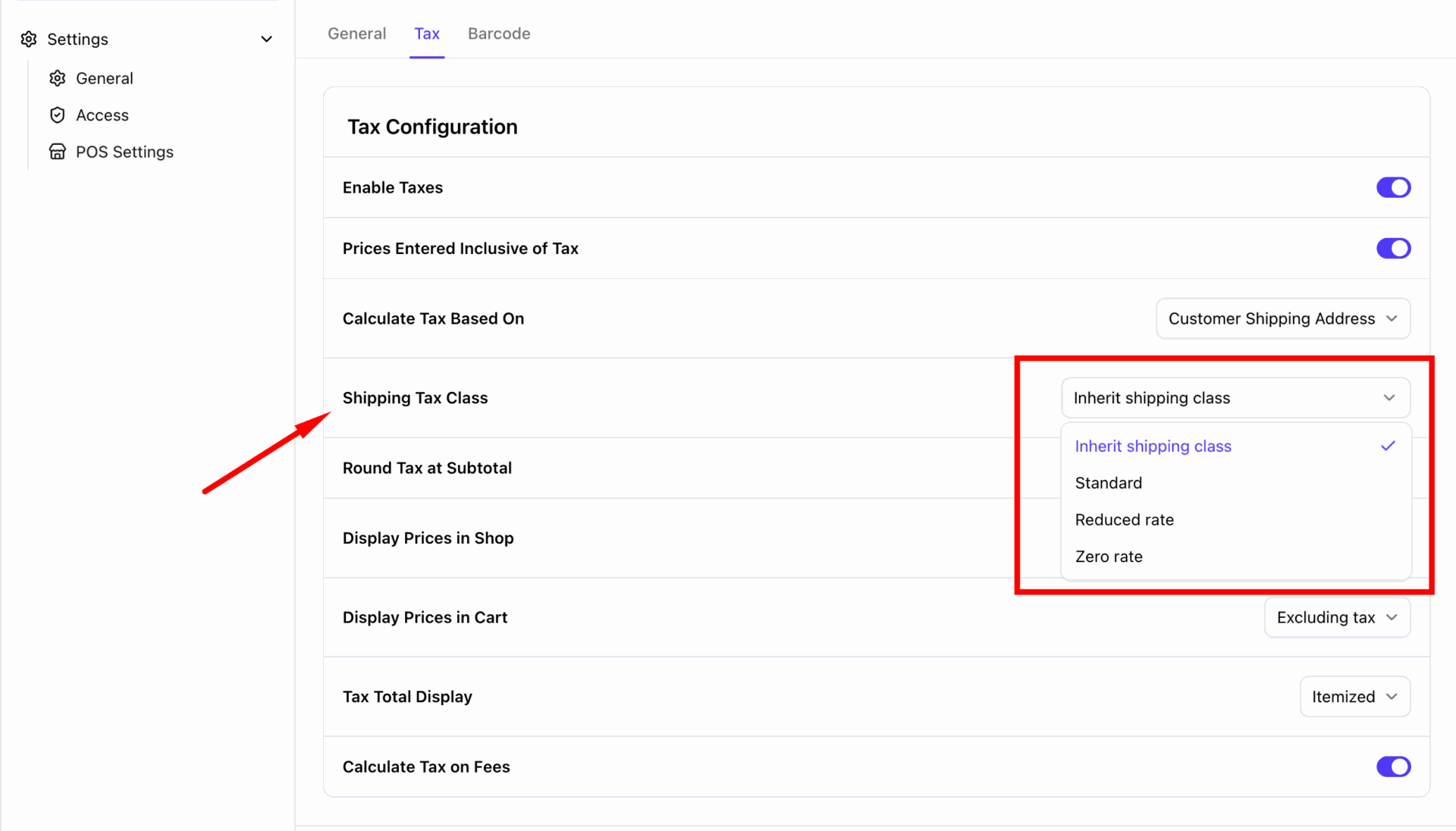
- Shipping Tax Class: Sets which tax class applies to shipping charges. You can inherit from product tax class or choose standard, reduced, or zero rate.
- Round Tax at Subtotal: Rounds tax totals at the subtotal level instead of rounding per line item. Helps keep totals consistent.
- Display Prices in Shop: Controls how prices are shown in the POS product list. You can display prices including or excluding tax.
- Display Prices in Cart: Controls how prices appear in the cart during checkout. You can choose to show them with or without tax.
- Tax Total Display: Defines how tax is shown in the order summary. You can display a single total or itemized tax breakdown.
- Calculate Tax on Fees: Applies tax to any additional fees added during checkout. Disable if fees should remain tax-free.
Barcode
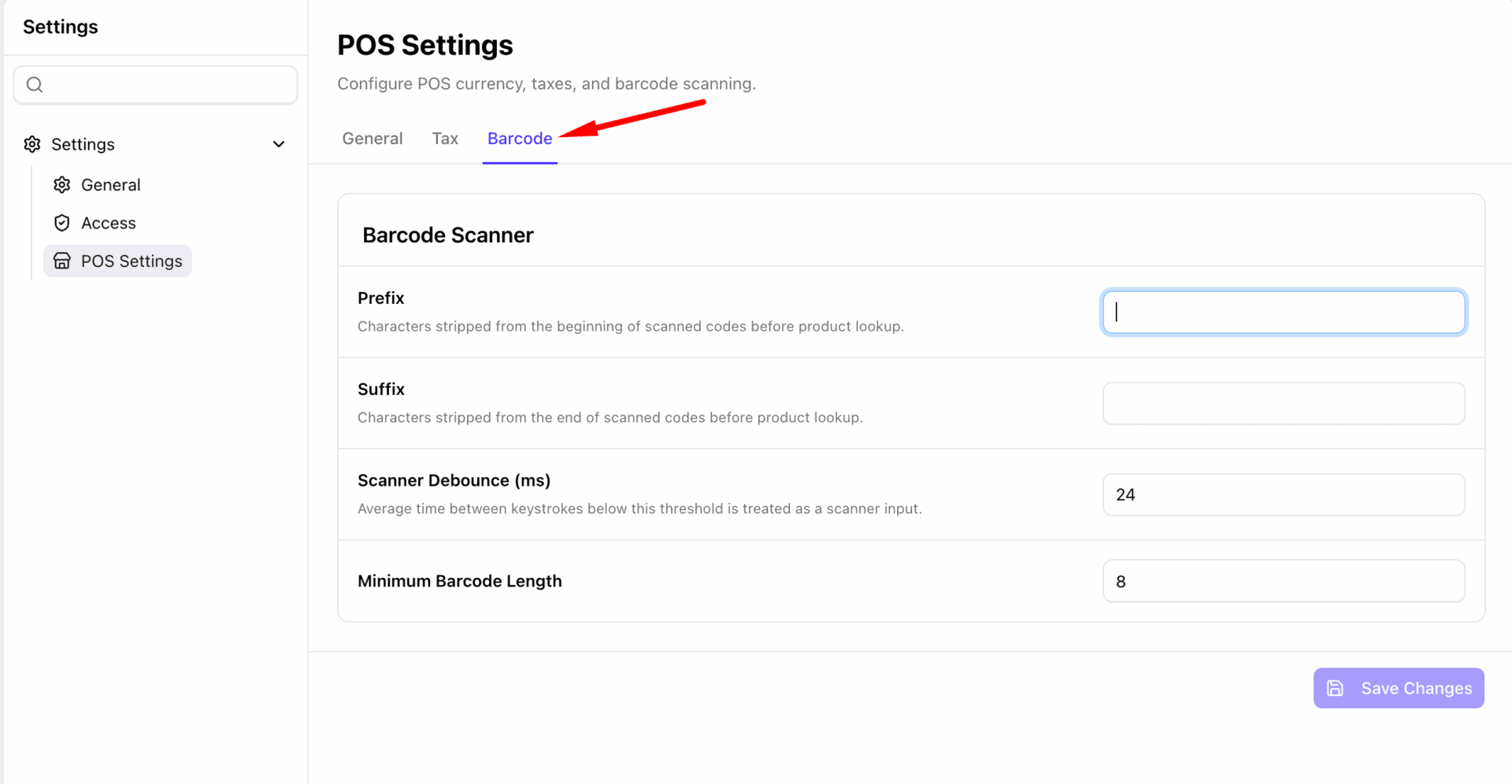
- Prefix: Removes specific characters from the beginning of scanned barcodes before searching for a product. Useful if your scanner adds extra characters.
- Suffix: Removes specific characters from the end of scanned barcodes before product lookup. Helps clean up scanner-added endings.
- Scanner Debounce (ms): Defines the time threshold between keystrokes to detect scanner input. Faster input within this time is treated as a barcode scan instead of manual typing.
- Minimum Barcode Length: Sets the minimum number of characters required to treat input as a valid barcode. Prevents short or accidental inputs from triggering a scan.