
The General menu in Dokan’s new admin settings has three pages: Marketplace, Page Setup and Location. Each page saves with its own Save Changes button. Here is what every field on those pages does.
Marketplace
Marketplace controls core marketplace behaviour and the customer shopping experience.
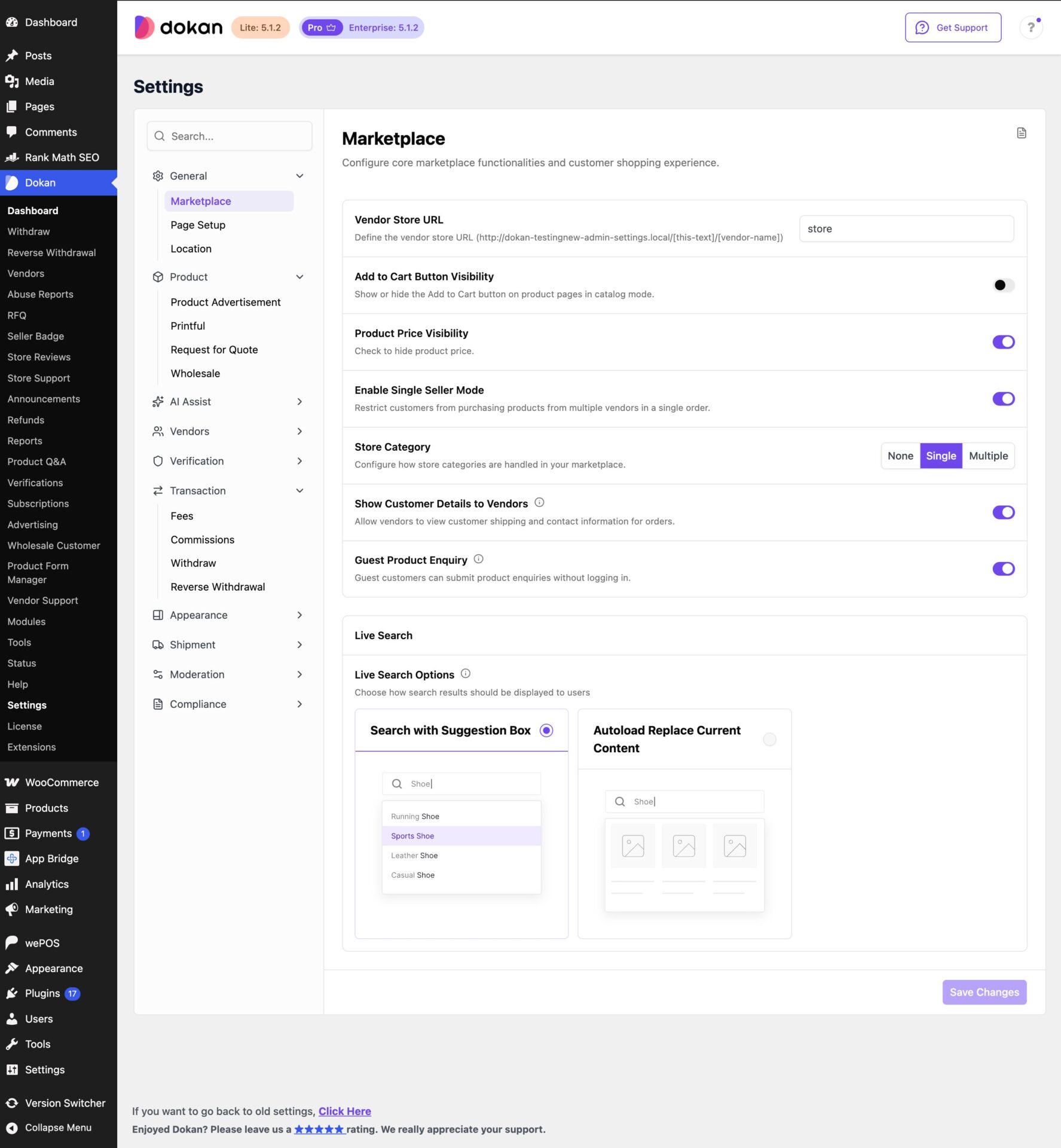
Vendor Store URL (text field): Sets the URL slug for vendor stores, in the pattern yoursite.com/[slug]/[vendor-name]. The default slug is “store”.
Add to Cart Button Visibility (toggle): Shows or hides the Add to Cart button on product pages in catalog mode.
Product Price Visibility (toggle): Hides product prices when switched on.
Enable Single Seller Mode (toggle): Stops customers from buying products from more than one vendor in a single order.
Store Category (None, Single or Multiple): Sets how store categories work: no categories, one category per store, or several.
Show Customer Details to Vendors (toggle): Lets vendors see customers’ shipping and contact information on their orders.
Guest Product Enquiry (toggle): Lets customers send product enquiries without logging in.
Live Search
Live Search Options (choice of two layouts): Sets how search results appear to shoppers.
- Search with Suggestion Box shows matching products in a dropdown under the search field as the shopper types.
- Autoload Replace Current Content swaps the page’s current content for the matching results.
Page Setup
Page Setup links your WordPress pages to Dokan’s marketplace functions. Each field is a dropdown that lists your site’s pages.
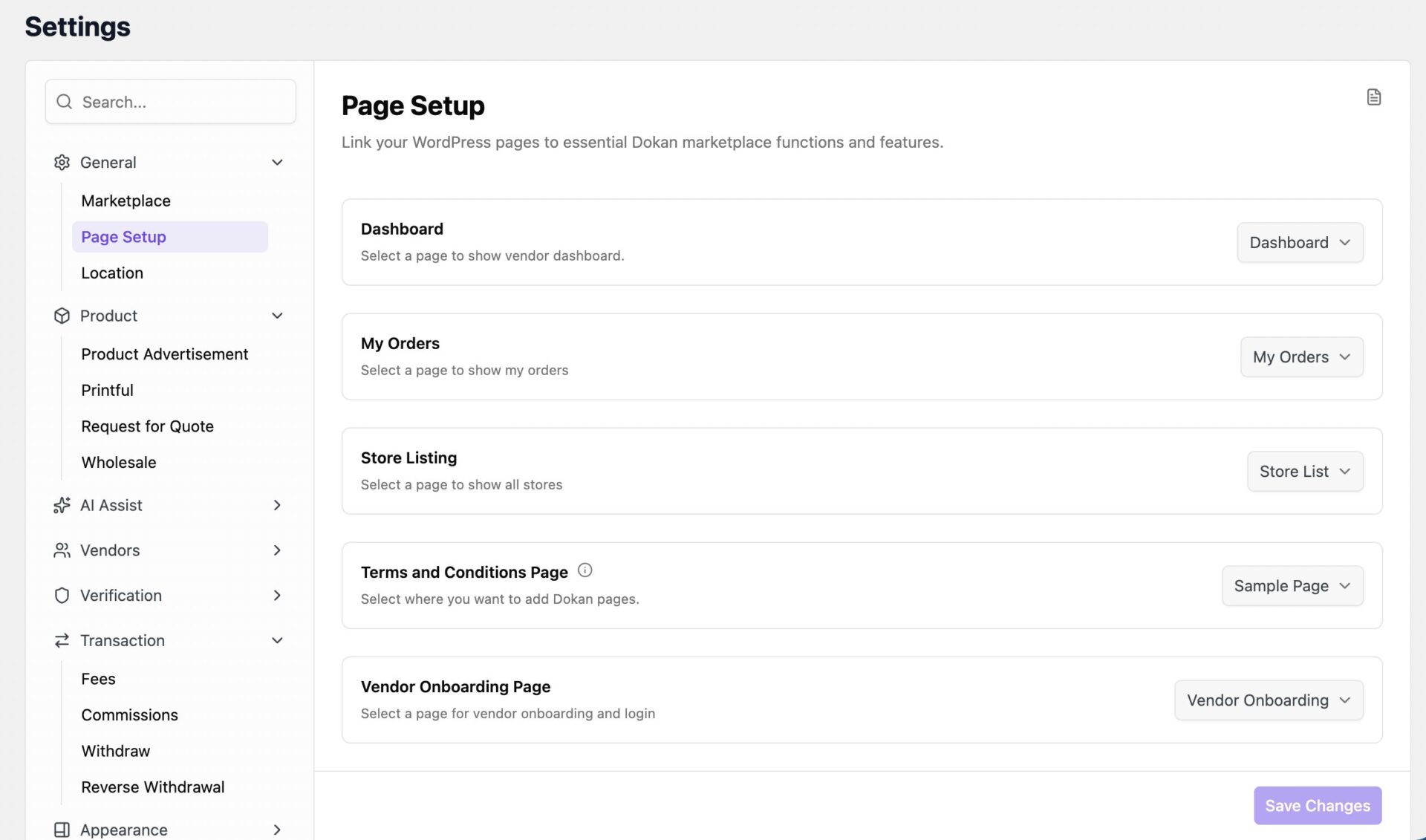
Dashboard (page dropdown): The page that shows the vendor dashboard.
My Orders (page dropdown): The page that shows a customer’s orders.
Store Listing (page dropdown): The page that lists all stores.
Terms and Conditions Page (page dropdown): The page used for the marketplace’s terms and conditions.
Vendor Onboarding Page (page dropdown): The page vendors use to sign up and log in.
Location
Location controls how store location maps appear across the marketplace.
Map API
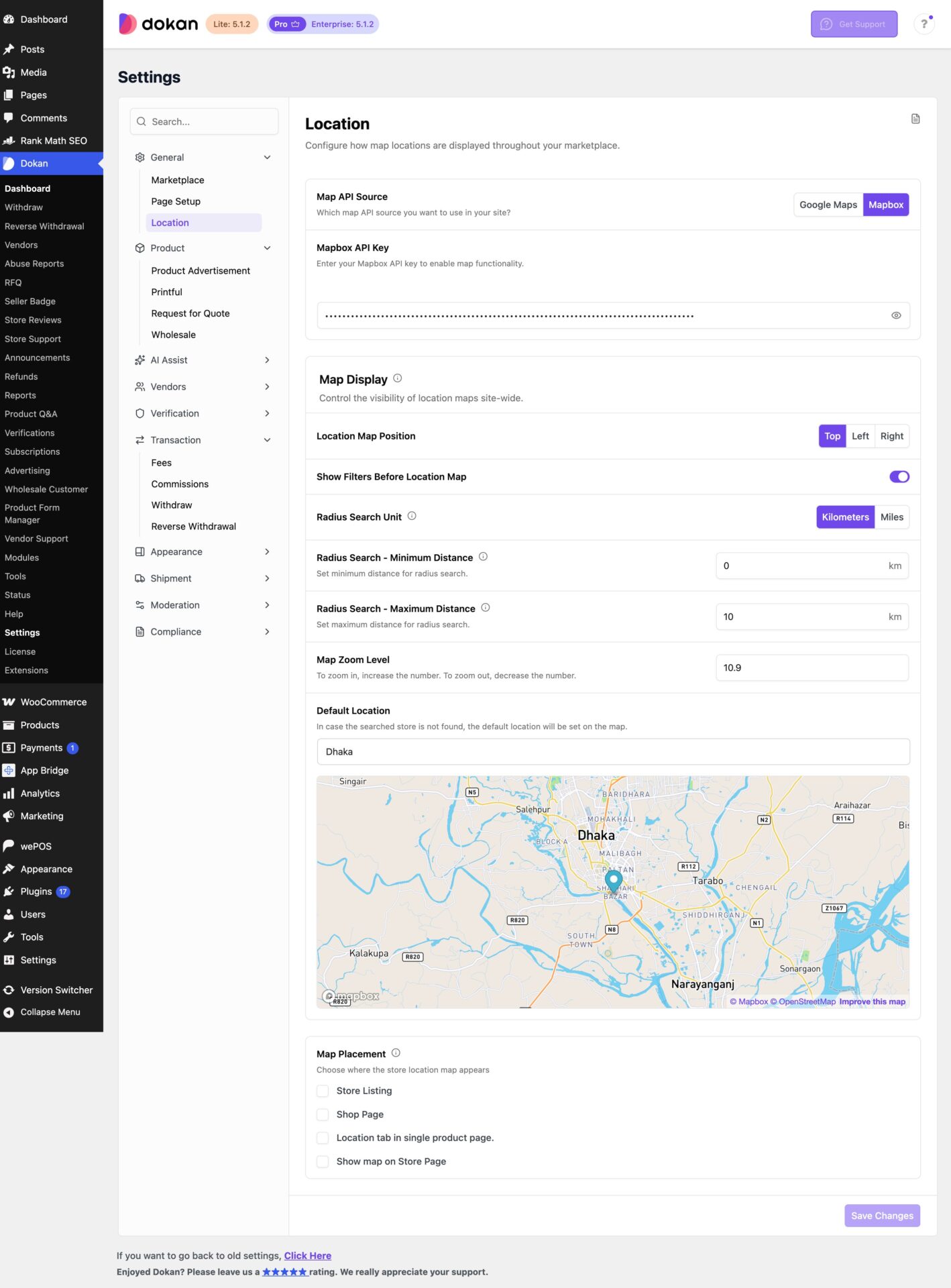
Map API Source (Google Maps or Mapbox): Picks the map service your site uses.
Mapbox API Key (masked text field): Holds the API key that turns on map features. Click the eye icon to show or hide the key.
Map Display
Map Display controls how location maps show site-wide.
Location Map Position (Top, Left or Right): Sets where the location map sits on the page.
Show Filters Before Location Map (toggle): Shows the search filters before the location map.
Radius Search Unit (Kilometers or Miles): Sets the unit for radius search.
Radius Search – Minimum Distance (number field): Sets the smallest distance a radius search can use.
Radius Search – Maximum Distance (number field): Sets the largest distance a radius search can use.
Map Zoom Level (number field): Sets the map’s default zoom. A higher number zooms in, a lower number zooms out.
Default Location (location search with map preview): The location the map falls back to when a searched store is not found. The preview pins the place you choose.
Map Placement
Map Placement sets where the store location map appears. Tick each place you want it.
Store Listing (checkbox): Shows the map on the store listing page.
Shop Page (checkbox): Shows the map on the shop page.
Location tab in single product page (checkbox): Adds a Location tab with the map to single product pages.
Show map on Store Page (checkbox): Shows the map on each vendor’s store page.