
Earning reports shows the overall earning of the store in one place. You can simply select the option of earning reports by month, year & vendor.
To get to “Earning Reports” from the WP dashboard you will need to navigate to:
WordPress Admin Dashboard → Dokan → Reports.
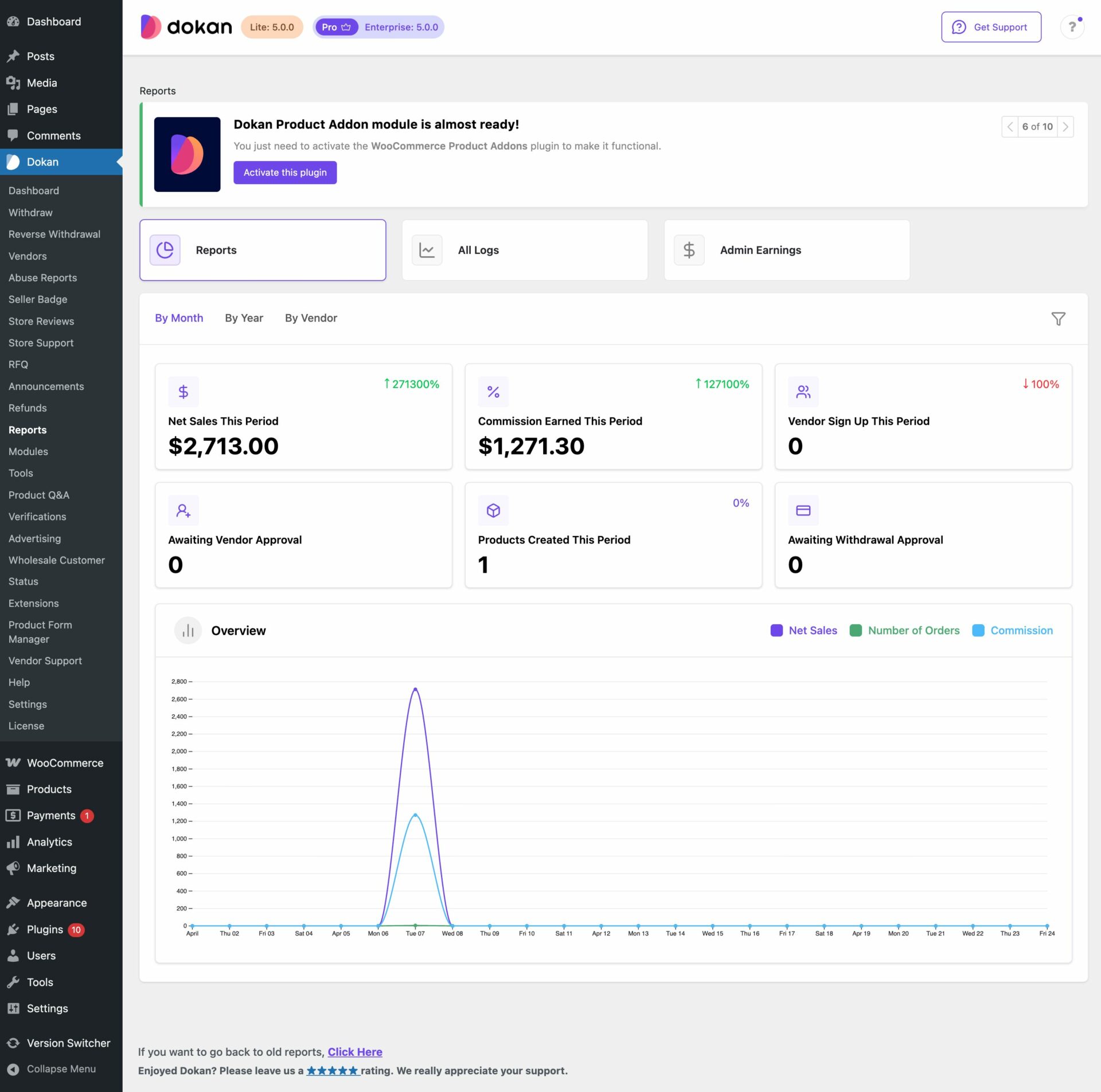
Earning Reports By Month
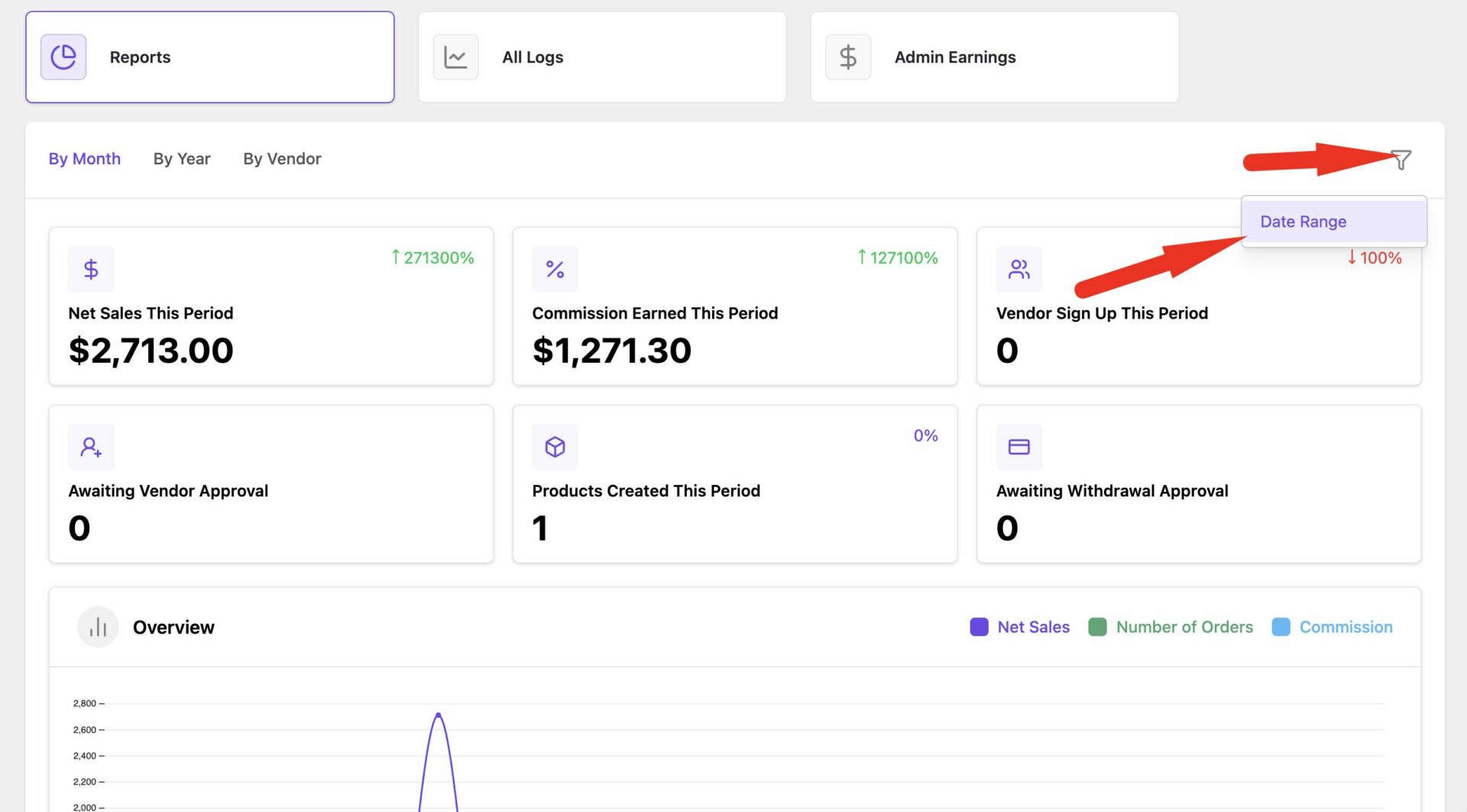
To get the specific month, just click on the filter button and choose date range-
Then choose the date from the calendar-
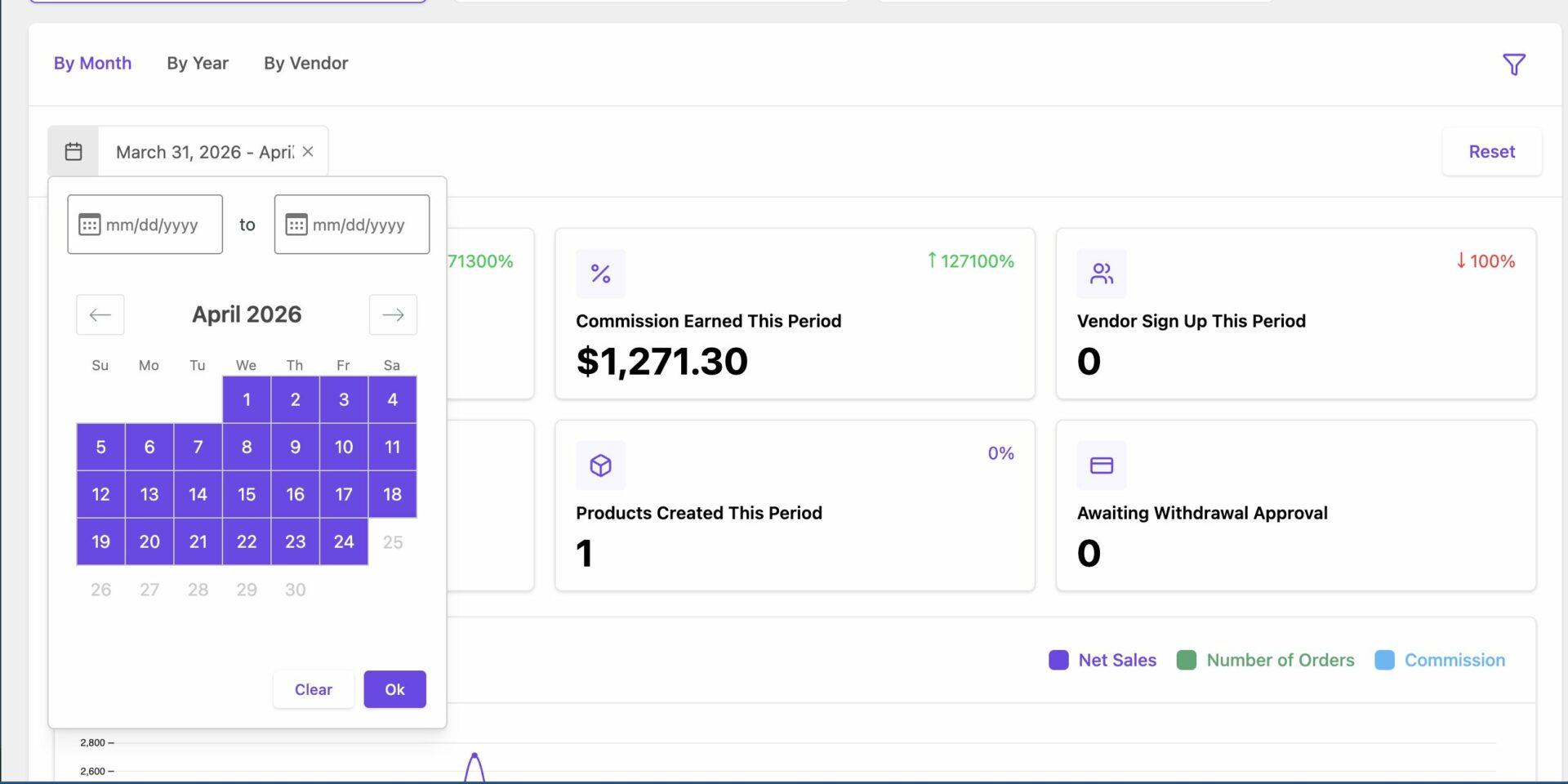
This is the page that will load to when you click on the ‘Reports’ tab from the sidebar by default. This earning report by month page will show the earning report of a certain period of days selected from the calendar above.
Earning Reports By The Year
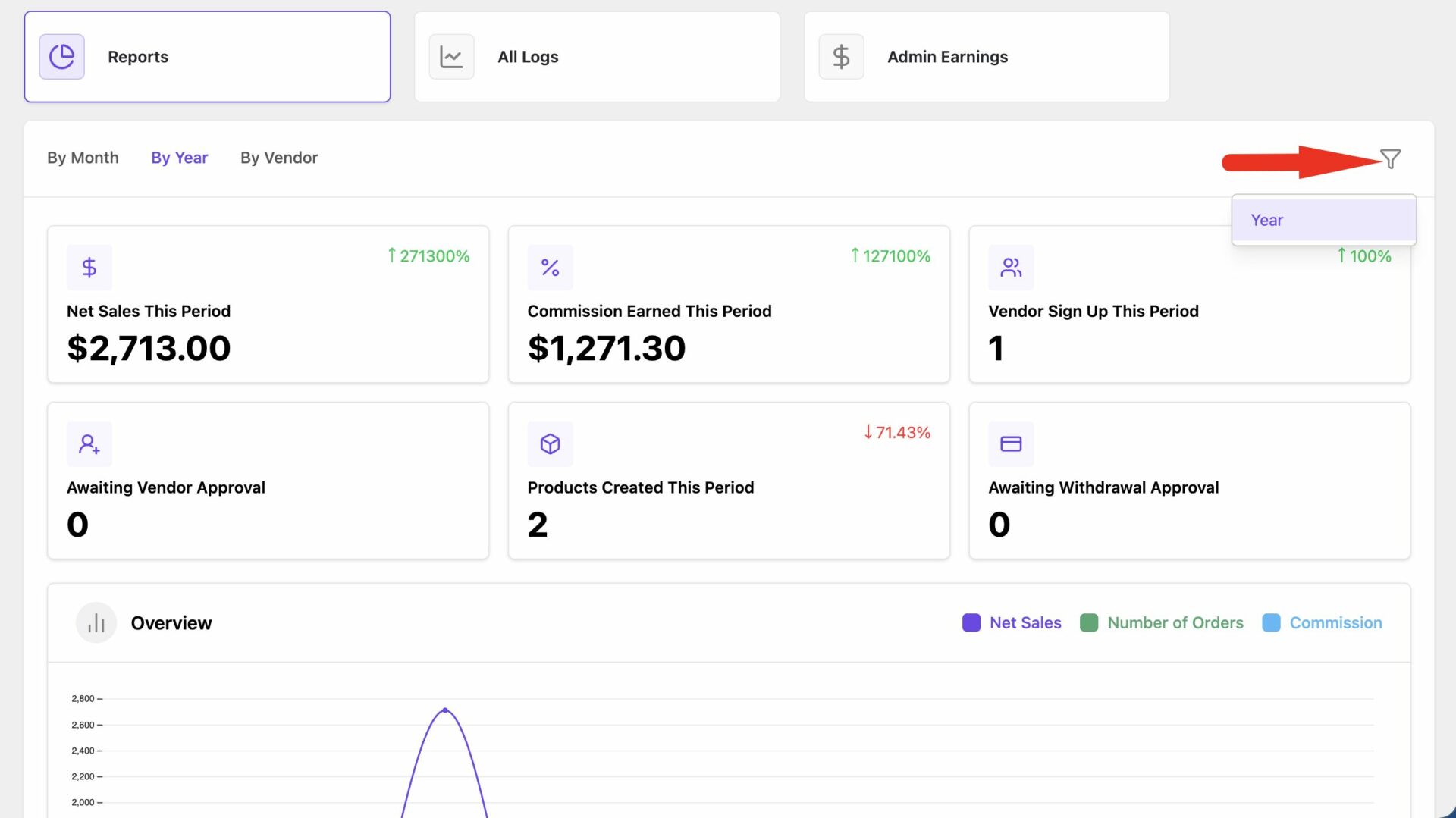
After clicking on the “By Year” option in the “Reports” tab, the page will display the earning report of certain year selected from the year drop-down menu above. Simply select a year from above and click show to generate the earning reports of that particular year.
Earning Reports By Vendor
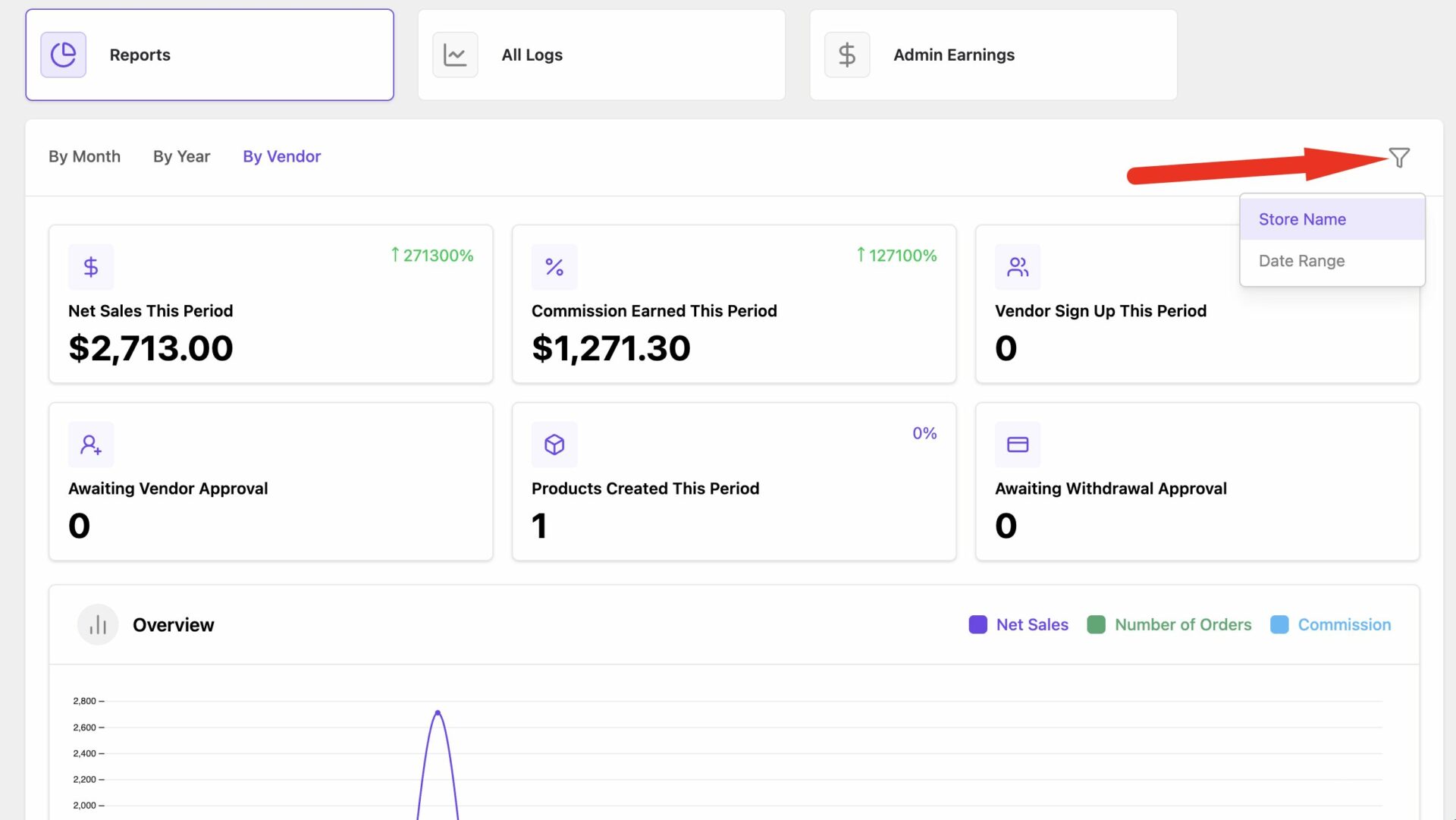
Clicking on the “By Vendor” button at the top in the “Reports” section will display the earning report of a certain vendor selected from the list of the vendor from the drop-down menu of Store Name.
Just simply select the listed vendor from the store name menu bar and the period from which you want to display the earning report of and then click on the ‘Show’ button to generate the earning report of that particular vendor.