
Connect Claude, Cursor, or VS Code to your marketplace and ask about it in plain language — “how many orders came in this week?”, “which of my products are out of stock?”, “what’s my balance?”
Many sellers share one WooCommerce store, so the connection has to know who is asking. Dokan adds that: each vendor’s assistant sees their own orders, money and drafts, never another vendor’s.
How to Set up
1. Turn on the connection
Go to, WooCommerce → Settings → Advanced → Features → enable WooCommerce MCP → Save.
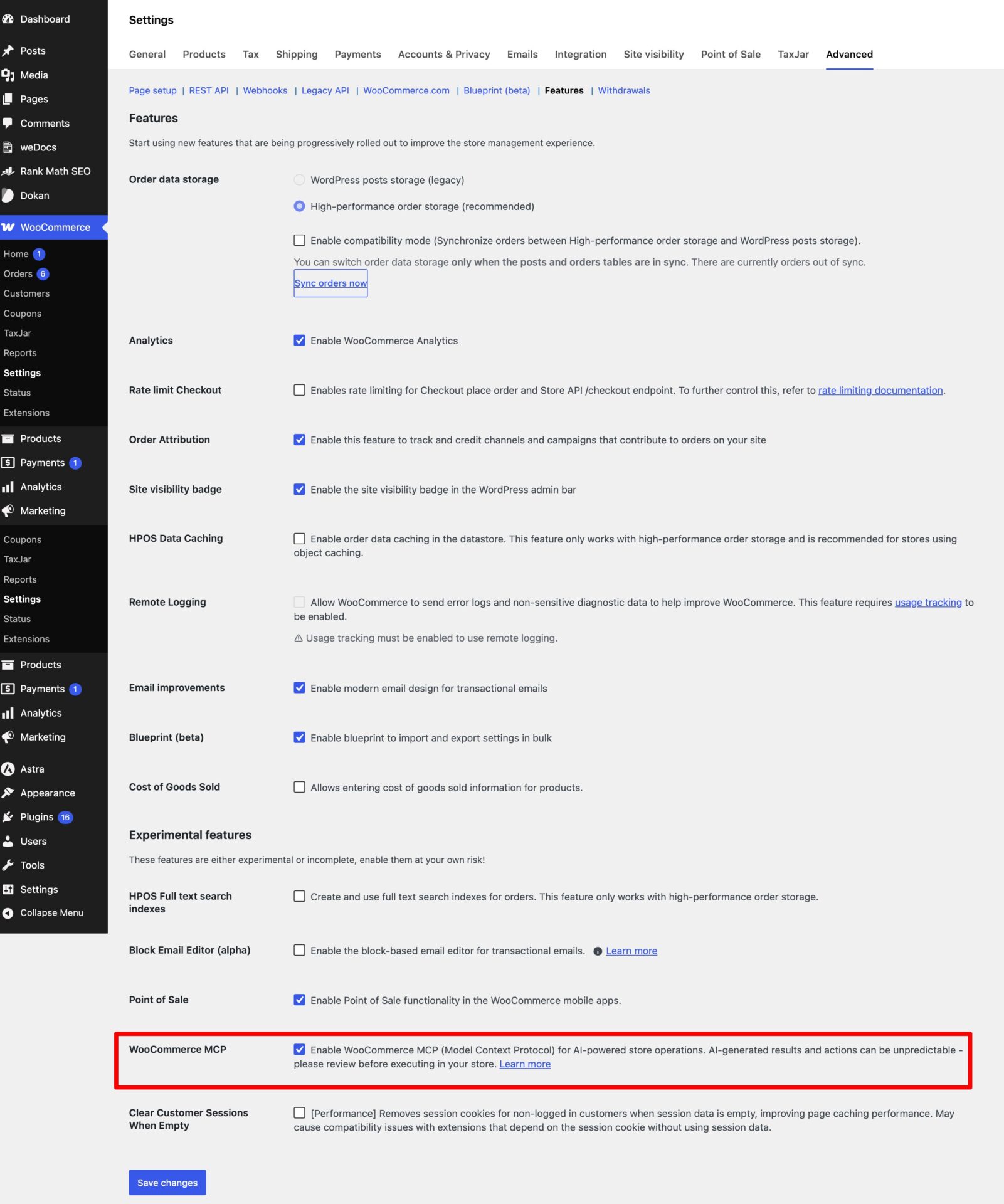
Check: open https://your-store.example.com/wp-json/ and search the page for mcp. You should find /mcp/mcp-adapter-default-server. If not, the switch didn’t save.
2. Create an Application Password
Each person uses their own, a WordPress feature, not your login password.
- Users → Profile → Application Passwords.
- Name it AI assistant → Add New.
- Copy it. Shown once, like abcd EFGH ijkl MNOP qrst UVWX.
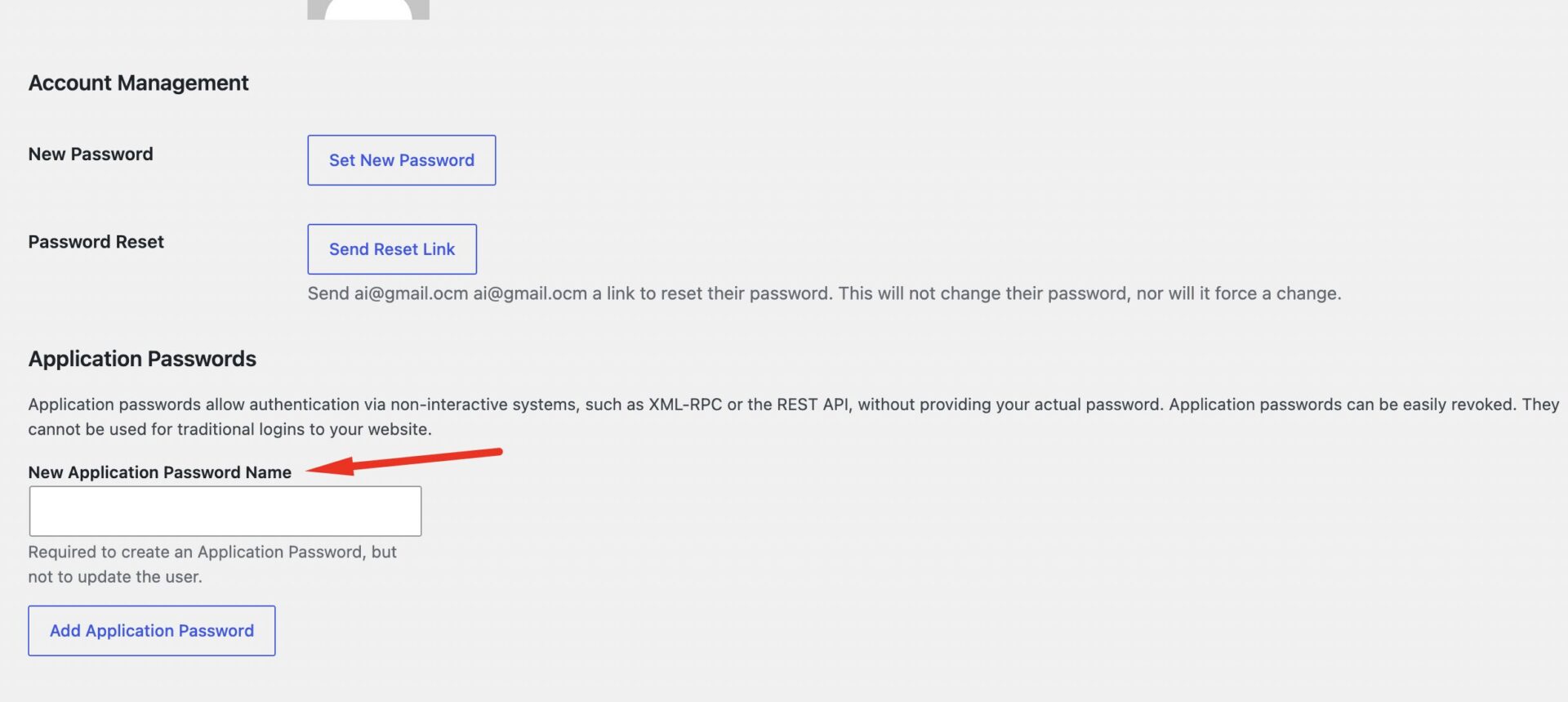
The password’s owner is the identity. An administrator’s password sees the whole marketplace whoever holds it. Never give one to a vendor.
For Vendors
Dokan keeps vendors out of the WordPress admin area, so most vendors cannot reach that screen themselves , visiting it sends you back to the storefront. Your administrator creates the password on your account and sends it to you.
Administrators, for each vendor who asks:
- Users → All Users → hover the vendor → Edit.
- Scroll to Application Passwords on their profile — not yours.
- Name it AI assistant → Add Application Password → copy it.
- Send it to the vendor along with their WordPress username, which they will need in the next step.
The password belongs to the vendor’s account, so it only ever reaches that vendor’s own orders, balance and drafts — the same limits as their vendor dashboard. Send it privately and treat it like a password: anyone holding it acts as that vendor.
Now (as an admin/vendor) encode it. This runs on your own computer — it does not touch your site and needs no hosting access.
Replace yourlogin with your WordPress username, and the rest with the password you just copied:
| # macOS / Linux printf ‘yourlogin:abcd EFGH ijkl MNOP qrst UVWX’ | base64 # Windows PowerShell [Convert]::ToBase64String([Text.Encoding]::UTF8.GetBytes(‘yourlogin:abcd EFGH ijkl MNOP qrst UVWX’)) |
What you get back is one long line of letters and numbers ending in =, something like:
| eW91cmxvZ2luOmFiY2QgRUZHSCBpamtsIE1OT1AgcXJzdCBVVldY |
Copy it somewhere safe. The rest of this guide calls it YOUR_ENCODED_KEY — wherever you see that, paste this line. Never the application password itself. The word Basic in front of it always stays.
| Watch out for | Why |
| No space after the colon | yourlogin:abcd, never yourlogin: abcd |
Keep the spaces inside the password exactly as WordPress showed them.
Test before going further (optional). Paste this as one command — the \ at each line end joins them, so the whole block runs at once. Swap YOUR_ENCODED_KEY for your long line and the site address for your own.
| curl -s -o /dev/null -w “%{http_code}\n” \ -X POST “https://your-store.example.com/wp-json/mcp/mcp-adapter-default-server” \ -H “Content-Type: application/json” \ -H “Authorization: Basic YOUR_ENCODED_KEY” \ -d ‘{“jsonrpc”:”2.0″,”id”:1,”method”:”initialize”,”params”:{“protocolVersion”:”2025-06-18″,”capabilities”:{},”clientInfo”:{“name”:”test”,”version”:”1″}}}’ |
What you get back is three digits and nothing else. 200 good · 401 wrong login, password or echo used · 404 step 1 didn’t take.
3. Connect Your Assistant
Pick yours below. Each one uses the same address and the same key.
Use the address exactly as shown. WooCommerce also publishes /wp-json/woocommerce/mcp. That one connects and answers product and order questions, but never offers Dokan’s tools, balance, withdrawal, identity and vendor-directory questions go unanswered there.
Claude Desktop
Needs Node.js; the mcp-remote helper downloads itself. In Claude Desktop go to: Settings → Developer → Edit Config:
| { “mcpServers”: { “dokan-store”: { “command”: “npx”, “args”: [ “-y”, “mcp-remote”, “https://your-store.example.com/wp-json/mcp/mcp-adapter-default-server”, “–transport”, “http-only”, “–header”, “Authorization:Basic ${DOKAN_MCP}” ], “env”: { “DOKAN_MCP”: “YOUR_ENCODED_KEY” } } } } |
Replace two things only: the site address, and YOUR_ENCODED_KEY.
DOKAN_MCP is just a nickname for your key. It appears twice — Claude swaps one for the other at startup. Rename it if you like, in both places. dokan-store is only the name you’ll see in Claude’s tool list.
Save, then fully quit and reopen Claude Desktop — closing the window is not enough.
Claude Code
| claude mcp add –transport http dokan-store \ https://your-store.example.com/wp-json/mcp/mcp-adapter-default-server \ –header “Authorization: Basic YOUR_ENCODED_KEY” |
Check with claude mcp list.
Cursor and VS Code
Cursor: Settings → Tools and MCP → Add Custom MCP. VS Code: create .vscode/mcp.json, press Start, switch Copilot Chat to Agent mode.
| { “mcpServers”: { “dokan-store”: { “url”: “https://your-store.example.com/wp-json/mcp/mcp-adapter-default-server”, “headers”: { “Authorization”: “Basic YOUR_ENCODED_KEY” } } } } |
VS Code uses “servers” instead of “mcpServers”, and needs “type”: “http” alongside the URL.
Keep your key out of shared folders. .vscode/mcp.json is easy to commit by accident — add it to .gitignore.
4. Check who you are
Ask “who am I on this marketplace?” You should get your account, whether you are a vendor or an administrator, and your store. Note your vendor ID — product questions need it. If it’s wrong, fix the password before trusting anything else.
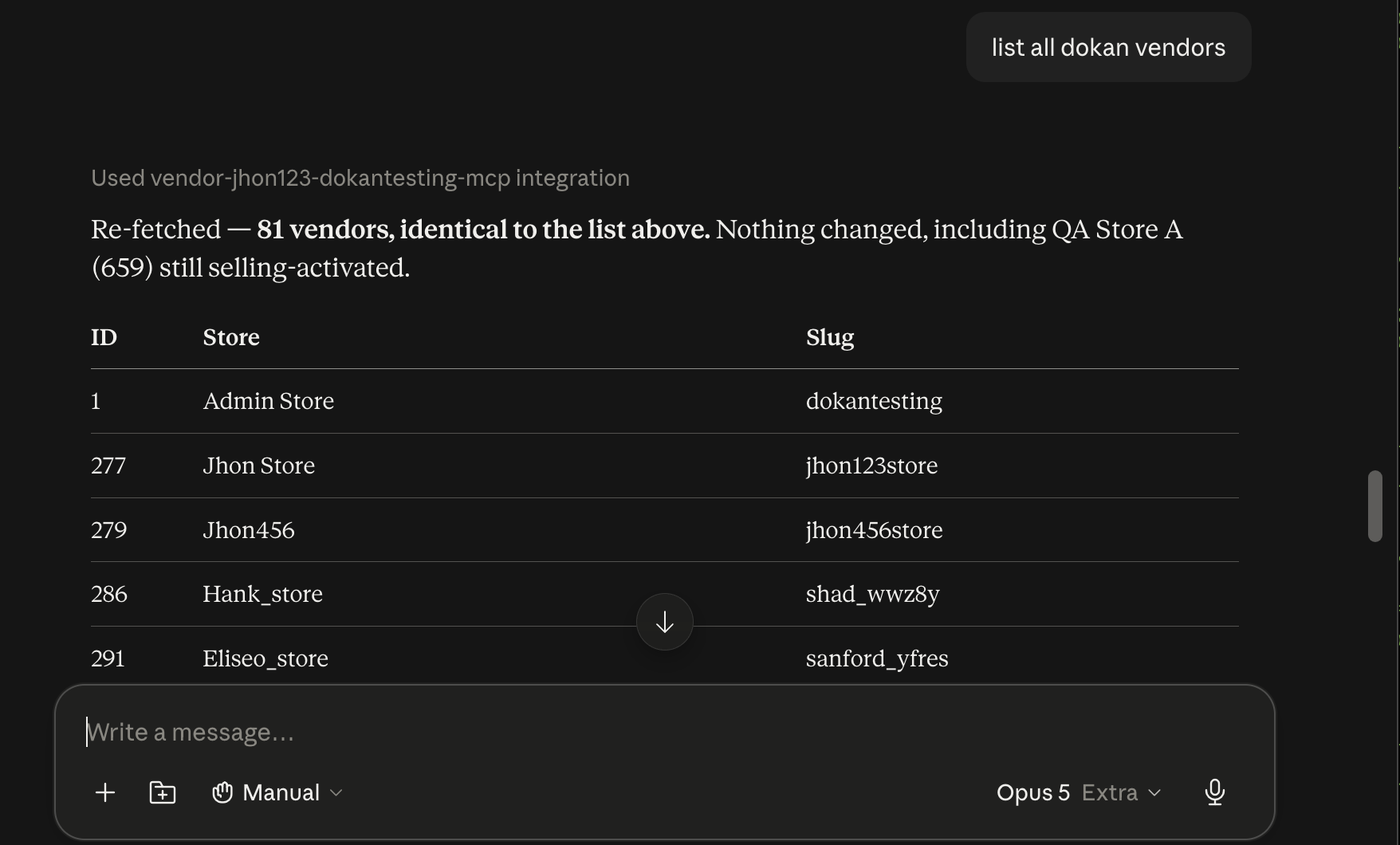
This address offers three general-purpose tools rather than one per task: your assistant looks up what your marketplace can do, then runs it. If it ever claims it has no tool for something, name the ability — “use the dokan/withdraws-query ability” — and it will find it.
For Vendors
Orders, balance and withdrawals filter themselves to you. Products do not — the catalogue is public, so product questions search every store unless you name your own vendor ID.
Your products
| Ask | You get |
| “Show products from vendor 12” (your ID) | Your products, drafts included |
| “Show drafts for vendor 12” | Your unpublished products |
| “Find products from vendor 12 with SKU starting TSH” | Matching SKUs in your store |
| “List out-of-stock products for vendor 12” | Your out-of-stock items |
| “Show my products” (no ID) | Every store’s published products |
| “Which of my products are drafts?” (no ID) | Published products, not drafts |
Always include your vendor ID. Without it, a question about your drafts returns published products — no error, just the wrong list.
Changing things
Your assistant can change anything you could change yourself in your vendor dashboard.
| Ask | What happens |
| “Create a product called Blue Mug at 12” | Created in your store — you never name a vendor |
| “Set the price of my Blue Mug to 15” / “mark it out of stock” / “publish it” | Updates your product |
| “Delete my old test product” | Removes it. Another vendor’s product is refused |
| “Mark order 1042 as completed” | Updates it — refused if not yours |
| “Add a note to order 1042: parcel shipped Tuesday” | Adds an order note |
Your orders and money
| Ask | You get |
| “List my recent orders” / “show my processing orders” / “orders since 1 June” | Your orders, filtered by status or date |
| “Find the order from [email protected]” | Your orders for that buyer |
| “What’s my available balance?” | Balance plus withdrawal summary |
| “Do I have any pending withdrawals?” | Your requests, filtered by status |
| “Show my last 20 approved withdrawals” | Amount, charge, receivable amount, method, note, date |
What other vendors can see
Another vendor’s draft, order, balance or withdrawal returns nothing, even by exact ID.
Nobody can change what isn’t theirs. Asking to edit, publish or delete another vendor’s product is refused, and so is changing another vendor’s order. This holds for products the administrator sells too — from a vendor’s side those are just another store’s. The limits are WordPress’s own, the same ones that stop a vendor editing another store’s product in the vendor dashboard.
What is shared: published products and the store directory are public, so any vendor can list every store and browse its catalogue and prices. Same information your storefront shows, only easier to collect — worth knowing before you invite vendors.
For administrators
Reading is unrestricted and covers the whole marketplace.
| Ask | You get |
| “List all vendors” / “find vendors matching ‘green’” / “vendors awaiting approval” | The store directory, 10 at a time, with enabled state |
| “How many products are on the marketplace?” / “show all pending-review products” | Every vendor’s products |
| “List products from vendor 42” / “find products with SKU containing WIN” | Filtered marketplace-wide |
| “Show today’s orders” / “list all on-hold orders” | Every vendor’s orders |
| “Mark order 1042 as refunded” / “add an internal note” | Updates any vendor’s order |
Creating products for vendors
Products need an owner, so you must name a vendor — but both ways of asking fail: without a vendor you are told one is required, with a vendor you are told the field is not supported. No way around it from an assistant. Create the product in WP-admin → Products, or ask the vendor to add it themselves.
Sales reporting
Every order says whether it is a parent order, one vendor’s share, or a single-vendor order. Totalling the shares and single-vendor orders gives correct per-vendor figures.
| Ask | Answer |
| “Gross sales per vendor last month” | Works — filter by status and date, total by store |
| “What did each vendor earn?” | Not available. Only order totals exist, never commission or net. An assistant will report gross and call it earnings |
| “Who is owed a payout?” | Not available |
| “Top-selling products per vendor” | Not available — products carry no sales figures |
Orders arrive 100 at a time with no total count, so a few thousand orders means many repeated requests with totals added up by the assistant rather than the database. Use Dokan’s reports when figures must be exact.
Vendor finances
Balance and withdrawal questions answer only for the connected person, and an administrator is not a vendor — so you get zeros and empty lists rather than an error. Do payout work in the Dokan admin screens.
Check that separation holds
Before inviting vendors: create a draft product and an order under vendor A, then connect as vendor B and ask for both by name — expect not found or refused. Swap and repeat. As administrator, expect both visible. Your storefront and WP-admin lists should be unchanged.
If a vendor sees another’s data, turn off MCP integration and check everyone is using a password created on their own account.
Who can see what
| Data | Logged out | Vendor (own) | Vendor (another’s) | Vendor staff | Administrator |
| Published products | Yes | Yes | Yes | Yes | Yes |
| Draft, pending, private products | No | With own vendor ID | No | Parent store’s | Yes |
| Orders | No | Yes | No | Parent store’s | Yes |
| Balance and stats | No | Yes | No | Via parent store | Zeros unless they sell |
| Withdrawal requests | No | Yes | No | Via parent store | Empty unless they sell |
| Store directory | Yes | Yes | Yes | Yes | Yes |
| Creating a product | No | Own store | — | Parent store | Must name a vendor |
Vendor staff are users attached to a vendor’s store; they act on that store’s data.
Dokan’s tools
A tool is one thing your assistant knows how to fetch. You never call these by name — ask in plain language and it picks the right one. The names matter only when it picks wrong: say “use the dokan/withdraws-query tool” and it will.
These four are what Dokan adds for things WooCommerce has no concept of — who you are, your balance, your withdrawals, the store directory. Everything about products and orders comes from WooCommerce’s own tools instead.
| Tool | What it does | Options |
| dokan/current-vendor | Your identity: user ID, store ID (0 if not a vendor), store name, and vendor / staff / administrator flags | none |
| dokan/vendor-stats-get | Store ID, available balance, and counts of total, pending, approved and cancelled withdrawals. Administrators are not rejected — the call succeeds and reports their user ID as a store with a zero balance | none |
| dokan/withdraws-query | Your withdrawal requests: ID, amount, status, method, charge, receivable amount, note, date. Always your own store; administrators get an empty list | status (pending/approved/cancelled, default pending), page, per_page (1–100, default 10) |
| dokan/vendors-query | The public store directory: ID, store name, store URL, enabled state | search, status (approved/pending/all, default approved), page, per_page (1–100, default 10) |
How WooCommerce’s own tools change
Dokan replaces nothing — it narrows what WooCommerce returns, so other extensions keep working.
| Area | On a Dokan marketplace |
| Published products | Public, visible to every vendor |
| Unpublished products | Readable only by their owner or an administrator |
| Product search | Gains a vendor filter. Without it, published-only across all stores |
| Orders | Private to the owning vendor, automatically. Works with HPOS on or off |
| Order lists | Each row shows its store and whether it is a parent, a share, or a single-vendor order |
| Creating a product | Vendor or staff → own store. Administrator who sells → own store. Administrator who does not → must name a vendor |
Not possible yet
Earnings, commission or net figures · administrator view of withdrawals or payouts · approving or rejecting a withdrawal · approving, suspending or editing a vendor · setting commission rates · marketplace totals in one request · a vendor’s full profile beyond name, URL and enabled state · product sales counts or best-sellers · refunds, announcements and shipment tracking.
Reading products and orders works well. Writing is limited to products and order status. Running the marketplace is still admin-screen work.
Good to know
- Only assistant requests are affected. Storefront, admin screens and existing integrations are untouched.
- Nothing is active until MCP integration is on, and it works with HPOS on or off.
- Reach follows the application password’s owner, not the assistant.
- Addresses can change between releases. https://your-store.example.com/wp-json/ always lists the current ones.
Troubleshooting
| Symptom | Cause | Fix |
| Assistant has product and order tools but no vendor, balance or withdrawal tool — or product answers show no vendor | Connected to /wp-json/woocommerce/mcp | Use the address in step 3, then fully quit and reopen |
| Asked for drafts, got published products — or “show my products” returns other stores’ | Product questions are not scoped to you | Ask again naming your vendor ID |
| “Access denied” on your own product | Usually a missing detail, not permissions | Retry with full details; if it persists the product is not yours |
| Nothing found for products you know exist | They belong to another vendor, or are someone else’s drafts | Confirm with “who am I on this marketplace?” |
| Administrator gets an empty withdrawal list, or cannot create a product | Neither is supported for administrators | Use the Dokan admin screens / WP-admin |
| Balance questions error out | The account is not a vendor | Use a seller account |
| No tools at all, or sign-in refused | Switch off, wrong address, display name used instead of login name, space after the colon, or echo instead of printf | Re-run the test in step 2 — the status code says which |
| 404 on an address that used to work | Server name changed in an update | Open https://your-store.example.com/wp-json/, search for mcp, use the longest entry under /mcp/ with /wp-json in front |
| Connection refused | Site is on plain HTTP | Serve over HTTPS |
| Assistant can read but not change anything | The account lacks permission | Check its role in WordPress |
| A vendor sees another vendor’s data | Using an administrator’s password, or Dokan predates vendor scoping | One password per person; update Dokan |