
Dokan Pro adds a set of wp dokan commands so you can manage your license and your modules directly from the shell, no wp-admin visit required.
This is useful when you want to:
- Provision a new marketplace from a script instead of clicking through the setup.
- Rebuild a staging or development site with the same modules as production.
- Activate or deactivate a license as part of a deployment.
- Feed module data into another tool as JSON or CSV.
Nothing about the wp-admin experience changes. The Dashboard → License page and Dokan → Modules screen keep working exactly as before, and both reflect changes made from the command line immediately.
Availability: These commands ship in an upcoming Dokan release. They require both Dokan Lite and Dokan Pro to be updated — Dokan Lite owns the wp dokan command namespace, and Dokan Pro adds the license and module commands to it.
Before you start
You need:
| Requirement | Notes |
| Shell access to your site | SSH, a local terminal, or your host’s terminal. |
| WP-CLI installed | Run wp –info to confirm. Most managed WordPress hosts include it. |
| Dokan Lite active | Must be a version that includes the wp dokan command namespace. |
| Dokan Pro active | Provides the license and module commands. |
| A valid Dokan Pro license | Required by wp dokan module activate and wp dokan module deactivate. The read-only commands run without one, but module status is only meaningful while a license is valid. |
Confirm everything is wired up:
| wp dokan |
You should see license and module listed as available subcommands. If you don’t, see Troubleshooting.
Connecting to a live site
Already have a terminal on the site? If wp core version prints a version from your WordPress directory, you’re set — skip this whole section and go to How-to guides. What follows is only for getting that far.
WP-CLI runs on the server that hosts WordPress, not on your laptop. Before any wp dokan command works against a live marketplace, you need a shell on that server and you need to be standing in the WordPress install directory.
1. Open a shell on the server.
Most hosts give you SSH credentials in their control panel. Once you have them:
Managed hosts differ in where the credentials live and where WordPress sits:
| Host | How to get a shell | WordPress root |
| Kinsta | MyKinsta → site → Info → SSH terminal command | ~/public |
| WP Engine | User Portal → SSH keys, then ssh <env>@<env>.ssh.wpengine.net | ~/sites/<env> |
| Cloudways | Server → Master Credentials or an application-level SSH user | ~/applications/<app>/public_html |
| SiteGround | Site Tools → Devs → SSH Keys Manager | ~/www/<domain>/public_html |
| Hostinger | hPanel → site → Advanced → SSH Access (turn it on, note the IP and port), then ssh -p 65002 uXXXXXXXX@<ip> | ~/domains/<domain>/public_html |
| Pantheon | terminus remote:wp <site>.<env> — dokan license status | n/a — Terminus wraps WP-CLI |
| cPanel / VPS | cPanel → Terminal, or plain SSH as your account user | ~/public_html |
2. Move into the WordPress directory, then confirm WP-CLI can see the site:
| cd ~/public_html wp core version |
If wp is not found, the host has no WP-CLI on the path — install it into your home directory:
| curl -O https://raw.githubusercontent.com/wp-cli/wp-cli/v2/phar/wp-cli.phar php wp-cli.phar –info |
Then call it as php wp-cli.phar dokan license status instead of wp dokan license status.
3. Run the Dokan commands. From here everything in this guide applies unchanged:
| wp dokan license status wp dokan module list |
Running from your own machine instead. WP-CLI can drive a remote site over SSH with –ssh=, so you never have to log in interactively:
wp dokan module activate booking –[email protected]~/public_html
The ~/path suffix is the WordPress root on the remote server. If your host uses a non-standard SSH port — Hostinger uses 65002 — put it after the host:
| wp dokan module list –ssh=uXXXXXXXX@<ip>:65002~/domains/your-store.example.com/public_html |
To avoid repeating it, define an alias once in wp-cli.yml (project directory) or ~/.wp-cli/config.yml (your machine):
| @production: ssh: [email protected]~/public_html @staging: ssh: [email protected]~/public_html # Non-standard port (Hostinger): @hostinger: ssh: [email protected]:65002~/domains/your-store.example.com/public_html |
Then target a site by name:
| wp @production dokan license status wp @staging dokan module activate booking |
Aliases make mistakes cheap to make. wp @production dokan license deactivate will happily deactivate your live marketplace’s license. Read the alias before you press Enter, and keep production and staging aliases visibly different.
If the site is a multisite install, add –url= so WP-CLI loads the right site:
| wp dokan module list –url=https://your-store.example.com |
If your host gives no shell access at all (most entry-level shared plans, and WordPress.com’s lower tiers), these commands are not available to you. Use Dashboard → License and Dokan → Modules in wp-admin instead — they do the same work.
Keep license keys out of your shell history. A key typed on the command line is stored in ~/.bash_history on the server and is visible to anyone who can read it, and to ps while the command runs. On a shared or team-accessible server, prefix the command with a space (in bash and zsh with HIST_IGNORE_SPACE set, it won’t be recorded), or read the key from a file:
| wp dokan license activate “$(cat ~/.dokan-key)” |
Who can run these commands
These are shell-only commands. Running them requires server access to your site, so vendors, customers, and subscribers can never reach them — there is no browser path to this functionality. The trust level is the same as core commands like wp plugin activate.
Check whether your license is active
| wp dokan license status |
| +————-+————————————–+ | field | value | +————-+————————————–+ | valid | yes | | plan | business | | key | 74c8654e-84a5-49b2-a3f5-81afba8e13fa | | expiry_days | 3147 | | source_id | dokan-business | +————-+————————————–+ |
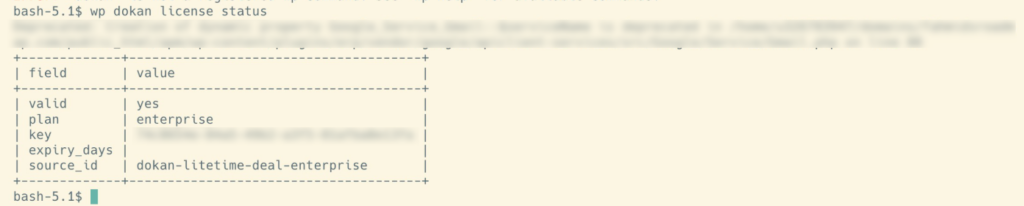
This reads the license already stored on your site. It does not contact the licensing server, so it is safe to run as often as you like — including inside a health check or a monitoring script.
To check expiry from a script:
| wp dokan license status –format=json |
Activate a license key on a new site
| wp dokan license activate 74c8654e-efgh-abcd-a3f5-81afba8e13fa |
| Success: Dokan Pro license activated. |
The key is required — running wp dokan license activate with no key stops with Please provide a valid license key.
If the key is rejected, the reason from the licensing server is shown and your existing license is left untouched:
| $ wp dokan license activate bad-key Error: The license key must be a valid UUID. |
So a failed activation attempt can never knock a working site offline.
Move a license to another site
Deactivate on the old site first, then activate on the new one. This frees the activation slot.
On the old site:
| wp dokan license deactivate |
| Success: Dokan Pro license deactivated. |
On the new site:
| wp dokan license activate <license-key> |
If the old site has no license stored, deactivation stops with No license key found to deactivate.
See which modules are on, off, or unavailable
List everything:
| wp dokan module list |
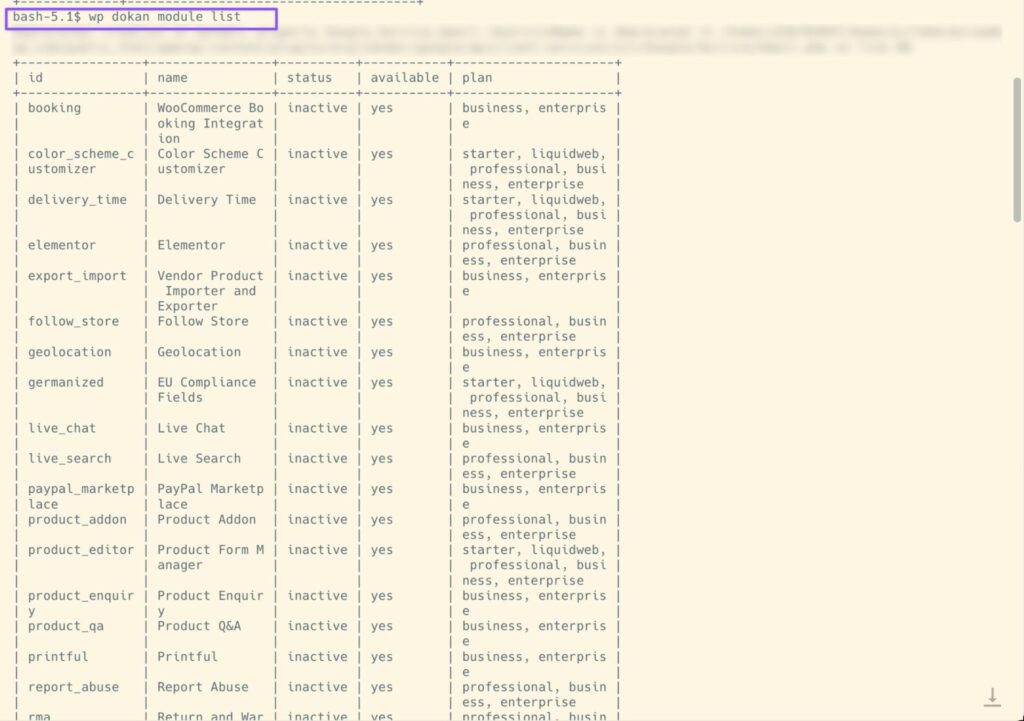
Narrow it down:
| wp dokan module list –status=active # currently switched on wp dokan module list –status=inactive # currently switched off wp dokan module list –status=available # allowed by your plan and installed |
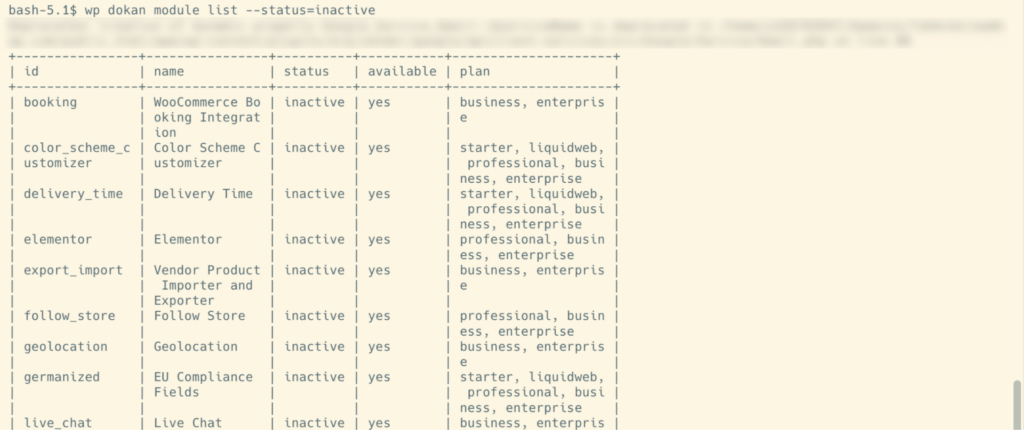
Pick your own columns:
| wp dokan module list –fields=id,name,status |
| +———————-+———————+———-+ | id | name | status | +———————-+———————+———-+ | product_subscription | Vendor Subscription | inactive | +———————-+———————+———-+ |
The id column is what every other module command expects — not the display name.
Turn a module on
| wp dokan module activate product_subscription |
| Activated: product_subscription Success: 1 module activated. |
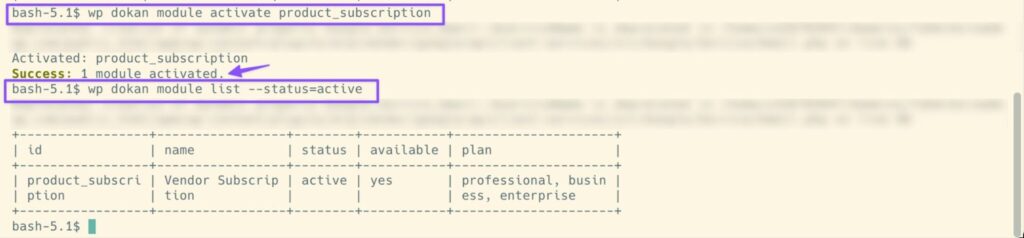
Several at once, separated by spaces:
| wp dokan module activate stripe paypal_marketplace wp dokan module activate booking auction rma wholesale |
Anything that can’t be activated is skipped with a reason, and the rest still go through:
| $ wp dokan module activate ghost_module Warning: Skipping “ghost_module”: no such module. Success: No modules needed activation. |
The same applies to a module that isn’t part of your plan, or one that’s already on. Re-running the exact same command is always safe — it will simply report that nothing needed activation.
Turn a module off
| wp dokan module deactivate product_subscription |
| Deactivated: product_subscription Success: 1 module deactivated. |
Multiple modules work the same way:
| wp dokan module deactivate stripe paypal_marketplace |
Modules that are already off are reported and skipped.
Turn on everything your plan allows
| wp dokan module activate –all |
This activates every module that is available under your current license plan. The mirror command switches off everything currently active:
| wp dokan module deactivate –all |
Both need either a list of module ids or the –all flag — running them bare stops with Please specify at least one module id or use the –all flag.
Inspect one module before toggling it
| wp dokan module status booking |
| +———–+———————————+ | field | value | +———–+———————————+ | id | booking | | name | WooCommerce Booking Integration | | status | active | | available | yes | | plan | business, enterprise | +———–+———————————+ |
The plan row tells you which license plans include this module — handy when you’re deciding whether an upgrade would unlock it.
An unknown id stops with Module “<id>” does not exist.
Provision a staging site in one script
A typical rebuild, top to bottom:
| #!/usr/bin/env bash set -e # 1. Activate the license. wp dokan license activate “$DOKAN_LICENSE_KEY” # 2. Confirm it took. wp dokan license status # 3. Switch on the modules this site needs. wp dokan module activate stripe paypal_marketplace booking rma # 4. Verify. wp dokan module list –status=active –fields=id,name |
Because every command is safe to re-run, you can run this script against an existing site without breaking anything.
Feed module data into another tool
| wp dokan module list –format=json # full JSON wp dokan module list –fields=id,status –format=csv # CSV, two columns wp dokan module list –status=active –format=count # just a number |
Command reference
Command tree
| wp dokan license activate <license-key> wp dokan license deactivate wp dokan license status [–format=<format>] wp dokan module list [–status=<status>] [–fields=<fields>] [–format=<format>] wp dokan module activate [<module>…] [–all] wp dokan module deactivate [<module>…] [–all] wp dokan module status <module> [–format=<format>] |
wp dokan license activate
Activates your Dokan Pro license and stores the result.
| Argument | Required | Description |
| <license-key> | Yes | The license key from your weDevs account. |
Needs no existing license. A failed attempt leaves any existing valid license in place.
wp dokan license deactivate
Deactivates the license currently stored on this site, freeing the activation slot for another site. Takes no arguments. Stops early if no key is stored.
wp dokan license status
Shows the stored license state. Does not contact the licensing server.
| Flag | Default | Allowed values |
| –format | table | table, json, yaml |
Output fields
| Field | Meaning |
| valid | yes when the license is active and usable on this site. |
| plan | Your license plan — one of starter, professional, business, enterprise, liquidweb. Determines which modules are available. |
| key | The stored license key. |
| expiry_days | Days remaining before the license expires. |
| source_id | Product identifier the license was issued against, e.g. dokan-business. |
wp dokan module list
Lists modules.
| Flag | Default | Allowed values |
| –status | all | all, active, inactive, available |
| –fields | id,name,status,available,plan | Any comma-separated subset of the output fields. |
| –format | table | table, csv, json, yaml, count |
–status values
| Value | Shows |
| all | Every module Dokan Pro knows about. |
| active | Modules currently switched on. |
| inactive | Modules currently switched off — including ones your plan does not cover. |
| available | Modules your plan covers and whose files are present on the server. These are the ones you can actually activate. |
inactive and available overlap but are not opposites. A module can be inactive and available (off, but you’re entitled to it), or inactive and unavailable (off, and not on your plan).
Output fields
| Field | Meaning |
| id | Module slug. This is what you pass to the other commands. |
| name | Human-readable module name, as shown in wp-admin. |
| status | active or inactive. |
| available | yes when your plan covers it and the files are installed. |
| plan | Comma-separated list of plans that include this module. |
wp dokan module activate
Activates one or more modules. Requires a valid license.
| Argument / Flag | Description |
| [<module>…] | One or more module ids, separated by spaces. |
| –all | Activate every module available under your current plan. |
Supply either module ids or –all. Modules that can’t be activated are skipped individually — the command does not abort partway through.
wp dokan module deactivate
Deactivates one or more modules. Requires a valid license.
| Argument / Flag | Description |
| [<module>…] | One or more module ids, separated by spaces. |
| –all | Deactivate every currently active module. |
wp dokan module status
Shows one module’s details.
| Argument / Flag | Required | Description |
| <module> | Yes | The module id to inspect. |
| –format | No | table (default), json, yaml. |
Output fields are the same as wp dokan module list.
Message reference
License commands
| Message | Meaning |
| Success: Dokan Pro license activated. | Key accepted and stored. |
| Success: Dokan Pro license deactivated. | Activation slot released. |
| Error: Please provide a valid license key. | You ran activate without a key. |
| Error: No license key found to deactivate. | No license is stored on this site. |
| Error: Failed to activate the license. | Activation was rejected and the licensing server gave no specific reason. Any existing license is untouched. |
| Error: Failed to deactivate the license. | Deactivation was rejected and no specific reason was returned. |
Any other error text on activate or deactivate comes straight from the licensing server — for example The license key must be a valid UUID.
Module commands
| Message | Meaning |
| Activated: <id> / Deactivated: <id> | That module was toggled. One line per module. |
| Success: 1 module activated. / Success: 3 modules activated. | Final tally. Same pattern for deactivation. |
| Warning: Skipping “<id>”: no such module. | The id doesn’t exist. Check wp dokan module list. |
| Warning: Skipping “<id>”: not available under the current license plan. | Your plan doesn’t include this module, or its files aren’t installed. |
| Module “<id>” is already active. | Nothing to do. Not an error. |
| Module “<id>” is not active. | Nothing to deactivate. Not an error. |
| Success: No modules needed activation. | Everything you asked for was already on, or was skipped. |
| Success: No modules needed deactivation. | Everything you asked for was already off, or was skipped. |
| Error: Module “<id>” does not exist. | From module status with an unknown id. |
| Error: Please specify at least one module id or use the –all flag. | You ran activate / deactivate with no arguments. |
| Error: A valid Dokan Pro license is required to manage modules. Activate it with: wp dokan license activate <license-key> | No valid license. Activate one first. |
Safe to re-run
Every command here can be run repeatedly without side effects. Activating an already-active module logs a note and moves on; deactivating an already-inactive one does the same. This makes the commands safe to drop into a provisioning script that runs on every deploy.
For developers
Dokan Lite owns the wp dokan namespace and exposes a dokan_cli_commands filter. Any plugin loading after Dokan can add its own subcommand:
| add_filter( ‘dokan_cli_commands’, function ( $commands ) { $commands[‘dokan vendor’] = \My\Plugin\CLI\VendorCommand::class; return $commands; } ); |
The handler is a standard WP_CLI_Command subclass — the registry forwards it to WP_CLI::add_command(). Registration runs on init at priority 99, so every plugin has had a chance to contribute by then.
This mirrors the existing Lite → Pro extension pattern used for REST controllers (dokan_rest_api_class_map). Dokan Pro’s own license and module commands are registered through this same filter, and the CLI layer is only instantiated when WP_CLI is defined — normal web requests load none of it.